
Shanna H
Lucid support team
May 5, 2022
Lucid advice

Manage your project using a Gantt Chart in Lucidspark

  • May 5, 2022
  • 46 replies
  • 2546 views

Gantt charts allow you to visualize all tasks for an upcoming project in one location even when the project spans across multiple teams. Gantt charts work similarly to our timeline functionality - namely it lays out individual tasks and their dependencies task ownership task duration and the expected duration of the project as a whole. With each task clearly mapped out and assigned the project manager and their entire team can easily stay on top of deadlines and make sure everyone is accountable for their work.

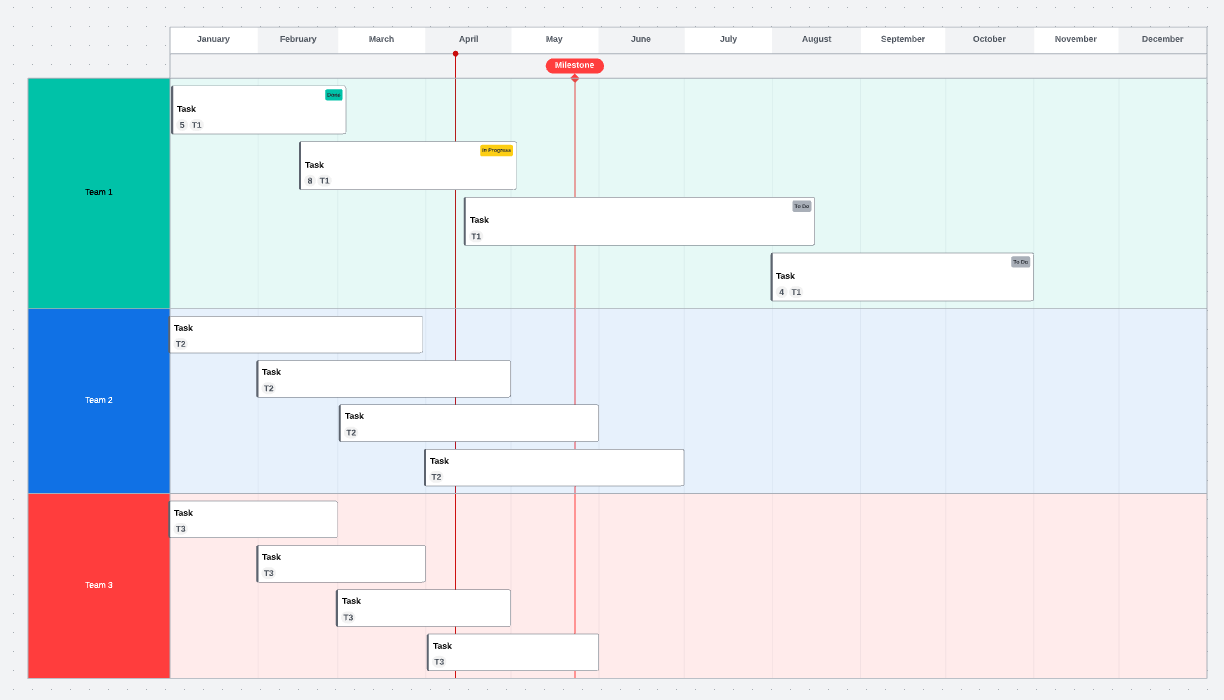
For this example I will be using the Lucidspark Gantt chart template. Click to access the Gantt Chart template. From this template I am beginning with a project that includes three teams. Each team is currently assigned four tasks that will be completed over the course of a year.
l7CWR9LI5LrzQleSA2el-Q.png

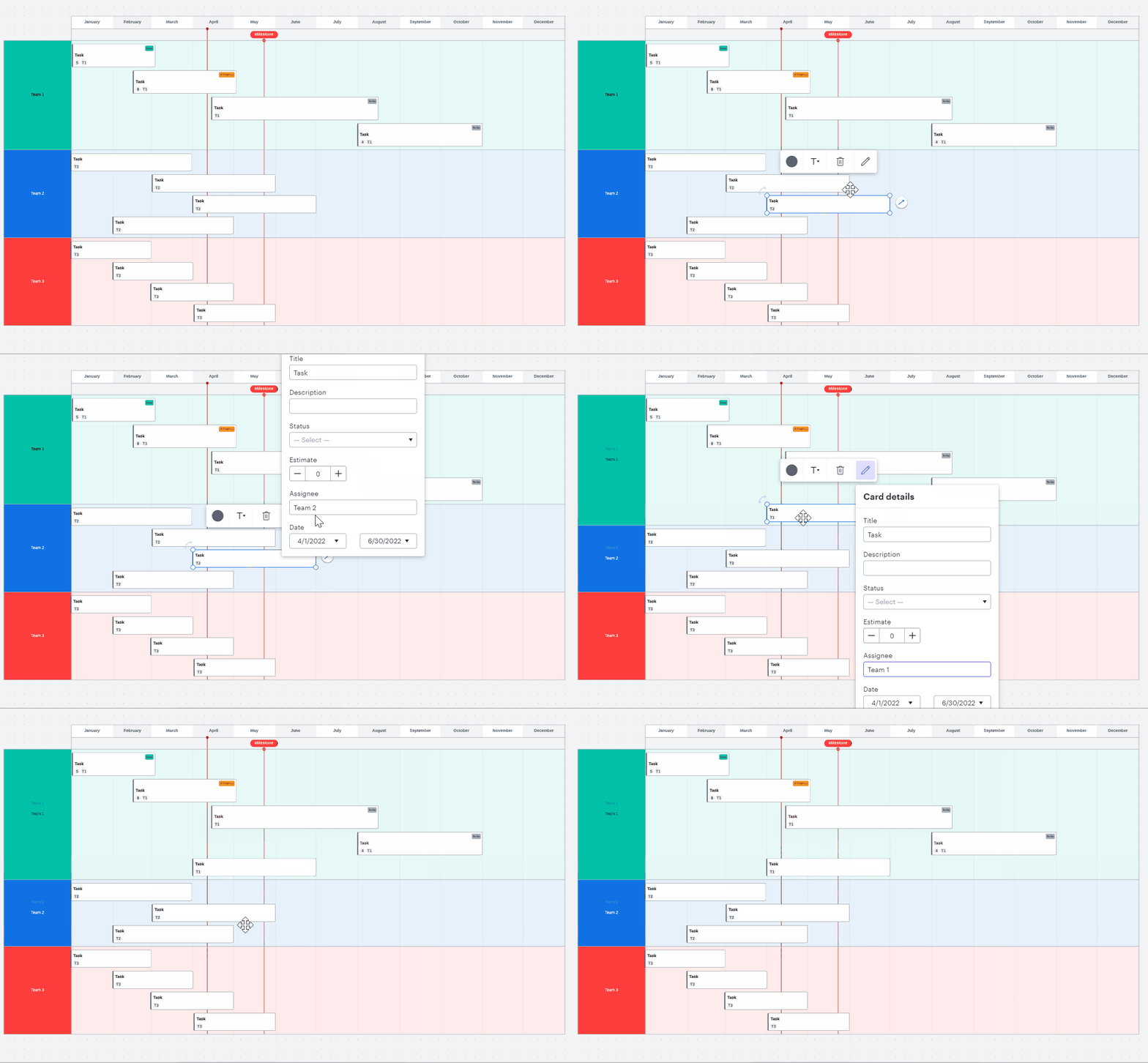
If I want to reassign a task from Team 2 to Team 1 I click on the task and select the pencil icon to edit details. From here I can change the assignee to Team 1. 
MKqQxaRfU5m51uMjrH7cCA.gif

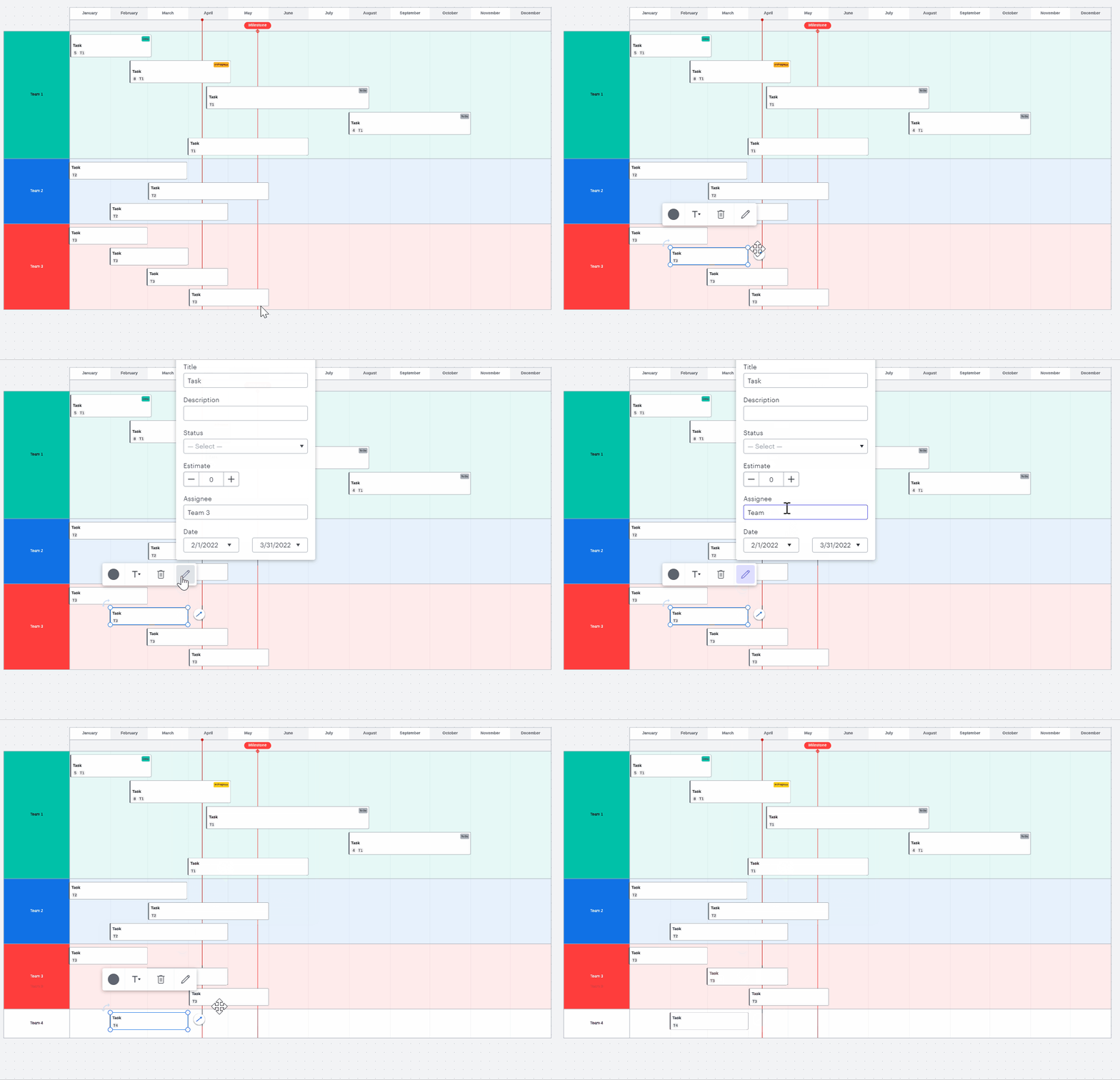
Instead of reassigning to an existing team I can also add a new team to the Gantt chart by assigning a task to them. To do so I click on the task and select the pencil icon to edit details. In this example I will assign it to a Team 4 which will then be added to my Gantt chart.
ECr17i0MILsCkXBxyEfCEQ.gif

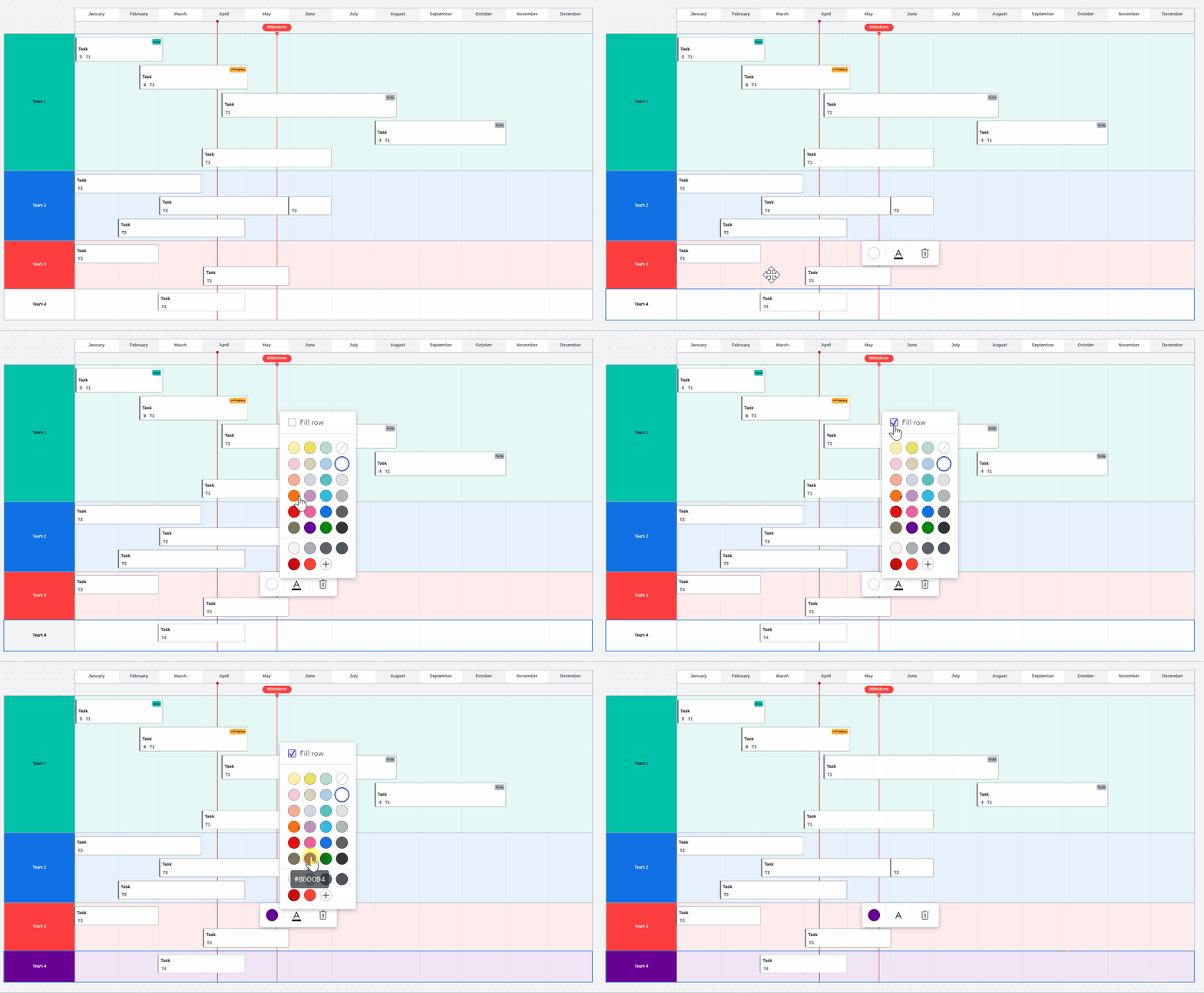
The new row for the added team will need to be styled to match the color style of my existing Gantt chart. If I want to make my new row for Team 4 purple I will double click on the Team 4 column. From there I will select the round color icon. I will check the box next to “Fill color” at the top so that the entire row will be filled with purple (lighter purple in the columns following the Team name). Then I will click on the purple icon and my entire row will be filled with the color I selected.
PlpkHji2duF0NFuhOud7Fg.gif

To remove an assignee you can delete the name of the assignee within the edit detail tab. This will move the task to an "unassigned" box. You can also move tasks around the graph to switch assignees. To learn more about creating and editing tasks refer to our Lucidspark Cards article.

To remove a row double click the title row and click “Delete” or “Backspace” on the keyboard. 

 Follow up in the comments section below with any questions or to show an example of how you use Gantt charts to manage your project timelines!

Comments

Lucid & airfocus support team
June 3, 2025

Hi ​@SharmilShah , 

Thank you for following up! Can you please send a temporary Support PIN for this document? This will allow me to take a closer look at the issue you’re experiencing. For more information on generating a Support PIN, check out this Help Center article.

Lucid Legend Level 3
June 4, 2025

Hello ​@Michelle S  As per our org security policy I can’t share the support PIN but I can share the problem statement/use case via a zoom/MS Teams call.

Lucid & airfocus support team
June 5, 2025

Hi ​@SharmilShah , 

Thanks for your response! Regarding your first question, you can accomplish this with conditional formatting and formulas. You will need to use Universal Canvas to edit your board in Lucidchart if you would like to use these features.

I would recommend browsing through our Templates to find one that best fits your needs. You can narrow down your search to Gantt charts and Timelines. 

Additionally, adding a progress bar with % completion is not currently available in Lucid, but we’re very interested in your feedback and committed to continually improving our products. If you’re willing to share, we’d love to hear more details about your use case or what you’d like to see in this experience within this thread. I’ve also converted this post to an idea linked here  so that it’s visible to others within the Product Feedback section of the community - from here, they can upvote it and add details of their own.

Finally, for more information on how Lucid manages feedback via this community, take a look at this post:

https://community.lucid.co/welcome-to-the-lucid-community-15/what-happens-to-my-feedback-5438

July 7, 2025

The default template example had 3 milestones.  How do you add new milestones?  Right-clicking on a Milestone and selecting “duplicate” does nothing.  Lucid documentation does not mention anything about adding milestones.  This Gantt chart is “cute”, but not functional… I can’t add Milestones.  Adding a new task has a completely different format than the existing tasks.  I cannot find UI to show the options for editing data: teams, Status, Tasks, etc.  Editing the Card Title does not edit the display text…  Figured out workarounds to everything except for how to add a new Milestone...

Lucid Legend Level 3
July 8, 2025

Hi ​@K Emory  Could you please share the workaround you found for rest of the problem statement? I am facing similar issue.


Thanks,

Sharmil

Lucid & airfocus support team
July 8, 2025

Hi ​@K Emory and ​@SharmilShah

Thank you for posting in the Lucid Community! ​@K Emory, in regards to adding a milestone, can you please confirm what Gantt chart template you are using so I can take a closer look? 

@K Emory and ​@SharmilShah, in regards to your card details not appearing, I have reported this issue to our development team. It looks like this Lucid cards issue is happening with older Lucidspark boards. As a workaround, I would recommend copying and pasting your content from your board into a brand new board. I apologize for any disruption this may cause, and I will update this thread with any new information about a fix. Please follow along on this thread for updates, and post any additional questions or concerns below.