February 28, 2024
Solved

Why hidden layers in presentation are showing when slides are exported to a pdf?

  • February 28, 2024
  • 17 replies
  • 414 views

I am exporting slides to PDF and it looks like the toggle for which layers to show in the presentation has no impact on the exported PDF. 

Best answer by Micah

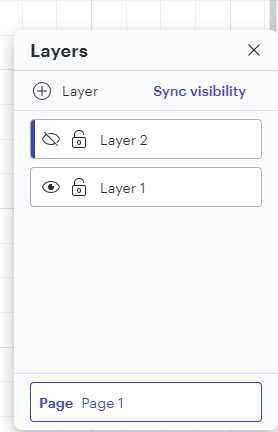
Excellent tips, @Ria S! I have one additional suggestion to contribute, @JanneSOK, which is to ensure that you click the “sync visibility” button in the layers menu after you have them configured with your desired visibility settings.   


This will make sure that your configuration is carried over into any printing or exporting that you do. 

Comments

Ria S
Lucid Legend Level 9
February 28, 2024

Hi @JanneSOK 

There are a few reasons why hidden layers might still show up in PDFs exported from Lucidchart, despite using the presentation's layer toggle settings. You can try the following: 

  • Double-Check Export Settings - Review your export settings in Lucidchart
  • Examine Individual Objects - Go through each element on the slide and check its layer assignment and grouping. Make sure nothing is set to visible that shouldn't be
  • Clear Cache and Test Other Browsers - Clear your cache and retry the export. If it still fails, try a different browser.
  • Lucidchart Support - If none of the above solutions work, contact Lucidchart's support team for further assistance. They may have insights into specific bugs or known issues.

Alternatively, there are some great tips in the Help Centre you can explore further : Troubleshooting: Export or print a document – Lucid

Ria S.
JanneSOKAuthor
February 28, 2024

I have used tha latest Edge. Will try another browser. The elements are on the right layer and will get hidden if the layer is made invisible. But still they show up in the export. 

Micah
MicahAnswer
Lucid community team
February 28, 2024

Excellent tips, @Ria S! I have one additional suggestion to contribute, @JanneSOK, which is to ensure that you click the “sync visibility” button in the layers menu after you have them configured with your desired visibility settings.   


This will make sure that your configuration is carried over into any printing or exporting that you do. 

JanneSOKAuthor
February 29, 2024

Thanks, Micah, that actually solved the issue! Doesn’t make any sense, but at least now my handmade grid lines are not exported with the final output :)

Micah
Lucid community team
February 29, 2024

@JanneSOK Glad to hear that! I’m sorry for the confusion there. If you have feedback about this (or anything else that you’d like to share), we’d always love to hear more about it in the Product Feedback section of the community.

August 22, 2024

I’m having a similar problem.
How can I get the Export Slides PDF to show all layers specified in the slide configuration?


However, the Export Slides to Google Slides works perfectly.
But Export Slides to PDF does not show the layers specified in each slide.

So I’m getting different outputs when exporting slides to PDF as opposed to Google Slides.

Export to PDF is preferred as the quality is higher in the PDF than the Slides export.

I’ve used the ‘sync visibility’ suggestion but that did not have an impact on this situation.


Further testing shows that all exports (JPG, PDF, PNG...) ignore the displayed layers.
Instead, exports all layers defined in the diagram.

Micah
Lucid community team
August 22, 2024

Hi @Don.McCarty, thanks for continuing this thread. This sounds unusual - clicking Sync visibility should apply this to any export that you do. I’d like to take a closer look! Would you please share a screenshot of your Layers menu with your desired visibility settings, and also provide a document support PIN for the document you’re trying to export? This PIN is for internal use only and doesn’t grant public access to your document, so you can share it safely in this thread. You can obtain a PIN via Help > Temporary support PIN.  

August 23, 2024

Thank you @Micah for responding so quickly.

My temporary support pin is 

  • 3YAU4seSkpk8


Micah
Lucid community team
August 23, 2024

Hi Don, thanks for such a detailed response. I’ve taken a look at your document, and the exports are behaving as expected for me. I noticed in your screenshot of your Layer menu with your desired visibility that you’ve hidden both layers, but the Sync visibility button remains active. When the Sync visibility button is grayed out , as shown in my screenshot below, this means that the document as you are viewing it in the Lucidchart editor is also how it will export. 

Can you please return to the configuration you shared in your screenshot (with both layers hidden), click the Sync visibility button, and attempt the exports once more?


Finally, can you confirm that you have Show Individual Layers disabled?


August 23, 2024

I’m not sure how the different slide exports are expected to behavior.

Why would exporting to Google slides show the different layers per the slide definition; but export to slides to PDF would depend on the state of ‘Sync Visibility’?


To test, I’ve done the following

  1. enabled all layers
  2. clicked sync visibility
  3. export slides to pdf
  4. same pdf output as above

At present, I have no way to export my slides to a PDF accurately without going through Google Slides.