Solved

Unable to copy lines between assisted layout containers

  • December 5, 2025
  • 6 replies
  • 113 views

Forum|alt.badge.img

I have the following case:

  1. I create a base diagram, that other people have to copy and add somethjing to it
  2. I use a few containers with “assisted layout” and a bunch of arrow “connecters” between the elements inside of them
  3. When I copy the diagram or duplicate tab, all the connectors going to containers with assisted layouts are gone

I tried to use master page, locking, unlocking, removing all layers, nothing works, I always loose all the connectors between elements.


Best answer by Zuzia S

Hi ​@mpiatkowski, thank you for your post and I am sorry that you are experiencing issues, and thanks ​@aparrish for chiming in! Let’s try a few troubleshooting steps in this thread first to have a better understanding of the issue together. 

@mpiatkowski I tried to reproduce the issue you are experiencing and I was not able to. 

Could you try opening your document in a private or incognito window to help us narrow down the potential cause? Could you also try connecting to a different network or disconnecting from your VPN (if applicable)? Sometimes account performance issues can be related to internet security/speed or browser issues. These steps will help us eliminate that possibility. For help with opening an incognito window, please see this community post.

Additionally, WebGL might be causing an issue with the graphics card on your computer. Can you try toggling WebGL off? This can be done by selecting View > Rendering > Use WebGL and un-selecting this option. For help with disabling WebGL, please see this Community post

If the issue persists then, could you please provide the following information in order for me to have a look?:

  • Screenshots encompassing the entire screen illustrating steps leading up to the issue.
  • A temporary Document Support PIN for this document. This PIN is safe to post in this thread because it is only accessible by members of the Lucid support staff. You can find steps for generating a Support PIN in this Lucid Help Center article:  Generate a Lucid Support PIN 

Thanks for your help and patience!

Comments

aparrish
Lucid Legend Level 7
Forum|alt.badge.img+18
  • Lucid Legend Level 7
  • December 6, 2025

@mpiatkowski it sounds like you might be experiencing a glitch with our software. We'd love to take a closer look. Would you mind contacting our Support Team via this form so that they can look into the matter for you? Including a screenshot or screen recording and a detailed description of the issue with the URL to your doc would be super helpful. Thanks in advance for your help and patience!


Zuzia S
Forum|alt.badge.img+8
  • Lucid community team
  • Answer
  • December 10, 2025

Hi ​@mpiatkowski, thank you for your post and I am sorry that you are experiencing issues, and thanks ​@aparrish for chiming in! Let’s try a few troubleshooting steps in this thread first to have a better understanding of the issue together. 

@mpiatkowski I tried to reproduce the issue you are experiencing and I was not able to. 

Could you try opening your document in a private or incognito window to help us narrow down the potential cause? Could you also try connecting to a different network or disconnecting from your VPN (if applicable)? Sometimes account performance issues can be related to internet security/speed or browser issues. These steps will help us eliminate that possibility. For help with opening an incognito window, please see this community post.

Additionally, WebGL might be causing an issue with the graphics card on your computer. Can you try toggling WebGL off? This can be done by selecting View > Rendering > Use WebGL and un-selecting this option. For help with disabling WebGL, please see this Community post

If the issue persists then, could you please provide the following information in order for me to have a look?:

  • Screenshots encompassing the entire screen illustrating steps leading up to the issue.
  • A temporary Document Support PIN for this document. This PIN is safe to post in this thread because it is only accessible by members of the Lucid support staff. You can find steps for generating a Support PIN in this Lucid Help Center article:  Generate a Lucid Support PIN 

Thanks for your help and patience!


Forum|alt.badge.img
  • June 18, 2026

I am having this exact problem.

Steps to reproduce:

  1. Create a new blank diagram
  2. Use the Flowchart shape set
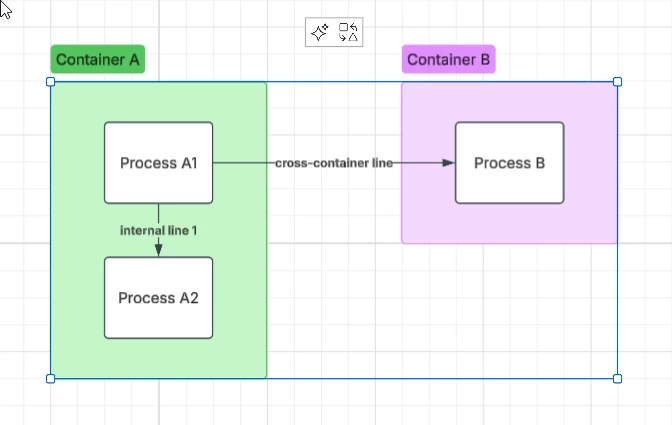
  3. Create two containers (A and B) with ASSISTED LAYOUT ENABLED
  4. Create two Process shapes in container A, connect them inside the container with an Arrow Line
  5. Create a third Process in container B
  6. Link a Process from Container A to the Process in container B using another Arrow Line
  7. Use Ctrl-A keyboard shortcut to select all
  8. Observe how the select highlight / blue line does not include the Arrow Lines
    1. Arrow lines not visibly selected


  9. Use Ctrl-C keyboard shortcut to copy the selection
  10. Open a new blank diagram
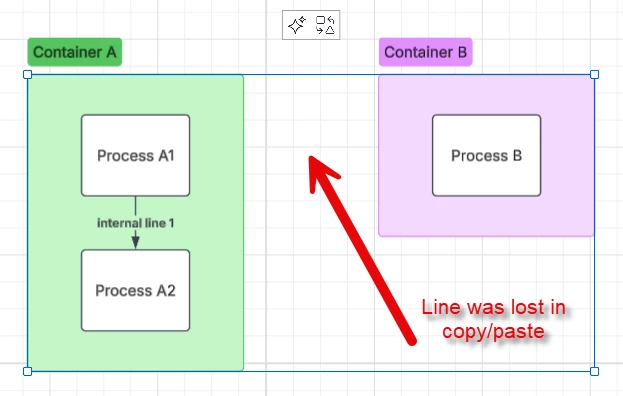
  11. Use Ctrl-V to paste the selection
  12. Observe how the internal line between the two container A processes is preserved/copied, but the cross-container line from Process A to Process B is omitted

Now, the workaround -- disabling assisted layout:

  1. Return to the first diagram
  2. Disable assisted layout on both of the containers
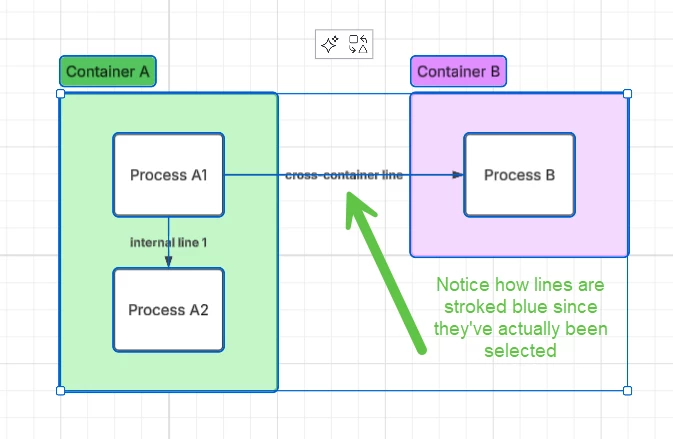
  3. Press Ctrl-A to select all
  4. Notice how all lines are highlighted/stroked to indicate selection. Even the Container labels have a blue selection-stroke to indicate it is properly selected
    1. non-assisted-layout containers with shared line
  5. Press Ctrl-C to copy
  6. Open a new blank document (or reuse the previously created copy-to blank document)
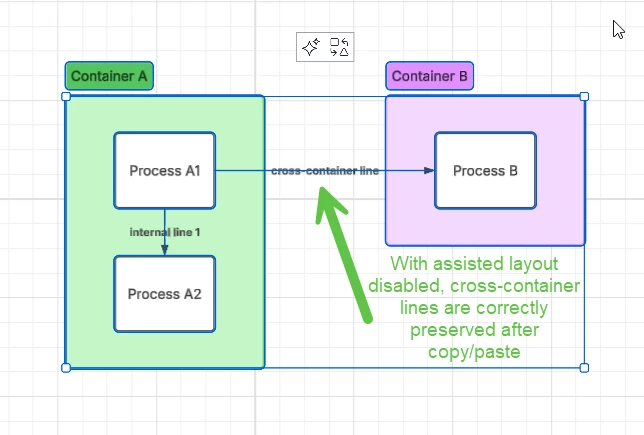
  7. Press Ctrl-V to paste
  8. Observe how all lines are copied and pasted successfully, thanks to disabling assisted layout:
    1. Copy-to showing all lines preserved


Forum|alt.badge.img
  • June 18, 2026

Another way to reproduce this bug (use Duplicate instead of Copy/Paste):

  1. Prepare the Copy From diagram as described above, including Assisted-Layout containers
  2. Right-click the diagram tab, select Duplicate
  3. Observe that the newly duplicated diagram is missing all cross-container lines when compared to the original diagram tab.

Zuzia S
Forum|alt.badge.img+8
  • Lucid community team
  • June 25, 2026

Hi ​@James D, thank you so much for chiming into this thread and my apologies for the delayed response!

I was able to reproduce the issue and believe you have identified a bug. I have reported this to our development team. I apologize for any disruption this may cause, and I will update this thread with any new information about a fix. Please follow along on this thread for updates, and post any additional questions or concerns below!


Forum|alt.badge.img
  • June 25, 2026

Hi ​@James D, thank you so much for chiming into this thread and my apologies for the delayed response!

I was able to reproduce the issue and believe you have identified a bug. I have reported this to our development team. I apologize for any disruption this may cause, and I will update this thread with any new information about a fix. Please follow along on this thread for updates, and post any additional questions or concerns below!

Thanks!

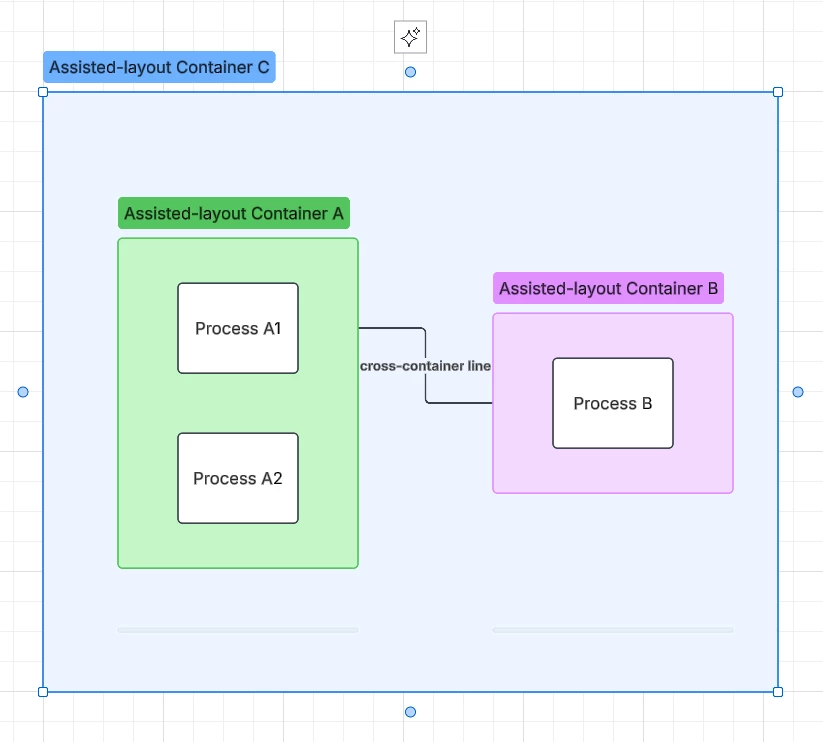
Another workaround is to surround both containers with a large assisted-layout container. Surrounding with a third Assisted-layout container allows tab duplication and copy/paste to carry over all lines and shapes as expected.

This has drawbacks, though, as enabling assisted layout will cause your internal containers to move to fit the assisted layout grid - see the bent cross-container line below.

Surrounding with a third Assisted-layout container allows tab duplication and copy/paste to carry over all lines and shapes as expected.

Surrounding them in a Non-Assisted container does not help at all - the copy/paste omits the line or the entire internal containers, depending on how you copy/paste.