Solved

SVG becomes an ordinary image in Lucid

  • January 15, 2026
  • 5 replies
  • 62 views

Forum|alt.badge.img+1

Hi!

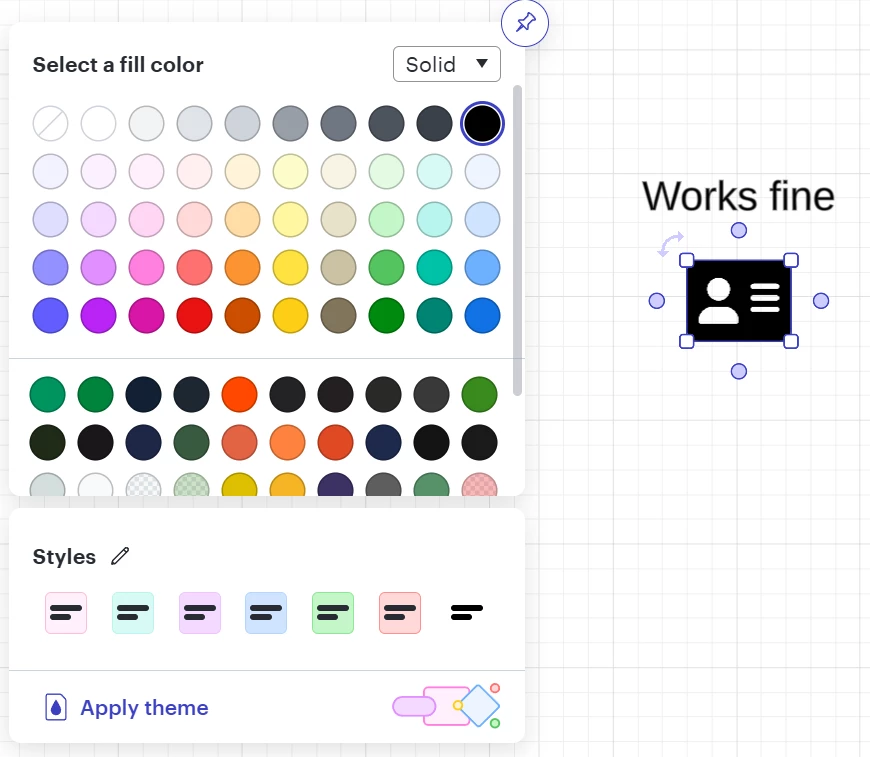
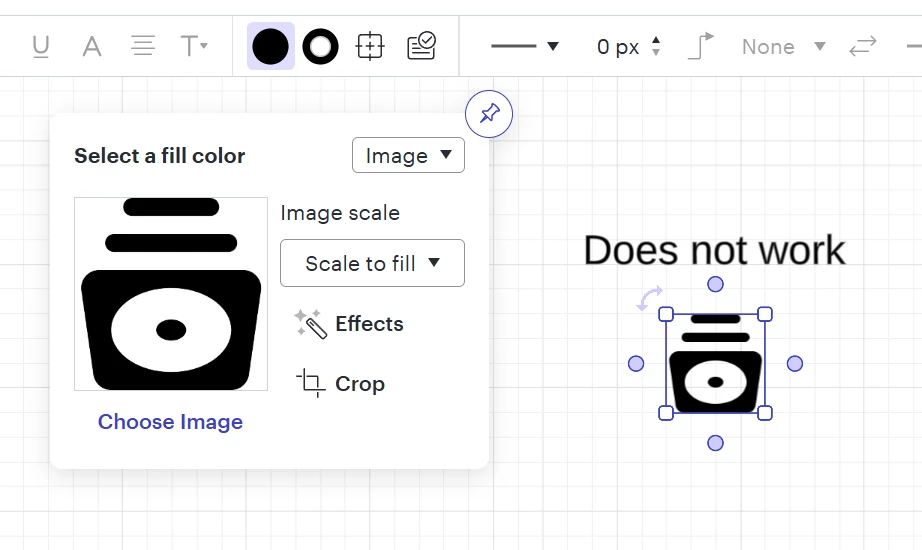
I use Font Awesome icons in my diagrams. I import thier svgs as shapes and has always been able to chage the color of them. Now suddenly they seems to become “ordinary” images and not treated as shapes, therefor I cant change the fill color anymore.

I click on “More shapes” and then “Import shapes”, import the .svg and have the checkbox “Rasterize SVG imports” checked (tried unchecked as well). Old imported SVGs from the same icon-library works very well.

I tried this on several computers and I also tried in incognito mode, all with the same bad result.


Can you please help me out here?


Thanks in advance!

Michael
Best answer by alison cheney

Hi ​@Michael Nilsson Pauli,


Thank you for your response and for showing the difference of older versions versus new versions of the Font Awesome icons. Thank you ​@Meghan, for jumping in here and providing great knowledge and resources in regard to rasterizing SVG imports.


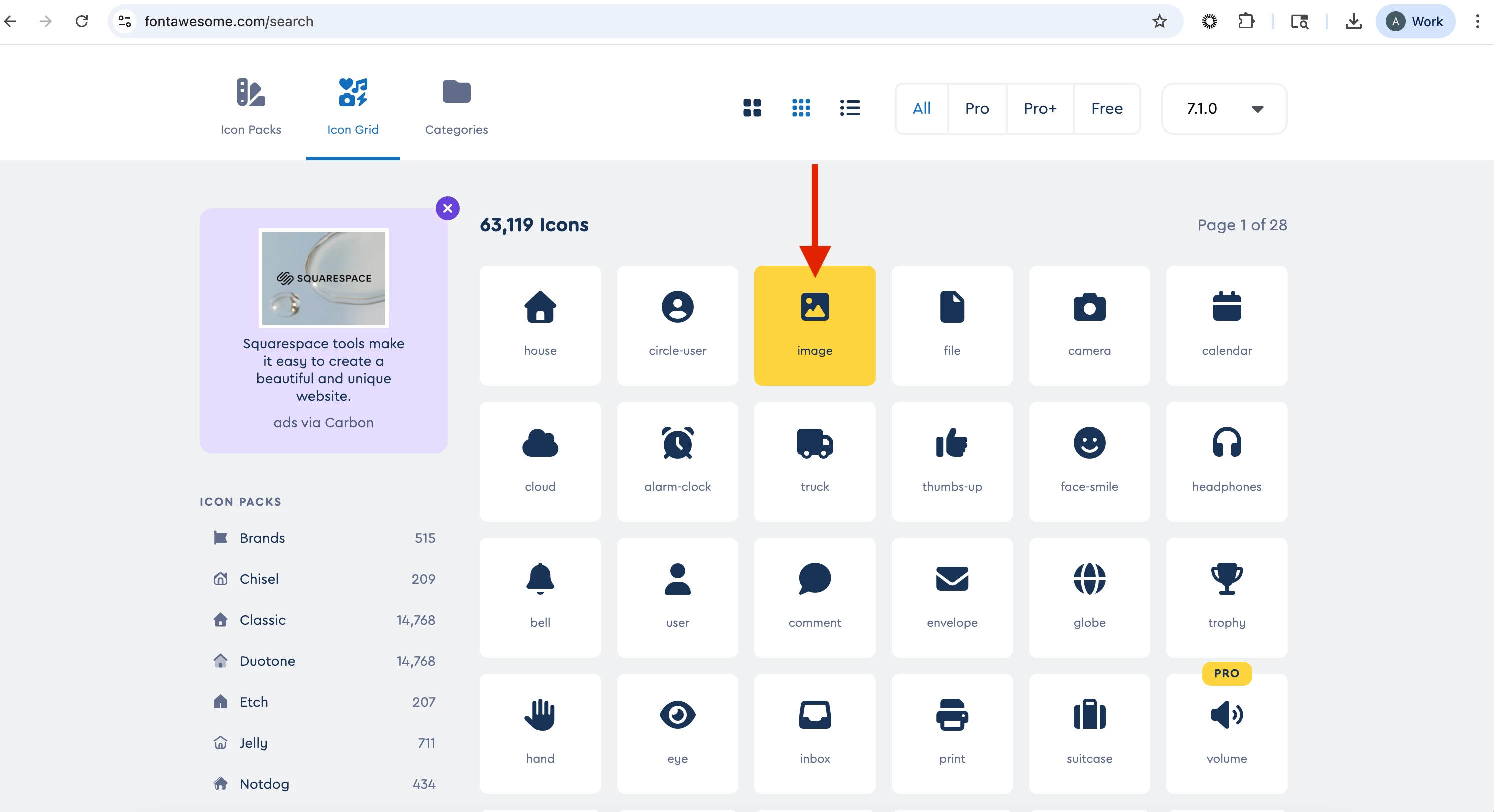
I was able to find a workaround when downloading icons as SVG files in Font Awesome, and wanted to share the steps I took below as a means of changing the fill color directly on the Font Awesome website:


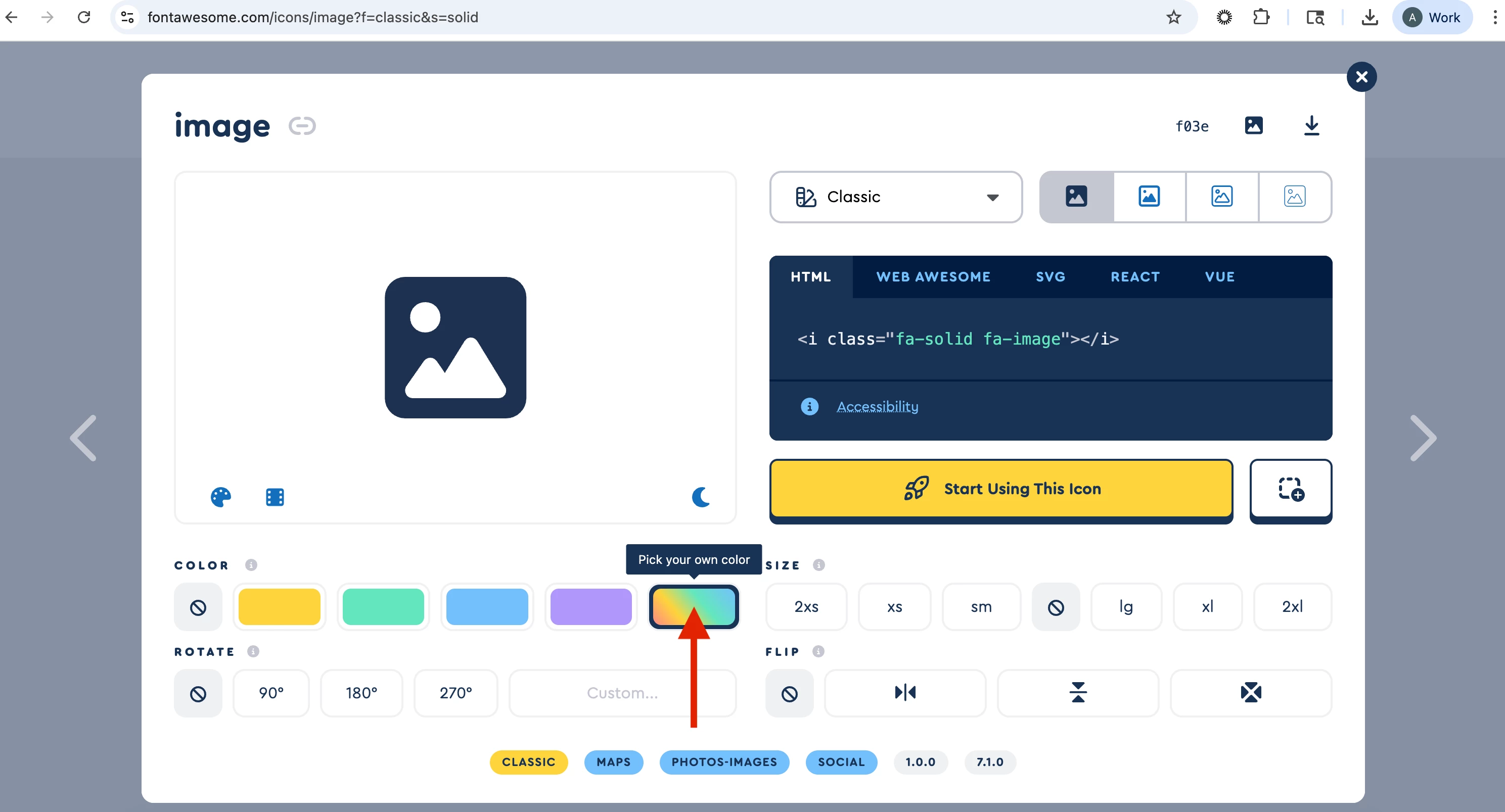
Click on the icon you want to select


Select “Pick your own color


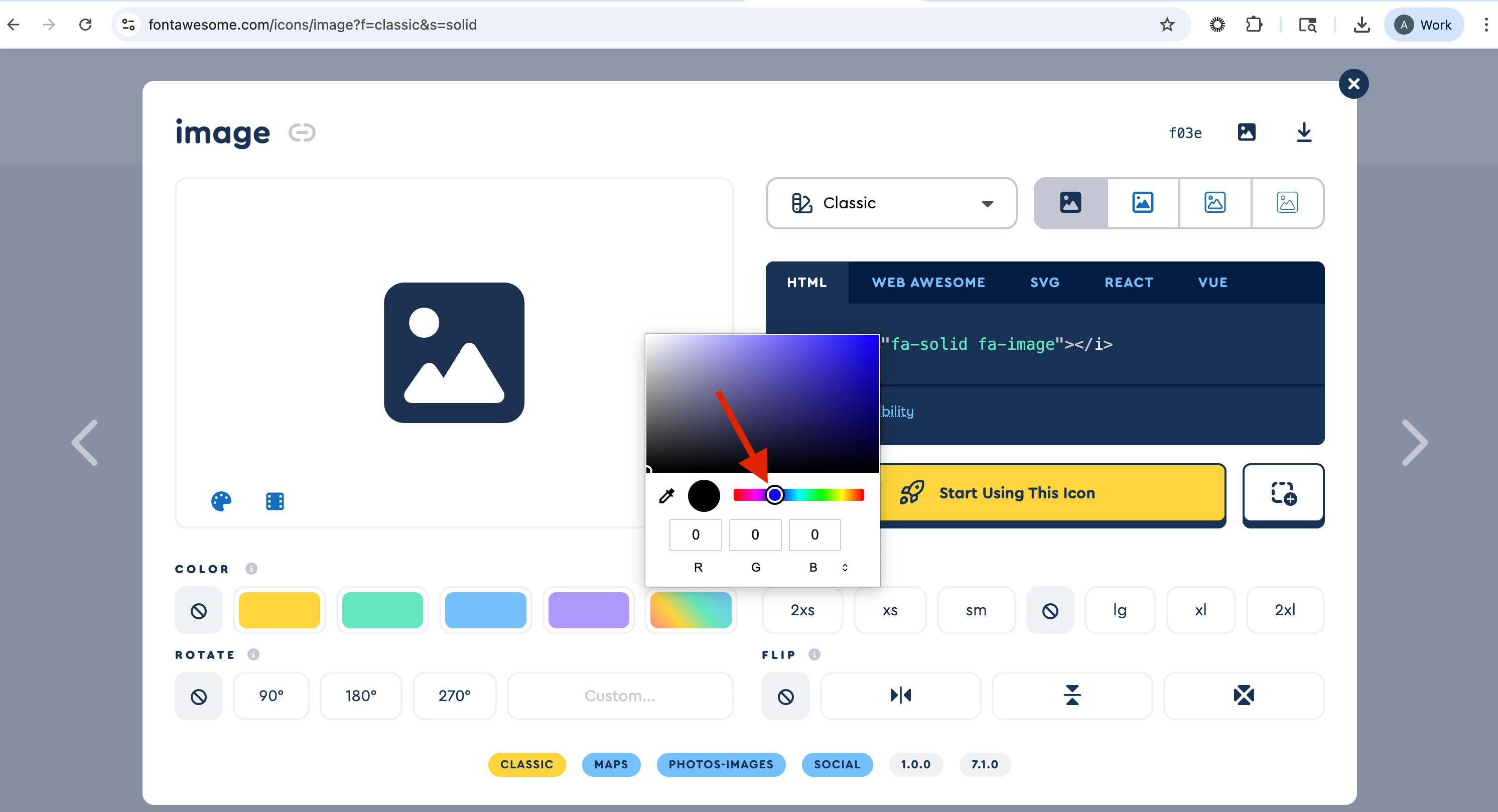
Pick the fill color you would like for your icon


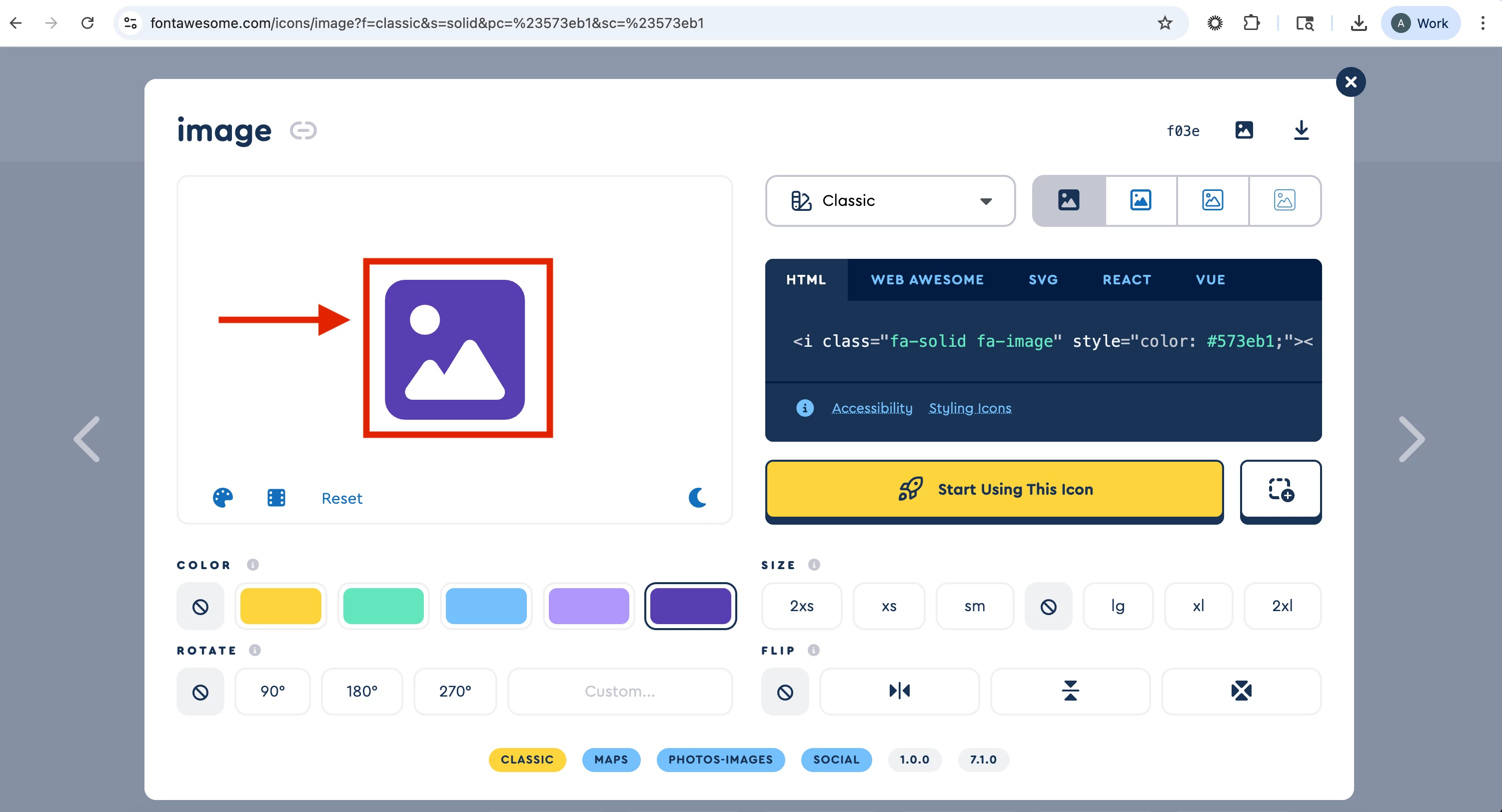
The fill color will change to the color you selected, and now you can download this icon as a SVG, and import it into your Lucidchart document.


If this solution doesn’t align with your workflow, would you mind sharing a temporary Support PIN for this document? This will help me take a closer look at what’s going on. This PIN is safe to post in this thread because it is only accessible by members of the Lucid support staff. You can find steps for generating a Support PIN in this Lucid Help Center article: Generate a Lucid Support PIN.


Please let me know if you have additional questions!

Comments

alison cheney
Forum|alt.badge.img+3
  • Lucid community team
  • January 15, 2026

Hi ​@Michael Nilsson Pauli,

Thank you for your post in the Lucid Community!

Are you seeing this issue across the board with anything you are importing as an SVG, or only with the Font Awesome icons you mentioned?


Would you mind sending me the following? This will help me take a closer look at the issue you’re experiencing.

  • A screenshot of one of the old imported SVGs from the same icon-library you mentioned that IS working very well.
  • A screenshot of the issue you are experiencing showing one of the Font Awesome icons and the inability to change the fill color.

*Comparing the old imported SVGs to the current SVG icons will help me better understand the issue you are experiencing.

  • Could you share a temporary Document Support PIN for this document? This will help me take a closer look at what’s going on. This PIN is safe to post in this thread because it is only accessible by members of the Lucid support staff. You can find steps for generating a Support PIN in this Lucid Help Center article: Generate a Lucid Support PIN.

Thank you for your help and patience!


Forum|alt.badge.img+1

It seems like older versions of Font Awesome works fine, but never don’t.

If I check “Rasterize SVG imports”, older versions doesn’t work either. 

Screenshots.


alison cheney
Forum|alt.badge.img+3
  • Lucid community team
  • Answer
  • January 20, 2026

Hi ​@Michael Nilsson Pauli,


Thank you for your response and for showing the difference of older versions versus new versions of the Font Awesome icons. Thank you ​@Meghan, for jumping in here and providing great knowledge and resources in regard to rasterizing SVG imports.


I was able to find a workaround when downloading icons as SVG files in Font Awesome, and wanted to share the steps I took below as a means of changing the fill color directly on the Font Awesome website:


Click on the icon you want to select


Select “Pick your own color


Pick the fill color you would like for your icon


The fill color will change to the color you selected, and now you can download this icon as a SVG, and import it into your Lucidchart document.


If this solution doesn’t align with your workflow, would you mind sharing a temporary Support PIN for this document? This will help me take a closer look at what’s going on. This PIN is safe to post in this thread because it is only accessible by members of the Lucid support staff. You can find steps for generating a Support PIN in this Lucid Help Center article: Generate a Lucid Support PIN.


Please let me know if you have additional questions!


Forum|alt.badge.img+1

Hi ​@Michael Nilsson Pauli,


Thank you for your response and for showing the difference of older versions versus new versions of the Font Awesome icons. Thank you ​@Meghan, for jumping in here and providing great knowledge and resources in regard to rasterizing SVG imports.


I was able to find a workaround when downloading icons as SVG files in Font Awesome, and wanted to share the steps I took below as a means of changing the fill color directly on the Font Awesome website:


Click on the icon you want to select


Select “Pick your own color


Pick the fill color you would like for your icon


The fill color will change to the color you selected, and now you can download this icon as a SVG, and import it into your Lucidchart document.


If this solution doesn’t align with your workflow, would you mind sharing a temporary Support PIN for this document? This will help me take a closer look at what’s going on. This PIN is safe to post in this thread because it is only accessible by members of the Lucid support staff. You can find steps for generating a Support PIN in this Lucid Help Center article: Generate a Lucid Support PIN.


Please let me know if you have additional questions!


This is a good workaround, even though its not optimal. This will add some extra time to my process. 

Do you know if there is another way fixing this in the Font awesome end?


alison cheney
Forum|alt.badge.img+3
  • Lucid community team
  • January 21, 2026

Hi ​@Michael Nilsson Pauli,

Thank you for your response! Could you share a temporary Document Support PIN for this document? This will help me take a closer look at what’s going on. This PIN is safe to post in this thread because it is only accessible by members of the Lucid support staff. You can find steps for generating a Support PIN in this Lucid Help Center article: Generate a Lucid Support PIN.


I am not sure of a more efficient method to change the fill color of your icons in Font Awesome, but I was able to find this Font Awesome help center article that includes a variety of resources that might be able to give you more options that are less time consuming!


If you have additional feedback on this topic, please first search the Product Feedback section of this community (with the filter Topic Type = Idea) to see if it’s already been submitted. If so, please add any additional details you’d like and upvote the request - this consolidation helps to refine feedback and properly capture the popularity of the request.

If no one has submitted this idea yet, please create one of your own and be sure to include details about your use case or what you’d like to see in this experience. This will also allow other users with similar requests to discover and upvote it, then add details of their own.

Finally, for more information on how Lucid manages feedback via this community, take a look at this post: What happens to my feedback? | Community