
Shanna H
Lucid support team
May 5, 2022
Lucid advice

Manage your project using a Gantt Chart in Lucidspark

  • May 5, 2022
  • 46 replies
  • 2546 views

Gantt charts allow you to visualize all tasks for an upcoming project in one location even when the project spans across multiple teams. Gantt charts work similarly to our timeline functionality - namely it lays out individual tasks and their dependencies task ownership task duration and the expected duration of the project as a whole. With each task clearly mapped out and assigned the project manager and their entire team can easily stay on top of deadlines and make sure everyone is accountable for their work.

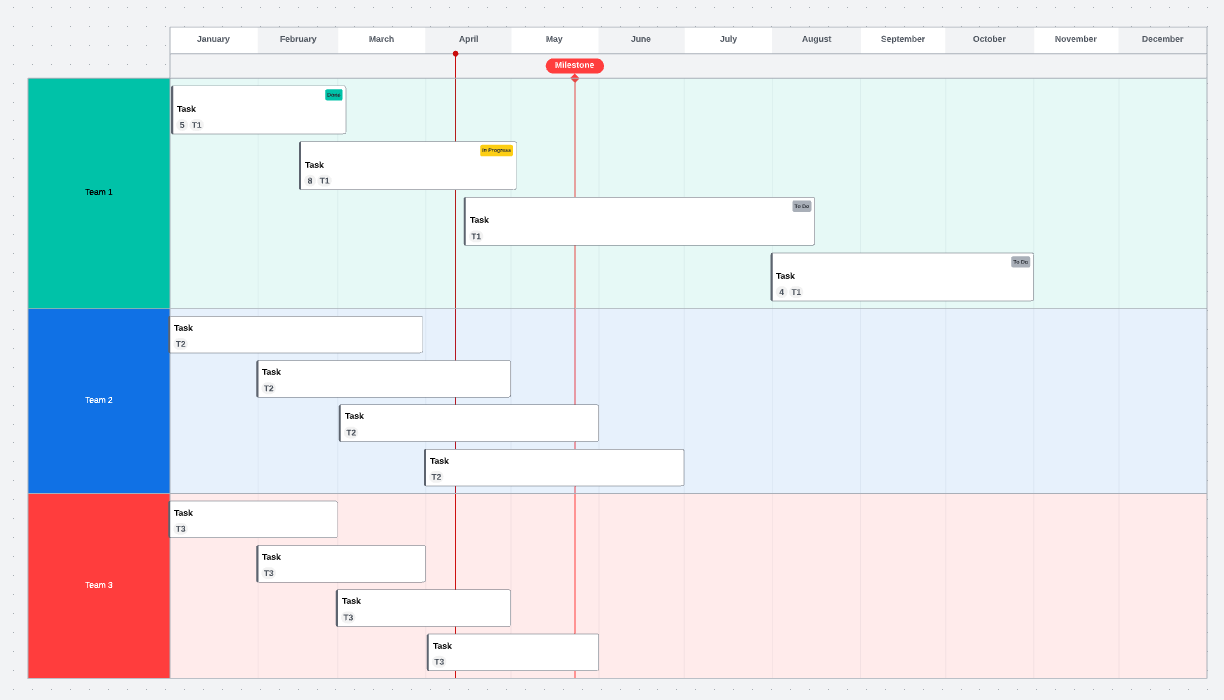
For this example I will be using the Lucidspark Gantt chart template. Click to access the Gantt Chart template. From this template I am beginning with a project that includes three teams. Each team is currently assigned four tasks that will be completed over the course of a year.
l7CWR9LI5LrzQleSA2el-Q.png

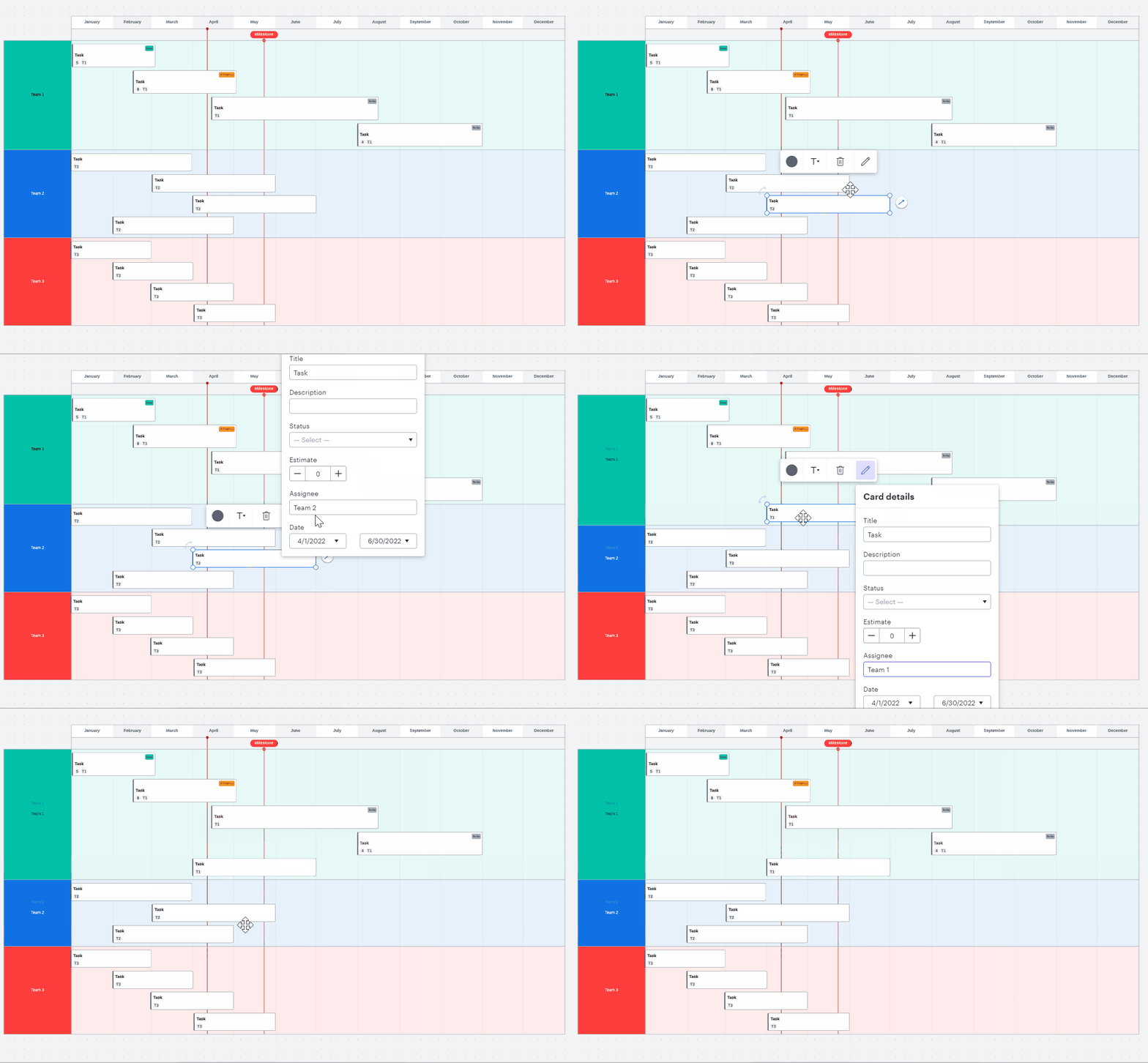
If I want to reassign a task from Team 2 to Team 1 I click on the task and select the pencil icon to edit details. From here I can change the assignee to Team 1. 
MKqQxaRfU5m51uMjrH7cCA.gif

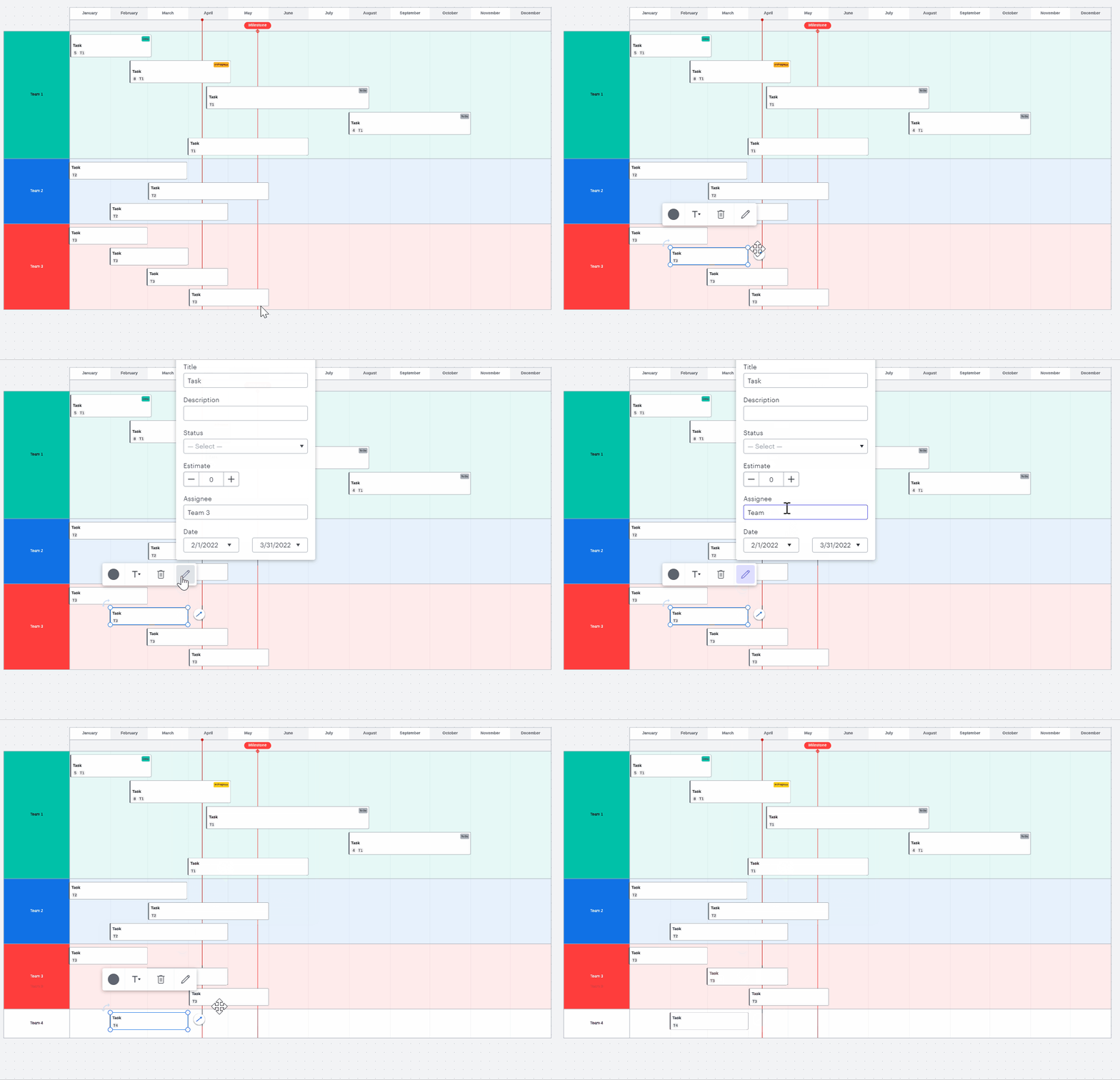
Instead of reassigning to an existing team I can also add a new team to the Gantt chart by assigning a task to them. To do so I click on the task and select the pencil icon to edit details. In this example I will assign it to a Team 4 which will then be added to my Gantt chart.
ECr17i0MILsCkXBxyEfCEQ.gif

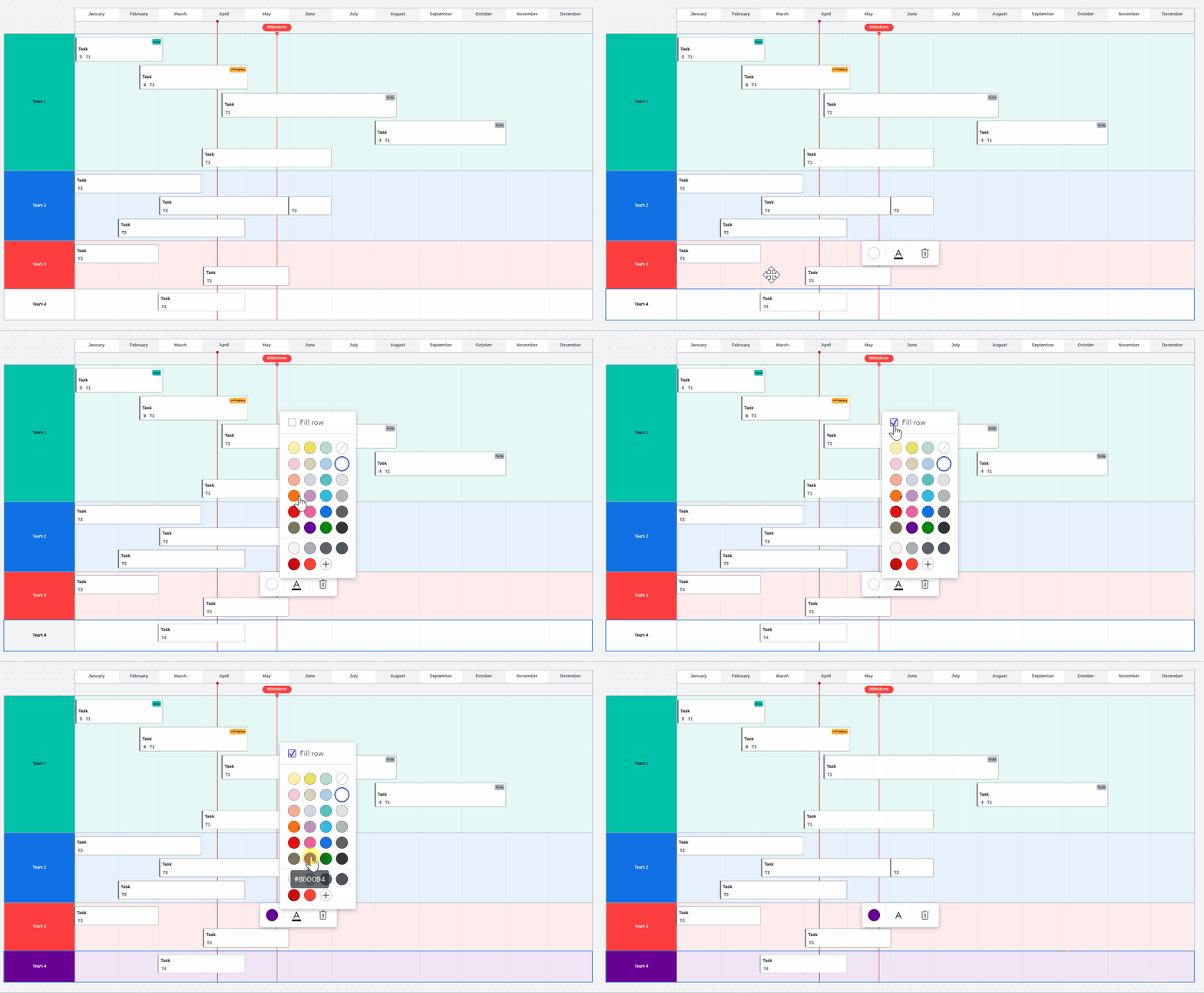
The new row for the added team will need to be styled to match the color style of my existing Gantt chart. If I want to make my new row for Team 4 purple I will double click on the Team 4 column. From there I will select the round color icon. I will check the box next to “Fill color” at the top so that the entire row will be filled with purple (lighter purple in the columns following the Team name). Then I will click on the purple icon and my entire row will be filled with the color I selected.
PlpkHji2duF0NFuhOud7Fg.gif

To remove an assignee you can delete the name of the assignee within the edit detail tab. This will move the task to an "unassigned" box. You can also move tasks around the graph to switch assignees. To learn more about creating and editing tasks refer to our Lucidspark Cards article.

To remove a row double click the title row and click “Delete” or “Backspace” on the keyboard. 

 Follow up in the comments section below with any questions or to show an example of how you use Gantt charts to manage your project timelines!

Comments

Marine C
April 18, 2023

Thanks for your response Coumba.

I tried following your recommendation but it didn't work so I will contact support.

Thanks

Ashley S102
May 7, 2023

Hi Everyone 

I have been trying to edit statuses (stata?) to add/delete/change and display swimlanes in different larger fonts

I have noted the above comments and solutions but in general there needs to be a metadata component to the board where you can edit

  • List of statuses (Done In Progress Future) to add (Pending)
  • List of teams - Are assignees even part of one or more teams?
  • List of Estimates - not so important

I would like to hide thing on boards like certain statuses (don't show future status)
I would like to see a way of making overlapping event descriptions readable

By doing this boards can be presented in different ways.


Coumba D
Lucid support team
May 8, 2023

Hi Ashley

Thanks for adding to this thread. 

It seems that you mention swimlanes which is a Lucidchart feature while this thread is about timelines and specifically Gantt charts in Lucidspark.

However the rest of your post sounds like it's indeed about Timelines. Everything that is possible to do with timelines is outlined in our Timelines Help article and more specifically in the section Adjust a timeline.

If you would like to pass on feedback to our Product Development Team about the current functionalities and what you would like to see implemented I would recommend filling in our feature request form. Ideas and feedback submitted to this form are passed on to them directly for their consideration.


Daniela C
October 3, 2023

Is there a way to change my time intervals to 2 weeks at a time? I want it to reflect my team's sprint cadence. 

Micah
Lucid community team
October 3, 2023

Hi Daniela thanks for this question! Unfortunately timeline intervals are limited to days weeks and months. For your sprints I'd recommend using the weeks option and configuring your sprints to span two week intervals. 

However I understand that a two-week interval would be perfect for representing sprints and we appreciate that feedback. If there's anything you'd like to share about what you'd like to see in this experience or your use case we'd love to hear more in this thread!

March 7, 2024

I am working on a timeline but cannot increase the letter size of the Team Names row, how can you do that? 

March 7, 2024

How do I create additional milestones?

Phillip W
Lucid support team
March 8, 2024

Hey @Stak and @Luciano F  -- thanks for posting on this thread! @Stak, if you double click on the milestone row at the top of the timeline, this will add additional milestones. 

@Luciano F unfortunately, you cannot edit the text size of the row names. If this is a feature that is important for your work, I would recommend reaching out in our Product Feedback channel. This gets your idea in front of our Dev Team for their consideration. 

Hope this helps!

March 8, 2024

Thanks @Phillip W - works perfectly, I appreciate that quick reply!

Phillip W
Lucid support team
March 8, 2024

Hey @Stak -- no problem at all!