
Solved
Issues connecting Lucid to MCP
When following the instructions for connectivity, “Save Changes” is disabled so we are unable to establish connectivity.
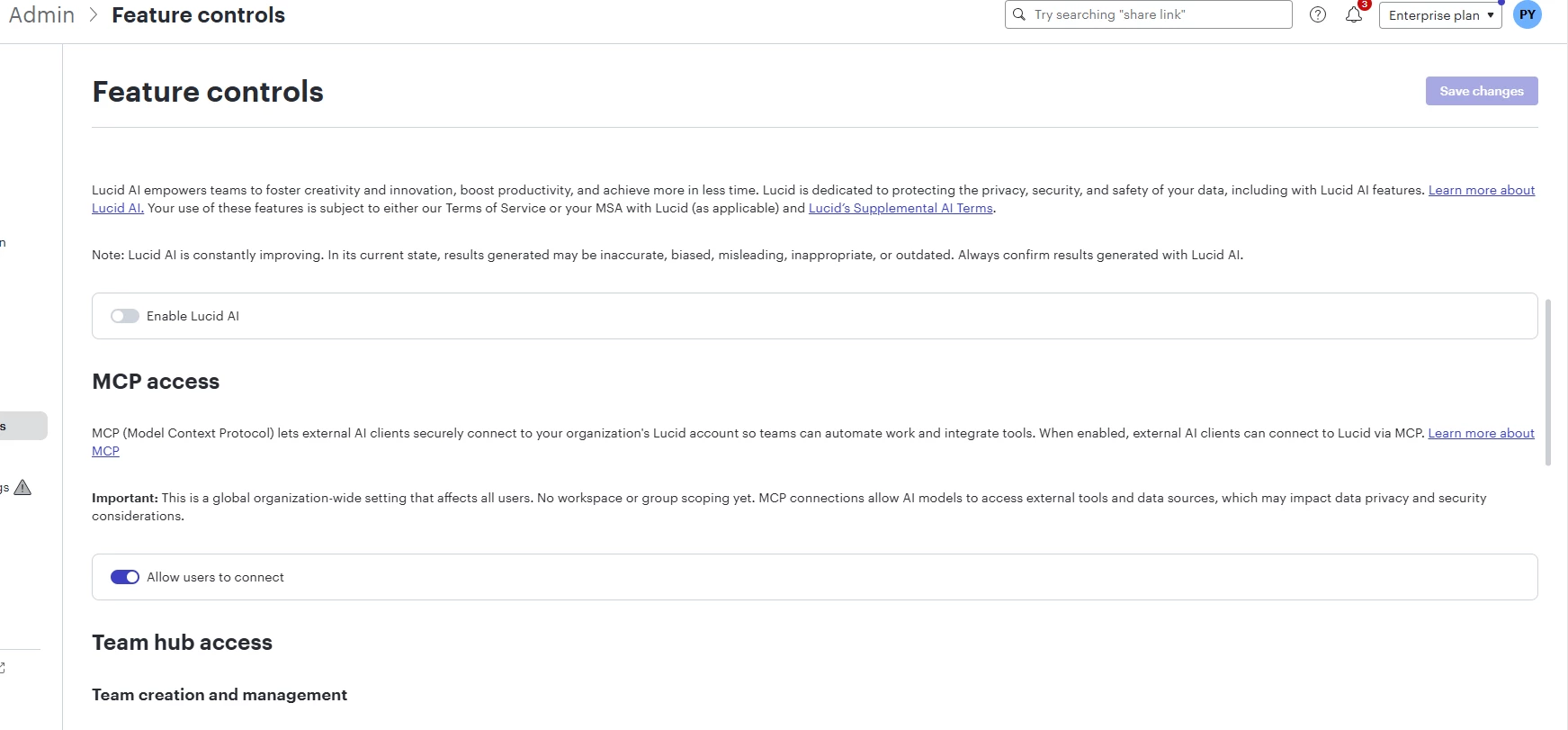
When following the instructions for connectivity, “Save Changes” is disabled so we are unable to establish connectivity.
Hi
Thank you for posting in the Lucid Community, and thank you
Could you please try the following so I can take a closer look at the issue you’re experiencing:
Could you try opening your document in a private or incognito window to help us narrow down the potential cause? For help with opening an incognito window, please see this community post.
Could you also try connecting to a different network or disconnecting from your VPN (if applicable)? Sometimes account performance issues can be related to internet security/speed or browser issues. These steps will help us eliminate that possibility.
Scroll down on that same "Feature controls" page and check the Developer controls section. If the toggle for "Allow users to develop on Lucid's APIs" is OFF, try turning it ON. If the toggle is already ON, try turning it OFF and then ON again. This often unlocks the ability to save other API-related features like MCP. Here is a link to this Lucid article if you need additional support here.
If your organization uses Lucid Enterprise Shield, there are often Data Governance rules that override standard admin toggles.
If a Shield policy is set to "Restrict all external AI data sharing," the UI will let an admin flip the toggle but the "Save" button will remain disabled because a higher-level security policy is blocking the action. In this case, I recommend reaching out to your Account Owner that has access of the entire account.
Check Security > Compliance in the admin panel to see if there is a global restriction on "AI Data Processing" or "External Integrations." Please refer to this Help Center article for further guidance: Enterprise Shield Add-on Overview
Try toggling Enable Lucid AI to ON.
Toggle Allow users to connect (MCP) to OFF then back to ON to reset the UI.
If the issue persists after attempting the steps above, will you send the following:
A screenshot of the associated Javascript Console output after reproducing the issue. You can open your Javascript Console by pressing Ctrl+Shift+J (if your computer is a Windows/Linux) OR Cmd+Opt+J (if your computer is a Mac).
Please let me know if you have any additional questions. Thanks in advance for your help and patience!
A Lucid or airfocus account is required to interact with the Community, and your participation is subject to the Supplemental Lucid Community Terms. You may not participate in the Community if you are under 18. You will be redirected to the Lucid or airfocus app to log in.
A Lucid or airfocus account is required to interact with the Community, and your participation is subject to the Supplemental Lucid Community Terms. You may not participate in the Community if you are under 18. You will be redirected to the Lucid or airfocus app to log in.
Enter your E-mail address. We'll send you an e-mail with instructions to reset your password.
 Your privacy choices


