September 3, 2025
Solved

Unable to export: "An error occurred. Failed to download."

  • September 3, 2025
  • 21 replies
  • 464 views

tried exporting to various options: pdf, png, png-transparent, svg, etc.

It says “generating file”, but then an error shows up “An error occurred. Failed to download”.
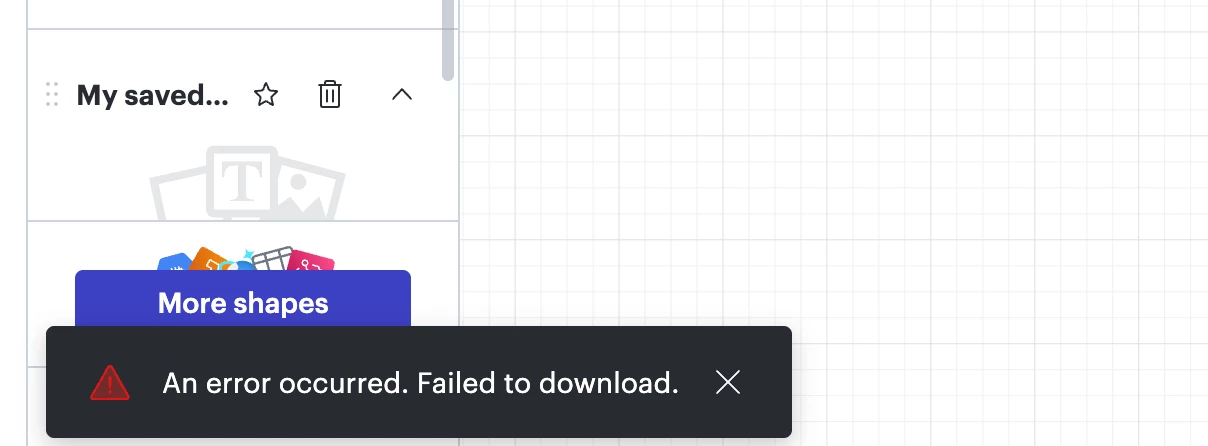
error message
​​​​​


Best answer by alison cheney

Hi ​@Wladimir J. A,

I completely understand! It makes sense that presenting directly within Lucid doesn't fit your specific workflow, so thank you for clarifying!

Since the export is the priority, I really want to help you get to the bottom of that "An error occurred. Failed to download" message. Often, this error is tied to the browser's ability to process the file generation or a specific element within the document.

I’d love to encourage you to try the steps in this troubleshooting guide again. Sometimes it can be a surprisingly simple fix, like:

  • Adjusting the content scale: If the document is very large, reducing the scale can help the export process.

  • Copying content to a new document: This often clears out any "stuck" background data or document-specific glitches.

  • Exporting a different file type: Testing a different format (like SVG or JPEG) can help determine if the issue is specific to the PDF/PNG generator.

A few extra things to try:

  1. Try the export in a Chrome Incognito window. This is one of the most successful fixes because it rules out interference from browser extensions or cached data.

  2.  If you are using Lucidchart, ensure you aren't trying to export a "Master Page" directly, as these need to be converted to a standard page first.

  3. We’ve seen cases where special characters in the document title or on the canvas can cause a download failure. Try a simple title to see if that helps!

If those don't work, could you share a Technical Support PIN for your account? I know you are experiencing export issues with multiple documents, so this will help me take a closer look at what’s going on. This PIN is safe to post in this thread because it is only accessible by members of the Lucid support staff. You can find steps for generating a Support PIN in this Lucid Help Center article: Generate a Lucid Support PIN. If you could also provide the names of the documents you are having trouble exporting, that would be great.

We're determined to get this working for you and appreciate your patience!

Comments

alison cheney
Lucid community team
March 13, 2026

Hi ​@Zoe H102,

Thank you for your response and for sending the screenshot of your Javascript console output! That provided a lot of clarity here!

I used the support PIN you provided to test the export on my end, and I was able to successfully export the diagram as a PNG without any errors. Since it’s working normally on my end, the “Abnormal Closure” error you're seeing is most likely to do with a browser extension, a VPN, or a firewall that is interrupting the export.

To get this working for you, could you please try the following troubleshooting steps?

  • Try opening your document in a private or incognito window to help us narrow down the potential cause? For help with opening an incognito window, please see this community post.
  • Try connecting to a different network or disconnecting from your VPN (if applicable)? Account performance issues can often be related to internet security/speed or browser issues. These steps will help us eliminate that possibility.
  • Try a different browser to see if the behavior persists.

Please let me know if the following steps are able to resolve the issue you’re experiencing. I am happy to send over the PNG export of your document if you would like. Thank you for your help and patience!