
Amelia W
Lucid support team
November 10, 2023
FAQ

Navigation Mode settings 🧭

  • November 10, 2023
  • 14 replies
  • 1359 views

Want to adjust the commands on your mouse or trackpad? Check out the options below to see which one will best suit your needs! Each option is optimized for the device it is named after but all options can be used with any device.

You can find the Navigation Mode settings in the View menu located in the menu bar at the top of the workspace in Lucidchart or in the “Board Settings” located under the More Menu in Lucidspark.

Please note: If you are using a mouse and you would like your scroll wheel to pan rather than zoom use the Trackpad setting to achieve this. Then to zoom hold down the spacebar before scrolling. See below for more info on these settings:

Trackpad:
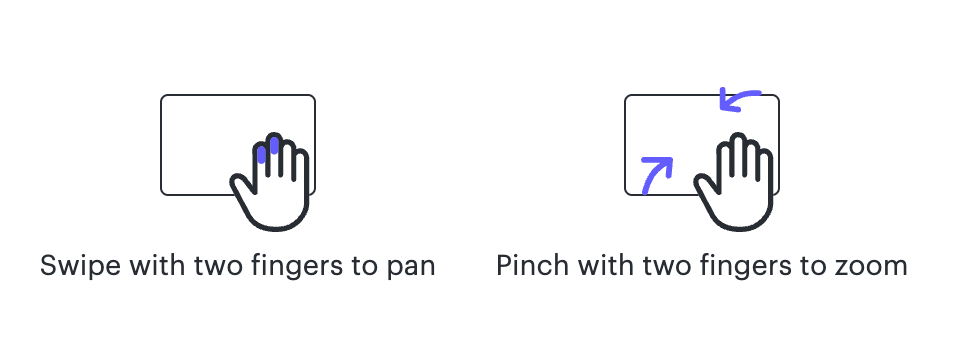
Mouse:

Auto: Lucid automatically adjusts the setting (Mouse or Trackpad) to match the type of device that is detected.

Comments

January 14, 2026

I cleared cookies and cache today, and my navigation settings reverted to Auto.  It would be great if navigation mode and similar user-specific settings were saved as part of my user profile instead of in  the document level, in cookies.

Leianne C
Lucid support team
January 20, 2026

Hi ​@BenE , thank you for continuing this thread and I’m sorry to hear that occurred. I can certainly see how the option to have navigation settings as a user-specific setting would be helpful. 

We’re very interested in your feedback and committed to continually improving our products. Please first search the Product Feedback section of this community (with the filter Topic Type = Idea) to see if it’s already been submitted. If so, please add any additional details you’d like and upvote the request - this consolidation helps to refine feedback and properly capture the popularity of the request.

If no one has submitted this idea yet, please create one of your own and be sure to include details about your use case or what you’d like to see in this experience. This will also allow other users with similar requests to discover and upvote it, then add details of their own.
Finally, for more information on how Lucid manages feedback via this community, take a look at this post:

Thank you for sharing your feedback and ideas in the community. Please let us know if you have any questions!

May 27, 2026

I find the “click and drag” function to be counterintuitive and find the view always moves opposite of my intended direction. It would be useful to have something like look inversion, to allow users to swap the direction of scroll. As an example, I think of the drag and scroll movement like putting your finger down on a sheet of paper and dragging it so the view would scroll opposite of the direction I’m moving the mouse (if that makes sense).

Leianne C
Lucid support team
June 3, 2026

Hi ​@dschmidt, thanks for commenting and sharing your feedback! Unfortunately, this isn’t currently supported in Lucid, but we’re very interested in your feedback and committed to continually improving our products. Please first search the Product Feedback section of this community (with the filter Topic Type = Idea) to see if it’s already been submitted. If so, please add any additional details you’d like and upvote the request - this consolidation helps to refine feedback and properly capture the popularity of the request.

If no one has submitted this idea yet, please create one of your own and be sure to include details about your use case or what you’d like to see in this experience. This will also allow other users with similar requests to discover and upvote it, then add details of their own.

Finally, for more information on how Lucid manages feedback via this community, take a look at this post:

Thank you for sharing your feedback and ideas in the community. Please let us know if you have any questions!