
Shanna H
Lucid support team
May 5, 2022
Lucid advice

Manage your project using a Gantt Chart in Lucidspark

  • May 5, 2022
  • 46 replies
  • 2506 views

Gantt charts allow you to visualize all tasks for an upcoming project in one location even when the project spans across multiple teams. Gantt charts work similarly to our timeline functionality - namely it lays out individual tasks and their dependencies task ownership task duration and the expected duration of the project as a whole. With each task clearly mapped out and assigned the project manager and their entire team can easily stay on top of deadlines and make sure everyone is accountable for their work.

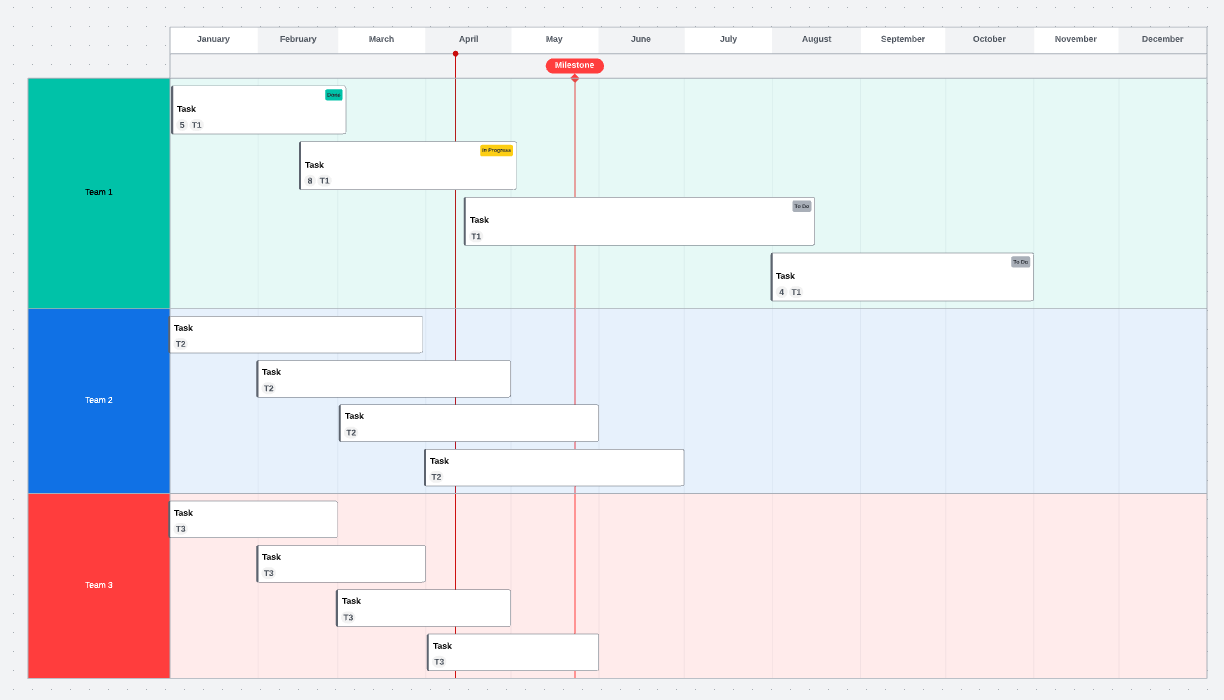
For this example I will be using the Lucidspark Gantt chart template. Click to access the Gantt Chart template. From this template I am beginning with a project that includes three teams. Each team is currently assigned four tasks that will be completed over the course of a year.
l7CWR9LI5LrzQleSA2el-Q.png

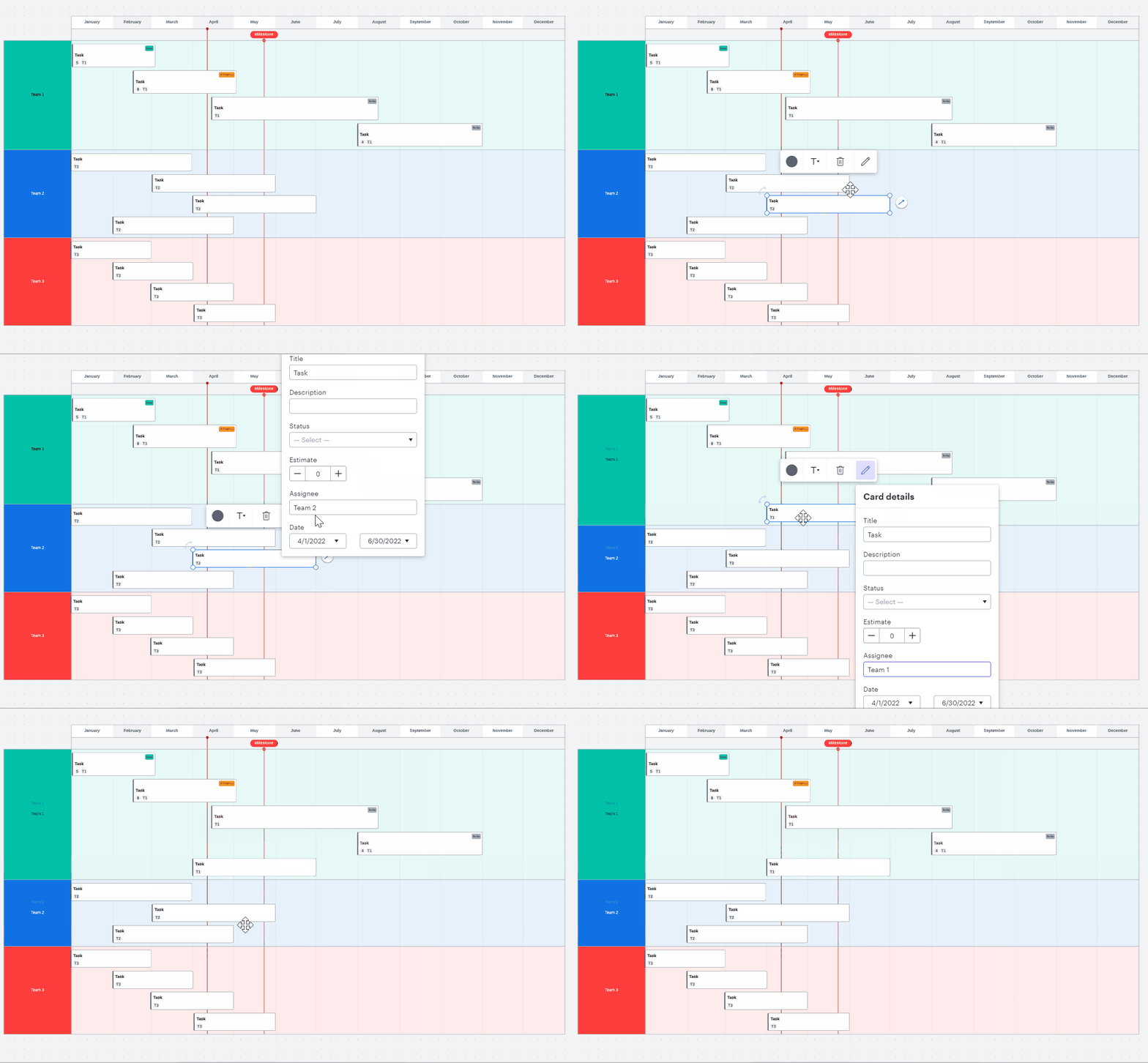
If I want to reassign a task from Team 2 to Team 1 I click on the task and select the pencil icon to edit details. From here I can change the assignee to Team 1. 
MKqQxaRfU5m51uMjrH7cCA.gif

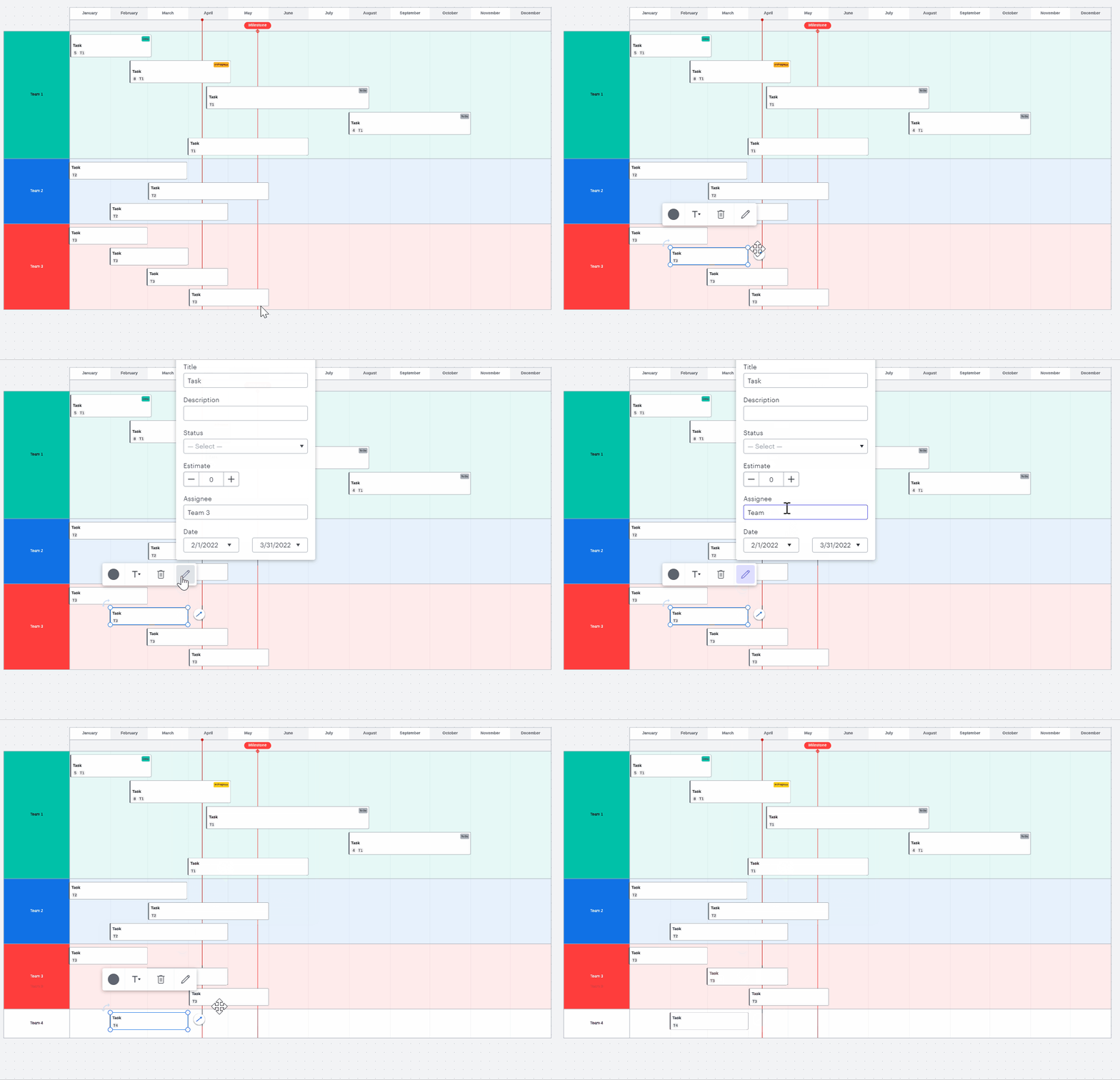
Instead of reassigning to an existing team I can also add a new team to the Gantt chart by assigning a task to them. To do so I click on the task and select the pencil icon to edit details. In this example I will assign it to a Team 4 which will then be added to my Gantt chart.
ECr17i0MILsCkXBxyEfCEQ.gif

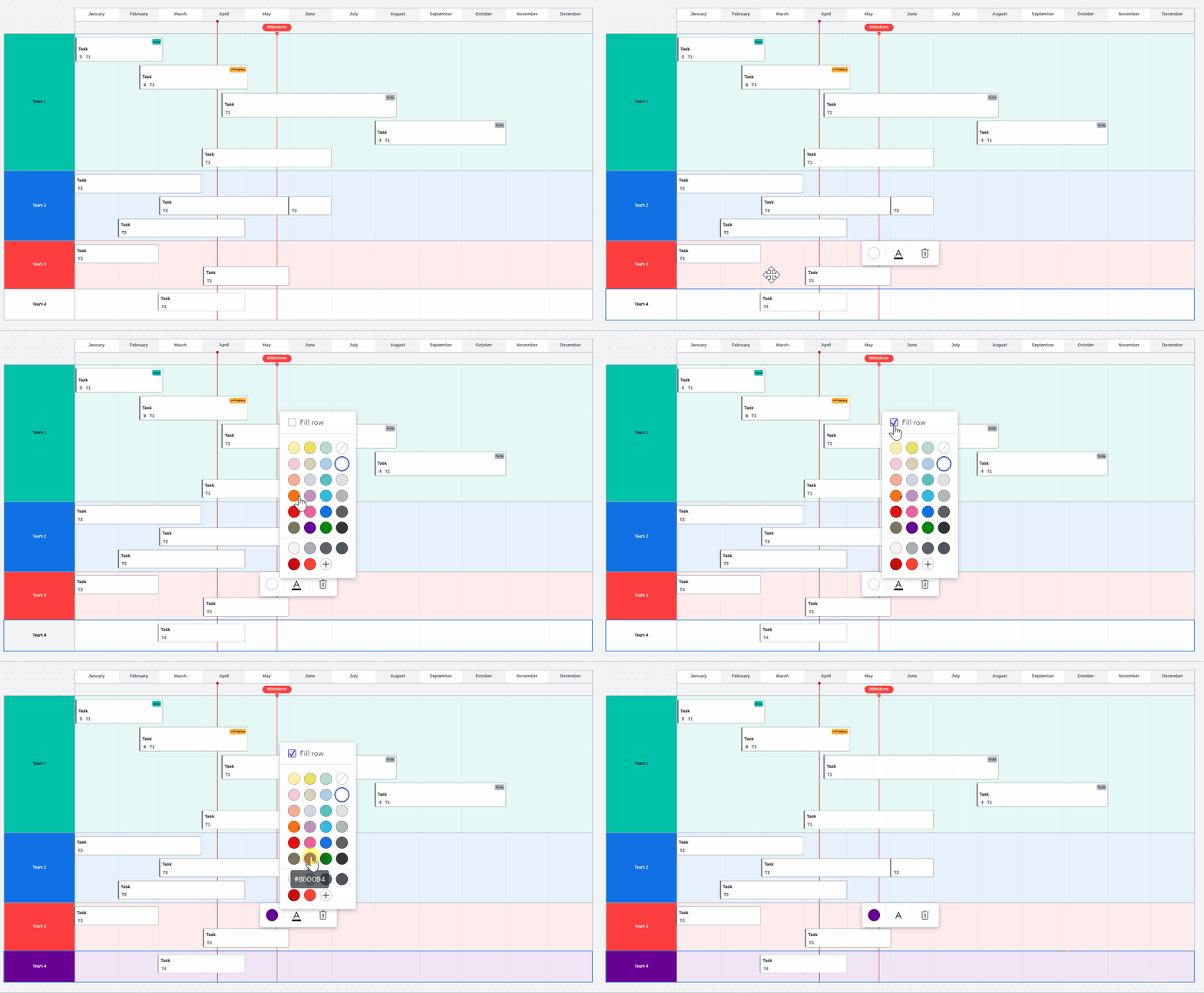
The new row for the added team will need to be styled to match the color style of my existing Gantt chart. If I want to make my new row for Team 4 purple I will double click on the Team 4 column. From there I will select the round color icon. I will check the box next to “Fill color” at the top so that the entire row will be filled with purple (lighter purple in the columns following the Team name). Then I will click on the purple icon and my entire row will be filled with the color I selected.
PlpkHji2duF0NFuhOud7Fg.gif

To remove an assignee you can delete the name of the assignee within the edit detail tab. This will move the task to an "unassigned" box. You can also move tasks around the graph to switch assignees. To learn more about creating and editing tasks refer to our Lucidspark Cards article.

To remove a row double click the title row and click “Delete” or “Backspace” on the keyboard. 

 Follow up in the comments section below with any questions or to show an example of how you use Gantt charts to manage your project timelines!

Comments

Marianne R
August 10, 2022

How do I customize the Team names?  I don't want to use Team 1 Team 2 etc.  Thanks. 

Phillip W
Lucid support team
August 10, 2022

Marianne

Thank you for posting in the Lucid Community! If you take a look at the second and third videos in the post when the user is changing the Assignee from Team 2 to 1 or 4 you can change the Assignee to whatever you would like from this tab. It will create a new row (as seen above when changing to Team 4) on the chart that can then be filled in with new cards. 

Hope this helps clarify--let me know if you have any other questions!

Marianne R
August 10, 2022

Thanks but all I want to do is rename Team 1 Team 2 etc.  How do I do that? 

Phillip W
Lucid support team
August 10, 2022

Hi Marianne

Thanks for the reply and sorry for the confusion. You will first click a card and then select the edit details pencil icon. From there you will see "Assignee." This is where you will rename from Team 1 Team 2 etc. 

Hope this helps--feel free to reach back out with more questions!

Jon
Lucidite
August 25, 2022

For some reason I am unable to delete existing teams from the template. When I double click on the team I see the color and font buttons but not the delete button. So when renaming teams as Phillip described above it just adds another group and leaves the old one there. I can keep adding groups but not delete any. Even selecting the group and pushing the delete button on the keyboard or right click and selecting delete doesn't work either. Please help.

Micah
Lucid community team
August 25, 2022

@jon Thanks for continuing this thread! Right-clicking and choosing "Delete" from the menu should allow you to remove an entire row as shown in this GIF:

Are you able to delete a row this way? I see you mentioned this not functioning for you - what do you experience instead?

Jon
Lucidite
August 25, 2022

Ok that works except for the section that was generated called "Unassigned". That won't delete even when empty

Micah
Lucid community team
August 25, 2022

Hi Jon thanks for getting back to me. I'm glad you were able to delete your other team sections! I'm not able to reproduce this behavior with the "Unassigned" row for tasks that don't have a populated Assignee field; I was able to right-click and delete as with the others. 

What are you experiencing when it won't delete? Do you seem to not be able to select the row or is the "Delete" option in the menu unavailable? Any screenshot or screen recording you can provide would be helpful. Thanks for your help and patience!

Jon
Lucidite
August 25, 2022

The delete option shows as normal but just doesn't do anything

Micah
Lucid community team
August 25, 2022

Hi Jon thanks for the response. A few troubleshooting questions:

  • If you create a new timeline with an unassigned row are you able to delete it?
  • If you create a duplicate of the page which contains your timeline then try to delete the unassigned row from the copy are you able to?

I'm hoping to understand if this behavior is isolated to your specific timeline or if you experience this in any timeline object. If the issue persists would you please submit a ticket to our support team here and include the URL to your document? We'd love to take a closer look - thanks!