Infinity
April 24, 2019
Solved

Lines Overlap Shape Text Issue

  • April 24, 2019
  • 13 replies
  • 437 views

My company frequently creates network maps for our clients. We build our maps by adding shapes from the Cisco and basic networking libraries to our document double-clicking to add text to each shape and connecting them with directional lines.

However the lines we connect or manually draw between shapes have a tendency to snap to the wrong place force the wrong layout of the line or worst of all cut right through the text we're trying to present. For example:
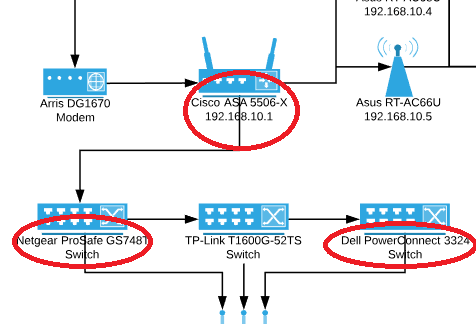
Is there a way to have these lines (circled in red) hidden where they would intersect with a text box? Or change the background color of the shape-attached text box to a solid white and arrange the line behind it?

One of our workarounds can be seen in the TP-Link switch shape at the bottom middle. That line is manually drawn beneath the text and terminated at the shape beneath it. But for the switch shapes on either side bringing the line down lower results in this:
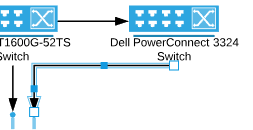
Dragging the small blue square on the horizontal part of the line does nothing until that segment of the line crosses beneath the vertical level that the arrow head is on. I would prefer to have a vertical line down from the switch horizontal over to the middle area and vertical down to the arrow head but this just doesn't seem feasible without redesigning the document. Help!

Best answer by Maison W

Hi Infinity! Thanks for bringing this to our attention and sorry for the delayed response. Rather than using the caption space that appears when you double click on the shape I would recommend manually inserting a text box beneath the shape adding your text there and connecting the lines to/from those text boxes. This should resolve both of the issues you highlighted in your screenshots and will hopefully allow you to continue your work. If you are going to be editing or moving these shapes around you may also consider grouping the text box and shape together (using keyboard shortcut Ctrl + G) so they will move together as one unit. Hope this helps and please let me know if you have any questions!

Comments

Kelsey Gaag
Lucidite
September 30, 2024

Hi @Luiz Rocha

Thanks for your post! I would recommend posting about this in our Product Feedback section of the community - from here, this idea can be upvoted. These ideas will be shared with our Product Development team for consideration. For more information on how Lucid manages feedback via this community, take a look at this post:


February 27, 2025

I've found that placing a white box (no border) just behind the shape ( cmd + [ ) then grouping it to the parent shape allows for a much easier way to break all overlapping lines and text. This keeps the shape text intact and allows for more control over how much you want your shape to mask what it overlaps.

Good workaround but it seems we lose the ability to easily draw arrows.  Once you group the two objects, lucid chart doesn’t easily show the arrow pop versus when it was ungrouped.

Eric R
Lucid support team
February 28, 2025

@sng Thanks for your comment!

Unfortunately, the blue arrow pop does indeed not appear for groups. We’re very interested in your feedback and committed to continually improving our products. Please first search the Product Feedback section of this community (with the filter Topic Type = Idea) to see if this has already been submitted. If so, please add any additional details you’d like and upvote the request - this consolidation helps to refine feedback and properly capture the popularity of the request.

If no one has submitted this idea yet, please create one of your own and be sure to include details about your use case or what you’d like to see in this experience. This will also allow other users with similar requests to discover and upvote it, then add details of their own.

Finally, for more information on how Lucid manages feedback via this community, take a look at this post: