May 13, 2024
Solved

How to turn off automatic line and shape creation

  • May 13, 2024
  • 13 replies
  • 668 views

Ever since this went live it’s been a thorn in my side, how do I turn this feature off?  Thanks! 


Best answer by Leianne C

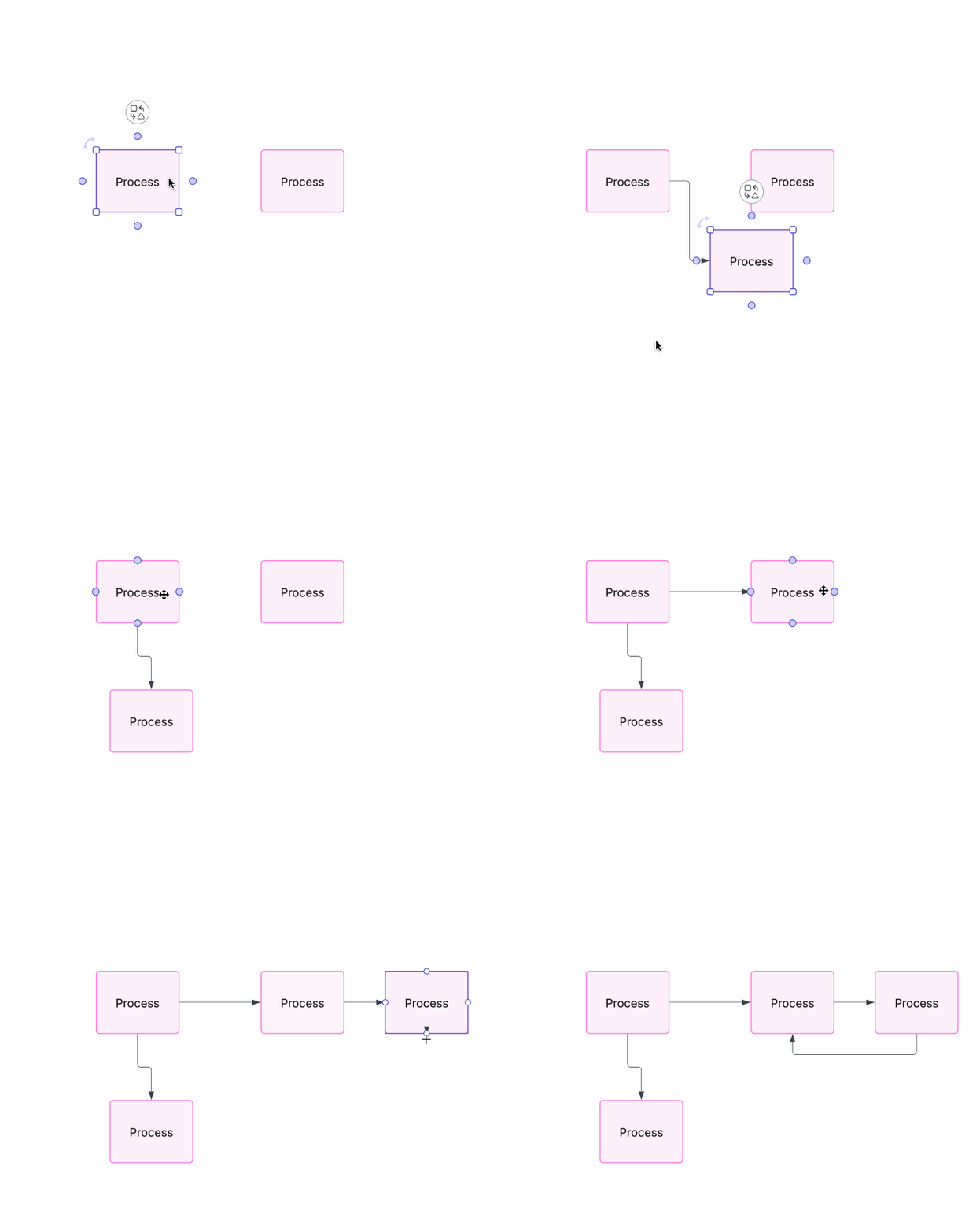
Hi ​@pcroc, thank you for continuing this thread and sharing your feedback. Just to share a tip for step 3 mentioned in your post - if you click once when you see the suggested shape, it will added to your canvas. However if you click and drag, it should create the line to connect your shapes (see below GIF for an example). 

That said, we’re very interested in your feedback and committed to continually improving our products. Please first search the Product Feedback section of this community (with the filter Topic Type = Idea) to see if it’s already been submitted. If so, please add any additional details you’d like and upvote the request - this consolidation helps to refine feedback and properly capture the popularity of the request.

If no one has submitted this idea yet, please create one of your own and be sure to include details about your use case or what you’d like to see in this experience. This will also allow other users with similar requests to discover and upvote it, then add details of their own.

Finally, for more information on how Lucid manages feedback via this community, take a look at this post:

Thank you for taking the time to share your feedback and ideas in the community. Please let us know if you have any questions!

Comments

Zuzia S
Lucid community team
February 18, 2025

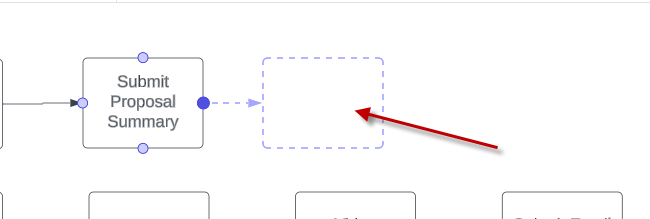
Hi ​@T D, thank you for chiming in and for providing more feedback! At the moment, the only workaround we can suggest here is to disable automatic line connections by toggling off Line Connections in File > Page Settings > Line Settings. 

Automatically turning off text insertion following a decision point is currently not supported in Lucid, however you can double click on the text box and delete the word in it. This will then create a solid line.

We are committed to continually improving our products. Please feel free to create one of your own ideas and be sure to include details about your use case or what you’d like to see in this experience. This will also allow other users with similar requests to discover and upvote it, then add details of their own.

We appreciate your willingness to provide your requests and feedback in the Lucid Community!

November 6, 2025

@Zuzia S  This “feature” is awful. How are you supposed to connect elements if Lucid keeps adding new elements to your document? Most people I’ve seen using Lucid try to do it this way (myself included):

  1. add and position a shape
  2. add and position a second shape
  3. connect the two shapes

This seems reasonable, but now at 3 Lucid instead adds a third (already connected) shape. Why?!


  •  

  •  

Leianne C
Leianne CAnswer
Lucid support team
November 10, 2025

Hi ​@pcroc, thank you for continuing this thread and sharing your feedback. Just to share a tip for step 3 mentioned in your post - if you click once when you see the suggested shape, it will added to your canvas. However if you click and drag, it should create the line to connect your shapes (see below GIF for an example). 

That said, we’re very interested in your feedback and committed to continually improving our products. Please first search the Product Feedback section of this community (with the filter Topic Type = Idea) to see if it’s already been submitted. If so, please add any additional details you’d like and upvote the request - this consolidation helps to refine feedback and properly capture the popularity of the request.

If no one has submitted this idea yet, please create one of your own and be sure to include details about your use case or what you’d like to see in this experience. This will also allow other users with similar requests to discover and upvote it, then add details of their own.

Finally, for more information on how Lucid manages feedback via this community, take a look at this post:

Thank you for taking the time to share your feedback and ideas in the community. Please let us know if you have any questions!