Ayush P
May 19, 2020
Solved

How can I import data from CSV or TXT file to ERD in Lucidchart?

  • May 19, 2020
  • 15 replies
  • 3432 views

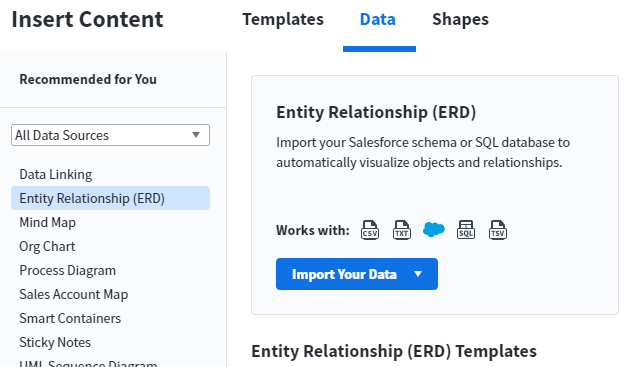
I see mention of CSV & Text in ERD Import but these options are not available to me when I click on import your data button. Are these options available and if so then how to use them?

My Requirement: I want to create simple CDM (Conceptual data Model) and LDM (Logical Data Model) with simple text or csv import. Example in another tool that I am using they have option to create CDM diagram with simple text inputs like these-

A->Submits(1:M)->B

A->Participats in (1:M)->C


I want to use inputs like below in excel to create diagram:

DataEntityFrom DataEntityTo DataEntityToRole Relation
Multiplicity Type
Relation Description
A B Submits 1:M TBA
A C Participats in 1:M TBA


Best answer by Micah

Hi all, updating this thread with the latest information on ERD functionality, since a good amount has changed over the years since this original post. 

To import your file in Lucidchart, take the following steps:


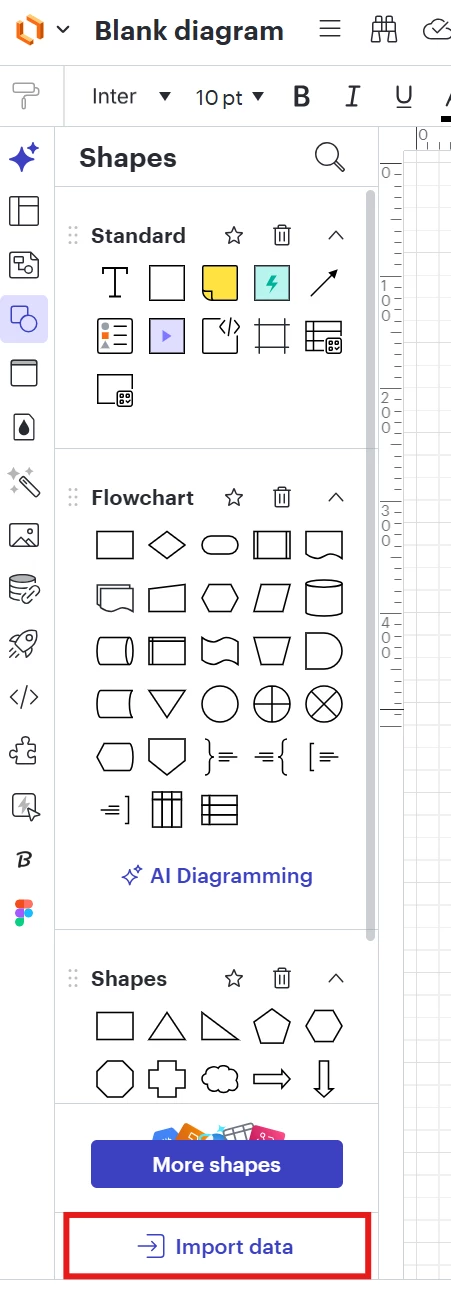
From the Shapes panel on the left of the editor, choose Import data


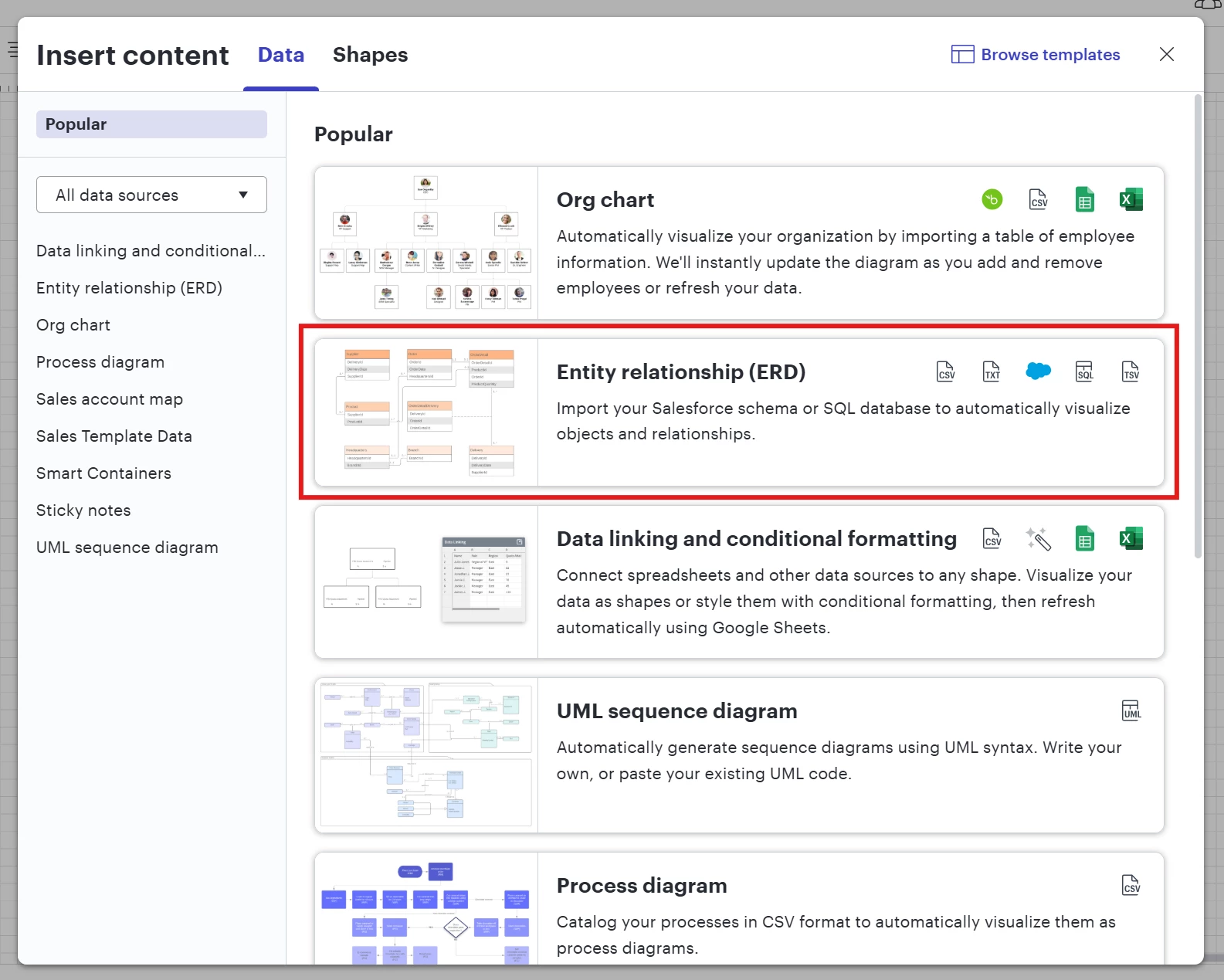
In the Insert content modal, choose Entity relationship (ERD).


Choose Import from SQL database.


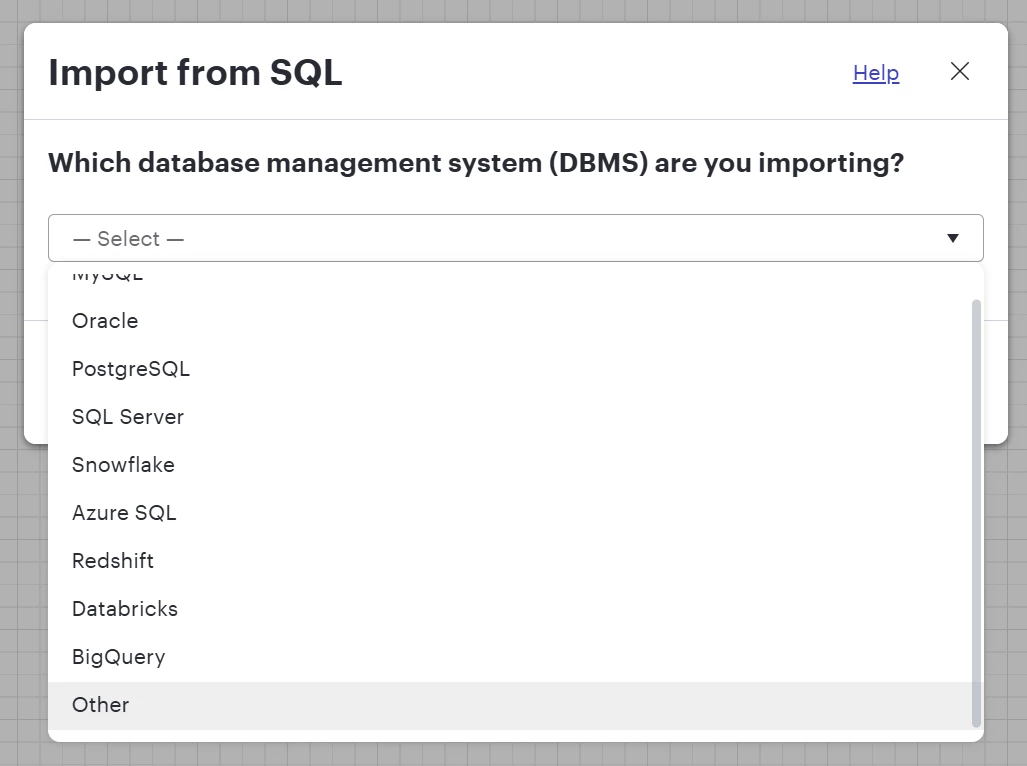
In the dropdown menu to choose which DBMS you’re importing from, pick Other. 


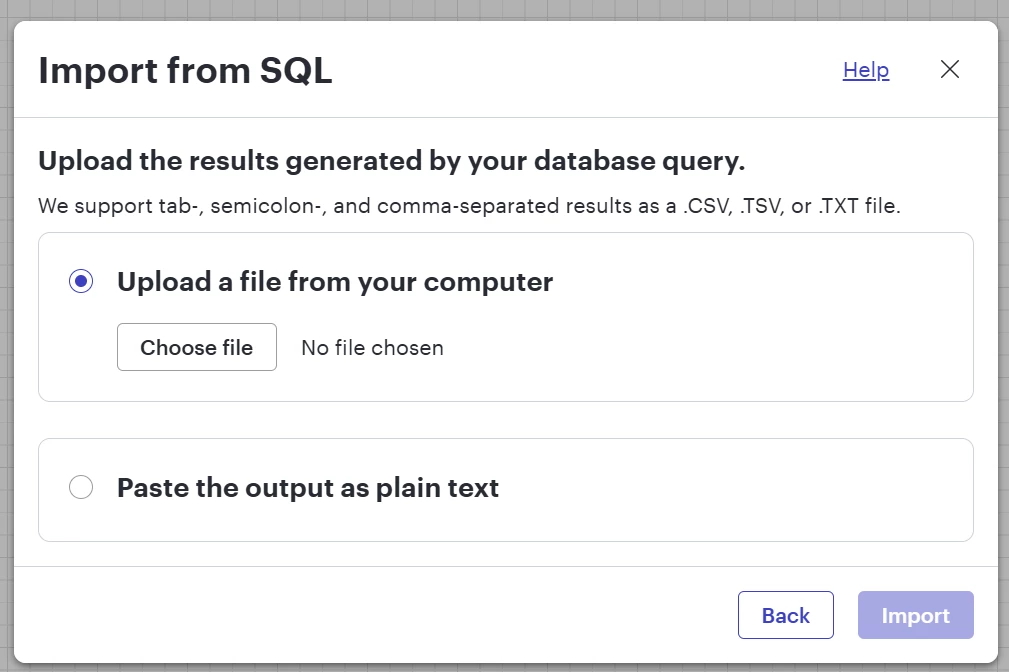
Use the sample file provided as a template to format your data. This same file is also attached to this post for your convenience. Lucidchart supports tab-, semicolon-, and comma-separated results as a .CSV, .TSV, or .TXT file. 


Finally, either upload your file from your computer or paste it in as plain text. 


For full information, I recommend our Create an Entity Relationship Diagram in Lucidchart article from the Lucid Help Center. 

Comments

Addie
March 6, 2024

 Hi @Thomas Nitschke, thanks for the clarification and my apologies for the confusion. Here is the article that outlines the capabilities and functions to create an ERD, including uploading with a CSV file. Unfortunately, what you are describing isn’t currently supported in Lucid, but we’re very interested in your feedback and committed to continually improving our products. Please first search the Product Feedback section of this community (with the filter Topic Type = Idea) to see if it’s already been submitted. If so, please add any additional details you’d like and upvote the request - this consolidation helps to refine feedback and properly capture the popularity of the request.

If no one has submitted this idea yet, please create one of your own and be sure to include details about your use case or what you’d like to see in this experience. This will also allow other users with similar requests to discover and upvote it, then add details of their own.

Finally, for more information on how Lucid manages feedback via this community, take a look at this post:


Addie
Micah
Lucid community team
May 6, 2024

Hi! Jumping in here to share about Lucid’s Data Trusted User Group. This group is made up of knowledgeable users who regularly analyze and visualize data in their work. As part of this group, you’ll have the opportunity to connect directly with Lucid’s product team, gain early access to beta features, and share insights about your needs, shaping the future of Lucid’s data solutions 🎉 You can learn more and request to join here. Thanks!


Micah
MicahAnswer
Lucid community team
November 26, 2025

Hi all, updating this thread with the latest information on ERD functionality, since a good amount has changed over the years since this original post. 

To import your file in Lucidchart, take the following steps:


From the Shapes panel on the left of the editor, choose Import data


In the Insert content modal, choose Entity relationship (ERD).


Choose Import from SQL database.


In the dropdown menu to choose which DBMS you’re importing from, pick Other. 


Use the sample file provided as a template to format your data. This same file is also attached to this post for your convenience. Lucidchart supports tab-, semicolon-, and comma-separated results as a .CSV, .TSV, or .TXT file. 


Finally, either upload your file from your computer or paste it in as plain text. 


For full information, I recommend our Create an Entity Relationship Diagram in Lucidchart article from the Lucid Help Center. 

January 16, 2026

This thread represents a gap between the product the needs of its users. We need a way to import a standard CSV without having to figure out how to force it to look like something else as output by a database. With AI, this should not out of reach.

Zuzia S
Lucid community team
January 20, 2026

Hi ​@wesmcada, thank you for chiming into this post! I can see how such feature would be helpful to your workflow.

We’re very interested in your feedback and committed to continually improving our products. Please first search the Product Feedback section of this community (with the filter Topic Type = Idea) to see if it’s already been submitted. If so, please add any additional details you’d like and upvote the request - this consolidation helps to refine feedback and properly capture the popularity of the request.

If no one has submitted this idea yet, please create one of your own and be sure to include details about your use case or what you’d like to see in this experience. This will also allow other users with similar requests to discover and upvote it, then add details of their own.

Finally, for more information on how Lucid manages feedback via this community, take a look at this post:

Cheers!