Solved

How can I adjust my settings so that double-clicking a Lucid document creates a sticky note?

  • December 10, 2025
  • 3 replies
  • 23 views

Forum|alt.badge.img+1

How to reset the double-click feature to insert sticky notes rather than text within my account?

Best answer by Zuzia S

Hi ​@agus thank you for posting in the Community and thank you ​@aparrish for your help!

I would be happy to provide some clarity regarding Double click behaviour.

It is now possible to choose between Default behaviour (“Sticky note” for Lucidspark and “Text box” for Lucidchart), Sticky note, or Text.

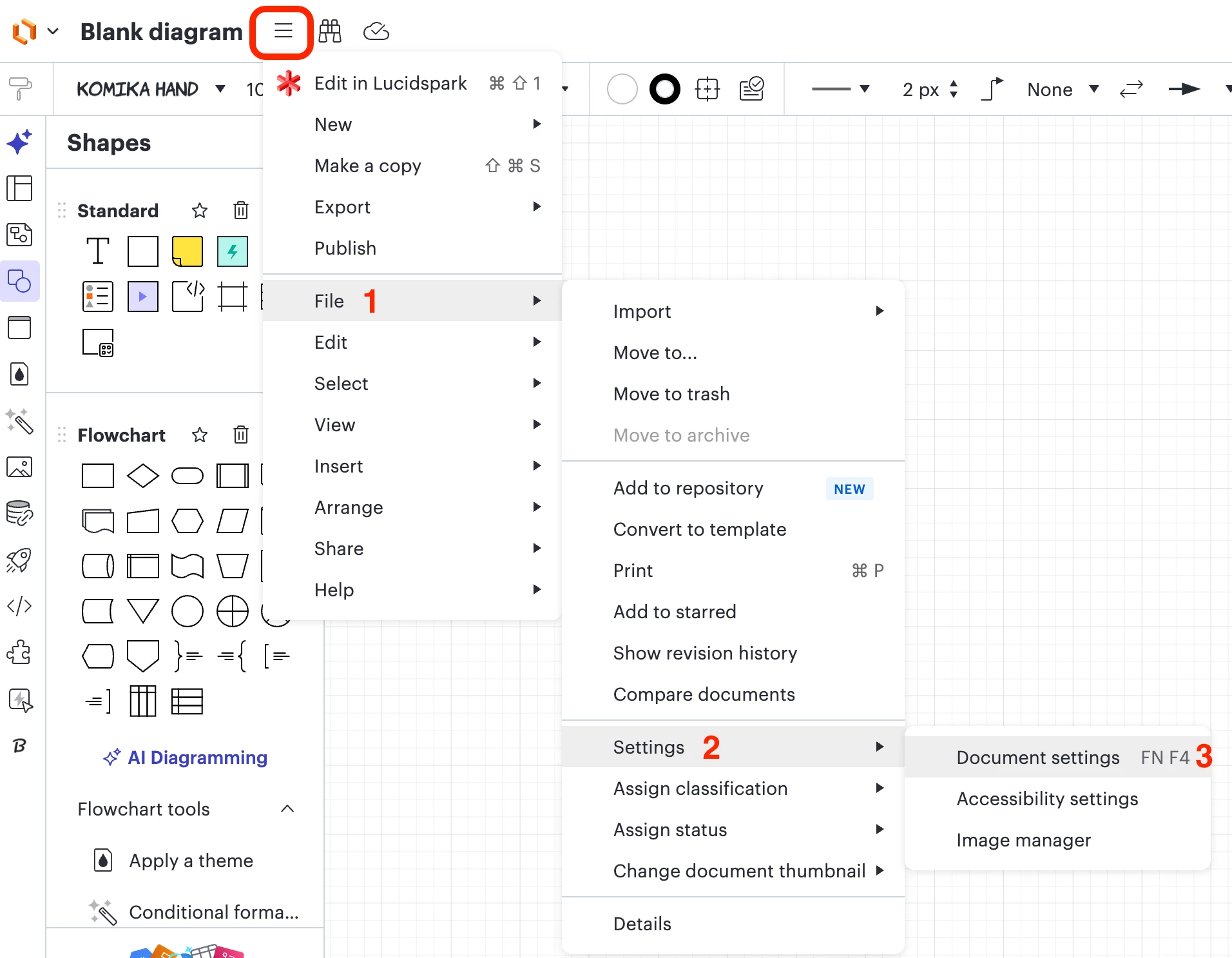
To change these settings across your account, please head to the hamburger menu > File > Settings > Document settings, as such:

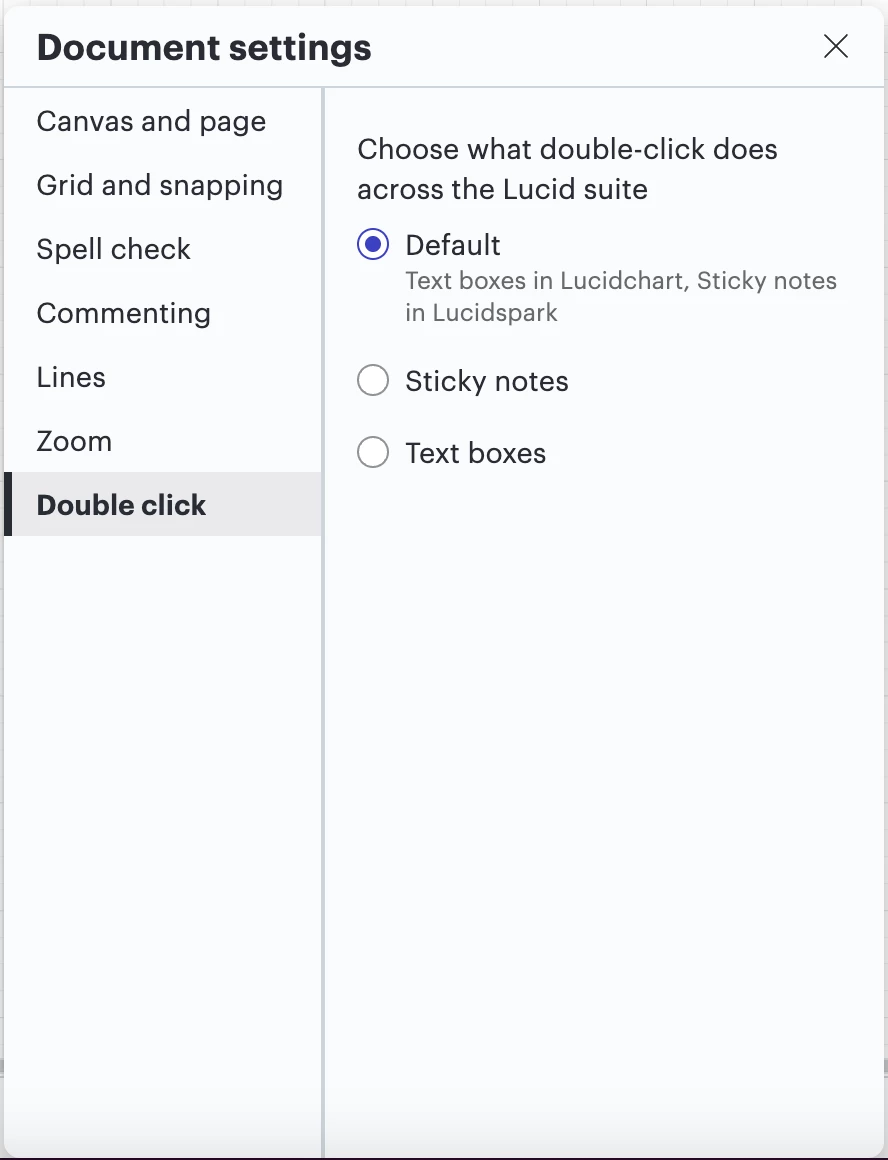
When clicking on Document settings, a panel will open where you can click on Double click and pick a setting of your choice:

Details on Document settings are further detailed in this Help Center article.

Please let me know if this is helpful. Cheers!

Comments

aparrish
Lucid Legend Level 7
Forum|alt.badge.img+15
  • Lucid Legend Level 7
  • December 13, 2025

@agus this was probably changed back to text because multiple users did not like when it changed to sticky notes 2 years ago and they might have added their opinion to the product feedback section, which would have been voted on. You can also add your opinion to the product feedback section so that users have an option to use one or the other. Here is more information about the universal canvas: https://help.lucid.co/hc/en-us/articles/15155938473108-Use-universal-canvas-to-streamline-your-workflow


Forum|alt.badge.img+1
  • Author
  • December 14, 2025

@agus this was probably changed back to text because multiple users did not like when it changed to sticky notes 2 years ago and they might have added their opinion to the product feedback section, which would have been voted on. You can also add your opinion to the product feedback section so that users have an option to use one or the other. Here is more information about the universal canvas: https://help.lucid.co/hc/en-us/articles/15155938473108-Use-universal-canvas-to-streamline-your-workflow

I accidentally chose the option I didn't want to and now it's set to always create text instead of sticky note everytime I double click.


Zuzia S
Forum|alt.badge.img+8
  • Lucid community team
  • Answer
  • December 16, 2025

Hi ​@agus thank you for posting in the Community and thank you ​@aparrish for your help!

I would be happy to provide some clarity regarding Double click behaviour.

It is now possible to choose between Default behaviour (“Sticky note” for Lucidspark and “Text box” for Lucidchart), Sticky note, or Text.

To change these settings across your account, please head to the hamburger menu > File > Settings > Document settings, as such:

When clicking on Document settings, a panel will open where you can click on Double click and pick a setting of your choice:

Details on Document settings are further detailed in this Help Center article.

Please let me know if this is helpful. Cheers!