Answer

Formatting shapes/boxes

  • May 19, 2025
  • 5 replies
  • 54 views

Forum|alt.badge.img+1

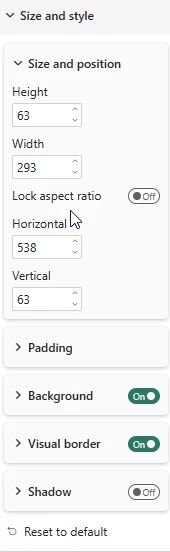
In Power BI we can manually set box sizes by changing the height and width of boxes and even the X & Y axis. It would be great if the same could be done in Lucid to set the shapes’ properties, which will make formatting much quicker and easier when formatting a few boxes to be the same. I know you have the option to match size, but that is limited in what you can do, and it has not worked that well for me.
 

Best answer by Ambar D

Hi ​@albertus.woeke, no problem at all, I’m happy to help. That’s a great question!

I suggest the following steps:

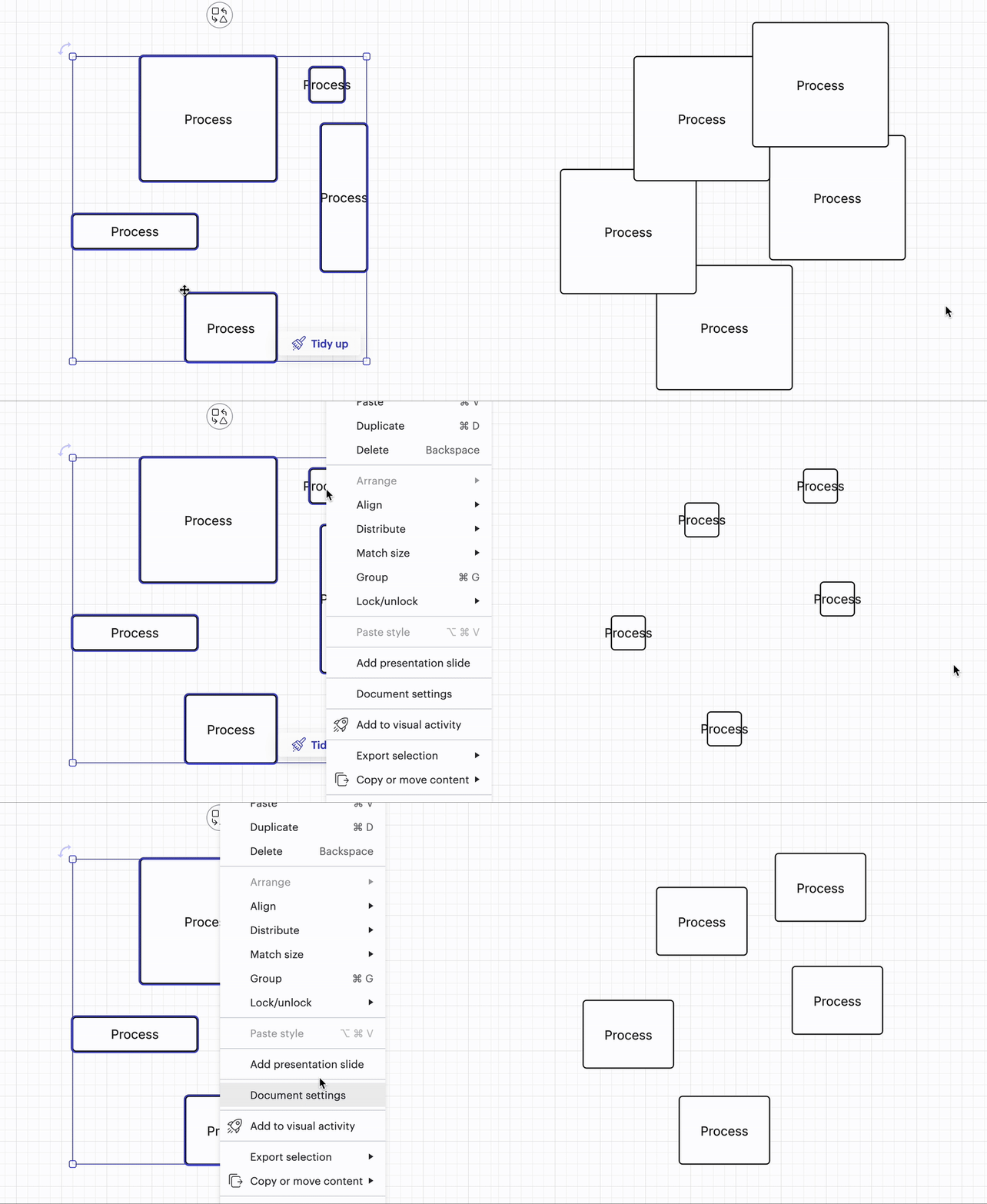
  1. Select all the objects you’d like to match
  2. Right click on the shape you want all other selected shapes to match
  3. Select Match size > Both width and height
  4. Your objects should resize automatically to match the object you right-clicked

Notice in the example below that after I select all my objects, the shape I click on next is the shape that all others match to. Does trying this result in what you’re hoping for? 

Let me know if you have further trouble here!


Comments

Ambar D
Forum|alt.badge.img+10
  • Lucid community team
  • May 21, 2025

Hi ​@albertus.woeke, thanks for this feedback!

Just to clarify, in the shapes options menu in Lucidchart, you can adjust the width, height, X and Y position, rotation, opacity, and edges of a shape. You can also flip a shape, add a shadow, and lock the aspect ratio of a shape. Is there another specific ability you are hoping to see added to this shape options menu?


Additionally, are you encountering an issue with matching shape size? I would be happy to help and take a closer look.


Forum|alt.badge.img+1

Thanks Ambar

Thanks for the reply. I totally missed the shapes options - seen it before, even used it before, but forgot about that. 

The issue I have with the Match size - if I have a big box and a small box, how do I get the big box to the small size or the small box to the big size (depending on which way I want to go). I am struggling to figure out to what it is matching.


Ambar D
Forum|alt.badge.img+10
  • Lucid community team
  • Answer
  • May 21, 2025

Hi ​@albertus.woeke, no problem at all, I’m happy to help. That’s a great question!

I suggest the following steps:

  1. Select all the objects you’d like to match
  2. Right click on the shape you want all other selected shapes to match
  3. Select Match size > Both width and height
  4. Your objects should resize automatically to match the object you right-clicked

Notice in the example below that after I select all my objects, the shape I click on next is the shape that all others match to. Does trying this result in what you’re hoping for? 

Let me know if you have further trouble here!


Forum|alt.badge.img+1

Perfect - Explains why I was having an issue. I selected the shapes and then went in the top bar to match height and width and never knew what the criteria was for matching. This will help a lot. Thanks


Ambar D
Forum|alt.badge.img+10
  • Lucid community team
  • May 21, 2025

@albertus.woeke No problem, feel free to reach back out if you have any further questions on this! 

I’m also converting this from an idea within the Product Feedback space to a question within the Peer Support category of this community so others can easily find this post.