I can only get one end of the crow feet connector to change. One end stays the same and won’t change. When I look at the connector list the one and only one option is greyed out.
Fixing Crow’s Foot connector lines in ERD
Best answer by alison cheney
Hi
Thank you for posting in the Lucid Community!
First, I want to confirm the lines you are using are specifically connected to an Entity Relationship Diagram (ERD)? When it comes to formatting lines in your ERD, if one of the endpoints is greyed out, it could be because the line is not properly recognized as an ERD connector or is snapped to a shape in a way that restricts manual changes.
Could you please try the following steps to make it so you can adjust both endpoints?
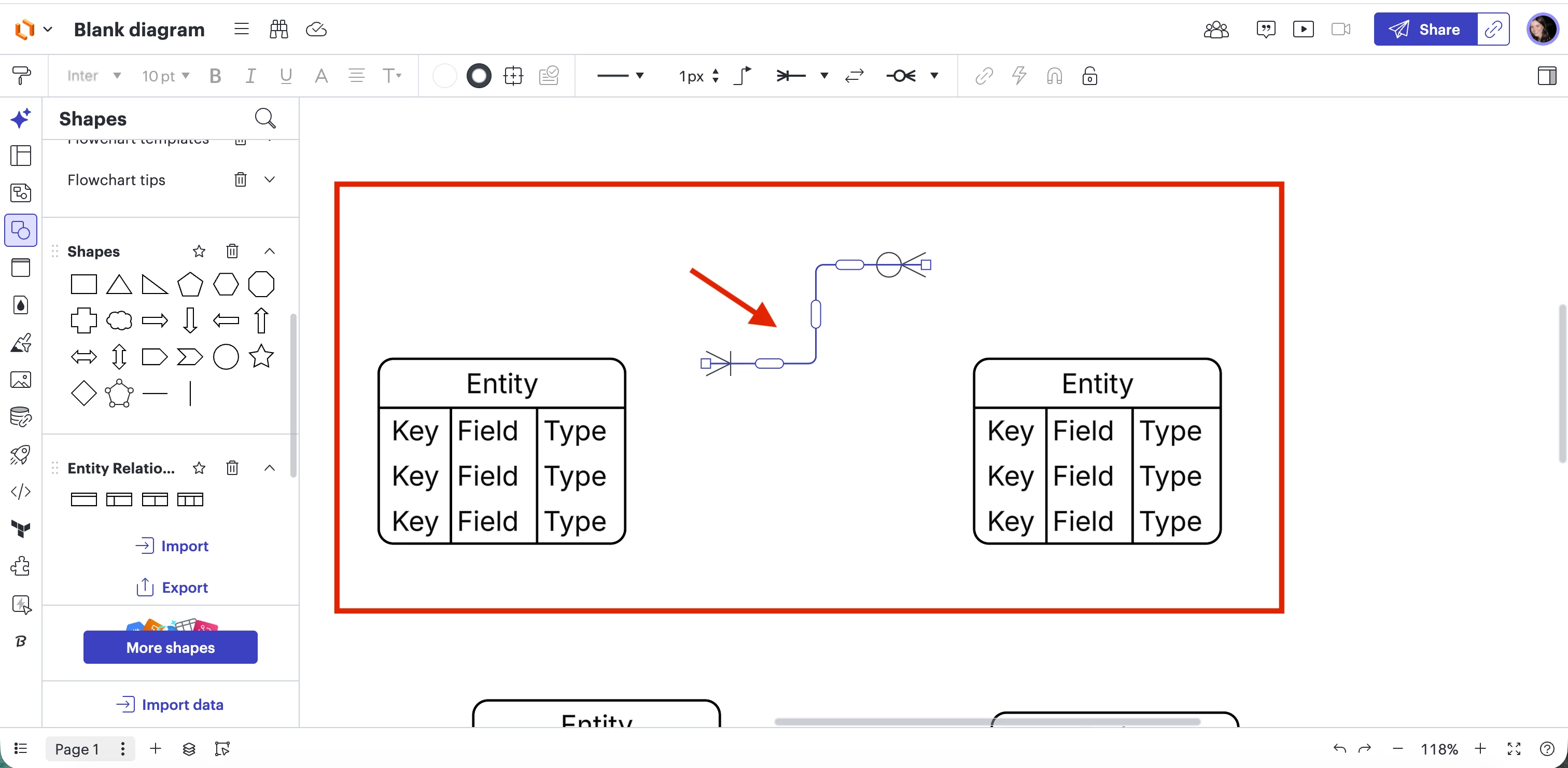
- Pull the end of the line away from the shape so it is floating on the canvas. While it is unattached from the ERD shapes, try to change the endpoint in the properties bar. Once you’ve set the correct Crow’s Foot symbol, drag it back to the connection point on your entity. (see image below showing what this looks like)

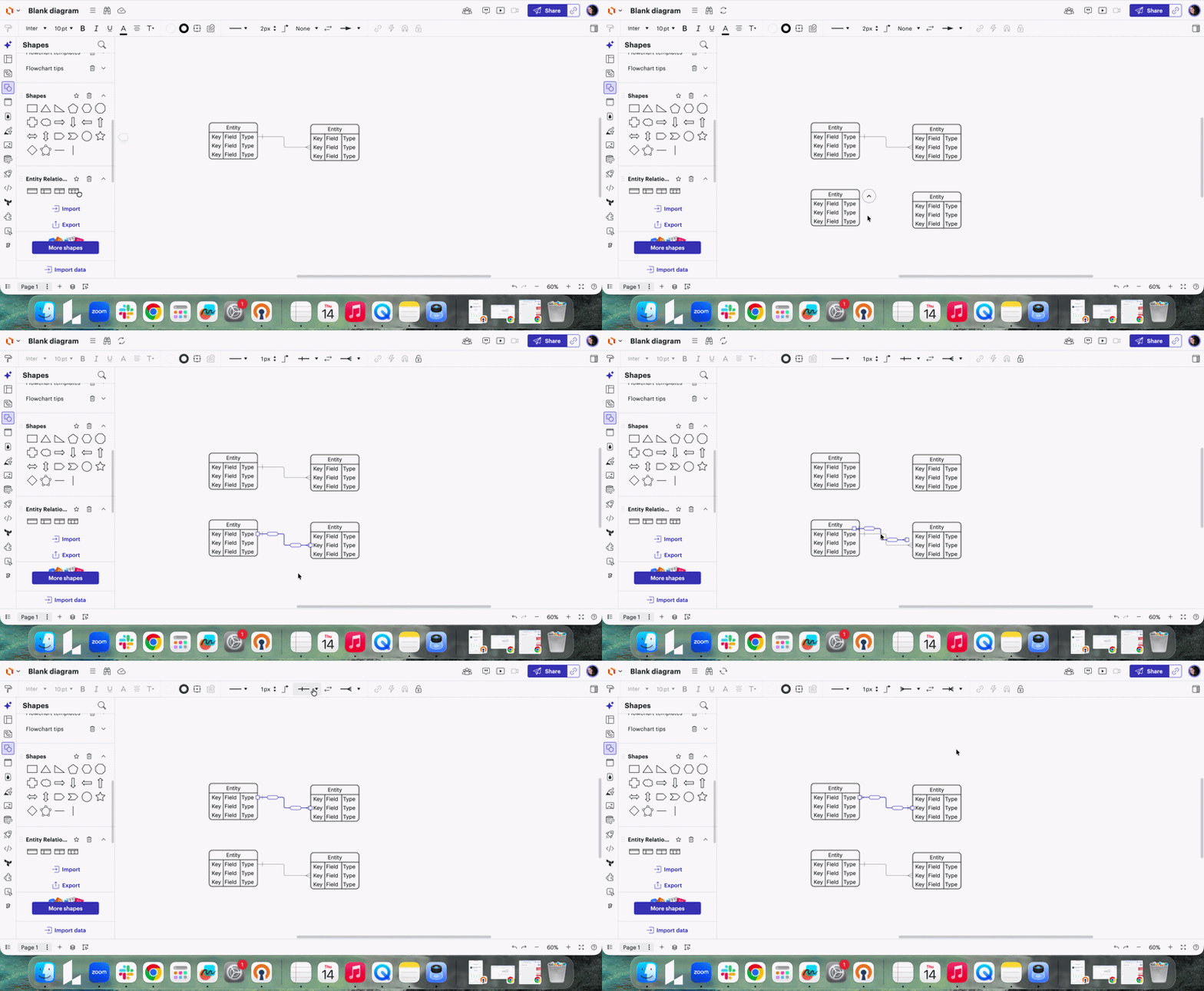
- Get a new ERD line by dragging new Entity shapes onto your diagram. From there, copy and paste the new line and move it over to connect the ERD shapes you are working on. (see Gif showing steps below)

- Check to make sure your line isn’t part of a group by clicking on your line > select Menu (hamburger icon) > select Arrange > select Ungroup.
If the option remains greyed out, could you try opening your document in a private or incognito window to help us narrow down the potential cause? Could you also try connecting to a different network or disconnecting from your VPN (if applicable)? Sometimes account performance issues can be related to internet security/speed or browser issues. These steps will help us eliminate that possibility. For help with opening an incognito window, please see this community post.
If those don’t resolve the problem, can you please send the following information so I can take a closer look?
-
A screenshot of the issue.
-
A screenshot of the associated Javascript Console output after reproducing the issue. You can open your Javascript Console by pressing Ctrl+Shift+J (if your computer is a Windows/Linux) OR Cmd+Opt+J (if your computer is a Mac).
Thanks in advance for your help and patience!
Create an account in the community
A Lucid or airfocus account is required to interact with the Community, and your participation is subject to the Supplemental Lucid Community Terms. You may not participate in the Community if you are under 18. You will be redirected to the Lucid or airfocus app to log in.
Log in to the community
A Lucid or airfocus account is required to interact with the Community, and your participation is subject to the Supplemental Lucid Community Terms. You may not participate in the Community if you are under 18. You will be redirected to the Lucid or airfocus app to log in.
Log in with Lucid Log in with airfocus
Enter your E-mail address. We'll send you an e-mail with instructions to reset your password.