Solved

Export Lucidchart document with comments

  • February 14, 2017
  • 2 replies
  • 57 views

James S103

Hello

Has anyone found a way to export a chart in order to print it with the comments exposed?

Thanks in advance.

Best answer by Ambar D

Jumping in this thread to provide two other options as workarounds, including a recent update to comments in Lucid!
  • You can export a CSV of shape data, which includes shape names, shape library, text fields, and additional data. If there are comments in the document, you can also see the real-time status of a comment, the comment creator, associated timestamp, and the message included in the CSV. Learn more here.
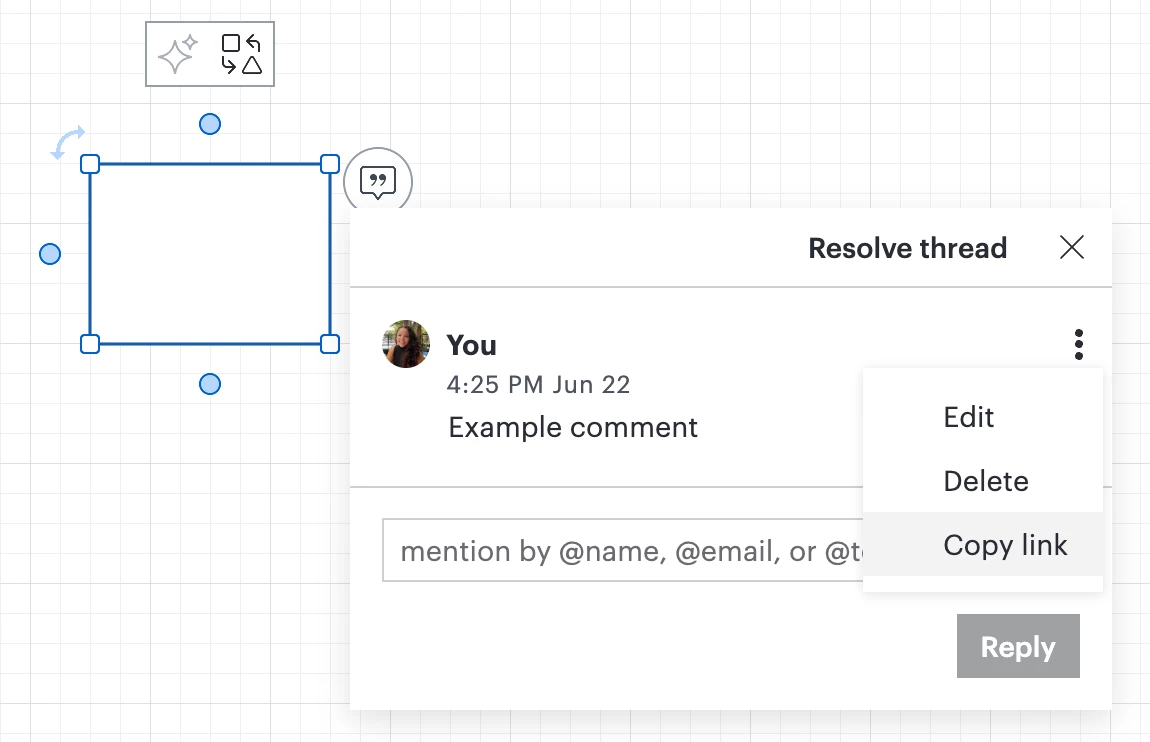
  • You can also now copy a link to a comment from the tri-dot menu shown next to your comment, as shown below! Clicking on the link will automatically take you to the open comment. To learn more, check out this resource.

Comments

Kristy
Forum|alt.badge.img+3
  • Lucidite
  • February 15, 2017

Hi James

Thanks for reaching out. Currently we do not support this feature. If you would like to see this feature in Lucidchart please post it here in our Product feedback space.

As a workaround you can use the Note shape and those will print just like any other shape. Additionally you can put notes on different layers which can then appear whenever you'd like when in presentation mode. 

For now you can open all of the comments in Presentation Mode and take a screenshot. 


Ambar D
Forum|alt.badge.img+12
  • Lucid community team
  • Answer
  • June 25, 2026

Jumping in this thread to provide two other options as workarounds, including a recent update to comments in Lucid!

  • You can export a CSV of shape data, which includes shape names, shape library, text fields, and additional data. If there are comments in the document, you can also see the real-time status of a comment, the comment creator, associated timestamp, and the message included in the CSV. Learn more here.
  • You can also now copy a link to a comment from the tri-dot menu shown next to your comment, as shown below! Clicking on the link will automatically take you to the open comment. To learn more, check out this resource.