June 17, 2024
Solved

Counting shapes of the same color

  • June 17, 2024
  • 23 replies
  • 474 views

How can I count shapes of the same color? I have multiple circles of different colors and I want to count number of circles with the same color.

Best answer by Shantel Gillette

Good morning,

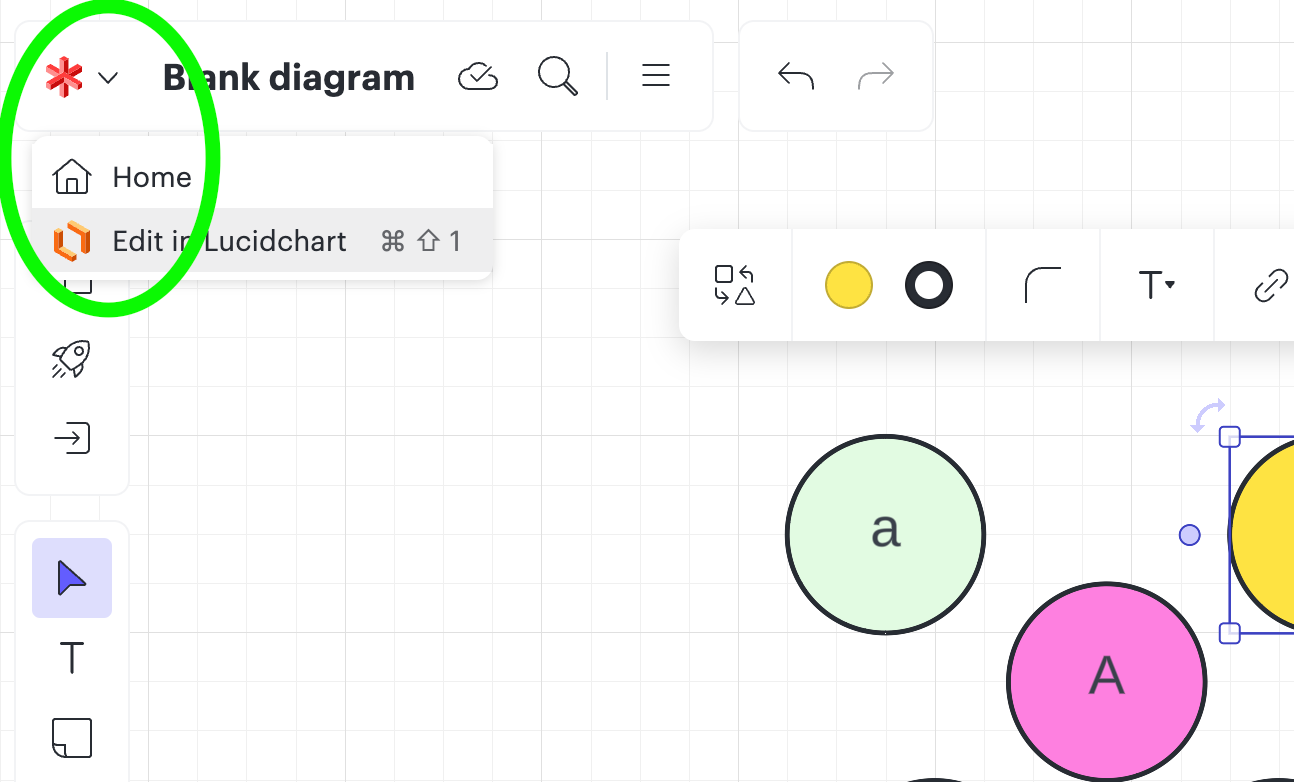
I have good news! I checked with our formula wizards, and I got the formula that you will use. To start you will need to be using Lucidchart. If your current diagram is in Lucidspark, simply use our fast product switching by clicking in the upper left corner of your document on the Lucidspark icon, and then select “edit in Lucidchart”. 


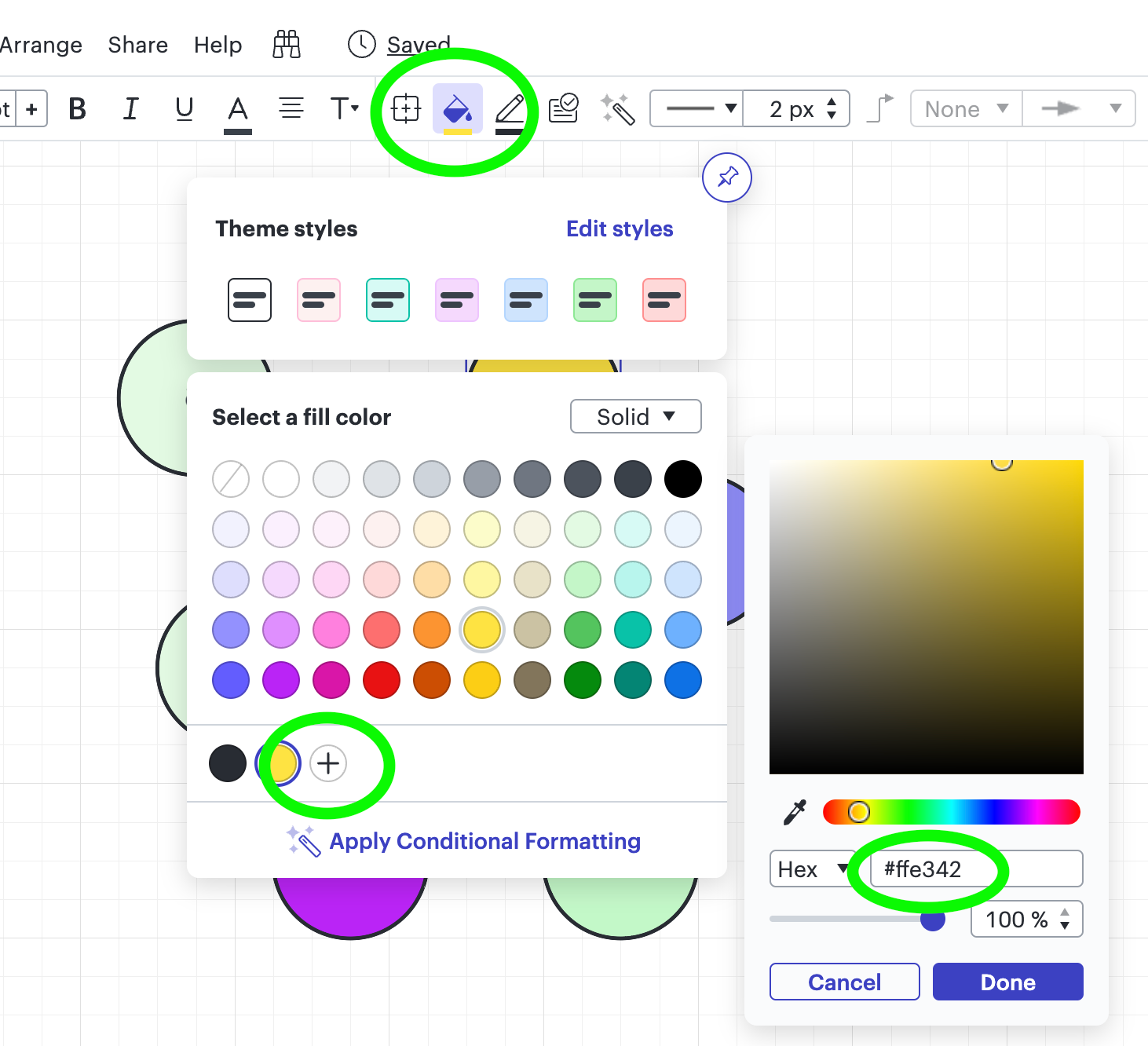
Next you will need to know the hex code of the colors you want to count. I did this by selecting the shape on the canvas that I needed to know the hex code for > selecting the color picker (the paint bucket icon) > selecting the plus sign in the bottom of the popup > and you can see the hex code to the right (see screenshot for reference). 


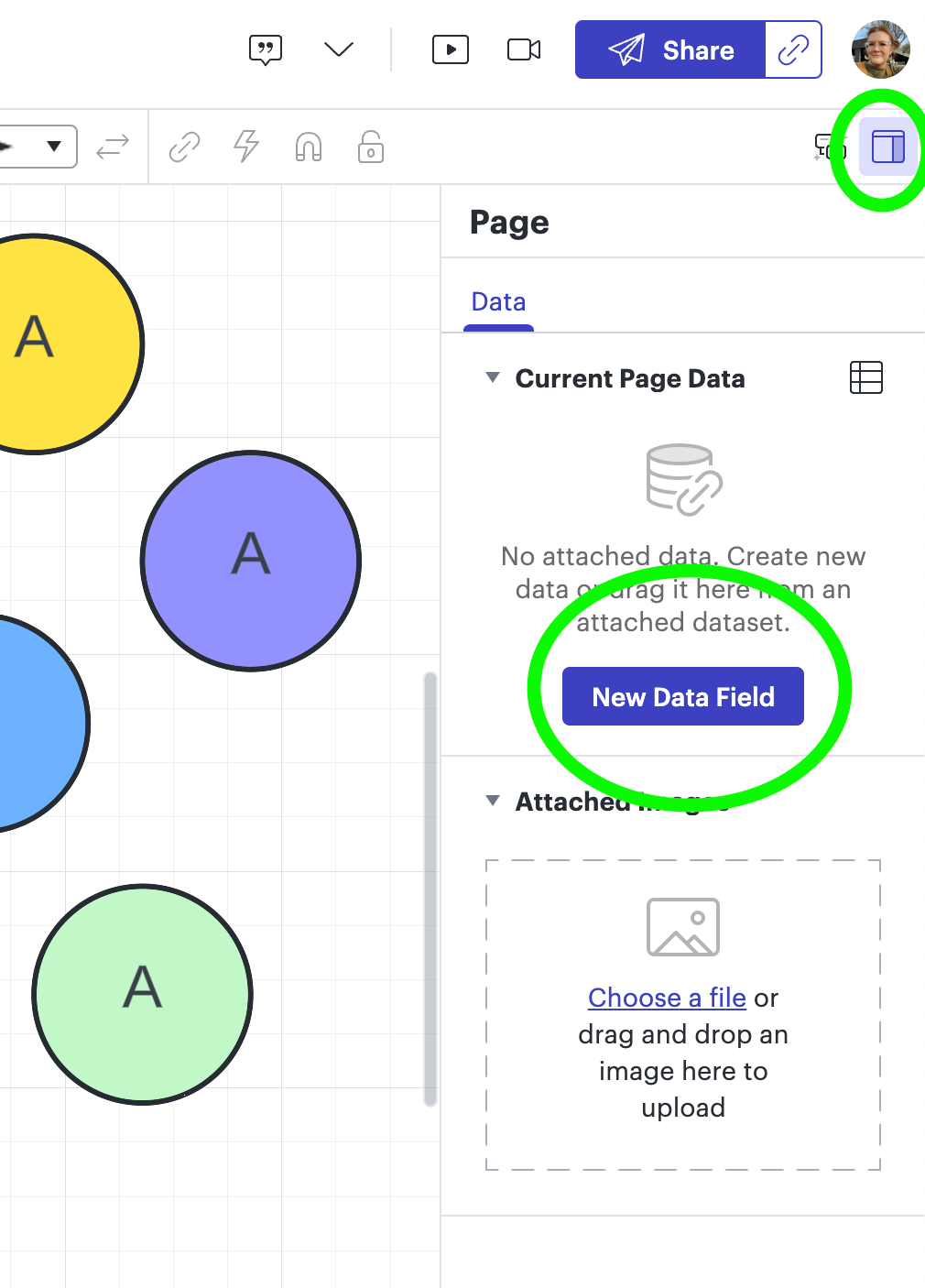
Next step is to add a formula to the page in the contextual panel. You can access this by clicking anywhere blank on the canvas > In the right hand upper corner you will select the little square (contextual panel) > then select the button to add a new data field. 


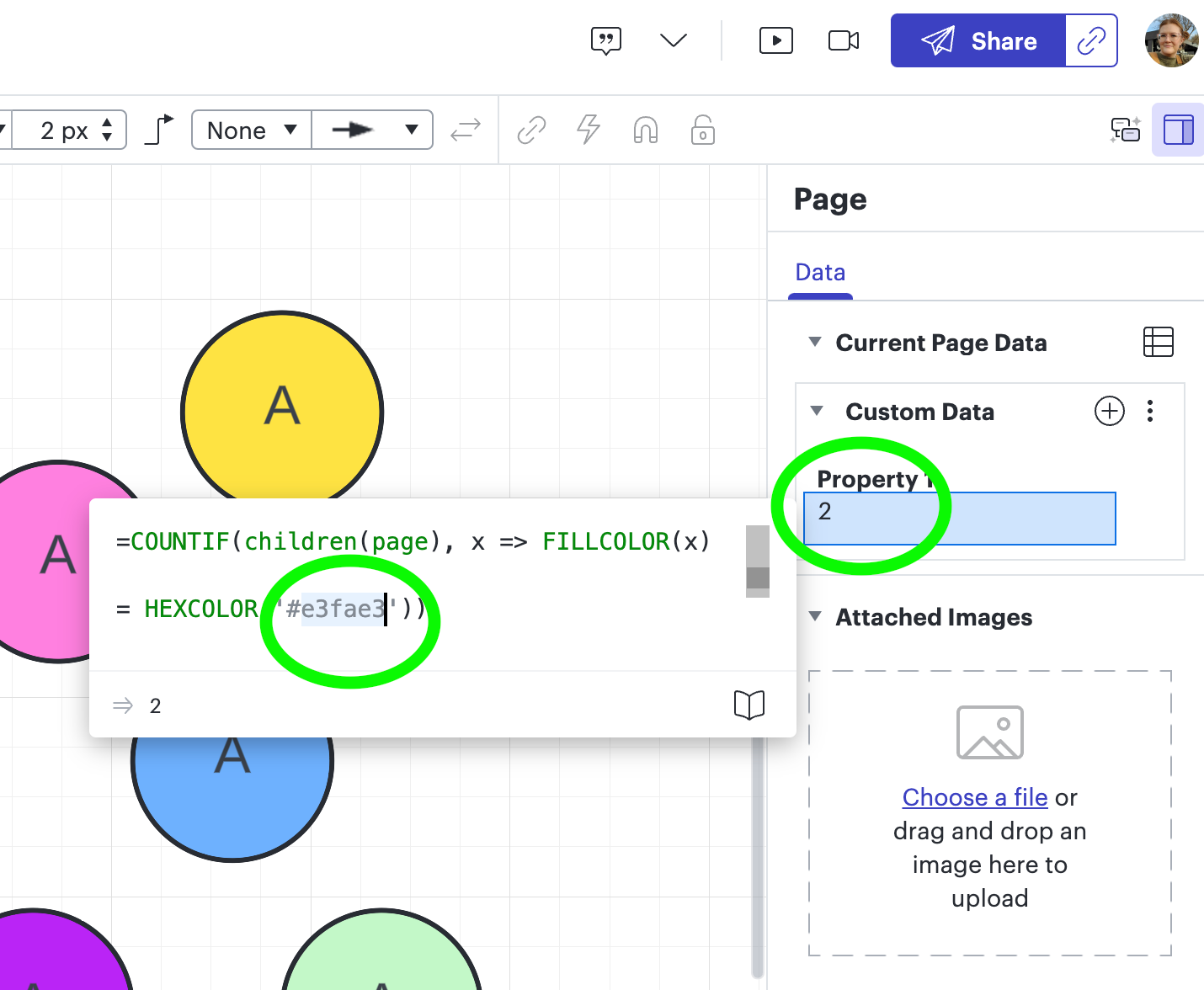
Next you will add the formula below (copy/paste it from the text below) in the “Property 1” field. You will need to edit the formula to use the hex code you identified following the previous steps. You can simply hit enter after you have entered the hex code.

* (One thing I noticed was that as I typed the new hex code, it kept the previous hex code there, so I just deleted that and made sure the one I wanted was the only one entered, it should only ever be 6 characters in length).


=COUNTIF(children(page), x => FILLCOLOR(x)

= HEXCOLOR('#e3fae3'))


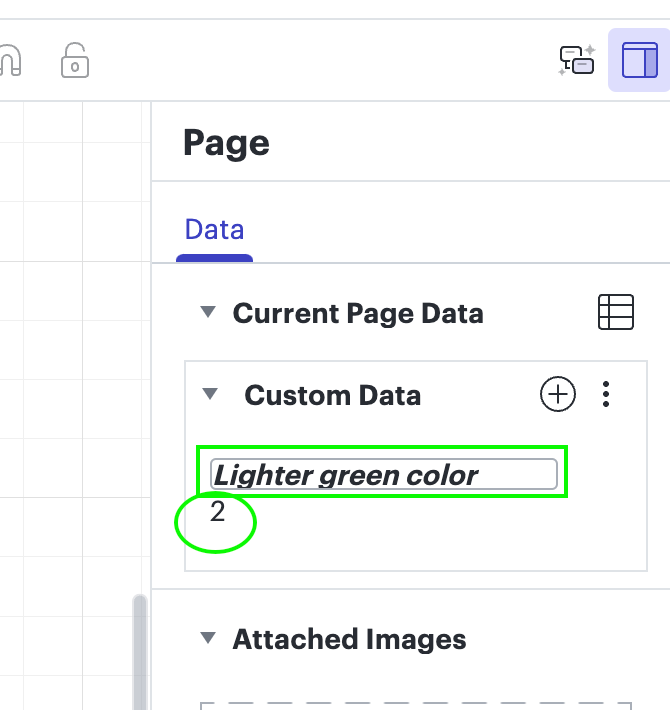
You will see the number change in the field below the “Property 1” field which indicates how many shapes are using that hex code (color) to fill. If you want you can change the name of the “Property 1” field to anything you prefer to call it. 


Let me know if you have any questions! I hope this helps! 

Comments

xenia cubrac
June 18, 2024

How can I count shapes of the same color? I have multiple circles of different colors and I want to count number of circles with the same color.

@Grady would love to help you yet tried my best on my side and couldn't find a way (

x.cubrac
Shantel Gillette
Lucid product team
June 18, 2024

Good morning,

I have good news! I checked with our formula wizards, and I got the formula that you will use. To start you will need to be using Lucidchart. If your current diagram is in Lucidspark, simply use our fast product switching by clicking in the upper left corner of your document on the Lucidspark icon, and then select “edit in Lucidchart”. 


Next you will need to know the hex code of the colors you want to count. I did this by selecting the shape on the canvas that I needed to know the hex code for > selecting the color picker (the paint bucket icon) > selecting the plus sign in the bottom of the popup > and you can see the hex code to the right (see screenshot for reference). 


Next step is to add a formula to the page in the contextual panel. You can access this by clicking anywhere blank on the canvas > In the right hand upper corner you will select the little square (contextual panel) > then select the button to add a new data field. 


Next you will add the formula below (copy/paste it from the text below) in the “Property 1” field. You will need to edit the formula to use the hex code you identified following the previous steps. You can simply hit enter after you have entered the hex code.

* (One thing I noticed was that as I typed the new hex code, it kept the previous hex code there, so I just deleted that and made sure the one I wanted was the only one entered, it should only ever be 6 characters in length).


=COUNTIF(children(page), x => FILLCOLOR(x)

= HEXCOLOR('#e3fae3'))


You will see the number change in the field below the “Property 1” field which indicates how many shapes are using that hex code (color) to fill. If you want you can change the name of the “Property 1” field to anything you prefer to call it. 


Let me know if you have any questions! I hope this helps! 

Shantel Gillette
Shantel Gillette
Lucid product team
June 18, 2024

Oh, and I forgot to mention that you can add additional properties for each new color by adding the formula in the “Property 2” field, and another in “Property 3” field, etc. Just change the hex code each time for the coordinating color.

Shantel Gillette
GradyAuthor
June 18, 2024

Thank you for the reply, I followed your instructions and its kind of working. It seems to be counting all shapes regardless of color. 

=COUNTIF(children(page), x => FILLCOLOR(x)  = HEXCOLOR('7AB648'))

is what I put in properties 1. Plus its adding 1to the count, if I select just one shape it says there is two. Its counting something but does not seem to be counting shapes of the color I put the hex code for.

Any additional information would be much appreciated.

Shantel Gillette
Lucid product team
June 18, 2024

Hi Grady! It looks like you need the “#” sign in front of your hex code. Try that and tell me if it changes. 

Shantel Gillette
GradyAuthor
June 18, 2024

This is what Im working with. I want to count the green, purple and blue circles individually. 

xenia cubrac
June 20, 2024

@Shantel Gillette great guide! 

x.cubrac
Shantel Gillette
Lucid product team
June 20, 2024

Good morning Grady,

Did adding the “#” sign in your formula work? The area where you put in the 6 digit hex code needs the # in front of it. Then you would add three properties (one for each color you want to count), and change the hex code for each color. 

Shantel Gillette
GradyAuthor
June 21, 2024

# didnt help, its just giving me the total number of shapes. =COUNTIF(children(page), x => FILLCOLOR(x)= HEXCOLOR(' #7AB648'))

Shantel Gillette
Lucid product team
June 21, 2024

Good morning! 

I copied/pasted your formula, and I noticed a space right here (see screenshot). Once I deleted that, the formula worked as expected.


Shantel Gillette