

I tried to convert some Lucidspark notes to Jira work items and they have been spinning their waiting wheel for hours now and the items have not appeared on my Jira backlog. How do I reverse this and get my notes back?
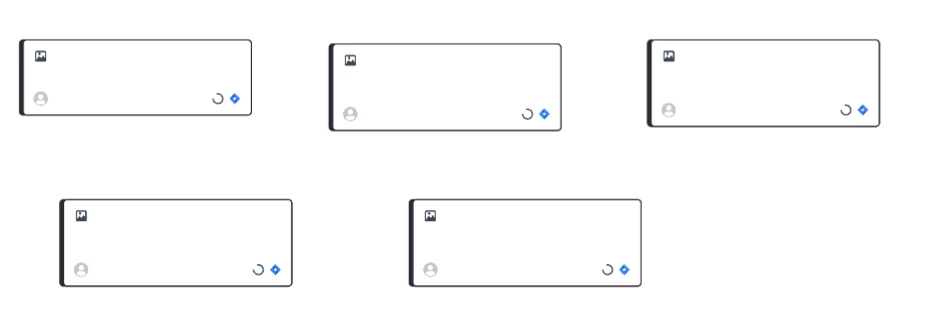
I tried to convert some Lucidspark notes to Jira work items and they have been spinning their waiting wheel for hours now and the items have not appeared on my Jira backlog. How do I reverse this and get my notes back?
A Lucid or airfocus account is required to interact with the Community, and your participation is subject to the Supplemental Lucid Community Terms. You may not participate in the Community if you are under 18. You will be redirected to the Lucid or airfocus app to log in.
A Lucid or airfocus account is required to interact with the Community, and your participation is subject to the Supplemental Lucid Community Terms. You may not participate in the Community if you are under 18. You will be redirected to the Lucid or airfocus app to log in.
Enter your E-mail address. We'll send you an e-mail with instructions to reset your password.






 Your privacy choices


