Answer

Change line endpoints in Lucidchart

  • September 10, 2017
  • 8 replies
  • 281 views

Zorze E

Is there an option to start the connection arrow line with a dot?
Best answer by Paula C101

Hi Eitan

Thanks for getting back to me and I apologize for the confusion. In this Help Center article please navigate to  "Modify line endpoints."

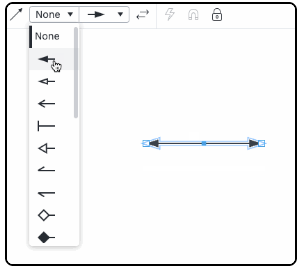
In this screenshot you can see there are two drop down menus for arrow styles. The first drop down menu is for arrows on the left side of the line and the second is for arrow on the the right side. In this example "none" is selected for the left side (first drop down) and one arrow is selected for the right side of the line (second drop down menu expanded in the screenshot). To add an arrow to the left side simply click the first drop down menu under "none" and select the arrow you want to add.

Please let me know if you have any additional questions! 

Comments

Max A
  • Lucidite
  • September 11, 2017

Hi Zorze! Thanks for posting. The connection arrow endpoints can be changed by selecting a line and then opening the endpoints drop-down menu. Unfortunately it doesn't look like there are any dots available--just other arrow endpoints. Does that make sense?


samuel.lam
  • February 13, 2019

How do we get just dots on the endpoints?


Andrew D
  • Lucidite
  • February 13, 2019

 Hi Samuel

Thanks for reaching out in the community. If you would like to view all of the end point selections for your lines you can add the BPMN and UML shape libraries to view more options. In the UML shape library we have circle end points that could fulfill your "dots" as endpoints desire. I hope this helps. 


Eitan
  • February 19, 2019

Hi


How do I make a two-way arrow two endpoints for the same line?


Thanks


Eitan


Paula C101
  • Lucidite
  • February 19, 2019

Hi Eitan

Thanks for posting in the Lucidchart Community! This Help Center article explains how to add arrows to both sides of a line. Please let me know if you have any additional questions. 


Eitan
  • February 19, 2019

Paula

 
Thanks for getting back to me - but this article does not explain a line with 2 arrows one at each end (two-way). Below is also a quote from the article. The formatting options all discuss the single arrowhead format and swapping the side of the single arrowhead…
 
 The default arrow setting for lines in a new document is one-sided and filled in.

Paula C101
  • Lucidite
  • Answer
  • February 19, 2019

Hi Eitan

Thanks for getting back to me and I apologize for the confusion. In this Help Center article please navigate to  "Modify line endpoints."

In this screenshot you can see there are two drop down menus for arrow styles. The first drop down menu is for arrows on the left side of the line and the second is for arrow on the the right side. In this example "none" is selected for the left side (first drop down) and one arrow is selected for the right side of the line (second drop down menu expanded in the screenshot). To add an arrow to the left side simply click the first drop down menu under "none" and select the arrow you want to add.

Please let me know if you have any additional questions! 


Eitan
  • February 20, 2019

Hi Paula - yes it works... Thanks