July 1, 2024
Solved

Azure DevOps integrated cards are all greyed out for editing

  • July 1, 2024
  • 32 replies
  • 870 views

Hi, I’ve got a board with a bunch of ADO linked cards that has been working great but today when I’ve logged into Lucid to try and edit the cards the edit fields are all greyed out.  I can open the cards in ADO from Lucid and make the updates in ADO which do sync back but I can’t seem to make any edits in Lucid directly.  It was all working find last week.  I’ve tried disconnecting and reconnecting my Microsoft account but the problem persists.  Any idea’s what the problem might be? 

Best answer by Shantel Gillette

Good afternoon,

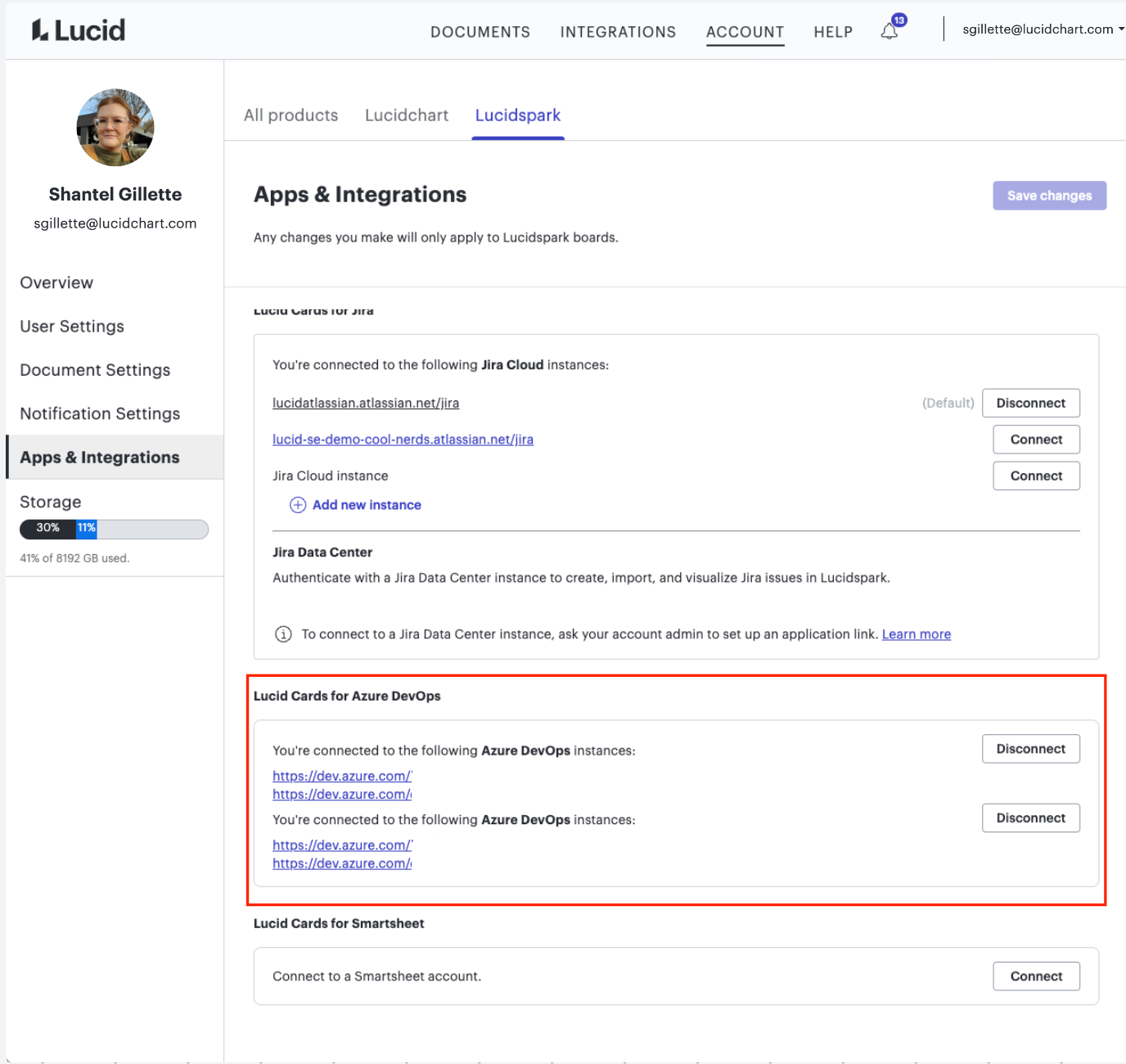
Thank you for trying those steps. It’s unfortunate that they didn’t resolve the issue. One possibility is that you are still somehow connected to two (or more) Azure instances. You can check that by going to your Account Settings (by clicking on your user icon in the upper right hand corner of the home page), then to the left clicking on “Apps and Integrations”, and then under Azure you should see how many connected instances there are. 


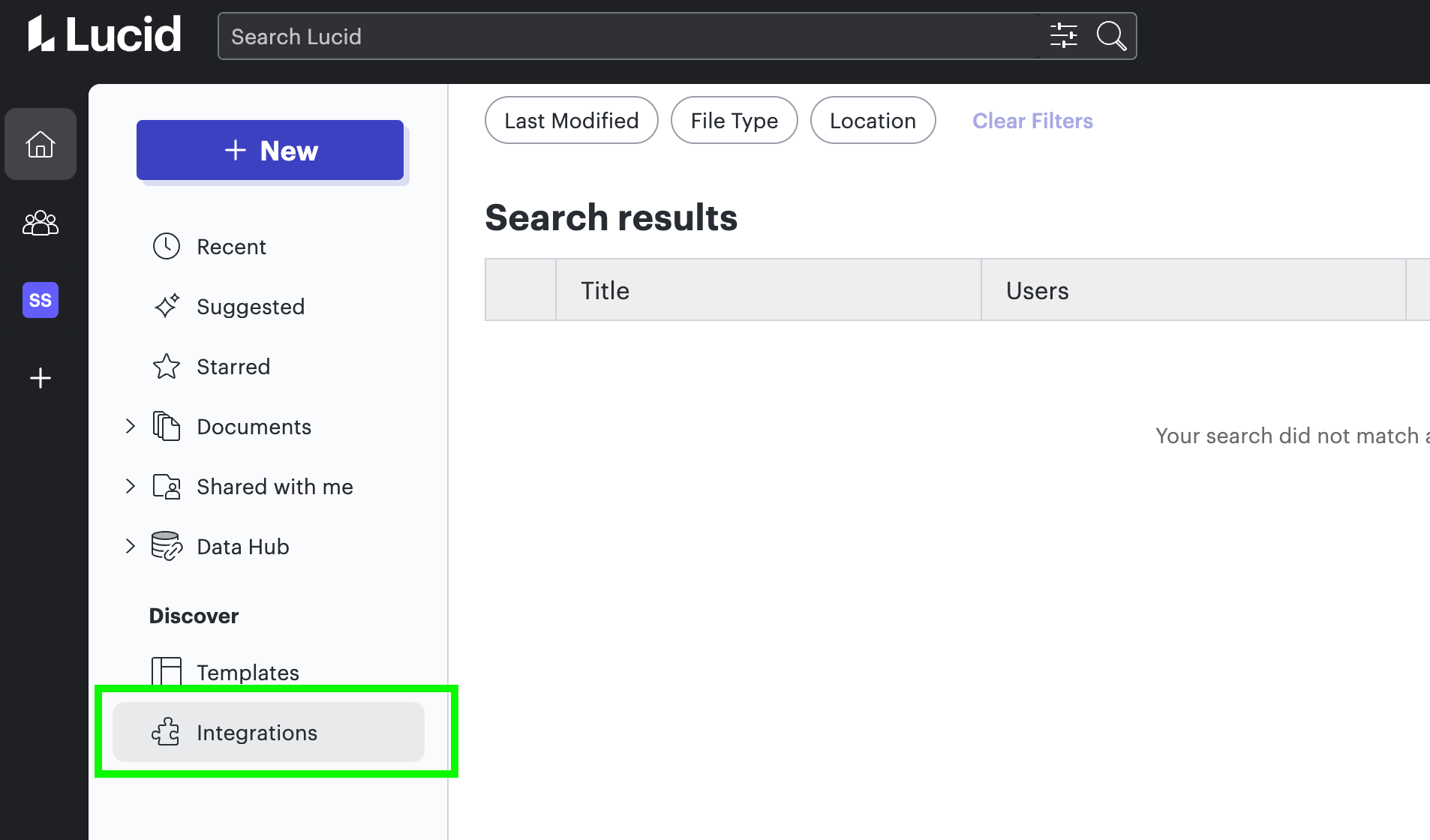
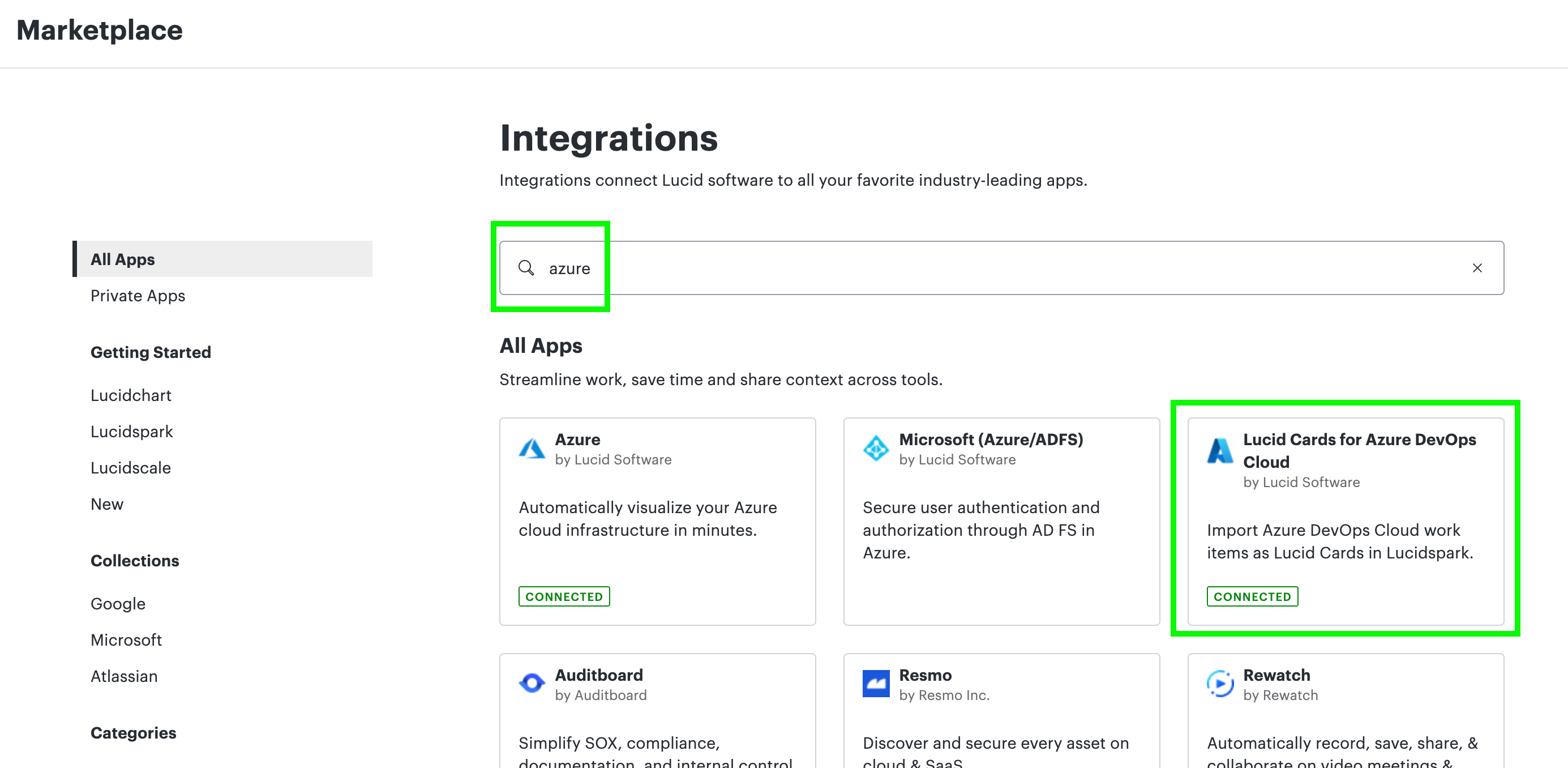
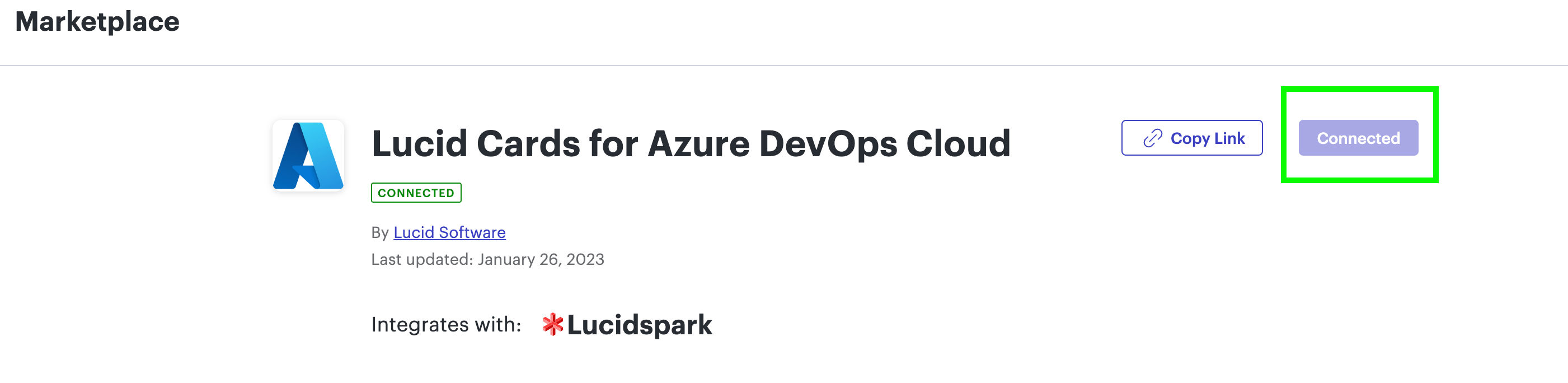
Another suggestion was to completely uninstall the integration from the Marketplace page. You can do this by going to Integrations> Click the Lucidspark tab> Find Lucid Cards for Azure DevOps (or just do a search)> Click the listing> Click “Disconnect” in the top right of the listing. It’s part of my corporate account so I can’t disconnect mine, but the images below should give you an idea of what to do.


Let me know if that works! 

Comments

kuppalapati
Lucid product team
July 24, 2024

Thank you for trying the steps we’ve outlined! We are currently in beta for a new ADO app which is more stable and feature-rich than the current ADO app. We encourage you to connect to this beta, which should ensure you don’t run into these issues. 


I have outlined the steps to connect to the beta below:

  1. Connect using the marketplace listing here
  2. Once you click “Connect,” you should be taken to a new page with the beta listing. Click “Link” on this page
  3. Open a Lucidspark board and scroll down the sidebar until you get to the "Azure DevOps Beta" app
  4. Click "Import Work Items" or "New Work Items". Then, you should see a popup requesting authorization for Azure DevOps. Click "Authorize”
  5. A new browser tab will open. In that tab, you may be able to authorize the app yourself or you may require Microsoft admin approval. This depends on your company's configuration of Azure

After going through this flow, you should be ready to get started on the beta! Please reply to this message if you have further questions.

September 11, 2024

Thank you for trying the steps we’ve outlined! We are currently in beta for a new ADO app which is more stable and feature-rich than the current ADO app. We encourage you to connect to this beta, which should ensure you don’t run into these issues. 


I have outlined the steps to connect to the beta below:

  1. Connect using the marketplace listing here
  2. Once you click “Connect,” you should be taken to a new page with the beta listing. Click “Link” on this page
  3. Open a Lucidspark board and scroll down the sidebar until you get to the "Azure DevOps Beta" app
  4. Click "Import Work Items" or "New Work Items". Then, you should see a popup requesting authorization for Azure DevOps. Click "Authorize”
  5. A new browser tab will open. In that tab, you may be able to authorize the app yourself or you may require Microsoft admin approval. This depends on your company's configuration of Azure

After going through this flow, you should be ready to get started on the beta! Please reply to this message if you have further questions.

The link listed gives a 404.  

September 11, 2024

This is still an unresolved problem for me.  In Lucidspark, I still have grayed out fields and cannot edit ADO cards.  When trying to sign in, it opens a browser tab, then shuts and nothing changes.  Tried with both Chrome and Safari browsers.

Kelsey Gaag
Lucidite
September 12, 2024

Hi @RKale

Thank you for the reply! Have you tried disconnecting and reconnecting the integration? You can do this by following the steps outlined in this post: 

Good afternoon,

Thank you for trying those steps. It’s unfortunate that they didn’t resolve the issue. One possibility is that you are still somehow connected to two (or more) Azure instances. You can check that by going to your Account Settings (by clicking on your user icon in the upper right hand corner of the home page), then to the left clicking on “Apps and Integrations”, and then under Azure you should see how many connected instances there are. 


Another suggestion was to completely uninstall the integration from the Marketplace page. You can do this by going to Integrations> Click the Lucidspark tab> Find Lucid Cards for Azure DevOps (or just do a search)> Click the listing> Click “Disconnect” in the top right of the listing. It’s part of my corporate account so I can’t disconnect mine, but the images below should give you an idea of what to do.


Let me know if that works! 


You may need to contact your account owner to do this. 

September 12, 2024

Thanks again for suggesting, I can view the connection in Lucid, but we (the Lucid Admin) do not have the option to disconnect.  For other integrations, it says “manage connection” but for Lucid it just says “Connected”


Perhaps another clue, each time I try to change a ADO card in Lucid, I select sign-in to make changes.  That adds another exact same ADO instance to my Lucid ADO integration list.  

September 12, 2024


September 12, 2024

Further, the Lucid admin does not see ADO cards connected in his admin panel, other apps are, but ADO is not. 

Kelsey Gaag
Lucidite
September 12, 2024

Thanks again for suggesting, I can view the connection in Lucid, but we (the Lucid Admin) do not have the option to disconnect.  For other integrations, it says “manage connection” but for Lucid it just says “Connected”


Perhaps another clue, each time I try to change a ADO card in Lucid, I select sign-in to make changes.  That adds another exact same ADO instance to my Lucid ADO integration list.  

Hi @RKale,  Thank you for the response! Could you try following these steps to disconnect the integration?  Account Settings > Apps & Integrations > Lucidspark instead of the Marketplace.

Please note, we recommend waiting ten minutes before reconnecting.

September 12, 2024

Thanks again for suggesting, I can view the connection in Lucid, but we (the Lucid Admin) do not have the option to disconnect.  For other integrations, it says “manage connection” but for Lucid it just says “Connected”


Perhaps another clue, each time I try to change a ADO card in Lucid, I select sign-in to make changes.  That adds another exact same ADO instance to my Lucid ADO integration list.  

Hi @RKale,  Thank you for the response! Could you try following these steps to disconnect the integration?  Account Settings > Apps & Integrations > Lucidspark instead of the Marketplace.

Please note, we recommend waiting ten minutes before reconnecting.


Thanks for the response.  Have tried that several times. 

Kelsey Gaag
Lucidite
September 13, 2024

Hi @RKale

Thank you for clarifying! I have converted your post to a support ticket so our team can help you further!