

Introducing the new Lucidchart editor
Get started with the new Lucidchart editor
We’re excited to introduce a new editor interface style for Lucidchart documents! 🎉
This post serves as a short introduction and orientation to the new UI. For detailed documentation on the Lucidchart editor, check out this Help Center article: Welcome to Lucidchart.
Note: The new interface is currently in public beta and will become default to everyone on December 7th, 2026. If you’re ready to try it out now, early access is available to everyone- learn how to switch into the new experience here!
Switching into the new editor also unlocks dark mode.
Quick orientation
The most common shapes and tools are available to the left of your canvas in document tools- including text boxes, sticky notes, arrows, containers, standard shapes, Lucid AI, images, the pen tool, and comments.
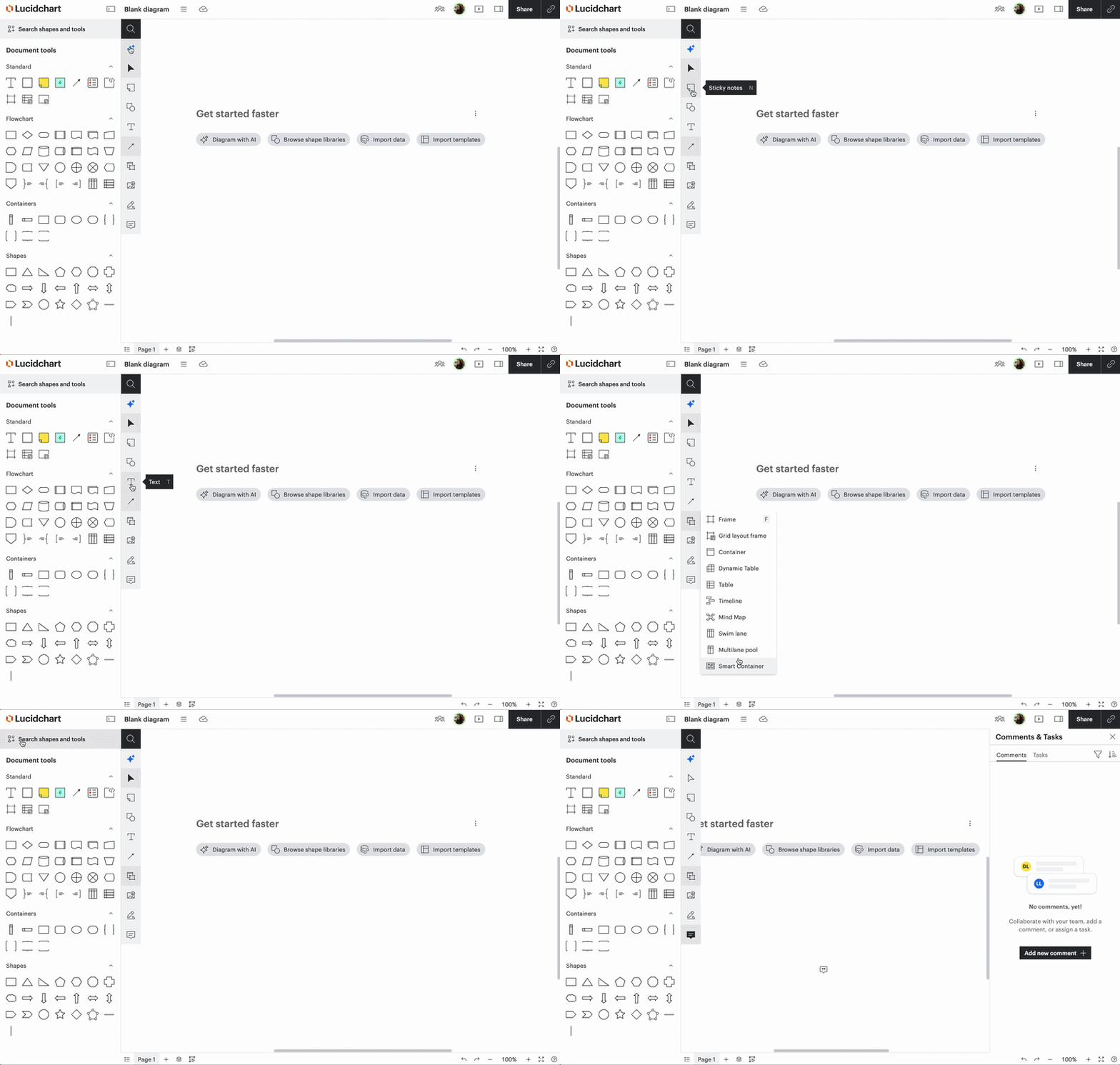
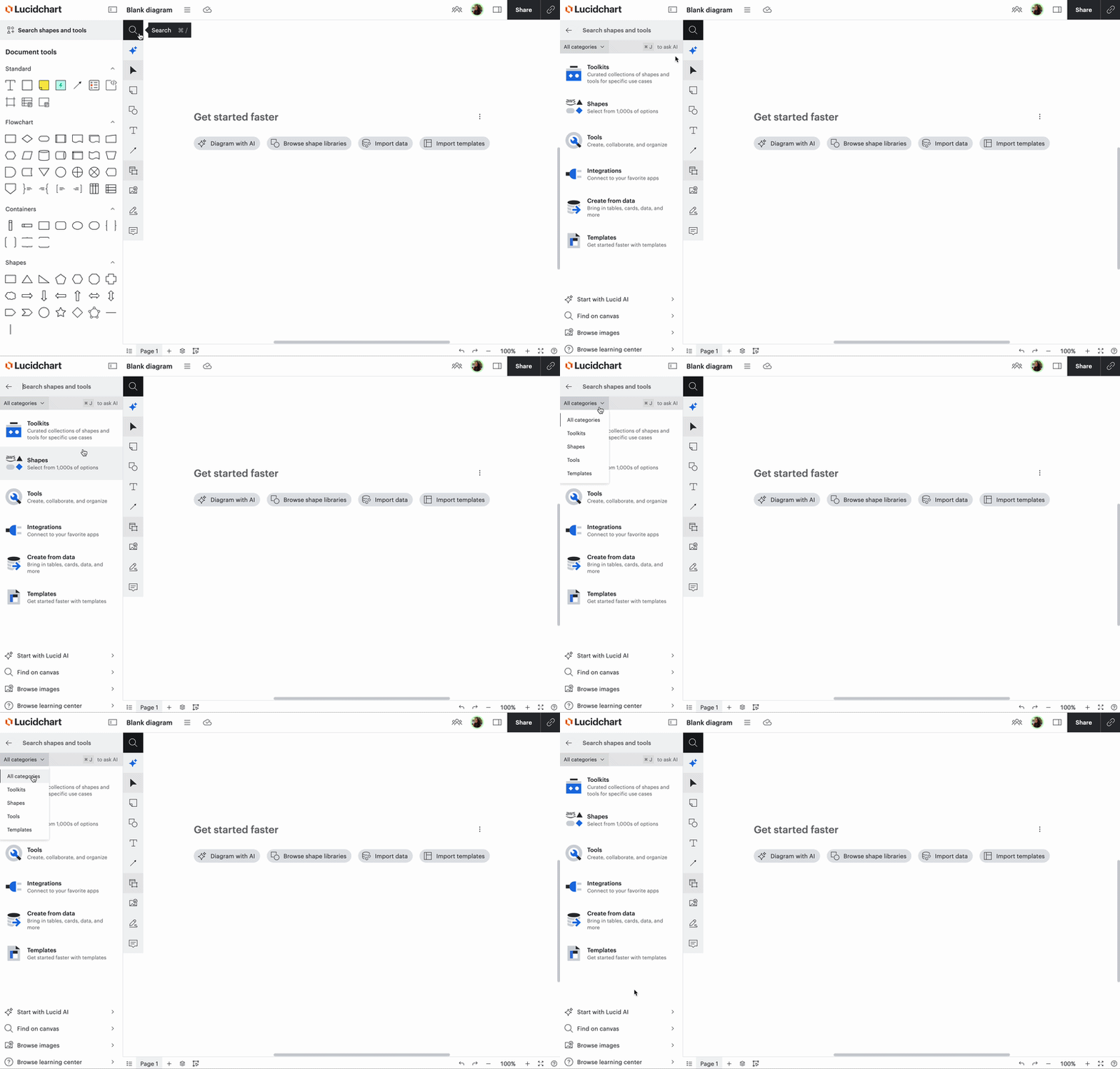
At the top of the document tools, you’ll see a search bar titled Search shapes and tools. Select this option to find additional shapes, toolkits, the template library, available integrations, data-linking tools, and learning center resources.
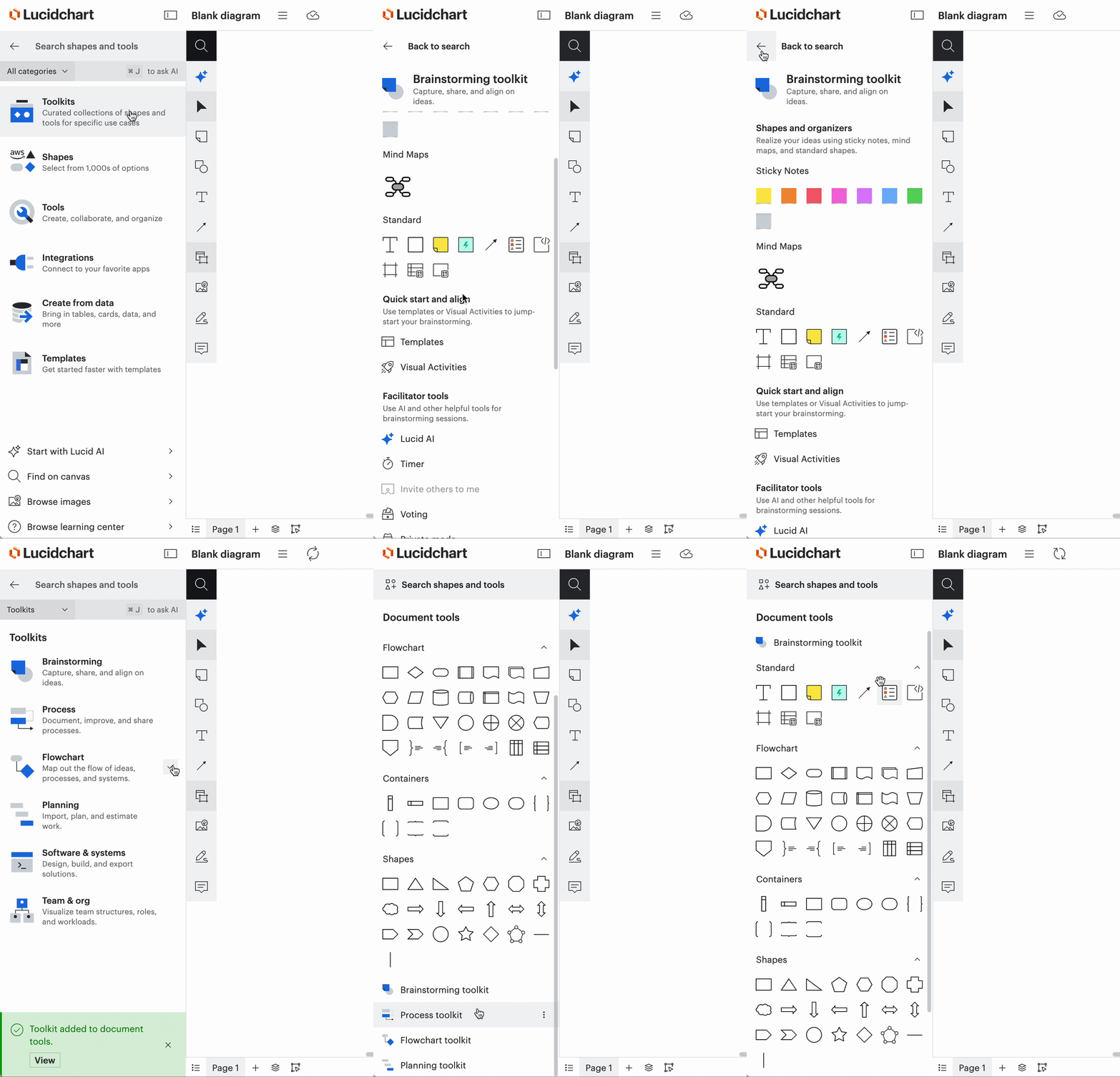
Let’s zoom in a bit more on toolkits! Toolkits are use case-specific collections of shapes and tools designed by Lucid to help with common use cases. Toolkits can be added to your main document tools, and moved as needed to access your most common controls quickly.
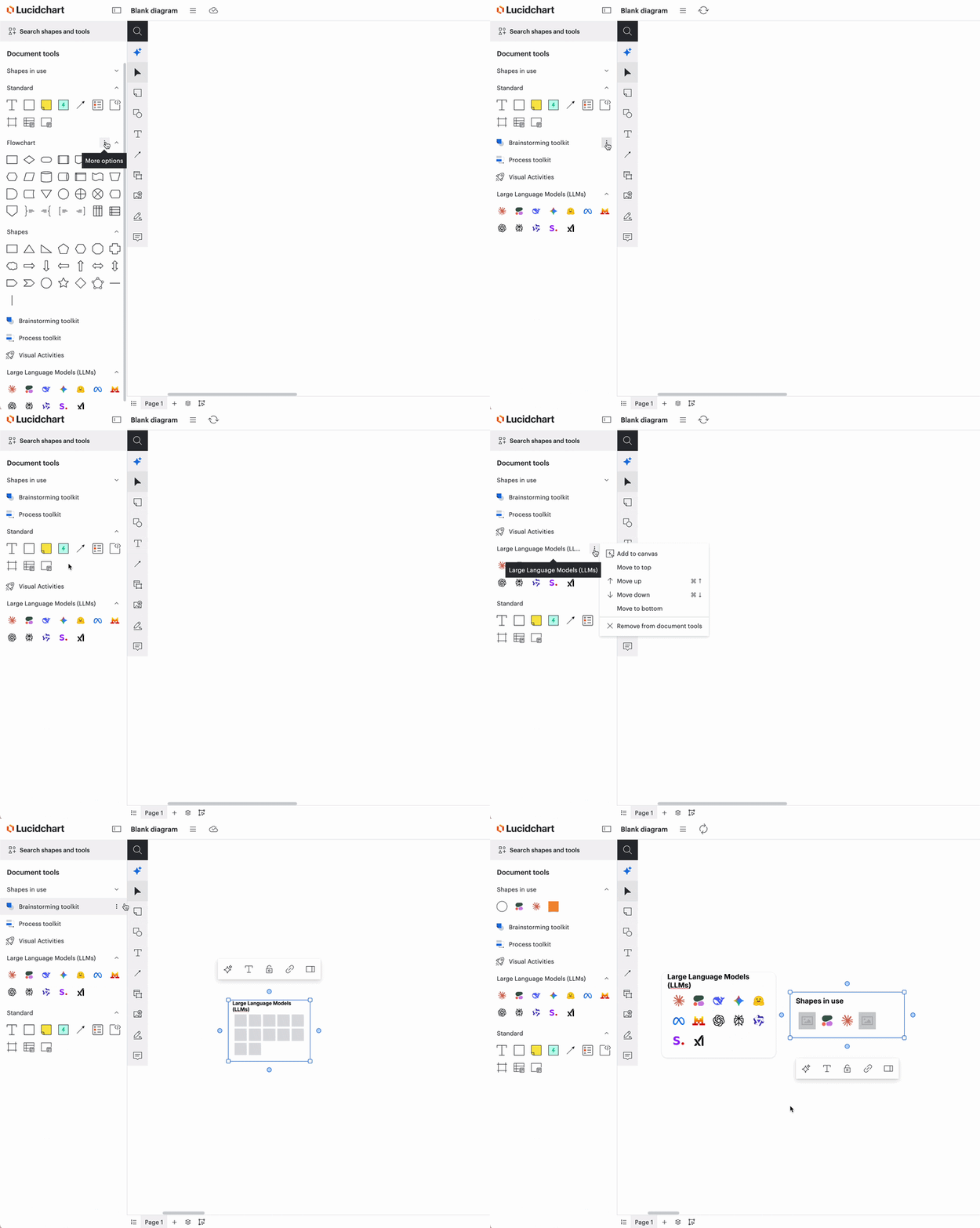
Edit your document tools
This ability extends beyond just toolkits. Shape libraries and tools can be added to, re-ordered in, and removed from your document tools in the left panel. You can also add shape libraries to your canvas to keep your most used items right at your fingertips. This provides you with additional flexibility to customize your editor experience.
Edit shape properties with the shape editing bar
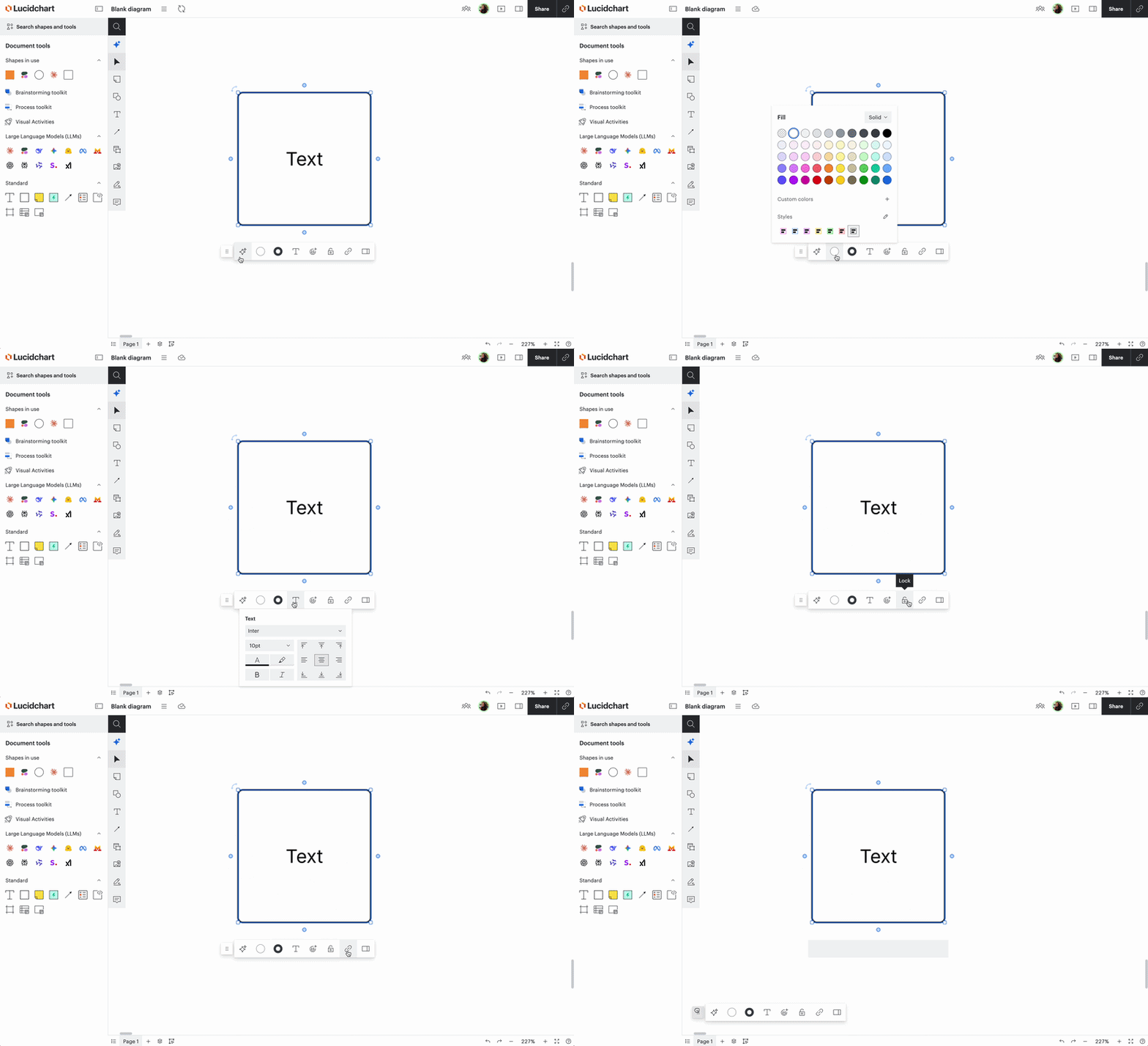
When dragging a shape onto the canvas, you’ll notice a small shape editing bar open. The most common controls can be accessed here- including Lucid AI, fill and line color, text editing, emoji reactions, lock/unlock, adding a link, and opening up the right panel for additional tools and menus.
Right panel
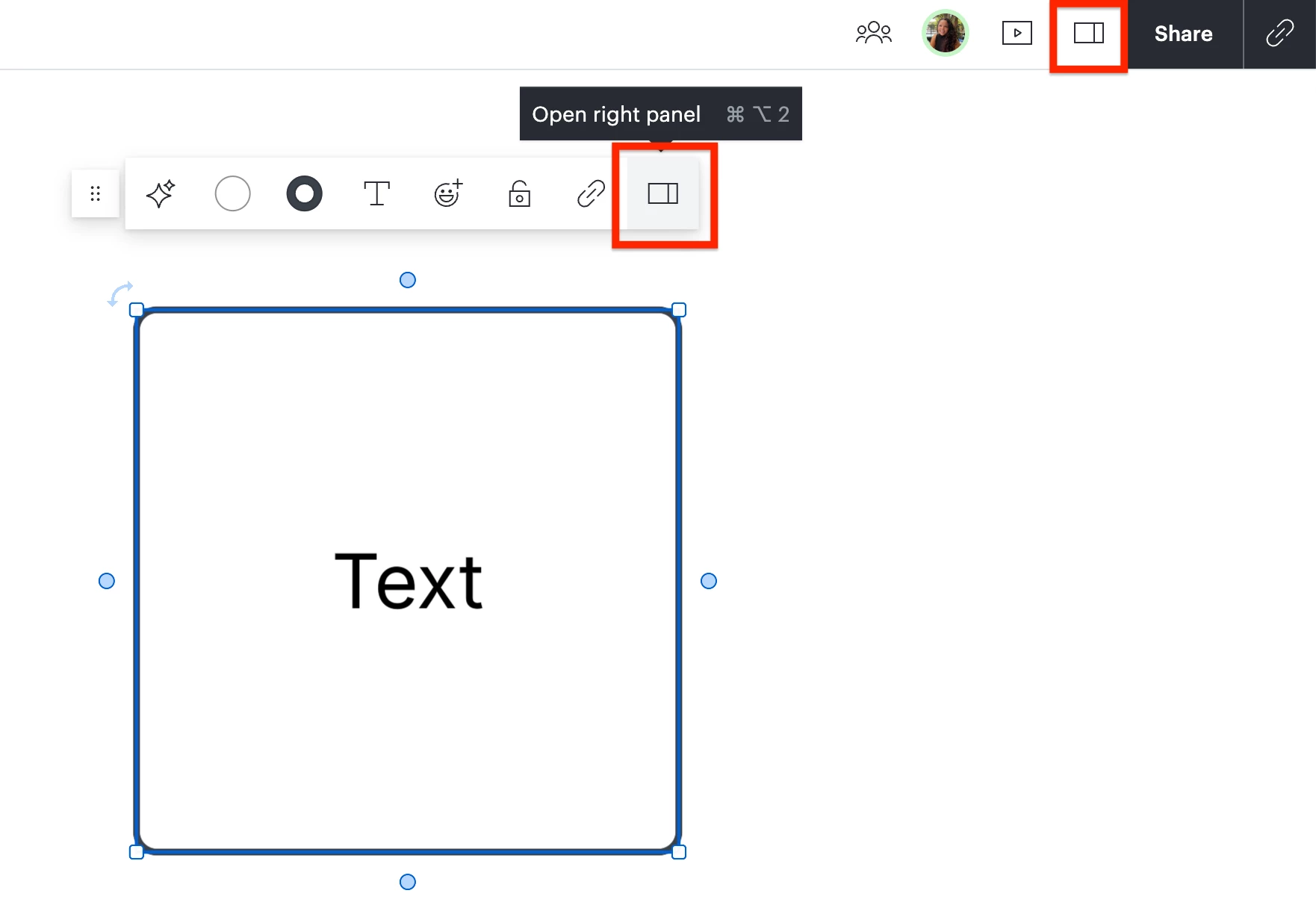
The right panel can be accessed from the shape editing bar and from the top-right of the editor next to Share.
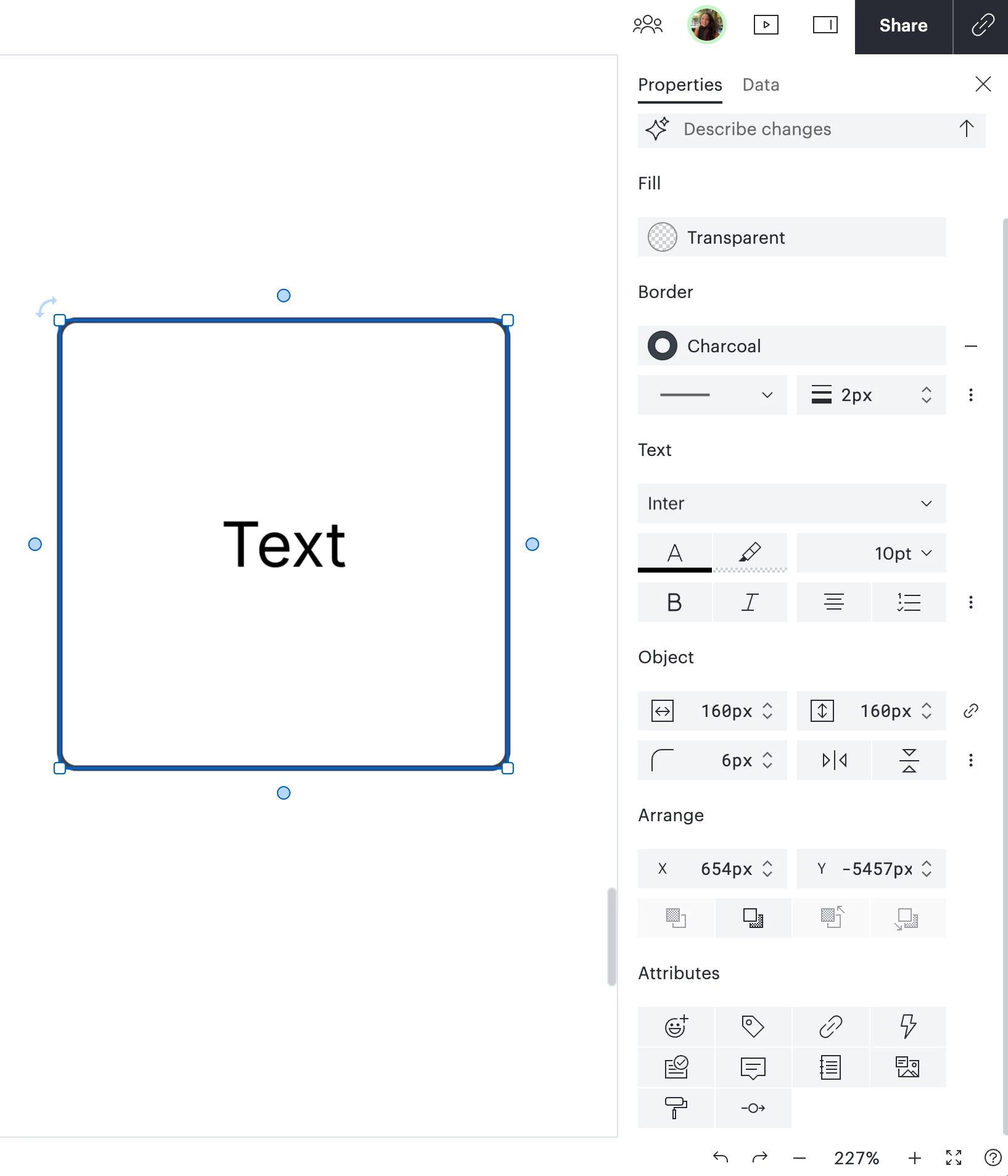
It has all the options that are listed in the shape editing bar plus additional editing tools- including but not limited to adding or editing data, accessing the Shape ID, shape opacity, shape rotation, shadow, tags, icons, and conditional formatting. This menu is dynamic. That means the options listed there adjust based on which type of shape you’re working with.
Frequently Asked Questions
Where can I find resources and documentation?
We are actively updating our documentation in the Lucid Help Center and Lucid Community. We recommend getting started with the articles listed below!
To find up-to-date documentation for the new editor, check out the resources below.
- Welcome to Lucidchart
- Add and customize shapes in Lucidchart
- Add and style lines in Lucidchart
- Export or print a Lucid document
- Enable or disable content nudging
- Create an org chart
- Link data to a Lucidchart document
Can I switch back to the classic editor experience?
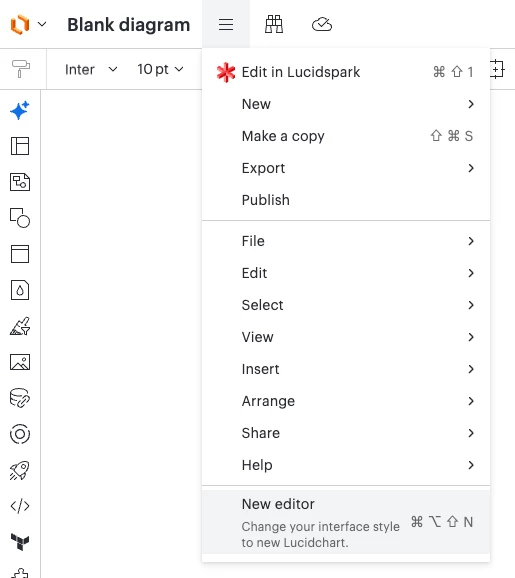
During the roll out phase of the new editor experience, you can switch back to the classic editor from the file menu. If you switch back to the classic editor, be sure to share your feedback in this community space.
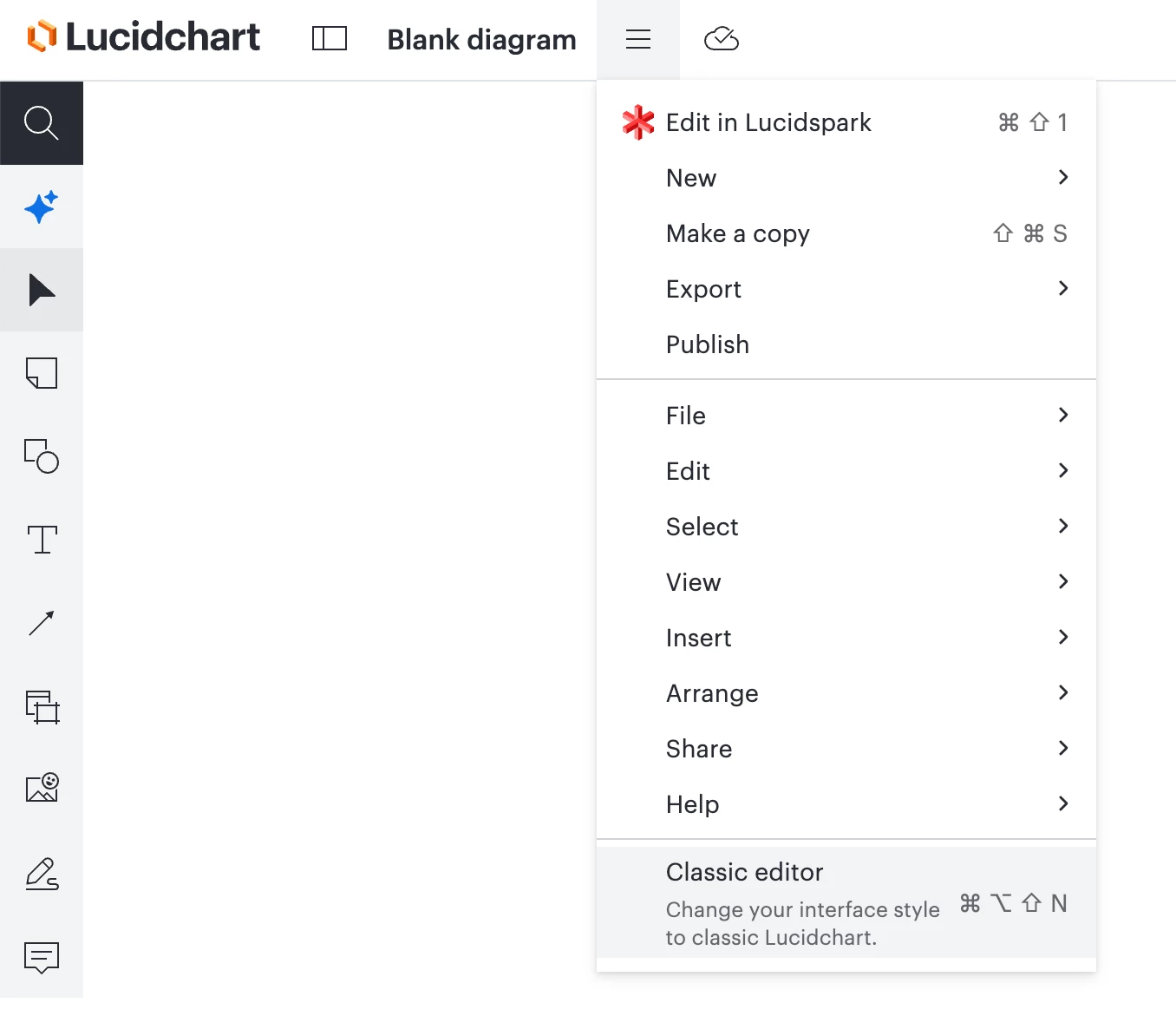
You can enable the new editor again by following these same steps.
Where can I leave feedback?
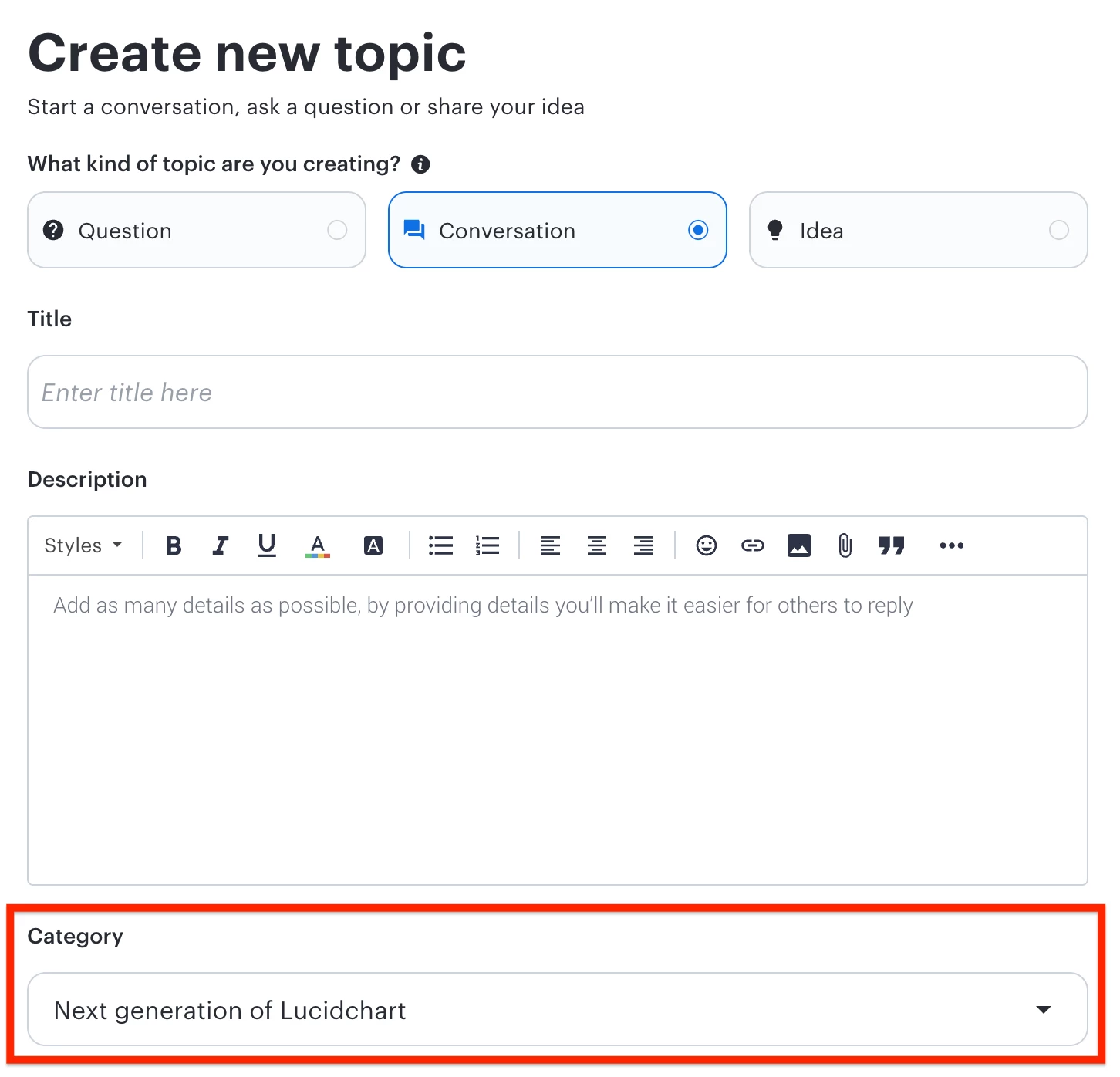
Our Product teams are closely monitoring all user feedback within this community space as they continue to research and improve this new experience. If you have feedback, please create a new topic and set the Category to Next generation of Lucidchart.
 Your privacy choices


