Katharine M
April 7, 2022
Validating

Disable contextual panel from displaying in Lucid

Related products:Lucidchart
  • April 7, 2022
  • 34 replies
  • 1073 views

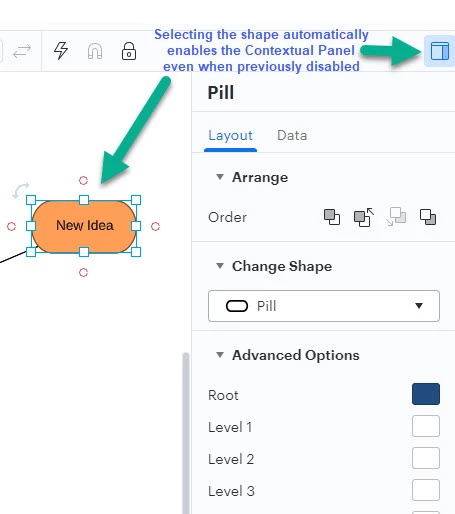
When I select a shape the Contextual Panel for that shape automatically opens up even when I've previously clicked the Contextual Panel icon to disable it (in the hopes it would stop opening each time).  This is highly inconvenient as it takes up screen space and often covers up the very shape I just clicked on with the intention of entering text.  Each time I have to click to disable the panel and then when I click the next shape it opens again.

It seems to happen on all container elements. The example is from a Mind Map but I've also seen it on Org Charts Swim Lames etc.
 

Pinned Reply By AnnieMoscon

Hi, my name is Annie and I am on the product team here at Lucid. All of the feedback mentioned in this thread is super valuable and will be noted. This is an area of our product that we are actively working to improve the usability of. If this is something you are interested in discussing further, you can leave a comment below and I can work on getting something set up to chat. We appreciate the thoughtful feedback. 

Comments

PAW
March 4, 2026

Applications like Visual Studio approaches this by simply allowing their users to decide whether the panel is in or out...

Pinning/Unpinning

Paul.
Ambar D
Lucid community team
March 4, 2026

Hi ​@AAAAA and ​@PAW, thank you both for taking the time to let us know what you’d like to see in this experience! 

To give you a peek behind the curtain, we've set the status of this thread to ‘Validating’, because our product development team is scoping out possibilities here- including investigating the requirements and implications of this feature. You can check out this post to learn more about the status we assign to posts in the Product Feedback space. 

We appreciate your comments as the product team continues to research here! We're always looking for how we can make our products more effective for you, and understanding your experience is essential.

April 15, 2026

This behavior is extremely frustrating, and yet I don’t understand why this is so hard to fix. The correct UX here is incredibly easy: the panel should only open or close based on user input interacting with the button in the upper right corner that (gasp) controls whether the panel is open or close. This solves everyone’s needs, and is actually a lot simpler than the complex, broken behavior that currently exists.

  • For users who want 25% of their screen space to be taken up by a useless panel, they can click the button at the top to show this panel.
  • For users who don’t like this panel taking up their precisous screen space, they can click the button at the top to hide this panel.

Just stop automatically showing panels. That is a frustrating UX that makes me less productive. Productivity is why I use lucidchart in the first place; anything that hurts productivity drives me away from using the product.

Panel management is not something that should be done as a side-effect. The user should be able to configure the panels they way they want, and they should stay that way. End of story. Simple. Tried and true interaction model. 

Ambar D
Lucid community team
April 17, 2026

Hi ​@autobaughn, thank you for your detailed feedback, I certainly understand your comments and thoughts here. 

While I know this is not exactly the experience you’re hoping for, I do want to mention one option that temporarily hides all panels (including the contextual panel), you can use the "Fullscreen" button in the bottom-right corner of the editor. This will give you a larger canvas for working, allowing you to click elements without the contextual panel automatically popping up.

You can still access the panels by clicking on the gray arrows that appear in this view, but they won’t be taking up as much valuable screen space that you mention.

I know this may not be the ideal fix, but I do hope it helps for the time being. Thank you again for taking the time to let us know just how important this is to your productivity and workflow. Our product teams are still using this space to review feedback and comments just like yours!