Idea

Can I use a formula to count the number of icons in my Lucid diagram?

Related products:Lucidchart
  • February 24, 2026
  • 2 replies
  • 18 views

Forum|alt.badge.img+1

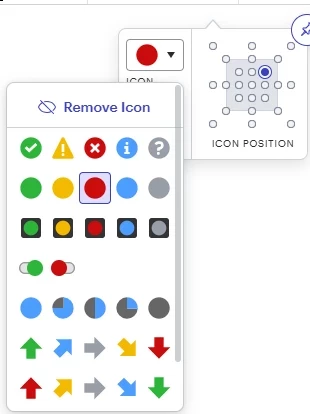
I have a orgchart and used a lot of icon in pic down here. Do you guy know any formula to count how many icon i had used and how many of which one (eg: green circle, red circle) i had used.


Thank you.
 

Comments

alison cheney
Forum|alt.badge.img+4
  • Lucid community team
  • February 24, 2026

Hi ​@Wuan Nguyen,

Thanks for your post! Unfortunately, this exact feature of counting your icons isn’t currently supported in Lucid, but we’re very interested in your feedback and committed to continually improving our products. If you’re willing to share, we’d love to hear more details about your use case or what you’d like to see in this experience within this thread. This post is marked as an idea and is visible to others within the Product Feedback section of the community - from here, they can upvote it and add details of their own.


In the meantime, I wanted to provide a workaround that many users find very helpful:

Based on this help center article , formulas cannot read an icon set once it is on a shape. To get an automatic count, you need to use conditional formatting to link the icon to a piece of data.

Instead of adding icons manually, use a data field to trigger them. This allows the formula to count the data behind the icon.

Please follow the steps below: 

  • Select all shapes that should have a specific icon (e.g., all "Green" status shapes).

  • In the contextual panel on the right side of your screen, add a field called Status and set it to Green. This updates all selected shapes at once.

  • Click the Wand icon (Conditional Formatting) > + Add rule.

  • IF: Shape data "Status" is "Green".

  • THEN: Select Icons and choose the Green Circle. The icon will now appear automatically on any shape with that data.

  • Add a text box and use this formula to display the count: =COUNTIF(DESCENDANTS(PAGE), THIS."Status" = "Green")

Basically, you just have to label your groups of shapes one time. Once that’s done, whenever you update a shape's “Status” data, the icon swaps out and your formula count updates right away. Check out this Community post for more information on conditional formatting!


For more information on how Lucid manages feedback via this community, take a look at this post:

Please let me know if you have any additional questions!


Forum|alt.badge.img+1
  • Author
  • February 25, 2026

Hi ​@alison cheney,

My manager told me that he once used a formula where the count would automatically update just by changing the icon, but he has forgotten the formula now.

Thank you for your response — I’ll try your suggested solution and follow up with my manager.