

Copy/paste Mermaid syntax for editable diagrams
We’re happy to announce that you can now generate fully editable Lucid shapes from your Mermaid syntax! 🎉
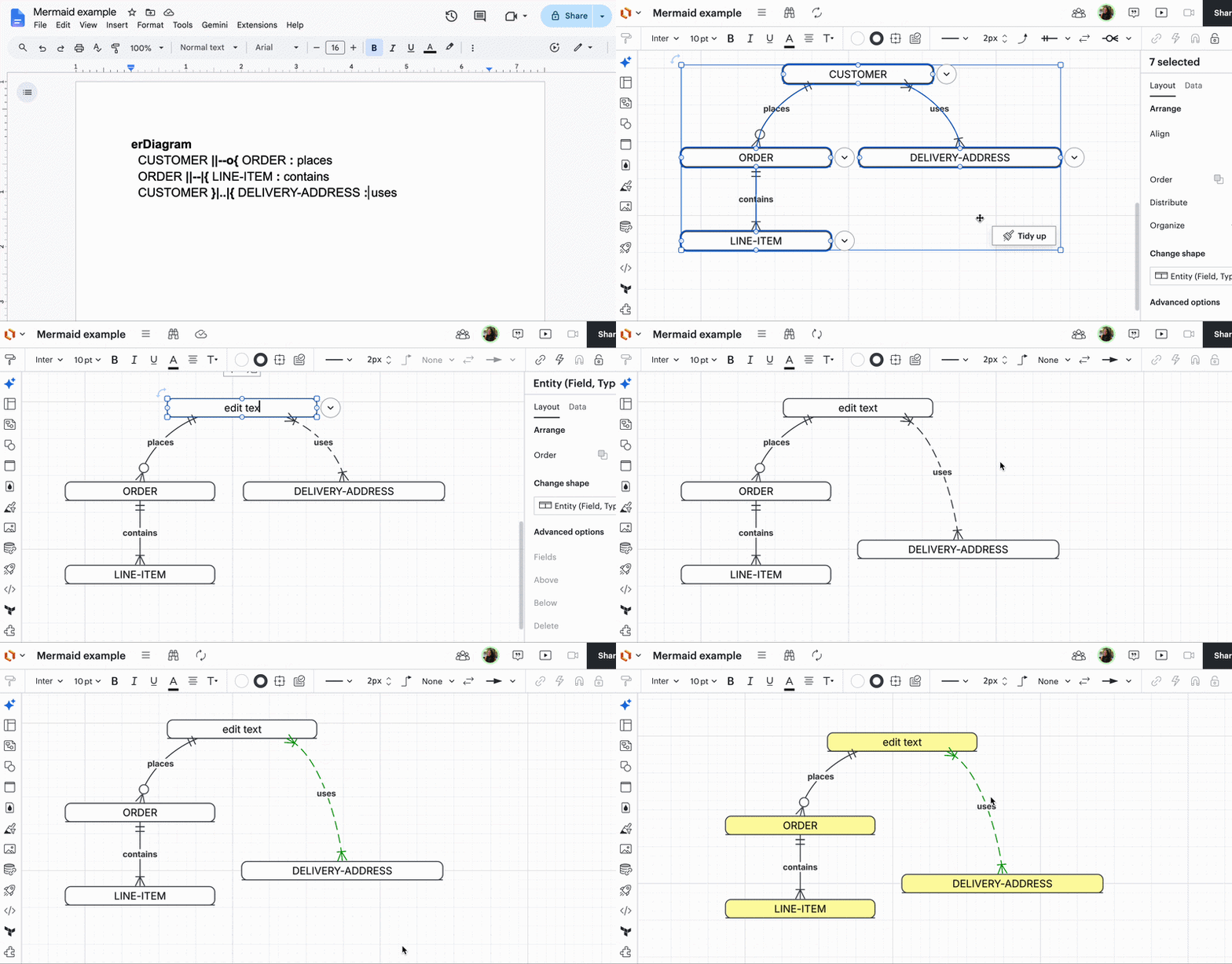
Let’s take a look at how it works ⏬
What’s new?
Copy your syntax and paste it into your Lucid document. The result will be native, editable shapes that you can format and move around freely!
How can I edit my new diagram?
After pasting in your Mermaid syntax, your shapes and diagram will be fully editable!
- Add, move, and edit shapes and lines
- Add and edit colors
- Add and edit text
*Note that any shapes that are not yet supported will appear as static SVGs.
Why did we build this?
Writing diagram syntax in Mermaid is fast, but communicating and iterating with cross-functional stakeholders is always easier visually. This feature helps you bridge the gap between code and visual collaboration!
- Edit visually: Skip the tedious syntax trial-and-error. Generate your base diagram from Mermaid syntax, then use Lucid’s canvas to tweak and format as you’d like.
- Bridge the technical gap: Easily bring your technical documentation into meetings for stakeholders. Your engineering team can continue working quickly in text, while you communicate a clear, beautiful visual that stakeholders can understand and provide feedback on.
Can I create editable shapes from the diagram as code menu?
At this time, we do not support creating native Lucid shapes and diagrams from the diagram as code menu in Lucidchart. Instead, the diagram is displayed as an image and must be edited from the syntax menu.
However, we recommend copying your syntax from this menu and pasting it directly onto the canvas as a workaround!
How can I get started?
Try this out today and let us know what you think!
- Copy your Mermaid markdown syntax from your codebase or repository.
- Open any Lucid document.
- Paste it directly onto the canvas (or use the Import > Mermaid menu option).
- Watch the magic happen, and start collaborating!
 Your privacy choices


