
Solved
Lucid MCP connector with Writer AI
Hi, we are trying to do a connection to Writer AI with Lucid. We’ve added the https://mcp.lucid.app/mcp but we also need:
Authorization URL
Access token URL
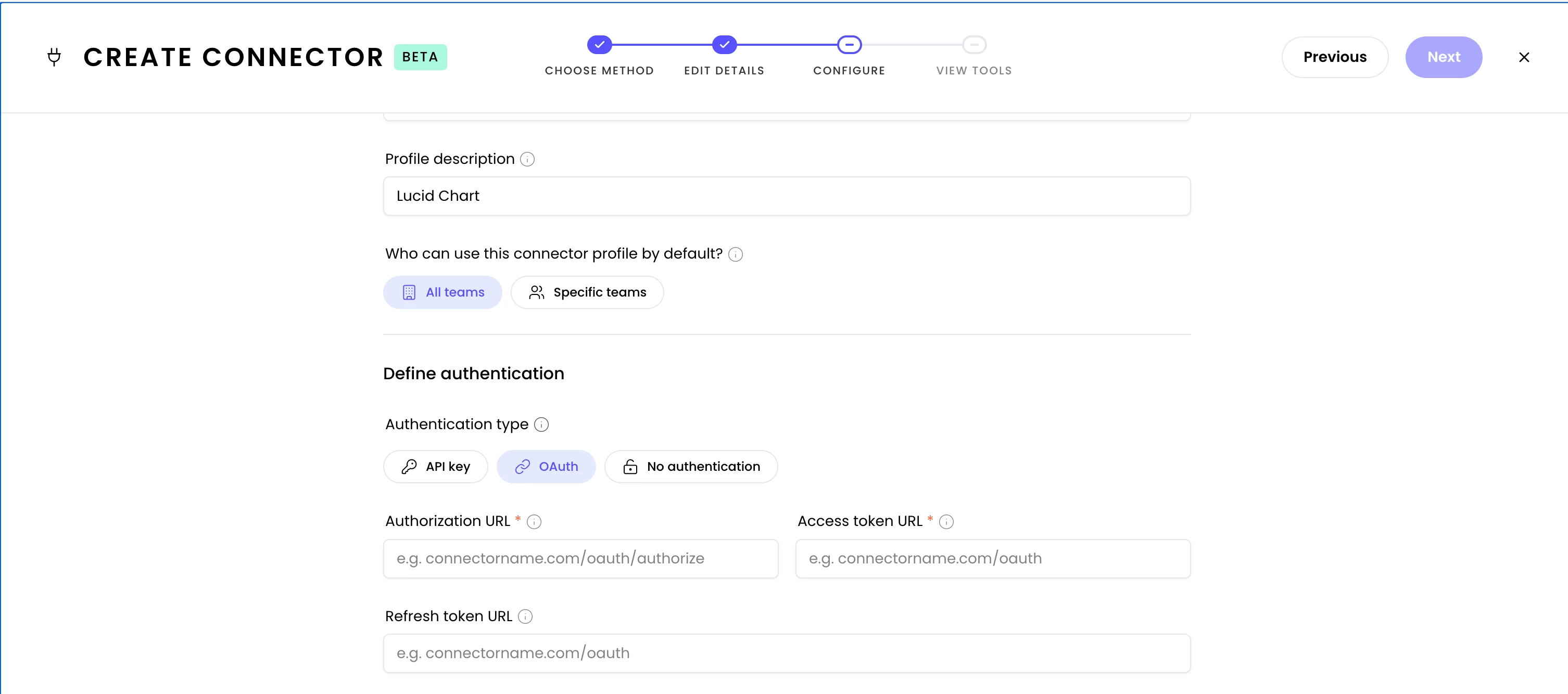
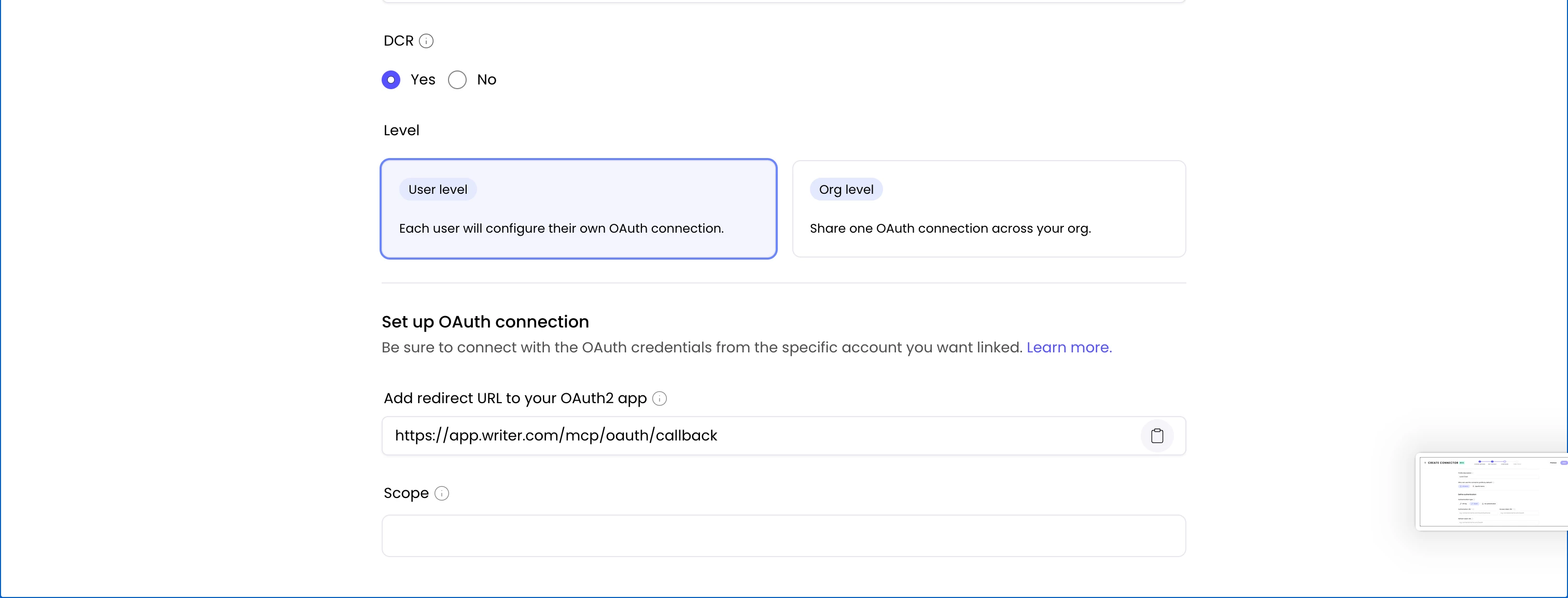
Hi, we are trying to do a connection to Writer AI with Lucid. We’ve added the https://mcp.lucid.app/mcp but we also need:
Authorization URL
Access token URL
Here's a walkthrough for manually creating an OAuth client for the Lucid MCP server (https://mcp.lucid.app). The /Oauth/register endpoint accepts a one-shot, unauthenticated call. You will call it once from Postman/Bruno, save the credentials, and then configure your MCP client to use those static credentials for the rest of the flow.
1. Confirm valid redirect URIs
- https://... — any HTTPS URL (must have a host, no fragment, ≤ 2048 chars)
- http://localhost, http://127.0.0.1, http://[::1] — loopback only; any port is fine (RFC 8252).
- A custom private-use scheme like myapp://callback.
Up to 10 URIs per client. No http:// to a non-loopback host. No URL fragment.
2. Register the client (Postman/Bruno)
Create a new request:
- Method: POST - URL: https://mcp.lucid.app/oauth/register
- Headers: Content-Type: application/json
- Body (raw JSON):
{ "client_name": "Acme Corp MCP Integration", "redirect_uris": [ "https://acme.example.com/oauth/callback" ], "token_endpoint_auth_method": "client_secret_post" }
Send. On success, you get HTTP 201 with:
{ "client_id": "<32-byte url-safe token>", "client_secret": "<32-byte url-safe token>", "redirect_uris": [...], "client_name": "Acme Corp MCP Integration", "token_endpoint_auth_method": "client_secret_post" }
Save the client_id and client_secret immediately. There is no read endpoint and no way to recover them later; if they're lost, you’ll need to re-register and get fresh values.
3. Configure your MCP client
In your MCP client's configuration, plug in:
- Authorization endpoint: https://mcp.lucid.app/oauth/authorize
- Token endpoint: https://mcp.lucid.app/oauth/token
- Client ID and Client Secret from step 2
- The same registered redirect URI
The client now uses the pre-registered credentials directly and never calls /oauth/register.
Alternative: Client ID Metadata Document (CIMD)
If hosting a static JSON file is easier than running the registration call, the server also accepts CIMD: host a document at a stable HTTPS URL describing the client, and use that URL itself as the client_id. No client_secret is involved (public client only). Useful for orgs that prefer to manage client metadata in their own infra.
A Lucid or airfocus account is required to interact with the Community, and your participation is subject to the Supplemental Lucid Community Terms. You may not participate in the Community if you are under 18. You will be redirected to the Lucid or airfocus app to log in.
A Lucid or airfocus account is required to interact with the Community, and your participation is subject to the Supplemental Lucid Community Terms. You may not participate in the Community if you are under 18. You will be redirected to the Lucid or airfocus app to log in.
Enter your E-mail address. We'll send you an e-mail with instructions to reset your password.
 Your privacy choices


