

News
Unlock Advanced Conditional Formatting with Lucid AI
While Lucid AI has already been helping you automate your visuals, we’ve now given it a massive boost. Lucid AI can now build complex, multi-step rules, translating your natural language prompts into sophisticated logic instantly.
Here’s a look at the advanced logic you can now build just by asking:
- Connect Multiple Conditions: Instead of just one trigger, you can chain them using AND/OR logic.
- Try: "Highlight shapes if the Status is 'In Progress' and the Priority is 'High'."
- Let Lucid AI Do the Math: You can now perform calculations based on the data nested within your shapes.
- Try: “Change the shape color if 'Value A' is greater than 75% of 'Value B'."
- Total Customization: Because the AI now handles the heavy lifting of the underlying logic, it can create or edit any rule that you previously had to build manually in the editor.
- Try: "Update my current formatting rule to add a second condition and change the shape border to dashed."
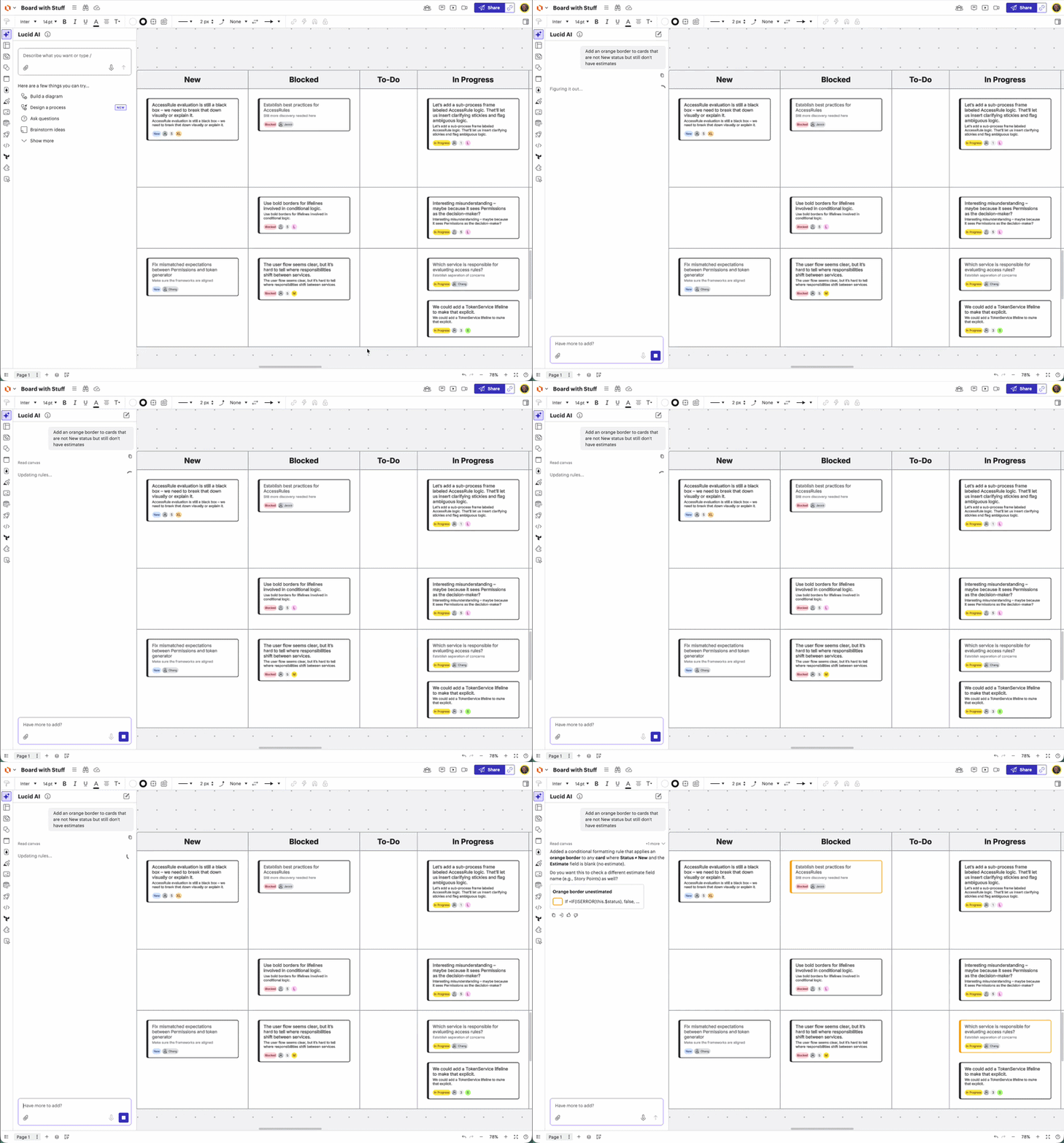
You can access this expanded power in two ways:
- Open the Lucid AI panel and describe the multi-step rule you want to see.
- Utilize Lucid AI in the conditional formatting panel instead of building a rule manually.
Whether you're tracking project health, managing a budget, or visualizing a complex workflow, Lucid AI now handles the intricate logic so you can focus on the big picture.
For more information, check out this Help Center article.
 Your privacy choices


