Hi @ncrook, thank you for posting in the Lucid Community!
We reorganized editing controls so the ones you use most are faster to reach: your most common controls now live in a mini bar right above your selected shape, instead of a fixed toolbar at the top of the screen you'd have to look away from your work to use.
To select the bendy arrow as your default arrow type:
Open your Lucidchart document.
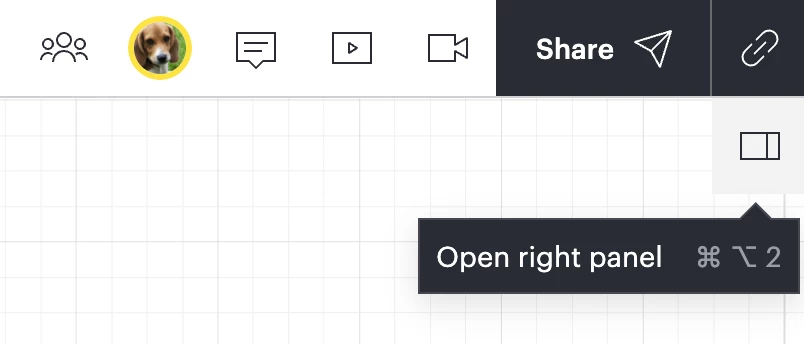
Navigate to the top-right of the canvas and select the button to Open right panel, located underneath the share button.
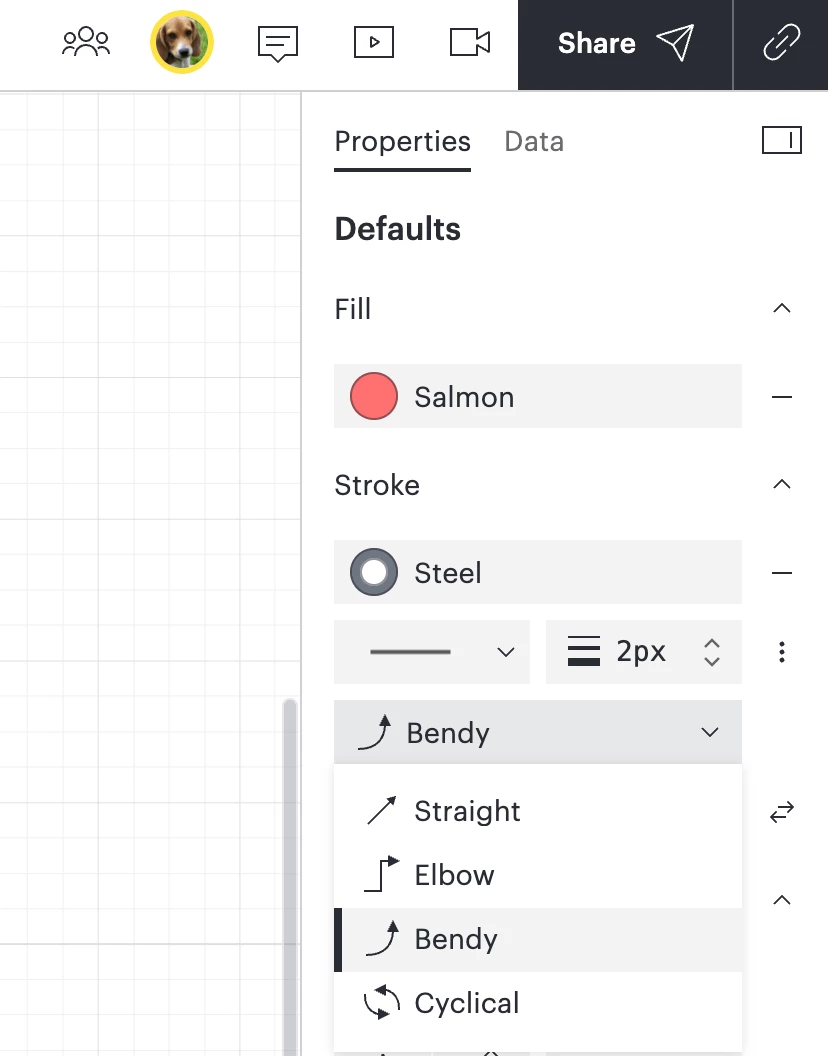
The side panel will open on the right. Under Stroke, you’ll see options to adjust your arrows and endpoints. The option to select Bendy is in the drop-down. Any new arrows you create will default to Bendy.
Here are a couple quick tips for the new menu navigation:
The mini bar also only shows controls relevant to what you've selected, so you're not scanning past options that don't apply.
You can drag that bar anywhere on your canvas.
The side panel to the right of your canvas (under the Share button) has those same controls, plus more advanced options, if you need them.
I hope this helps! If you have any further questions or run into any issues, please let me know and I'd be happy to help further.
Hi @ncrook, thank you for posting in the Lucid Community!
We reorganized editing controls so the ones you use most are faster to reach: your most common controls now live in a mini bar right above your selected shape, instead of a fixed toolbar at the top of the screen you'd have to look away from your work to use.
To select the bendy arrow as your default arrow type:
Open your Lucidchart document.
Navigate to the top-right of the canvas and select the button to Open right panel, located underneath the share button.
The side panel will open on the right. Under Stroke, you’ll see options to adjust your arrows and endpoints. The option to select Bendy is in the drop-down. Any new arrows you create will default to Bendy.
Here are a couple quick tips for the new menu navigation:
The mini bar also only shows controls relevant to what you've selected, so you're not scanning past options that don't apply.
You can drag that bar anywhere on your canvas.
The side panel to the right of your canvas (under the Share button) has those same controls, plus more advanced options, if you need them.
I hope this helps! If you have any further questions or run into any issues, please let me know and I'd be happy to help further.
A Lucid or airfocus account is required to interact with the Community, and your participation is subject to the
Supplemental Lucid Community Terms.
You may not participate in the Community if you are under 18. You will be redirected to the Lucid or airfocus app to log in.
A Lucid or airfocus account is required to interact with the Community, and your participation is subject to the
Supplemental Lucid Community Terms.
You may not participate in the Community if you are under 18. You will be redirected to the Lucid or airfocus app to log in.


 Your privacy choices


