Hi @Tish Perez, thank you for posting in the Lucid Community!
To add shapes to a diagram key, you can drag and drop a shape from your canvas or shape library directly onto the diagram key shape. However, note that diagram keys can include basic shapes—including flowchart shapes, mind map shapes, and sticky notes. Other specific shapes may not be supported, if you’re unable to drag them onto your diagram key. Lines and arrows are also not supported.
Regarding finding that list of specific shapes and styles, here’s a guide item by item!
Solid, Dashed, Tick Arrows
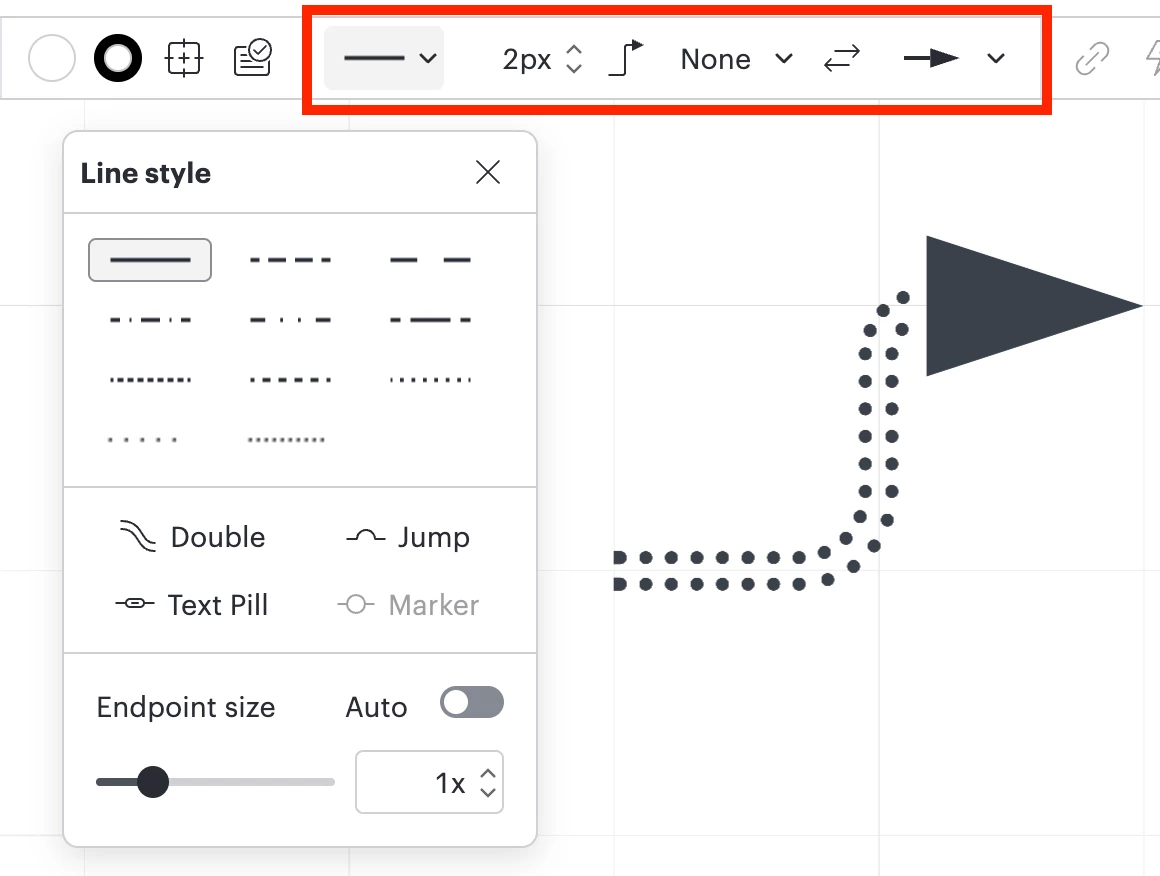
You can change the style of your arrows by selecting an option in the Line Styles menu shown below, selecting from solid, dashed, tick arrows, change endpoint size, etc. You can also adjust the line width, line endpoints, and line style options from the menus shown below.
Solid and Dashed Borders
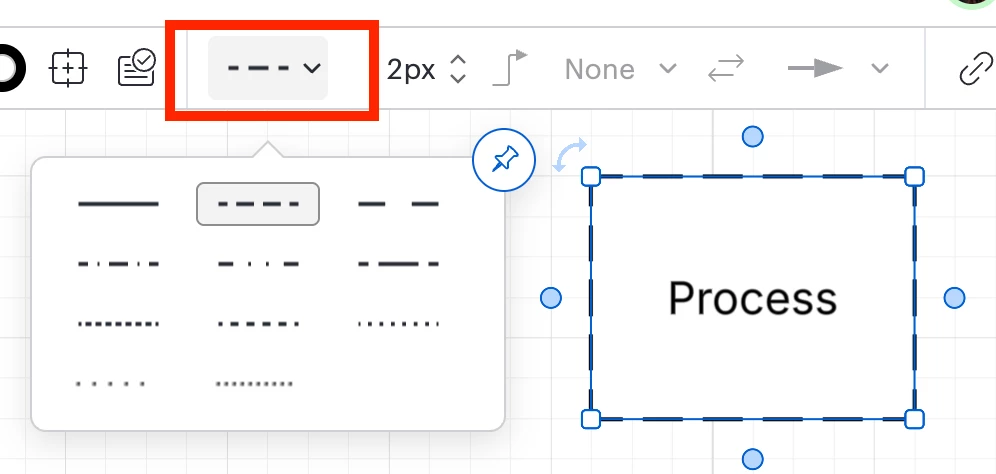
You can change border style of many basic shapes by selecting the Line Styles menu shown below. You can create dashed, dotted, or solid lines from this menu.
Double Border
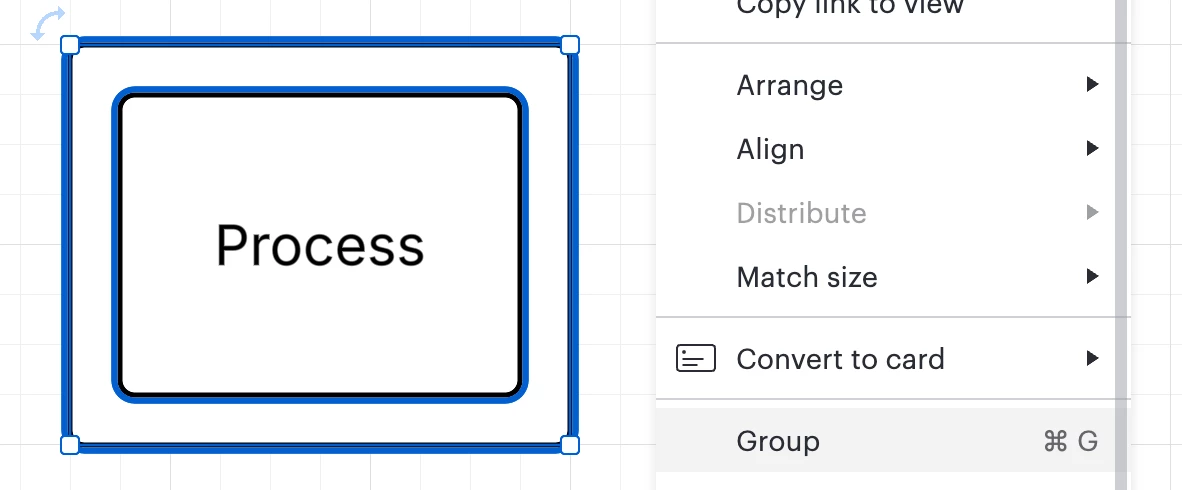
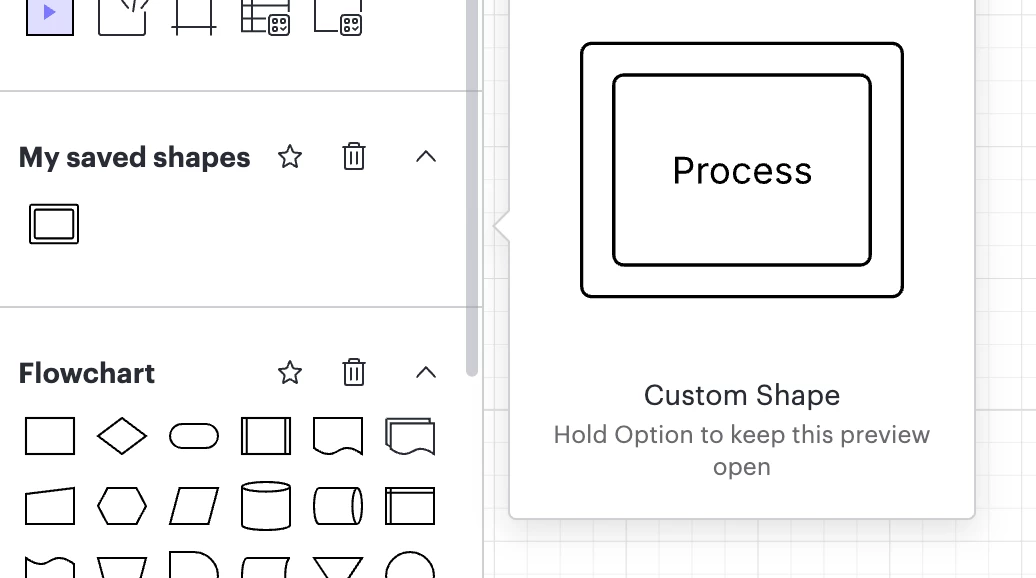
While we don’t have a specific double border, you could always group two shapes together, and if you’d like, create your own custom shape following these instructions.
Group two process shapesGrouped shape saved in a custom shape library
Hi @Tish Perez, thank you for posting in the Lucid Community!
To add shapes to a diagram key, you can drag and drop a shape from your canvas or shape library directly onto the diagram key shape. However, note that diagram keys can include basic shapes—including flowchart shapes, mind map shapes, and sticky notes. Other specific shapes may not be supported, if you’re unable to drag them onto your diagram key. Lines and arrows are also not supported.
Regarding finding that list of specific shapes and styles, here’s a guide item by item!
Solid, Dashed, Tick Arrows
You can change the style of your arrows by selecting an option in the Line Styles menu shown below, selecting from solid, dashed, tick arrows, change endpoint size, etc. You can also adjust the line width, line endpoints, and line style options from the menus shown below.
Solid and Dashed Borders
You can change border style of many basic shapes by selecting the Line Styles menu shown below. You can create dashed, dotted, or solid lines from this menu.
Double Border
While we don’t have a specific double border, you could always group two shapes together, and if you’d like, create your own custom shape following these instructions.
Group two process shapesGrouped shape saved in a custom shape library
A Lucid or airfocus account is required to interact with the Community, and your participation is subject to the
Supplemental Lucid Community Terms.
You may not participate in the Community if you are under 18. You will be redirected to the Lucid or airfocus app to log in.
A Lucid or airfocus account is required to interact with the Community, and your participation is subject to the
Supplemental Lucid Community Terms.
You may not participate in the Community if you are under 18. You will be redirected to the Lucid or airfocus app to log in.

 Your privacy choices


