

Quickly clean up your document’s layout: Use Lucid’s “align” and “distribute” shortcuts!
When setting up the layout of a document with a lot of objects it can be challenging to get the objects exactly where you want them—whether you want to align them to a particular side or you want to distribute them evenly.
That’s where Lucid’s “align” and “distribute” shortcuts come in handy!
First some definitions:
- Align: This tool allows you to bring a selection of objects to the right left top bottom or center of one particular object on the document. The alignment is relative to whichever shape you right-click to access the “Align” menu.
- Distribute: This tool allows you to evenly distribute objects either horizontally or vertically. The objects will be spread out evenly between the objects that are farthest away from each other in the selection.
Let’s check out some examples!
Align
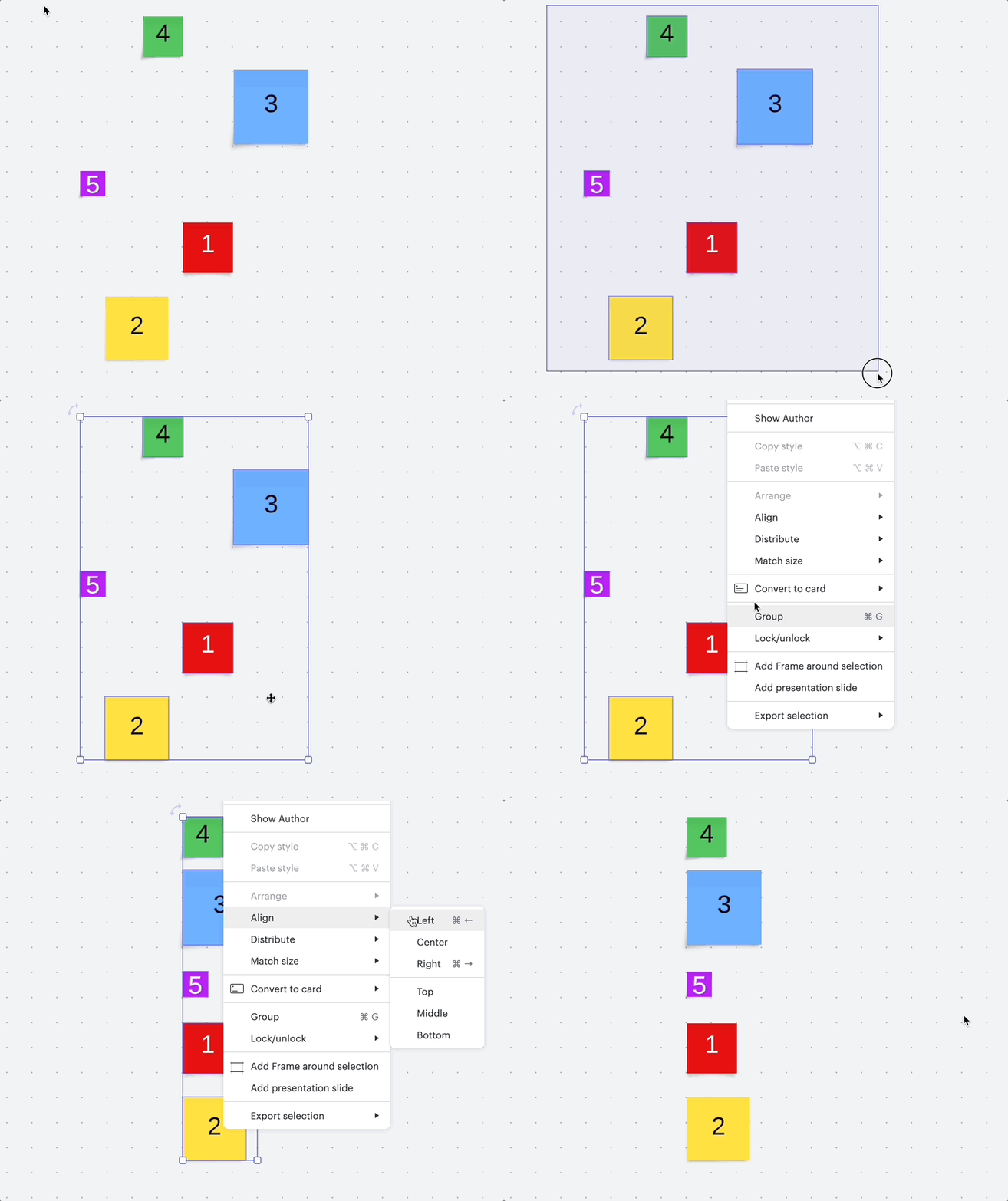
In this example I am aligning five sticky notes to the left-hand side of the red sticky note (#1). Because I right-clicked the red sticky note all the shapes move to align with that shape specifically.
Distribute
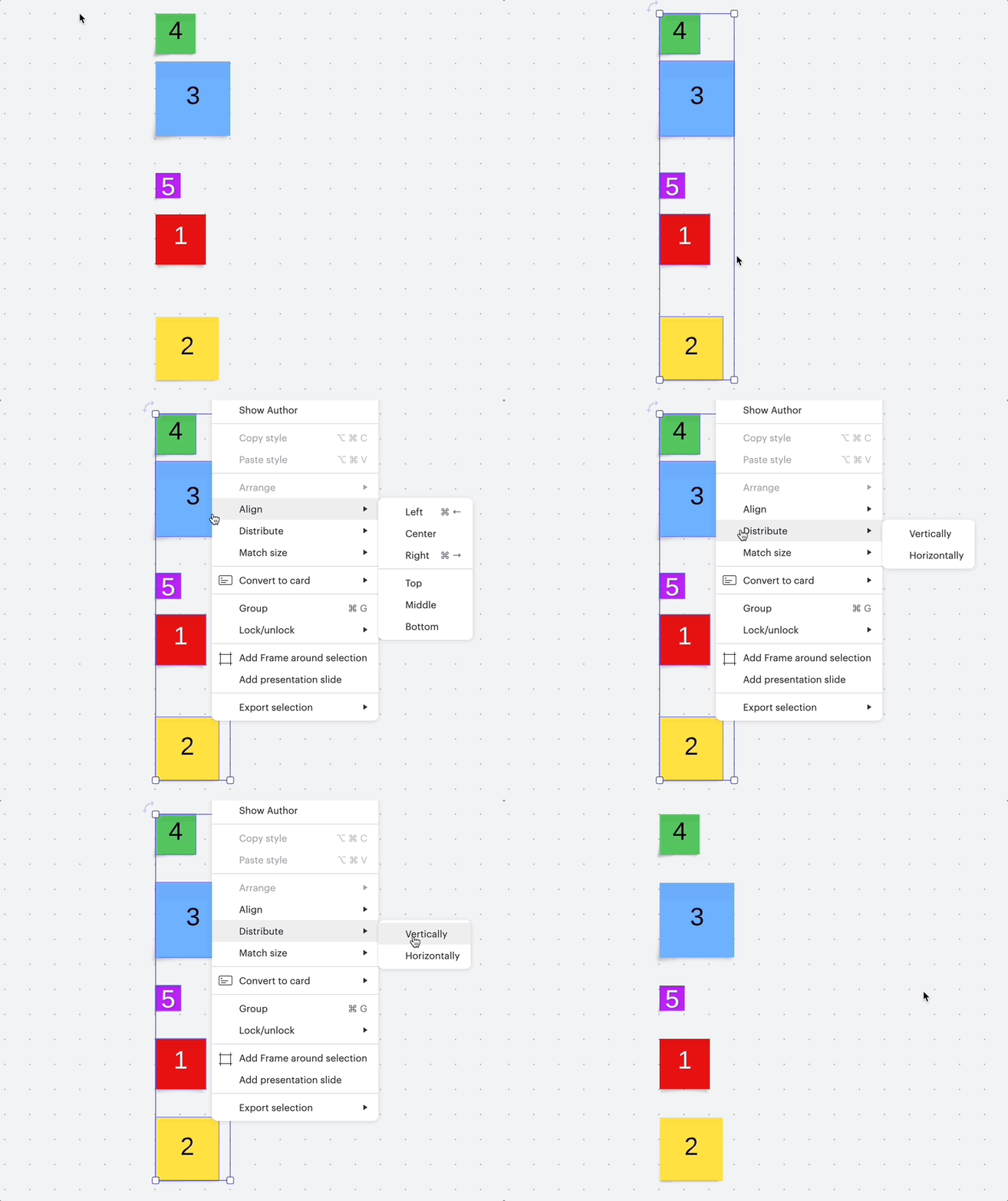
In this example I am distributing the five sticky notes vertically. In the selection the two objects that are furthest away from each other vertically are the green sticky note (#4) and the yellow sticky note (#2) so the shapes distribute themselves evenly between those two shapes.
How are you using the “align” and “distribute” shortcuts? Let us know in the comments!
 Your privacy choices


