I'm hoping someone can help with an issue I'm having with a large Lucid process map.
The process map spans multiple linked pages, and everything looks fine while I'm editing it. However, when I publish the document to preview what my team will see, every page is displayed off-centre. The content on each page is positioned far to the right, leaving a large amount of empty space on the left and me having to constantly scroll to view the data.
I've tried moving the content, adjusting the page boundaries, and checking the page settings, but nothing seems to make the published view centre the content correctly.
Has anyone experienced this before? Is there a setting I'm missing, or is there a recommended way to centre the content on each page in the published view?
Any advice would be greatly appreciated. Thanks!
Teresa

Best answer by Ambar D
Hi @tburke, thank you for posting in the Lucid Community! Are you embedding your document anywhere specific, or just publishing the document when you notice this behavior?
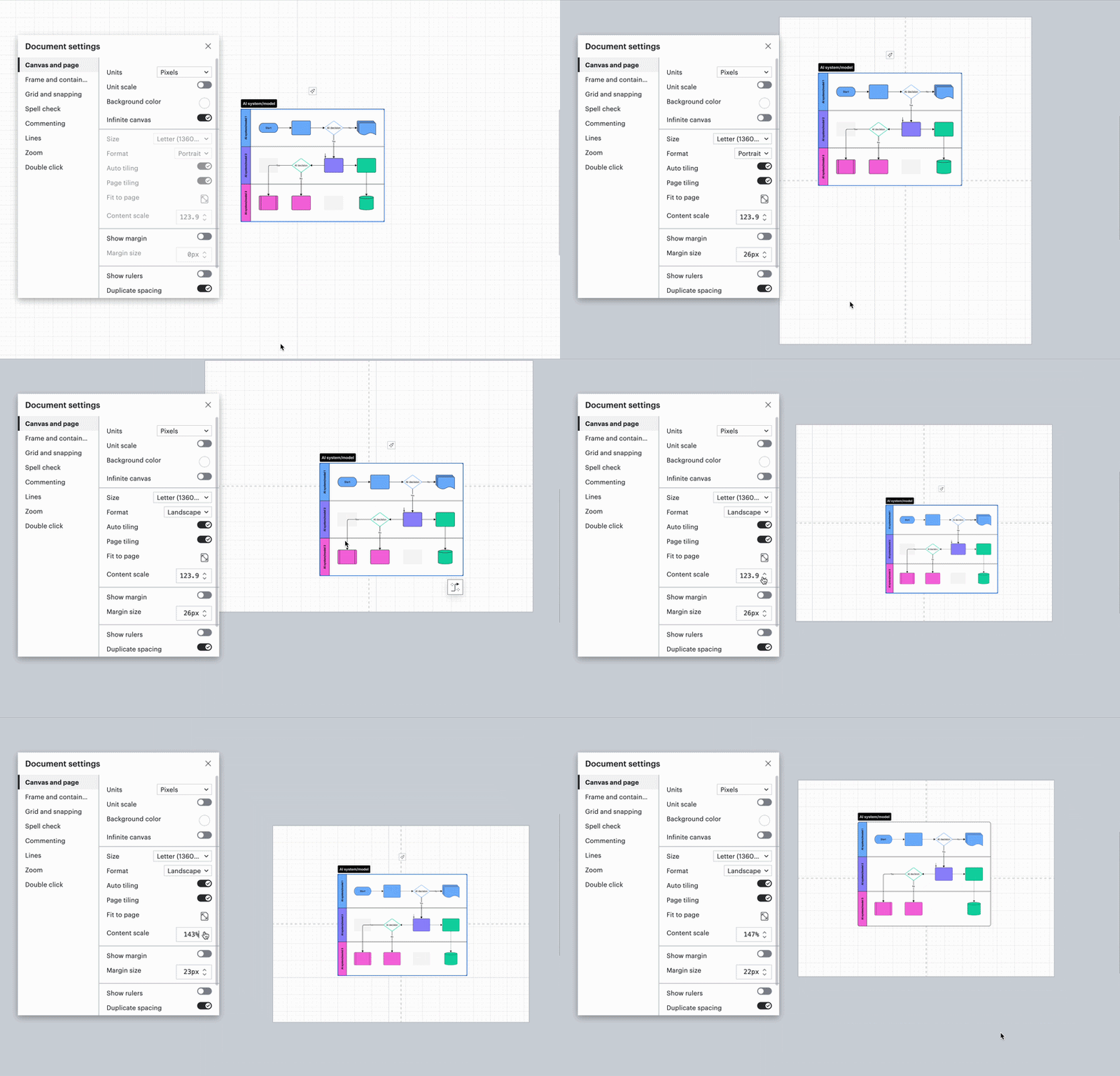
I recommend trying this first: Adjust your document settings as follows, and then publish again. (more info on accessing document settings here)
Toggle off Infinite canvas
Adjust the Size and Format of your page to your liking
Adjust the Content scale until you like how your diagram sits on the page
Adjusting document settings
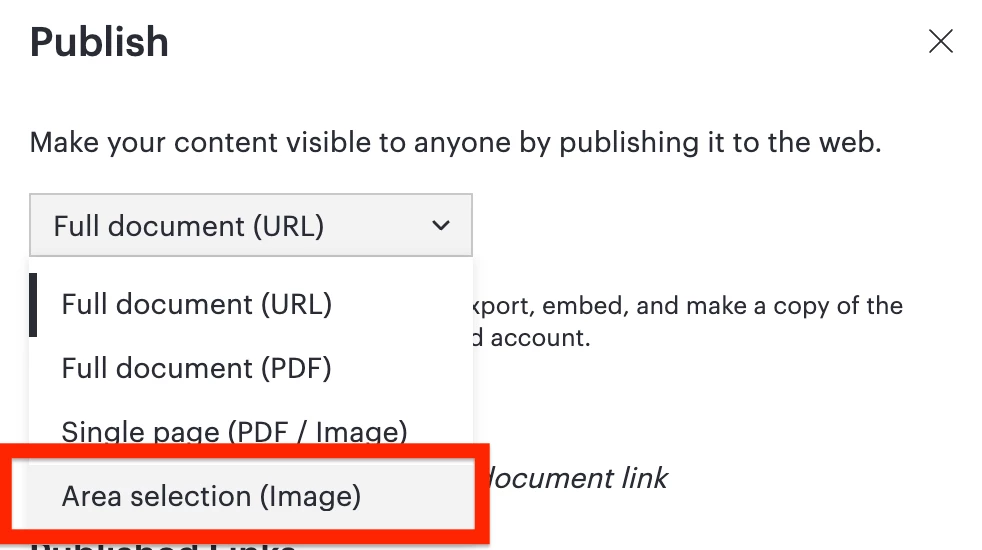
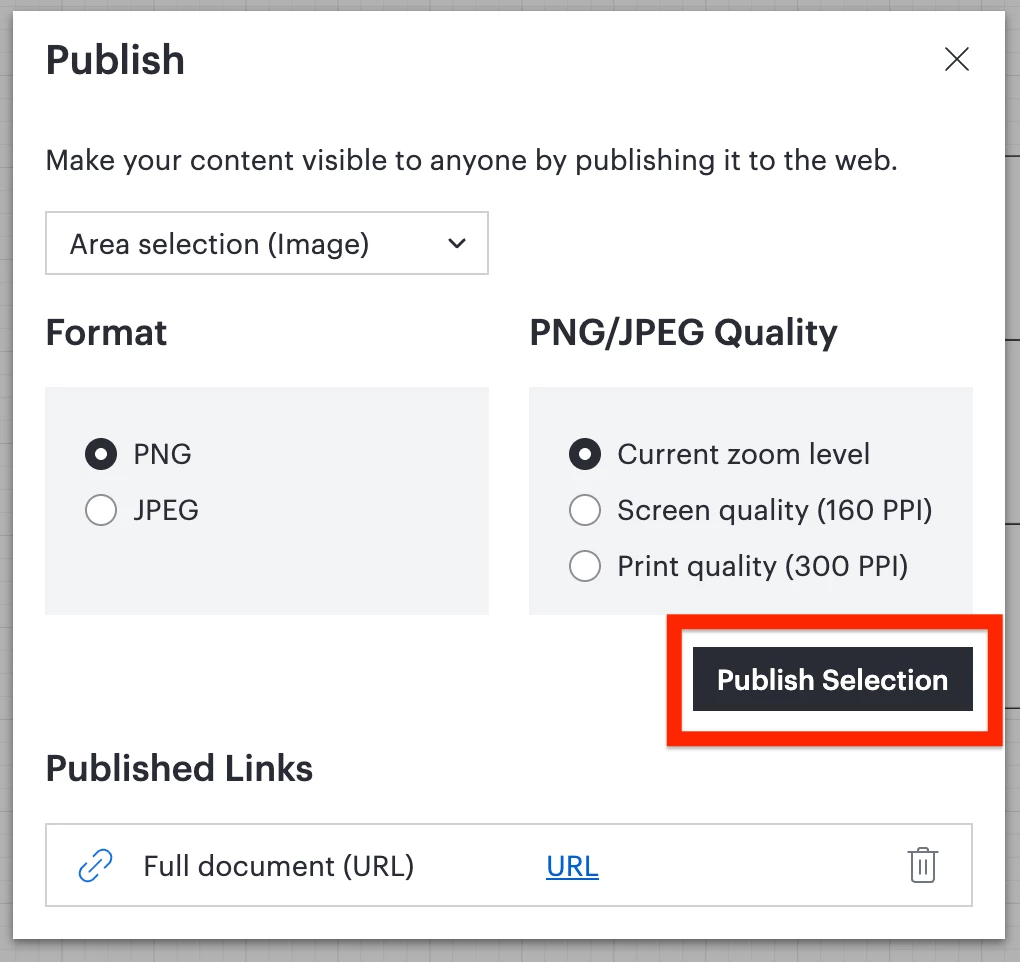
Another option if that does not work is selecting Area selection option when publishing. You can then select the quality and format you’d like, select Publish Selection, and drag over the portion of the diagram that you’d like seen. Note that this will publish an image, and it won’t be a multi-page publish.
I hope this helps! If neither of those options work, would you mind providing a screenshot of what this looks like on your end?
Hi @tburke, thank you for posting in the Lucid Community! Are you embedding your document anywhere specific, or just publishing the document when you notice this behavior?
I recommend trying this first: Adjust your document settings as follows, and then publish again. (more info on accessing document settings here)
Toggle off Infinite canvas
Adjust the Size and Format of your page to your liking
Adjust the Content scale until you like how your diagram sits on the page
Adjusting document settings
Another option if that does not work is selecting Area selection option when publishing. You can then select the quality and format you’d like, select Publish Selection, and drag over the portion of the diagram that you’d like seen. Note that this will publish an image, and it won’t be a multi-page publish.
I hope this helps! If neither of those options work, would you mind providing a screenshot of what this looks like on your end?
A Lucid or airfocus account is required to interact with the Community, and your participation is subject to the
Supplemental Lucid Community Terms.
You may not participate in the Community if you are under 18. You will be redirected to the Lucid or airfocus app to log in.
A Lucid or airfocus account is required to interact with the Community, and your participation is subject to the
Supplemental Lucid Community Terms.
You may not participate in the Community if you are under 18. You will be redirected to the Lucid or airfocus app to log in.