Solved

Poor resolution when zooming out in Lucid

  • January 16, 2026
  • 3 replies
  • 26 views

Forum|alt.badge.img+1

Hello, when using Lucidchart/spark and unzooming in a chart even a bit, I quickly get a very bad resolution of anything displayed. Here is an example of what I get when dezooming to 33%. Is this normal? Am I missing something?



Best answer by jvelasquez

Hello ​@Raphael Olivier ,

Thank you for posting in the Lucid community! I can confirm that if you decrease the size of text to a certain point the resolution will decrease. To narrow down what may also be causing the issue, could you try opening your document in a private or incognito window? Could you also try connecting to a different network or disconnecting from your VPN (if applicable)? Sometimes account performance issues can be related to internet security/speed or browser issues. Have you tried viewing your document on a different computer? Does the same issue occur? These steps will help us eliminate that possibility. For help with opening an incognito window, please see this community post.

If those don’t resolve the problem, can you please send the following information so I can take a closer look?

  • A screenshot of the issue.
  • A screenshot of the associated Javascript Console output after reproducing the issue. You can open your Javascript Console by pressing Ctrl+Shift+J (if your computer is a Windows/Linux) OR Cmd+Opt+J (if your computer is a Mac).

Thanks in advance for your help and patience!

Comments

Catherine Fahidin
Lucid Legend Level 4
Forum|alt.badge.img+11

Hello ​@Raphael Olivier ,


I understand your frustration with the 33% resolution, if you make anything too small, the resolution tend to get bad, no matter which application that you are using nor which browser.

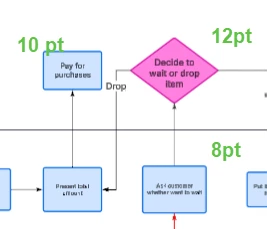
I do have a simple resolution that usually works for me, which is to increase the font size. By default, Lucid has the font size as 8 pt, and if you increase the font size to 10 pt, it’s readable, and if you increase it further, such as 12 pt or more, it can look much better. See below the comparison of 8pt vs. 10pt. vs. 12 pt in 33% resolution.


If you do decide to use this trick and you want to change all of the font to 12 pt, you can do that easily by selecting all of the impacted flow (click and drag from one corner to the opposite diagonal corner) and then change the font.

Lucid has a good knowledge base to set up the style and text format: https://help.lucid.co/hc/en-us/articles/16361791013524-Add-and-style-text-in-Lucidchart#set-style-and-format-text that might be useful for you.

Hope this helps.


Catherine


Forum|alt.badge.img+1

Hey, thanks for your reply. 


What puzzles me though is that my colleague at the same zoom level gets a way clearer picture. And up until a few weeks ago I also had a very clear resolution when using any zoom level. I suspect this might be related to some browser update, but I also don’t want to downgrade my browser just for using Lucid...


Forum|alt.badge.img+6
  • Lucid support team
  • Answer
  • January 20, 2026

Hello ​@Raphael Olivier ,

Thank you for posting in the Lucid community! I can confirm that if you decrease the size of text to a certain point the resolution will decrease. To narrow down what may also be causing the issue, could you try opening your document in a private or incognito window? Could you also try connecting to a different network or disconnecting from your VPN (if applicable)? Sometimes account performance issues can be related to internet security/speed or browser issues. Have you tried viewing your document on a different computer? Does the same issue occur? These steps will help us eliminate that possibility. For help with opening an incognito window, please see this community post.

If those don’t resolve the problem, can you please send the following information so I can take a closer look?

  • A screenshot of the issue.
  • A screenshot of the associated Javascript Console output after reproducing the issue. You can open your Javascript Console by pressing Ctrl+Shift+J (if your computer is a Windows/Linux) OR Cmd+Opt+J (if your computer is a Mac).

Thanks in advance for your help and patience!