Question

Org Chart Employee Card Content

  • April 2, 2026
  • 1 reply
  • 5 views

Forum|alt.badge.img

I’m currently setting up an org chart, but I’d like to include additional information within each employee card.

Right now, each card displays the employee’s image, name, and title. I’d like to expand this by adding multiple lines beneath the name and title to outline their key responsibilities.

I tried repurposing existing fields like email and location, but some fields—such as “number of reports”—only accept numeric values, which doesn’t work for what I need. I also experimented with adding custom data fields, but those appear between the name and title, which disrupts the layout and looks awkward.

Ideally, I’d like the responsibilities to appear neatly below the name and title in a multi-line format.
 

Here is how I would like it to look. 

  • Employee Photo
  • Name
  • Title
  • Responsibility
  • Responsibility
  • Responsibility
  • Responsibility
  • Responsibility
  • Responsibility
  • Responsibility
  • Responsibility

Any assistance would be greatly appreciated. 

Comments

Ambar D
Forum|alt.badge.img+11
  • Lucid community team
  • April 3, 2026

Hi ​@Matthew Stahoviak, thank you for posting in the Lucid Community!

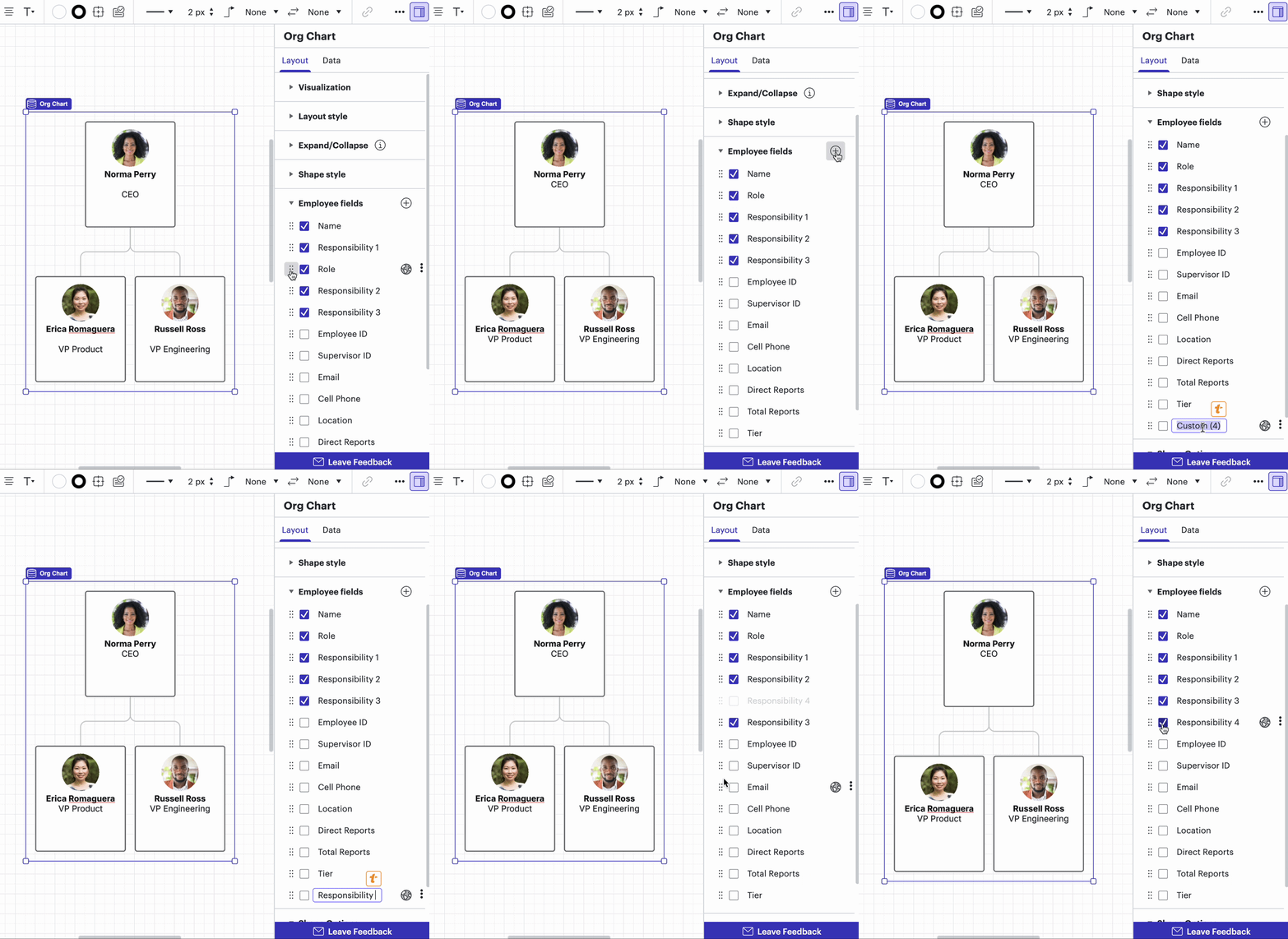
You can absolutely add multiple new lines (which we call employee fields) to employee shapes in org charts to add responsibilities to each team member.


I’d recommend selecting your org chart and opening the Layout tab of the contextual panel, where you can do the following under the Employee fields section:

  • Move/edit the order of employee fields on your org chart so that they display in your desired order
  • Check/uncheck employee fields that you’d like to display on the card face
  • Add new custom employee fields
  • Edit the title of existing fields

In the GIF below, you’ll see that I move the order of the fields and add new custom employee fields titled ‘Responsibility 1’, ‘Responsibility 2’, and so on.

To display a new field on your cards, be sure to select the check box. 


Edit the order of and add employee fields in an org chart


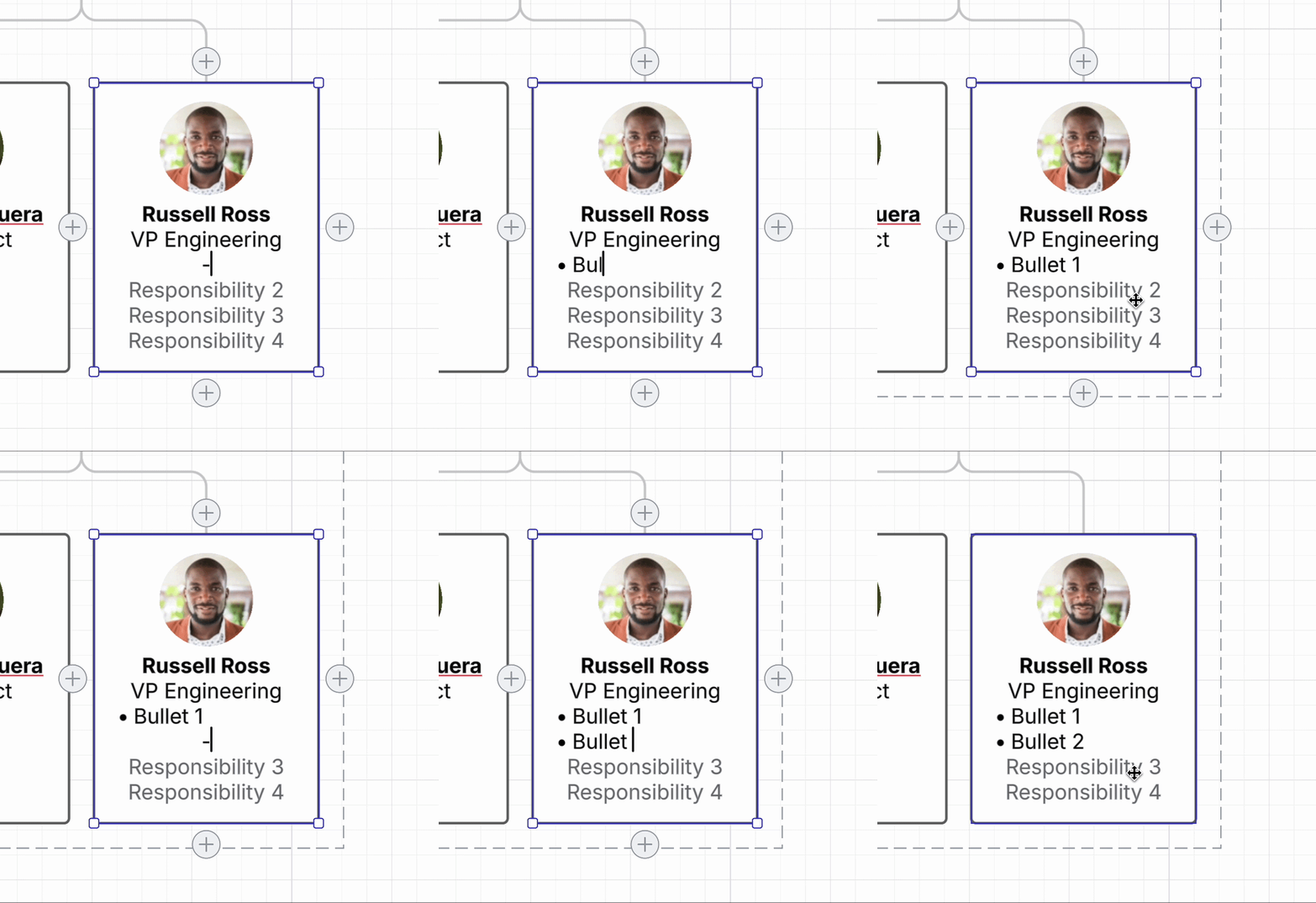
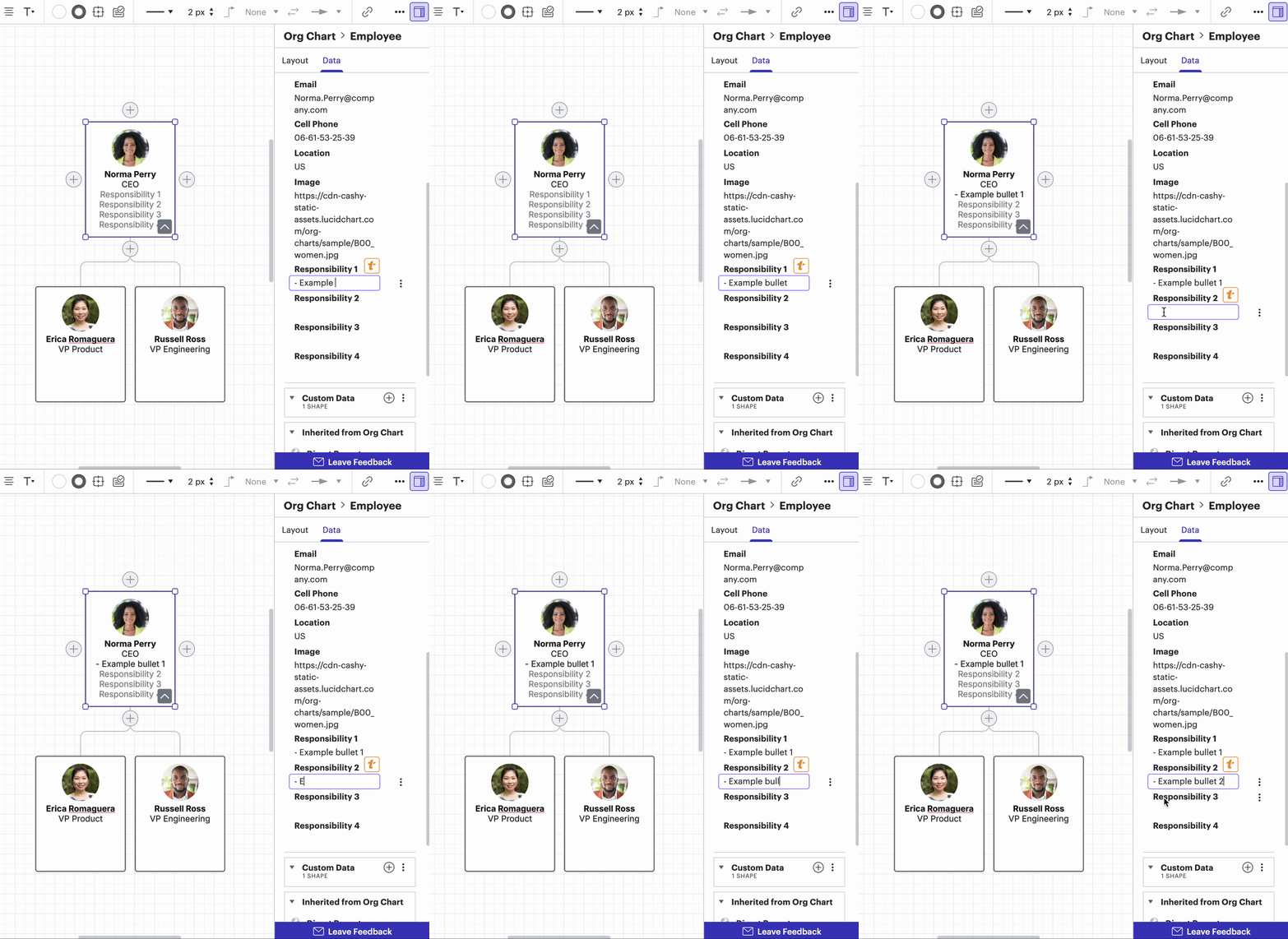
After you’ve added your custom fields, you can edit the information on employee shapes either directly within the employee shape, or from the contextual panel.

From the employee card:

  1. Select the relevant employee shape
  2. Click the relevant field
  3. Type in your content
Add bullets to an employee shape


From the contextual panel:

  1. Select the relevant employee shape
  2. In the data tab of the contextual panel, scroll to the relevant field
  3. Type in your content
Edit employee fields from the contextual panel


To learn more, I recommend checking out the following resources!


I hope this helps! Please let me know if you have any additional questions.