I am already exhausted from fighting with your software! I regularly encounter an error stating that the memory is full. I have purchased a paid plan, but the problems still persist. I have cleared all cache, yet the error remains.
In my daily work, I handle many projects: I develop a project, download it, and then delete it from the program, but every time I run into a memory overflow issue.
Could you urgently fix this and help me? What am I doing wrong? Please review my profile and make the necessary adjustments so that the memory works properly and I can continue working on the next project.
Best answer by justinjohnson57
Hey @Feniks2025! Thanks so much for providing that support PIN.
I was able to take a look at your account and we found that the majority of the storage on your account is showing as full due to the images you have stored in your Image manager. This is an easy fix and I would be happy to walk you through the steps to get that taken care of!
To do this:
Open a Lucidchart document.
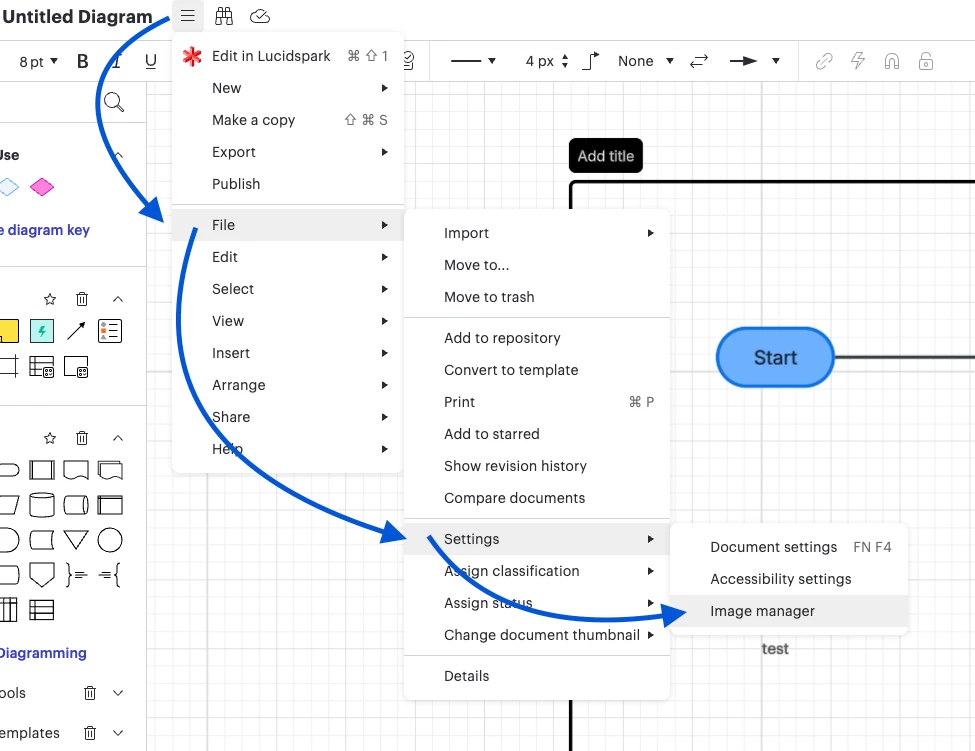
Open the More menu from the top-left of the canvas.
Hover your cursor over “File”.
Hover your cursor over "Settings".
Click Image manager.
Select one or more images to delete by checking the box in the top-left corner of the thumbnail.
Click the trash can icon from the top-right of the Image Manager.
Select Delete.
Here is a quick screenshot I put together that shows the hierarchy in the More menu to get to the Image manager:
This also works in Lucidspark if you use that as well! To remove images you've added to Lucidspark, repeat the steps above by opening a Lucidspark board and switching to Lucidchart using universal canvas.
One more additional tip: I highly recommend making sure you have these images saved in private storage (internal PC storage or 3rd party cloud storage), in case you use your images in Lucidchart often!
Please feel free to let me know if you run into any snags along the way or have any further questions/concerns!
Hi @Feniks2025! Thank you very much for reaching out to the Lucid Community. I’m very sorry to hear you are encountering errors about the storage/memory showing as full. I completely understand that the error popping up can become very frustrating for your workflow!
I highly recommend checking out our Troubleshooting: Storage article from the Lucid Help Center for steps to resolve storage/memory issues.
Here are a couple of additional things to consider when working with storage/memory:
You can check how much of your storage is being used and what it is being used by your account settings under the "Plan and Billing" tab. If you hover over each of the colored sections, you can see what that portion of the storage represents.
Since you delete projects after developing and downloading them, it is likely that the images are remaining in the Image Manager (if you use images in your projects) and the deleted projects are remaining in the trash folder, filling up the storage of your account.
Images generally take up the most space in your account, it is recommended that you clear out as many images as you can from both your documents/boards and your Image Manager. You can access your Image Manager from the file menu at the top of your diagram editor in Lucidchart (File> Settings> Image manager).
Please note, when deleting documents, in order to free up storage space you will need to navigate to your trash folder and select to delete the documents from your trash as well.
I do hope this helps! Please feel free to let me know if you have further questions.
Thanks for following up -- I am so sorry to hear that the problem is still persisting! Let’s see what we can do to help out.
Can you please send a Technical Support PIN for your account? This will allow me to take a closer look at the issue you’re experiencing with the full memory error persisting. Please navigate to your Account Settings to generate this PIN. For more information on generating a Support PIN, check out this Help Center article.
Just a quick note: this Technical Support PIN is for internal use by our team only, so it is safe to share it with me in this thread. Once you can send us the PIN, we would be happy to take a look and see what we can find!
Please feel free to bring up any further questions or concerns. I look forward to your reply!
Hey @Feniks2025! Thanks so much for providing that support PIN.
I was able to take a look at your account and we found that the majority of the storage on your account is showing as full due to the images you have stored in your Image manager. This is an easy fix and I would be happy to walk you through the steps to get that taken care of!
To do this:
Open a Lucidchart document.
Open the More menu from the top-left of the canvas.
Hover your cursor over “File”.
Hover your cursor over "Settings".
Click Image manager.
Select one or more images to delete by checking the box in the top-left corner of the thumbnail.
Click the trash can icon from the top-right of the Image Manager.
Select Delete.
Here is a quick screenshot I put together that shows the hierarchy in the More menu to get to the Image manager:
This also works in Lucidspark if you use that as well! To remove images you've added to Lucidspark, repeat the steps above by opening a Lucidspark board and switching to Lucidchart using universal canvas.
One more additional tip: I highly recommend making sure you have these images saved in private storage (internal PC storage or 3rd party cloud storage), in case you use your images in Lucidchart often!
Please feel free to let me know if you run into any snags along the way or have any further questions/concerns!
A Lucid or airfocus account is required to interact with the Community, and your participation is subject to the
Supplemental Lucid Community Terms.
You may not participate in the Community if you are under 18. You will be redirected to the Lucid or airfocus app to log in.
A Lucid or airfocus account is required to interact with the Community, and your participation is subject to the
Supplemental Lucid Community Terms.
You may not participate in the Community if you are under 18. You will be redirected to the Lucid or airfocus app to log in.




 Your privacy choices


