August 27, 2026
Solved

Lucidscale not creating new documents

  • August 27, 2026
  • 6 replies
  • 103 views

This is a change to functionality and preventing me from using LucidScale.

When creating a new document via the Data Hub for an AWS Account, the resulting document doesn’t open in LucidScale, but opens in LucidChart instead. Previously the document would open and launch a dialog to select automated or manual diagrams.

When I switch back to LucidScale no menus are displayed.

In LucidChart there is a new Cloud resources tab on the left bar. However, this doesn’t provide the same functionality as LucidScale and isn’t displaying any data for me.


Existing LucidScale diagrams can be edited as previously.
Best answer by David Wilson

Hi,

The Cloud frame has re-appeared on Cloud resources panel, which resolves the immediate problem.

The problem has been adding a cloud frame to new Cloud documents. Previously, new documents would prompt to create either an auto layout or manual cloud frame. With the new setup, there appears to have been some different different ways to create a new frame and this hasn’t been consistent with documentation. Hopefully, the interface will stay consistent, or existing users will be signposted when there is significant change.


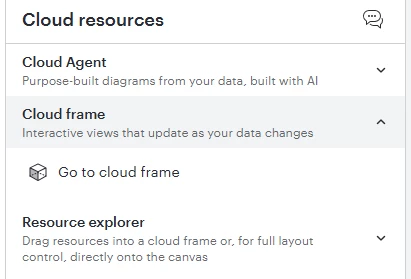
Here’s a screen shot with the re-appeared Cloud frame:

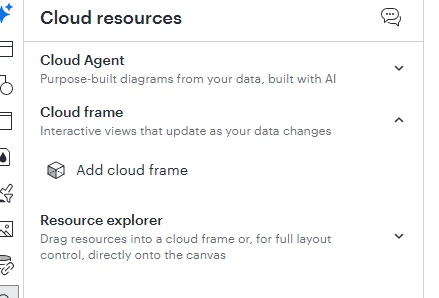
 or when a Cloud frame has been added to the canvas:


Comments

Lucid support team
August 31, 2026

Hi ​@David Wilson,

Thank you for posting in the Lucid Community! The behavior you're seeing is expected.

  • New documents created from cloud data (including via Data Hub for an AWS account) now open in Lucidchart by default instead of launching the old Lucidscale automated/manual diagram dialog. 
  • The new “Cloud resources” tab in Lucidchart replaces that Data Hub flow going forward. That said, it shouldn't be showing no data for you. Can you please provide a screenshot of this issue? We can additionally convert this into a private support ticket to take a closer look. 

For the new workflow, here's the docs: Use cloud frames to visualize cloud infrastructure in Lucidchart. The old Lucidscale docs are preserved in this Legacy Lucidscale Community post.

September 1, 2026

Hi,

Thanks for the reply.

In Cloud Resources, the resource explorer is now showing, but I don’t have another section for Cloud frame, which I have previously seen, and I can’t seem to find how to add it to the canvas from the instructions. Use cloud frames to visualize cloud infrastructure in Lucidchart – Lucid


September 1, 2026

For a colleague, the following is displayed for a new document that I created, but I don’t see these options.


Lucid support team
September 2, 2026

Hi ​@David Wilson,

Thanks for following up, if the quick-start toolbar banner is hidden, you can still generate or manage Cloud Frames using these steps:

  1. Verify Dataset Attachment: Ensure the document was created from an imported dataset in the Data Hub (Data Hub > select provider > + Create new document).
  2. Use the Left Toolbar: Open the Cloud resources menu (cloud icon on the primary left toolbar).
  3. Expand Resource Explorer: Drag individual resources into an existing Cloud Frame or onto the canvas.
David WilsonAuthorAnswer
September 2, 2026

Hi,

The Cloud frame has re-appeared on Cloud resources panel, which resolves the immediate problem.

The problem has been adding a cloud frame to new Cloud documents. Previously, new documents would prompt to create either an auto layout or manual cloud frame. With the new setup, there appears to have been some different different ways to create a new frame and this hasn’t been consistent with documentation. Hopefully, the interface will stay consistent, or existing users will be signposted when there is significant change.


Here’s a screen shot with the re-appeared Cloud frame:

 or when a Cloud frame has been added to the canvas:


Lucid support team
September 9, 2026

Hi ​@David Wilson,


Thanks for following up. Happy to hear the issue is resolved, I will take this feedback to our team to ensure our documentation is accurate.