Solved

How do I adjust the editor UI scale?

  • May 4, 2026
  • 5 replies
  • 58 views

Forum|alt.badge.img+1

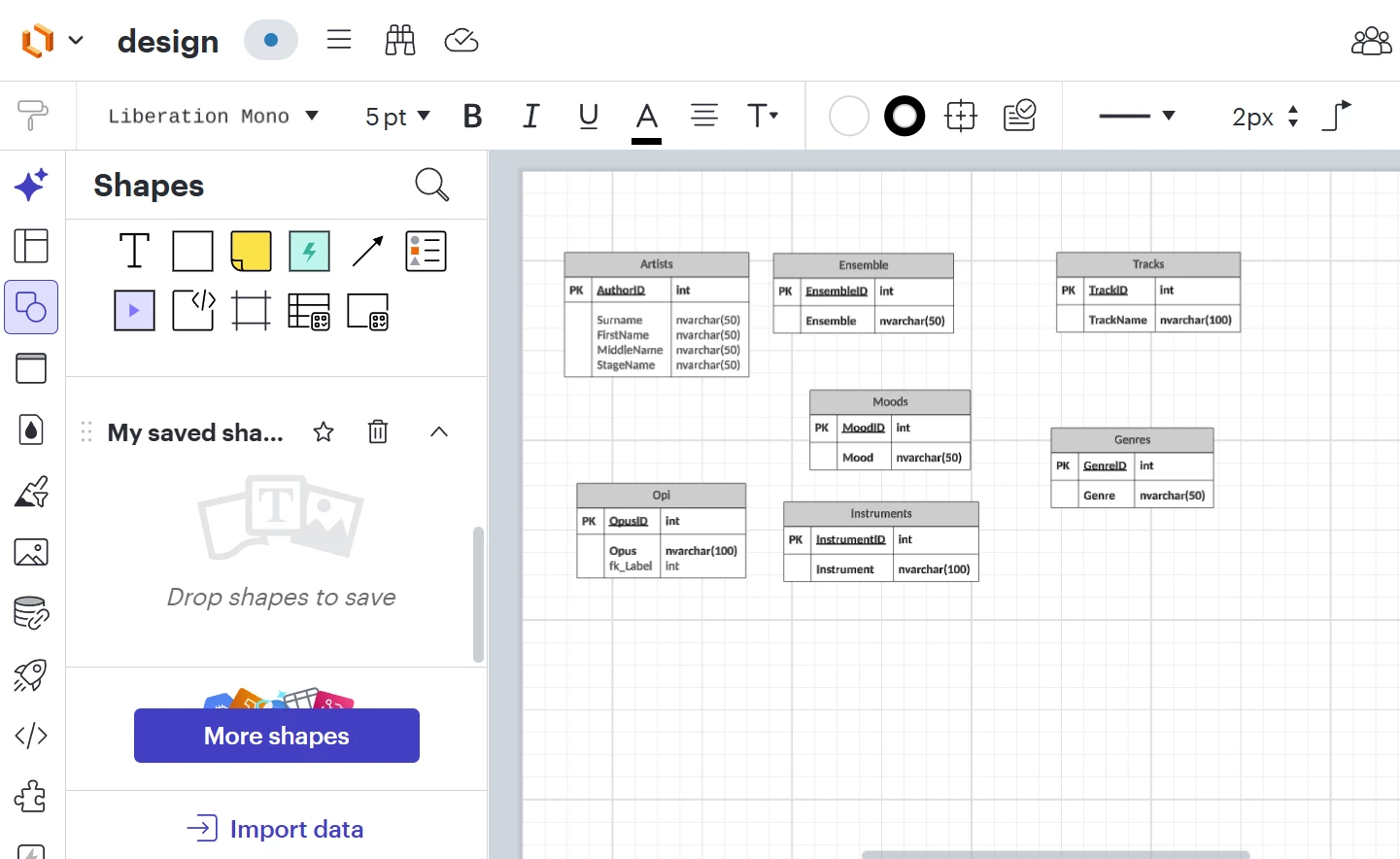
When I open my lucid chart document everything is huge.  Every link I get to ‘Adjust workspace’ results in links to resize the document but not the workspace itself.  How can I adjust it. 

Best answer by egentry

Hey ​@tamulherin , thank you for adding this information! Apologies for the delay here. I’m happy to step in and help!


With what I can infer, I have a few things to consider. I’d suggest checking your Document Settings as mentioned below and outlined in Adjust document and board settings, specifically in sections Canvas and Page, Grid and Snapping, and Zoom. Since I see you have infinite canvas turned off, you may want to adjust the size and content scale and check to see if the fit to page setting is turned off. The suggested settings definitions are outlined below. 
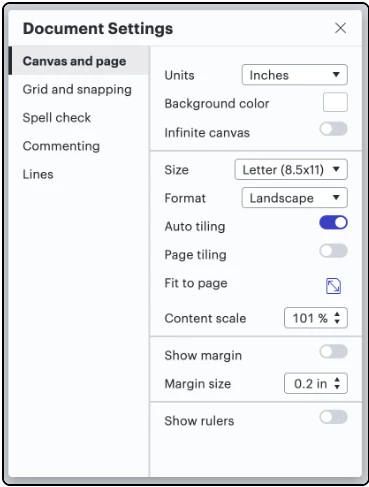
Canvas and Page:

  • Set units of measurement: Use the dropdown to the right of the “Units” setting to change the unit of measurement used in your document. This is used for measurements only and will not change the layout or appearance of your document. 
  • Enable infinite canvas: To work on an endless Lucidchart or Lucidspark canvas, toggle on “Infinite canvas”. This disables page-specific settings and allows you to use as much space as needed on the workspace.
  • Adjust page size: Click the dropdown to the right of “Size” to choose from a list of common page sizes. You can also select Custom to manually adjust the width and height of your pages.
  • Fit content to one page: With infinite canvas turned off, Click fit-to-page-icon-in-document-settings.png the fit to page icon to adjust the content scale of your document so that the contents of the open view fit onto a single page tile. This feature is useful for shrinking content onto a single printable page. If this is one, it may be the reason your board is changing the size.

Grid and snapping: 

  • Adjust grid size: Use the dropdown to the right of “Grid size” to adjust the distance between grid lines.

Zoom:

  • Animated zoom: Toggle this setting on for a smoother zoom experience. When toggled off, your Lucid document will zoom in and out in increments, rather than in one fluid motion.
  • Speed: Determine how fast the zoom animation is.
  • Step size: If you are using a mouse with a scroll wheel, this setting determines how far each scroll of the wheel zooms you in or out.

Let me know if this helps or if you have any further questions!

Comments

Humas1985
Lucid Legend Level 10
Forum|alt.badge.img+24
  • Lucid Legend Level 10
  • May 6, 2026

Hi ​@tamulherin 

Try to refer this post which is most relevant and will help you to the best 

How to manage large and complex Lucidchart diagrams | Community

Hope this helps !!


Forum|alt.badge.img+1
  • Author
  • May 7, 2026

It’s not the diagrams to which I was referring; it’s to the workspace that contains the diagrams.  It is cartoonishly too large with no apparent way to zoom out.  At any rate, I downloaded and installed Modelio and it is what I was looking for.


Forum|alt.badge.img+2
  • Lucid support team
  • May 7, 2026

Hello ​@tamulherin, thank you for posting in the Lucid community!

Could you please send the following information so I can take a closer look?

  • A screenshot of the specific issue showing how you’re unable to adjust your workspace. 

  • Could you describe the steps you took leading up to the issue?

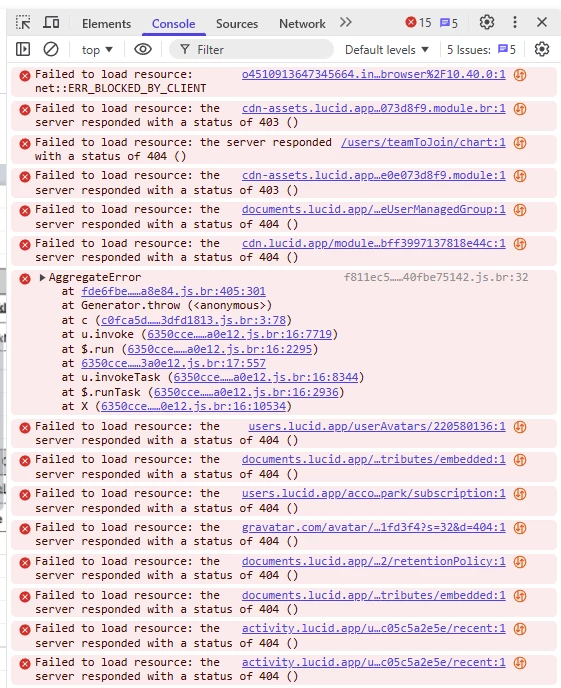
  • A screenshot of the associated Javascript Console output after reproducing the issue. You can open your Javascript Console by pressing Ctrl+Shift+J (if your computer is a Windows/Linux) OR Cmd+Opt+J (if your computer is a Mac).

Thanks in advance for your help and patience!


Forum|alt.badge.img+1
  • Author
  • May 12, 2026

Tried every  icon plus [Ctrl] [Minus] everything seems to effect the document but there doesn’t seem to be any setting for the workplace


egentry
Forum|alt.badge.img+1
  • Lucidite
  • Answer
  • May 21, 2026

Hey ​@tamulherin , thank you for adding this information! Apologies for the delay here. I’m happy to step in and help!


With what I can infer, I have a few things to consider. I’d suggest checking your Document Settings as mentioned below and outlined in Adjust document and board settings, specifically in sections Canvas and Page, Grid and Snapping, and Zoom. Since I see you have infinite canvas turned off, you may want to adjust the size and content scale and check to see if the fit to page setting is turned off. The suggested settings definitions are outlined below. 

Canvas and Page:

  • Set units of measurement: Use the dropdown to the right of the “Units” setting to change the unit of measurement used in your document. This is used for measurements only and will not change the layout or appearance of your document. 
  • Enable infinite canvas: To work on an endless Lucidchart or Lucidspark canvas, toggle on “Infinite canvas”. This disables page-specific settings and allows you to use as much space as needed on the workspace.
  • Adjust page size: Click the dropdown to the right of “Size” to choose from a list of common page sizes. You can also select Custom to manually adjust the width and height of your pages.
  • Fit content to one page: With infinite canvas turned off, Click fit-to-page-icon-in-document-settings.png the fit to page icon to adjust the content scale of your document so that the contents of the open view fit onto a single page tile. This feature is useful for shrinking content onto a single printable page. If this is one, it may be the reason your board is changing the size.

Grid and snapping: 

  • Adjust grid size: Use the dropdown to the right of “Grid size” to adjust the distance between grid lines.

Zoom:

  • Animated zoom: Toggle this setting on for a smoother zoom experience. When toggled off, your Lucid document will zoom in and out in increments, rather than in one fluid motion.
  • Speed: Determine how fast the zoom animation is.
  • Step size: If you are using a mouse with a scroll wheel, this setting determines how far each scroll of the wheel zooms you in or out.

Let me know if this helps or if you have any further questions!