I am attempting to use the LucidChart AI functionality to create a vertical flowchart however every time I re-prompt it, the format is left to right. When I ask the AI to create a prompt for that functionality and then use the prompt it created, it reverts back to left to right formatting.
Is there a recommended prompt to use that guarantees the AI is following the instructions?
Best answer by Leianne C
Hi @LauraLucidChart, thank you for posting in the Lucid Community! To help us better understand and take a closer look, would you mind sharing a few more details?
The exact prompts used: A brief description of your initial prompt and your follow-up edit prompts.
When it flips: Is the initial diagram horizontal from the start, or does it only flip after you ask for an edit?
Thanks, and please let me know if you have any questions!
Hi @LauraLucidChart, thank you for posting in the Lucid Community! To help us better understand and take a closer look, would you mind sharing a few more details?
The exact prompts used: A brief description of your initial prompt and your follow-up edit prompts.
When it flips: Is the initial diagram horizontal from the start, or does it only flip after you ask for an edit?
Thanks, and please let me know if you have any questions!
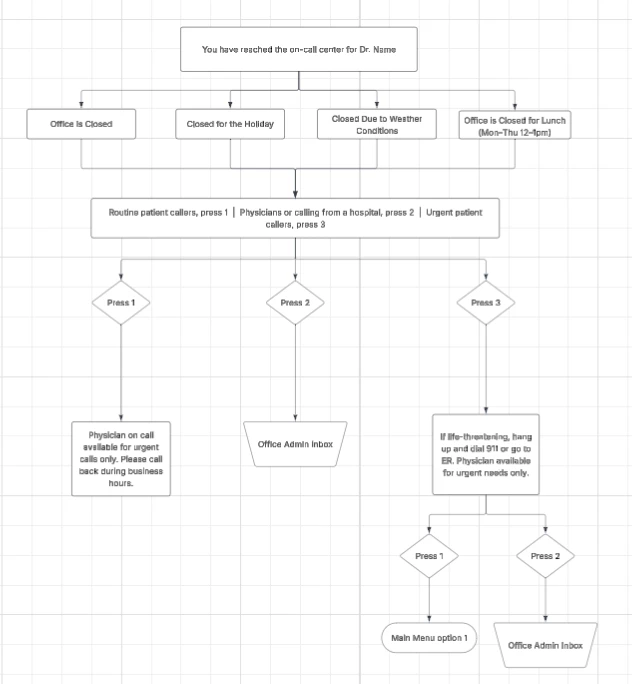
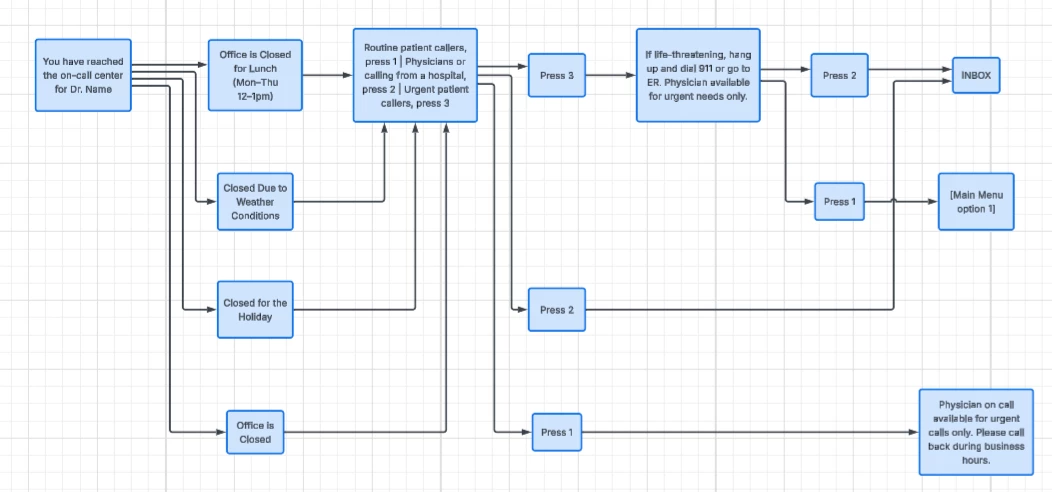
Here is a screenshot of the manual flowchart I created, I then asked the LucidAI to create an AI prompt of the chart. I included the output of the AI and the chart it created below.
Create a phone-tree / on-call center flowchart with a clean, black-and-white style. Use process blocks for informational steps, decision blocks for the menu options, manual operation blocks for inbox actions, and terminator blocks for end outcomes. Keep all main boxes centered, with solid black connectors and rounded corners on the lines.
Flow structure:
Start with a top process box: “You have reached the on-call center for Dr. Name”.
From that box, branch into four office-status process boxes:
“Office is Closed”
“Closed for the Holiday”
“Closed Due to Weather Conditions”
“Office is Closed for Lunch (Mon–Thu 12–1pm)”
Connect each of those four boxes into one shared process box: “Routine patient callers, press 1 | Physicians or calling from a hospital, press 2 | Urgent patient callers, press 3”.
From that menu box, branch to three decision blocks:
“Press 1”
“Press 2”
“Press 3”
Connect the branches as follows:
Press 1 → process box: “Physician on call available for urgent calls only. Please call back during business hours.”
A Lucid or airfocus account is required to interact with the Community, and your participation is subject to the
Supplemental Lucid Community Terms.
You may not participate in the Community if you are under 18. You will be redirected to the Lucid or airfocus app to log in.
A Lucid or airfocus account is required to interact with the Community, and your participation is subject to the
Supplemental Lucid Community Terms.
You may not participate in the Community if you are under 18. You will be redirected to the Lucid or airfocus app to log in.




 Your privacy choices


