Colleagues, I wish to generate a table (or extract text) of all the page names in a large LucidChart document. I have tried this via AI generated diagram, etc. with no luck. This seems like there should be some way to do this as basic functionality.
There isn’t a direct way to export a list of the names of your Pages in Lucidchart. However, there is a great workaround which involves using the CSV of Shape Data method to extract all of your page names in your document and display them in a clean table. Please follow these steps below:
Step 1: Export the document data
Open your Lucidchart document.
Click the Menu icon (three horizontal lines) in the top-left corner of your screen.
Hover over Export and select CSV of Shape Data.
A CSV file will download to your computer. This files contains metadata for every object, including the names of your pages.
Step 2: Link the data to your document
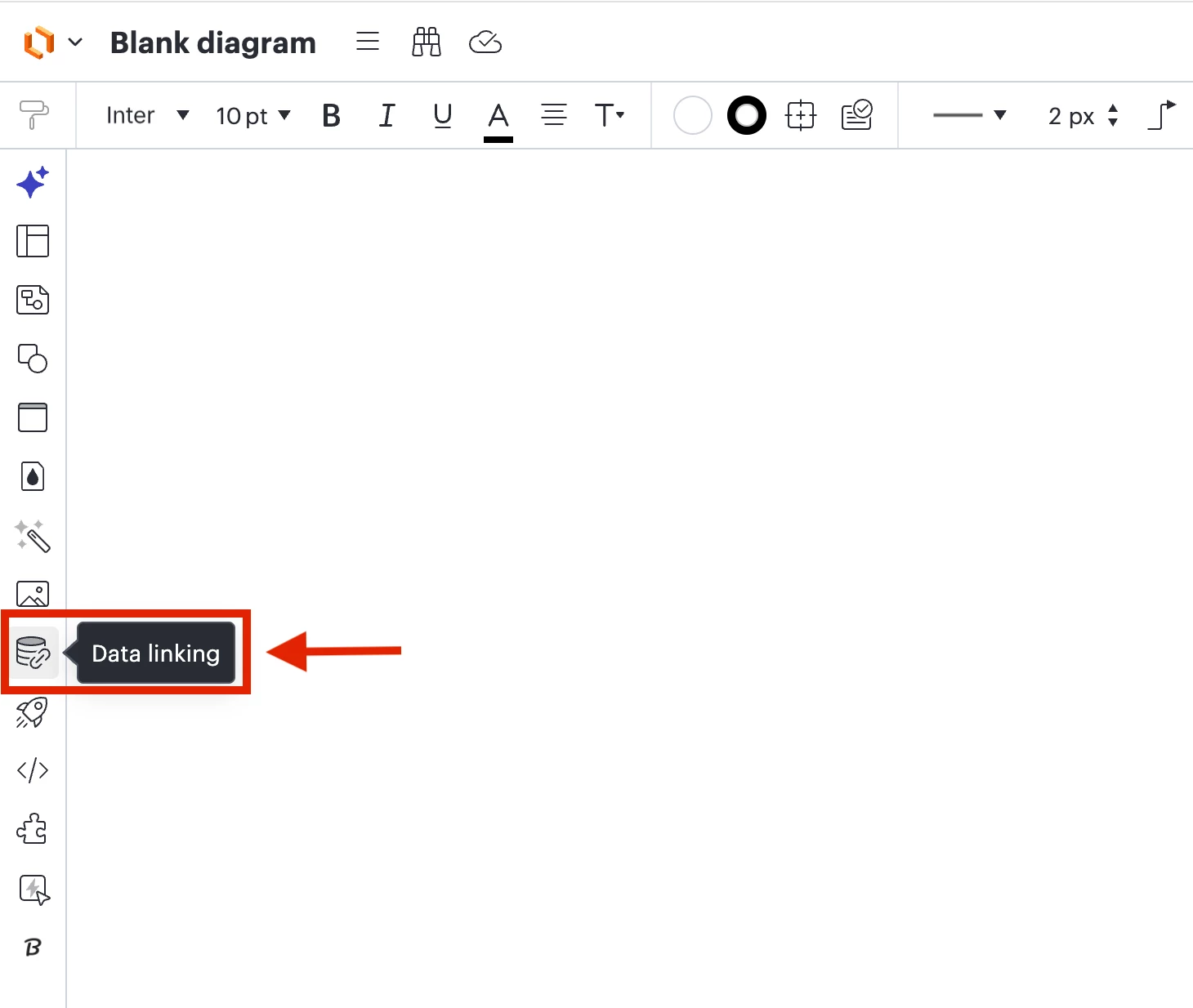
In your Lucidchart document, click the Data Linking icon on the left hand toolbar. (see image below)
Click the purple “Import Data” button.
Upload the CSV you just downloaded, and follow the prompts to finish. *Note: In this case you can select “My dataset doesn’t contain a header row” and “My dataset doesn’t contain reference keys”.
Step 3: Create and Refine your Table
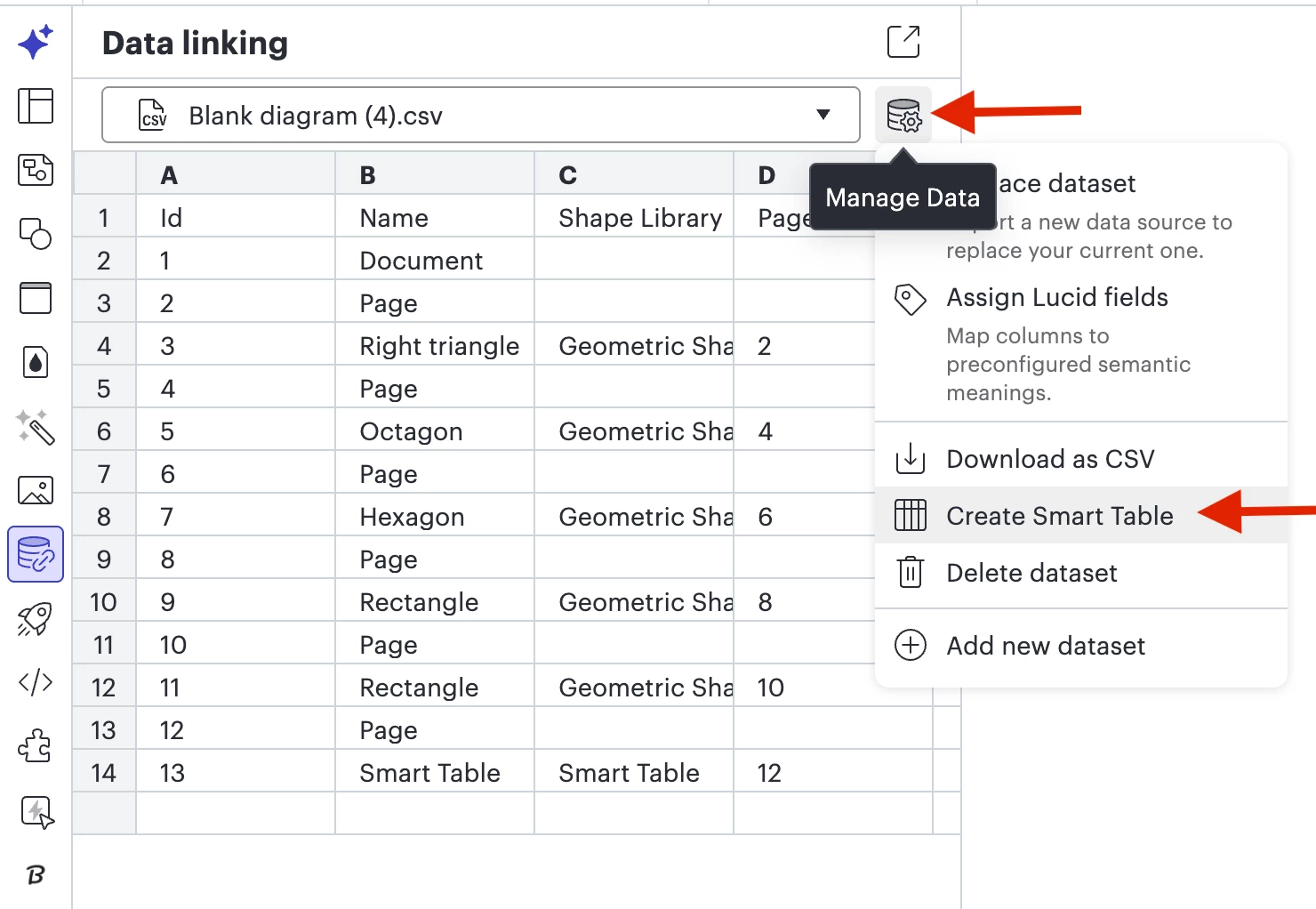
Click “Manage Data” > “Create Smart Table” (see image below)
Click on the Smart Table you just created. A Contextual Panel will appear on the right-hand side of your screen.
In the contextual panel, scroll down to the “Manage Fields” section.
Deselect any unnecessary columns.
Ensure the field containing your Page Names is selected.
If the table looks a bit “messy”, use the Filter option in the Contextual Panel to clean it up.
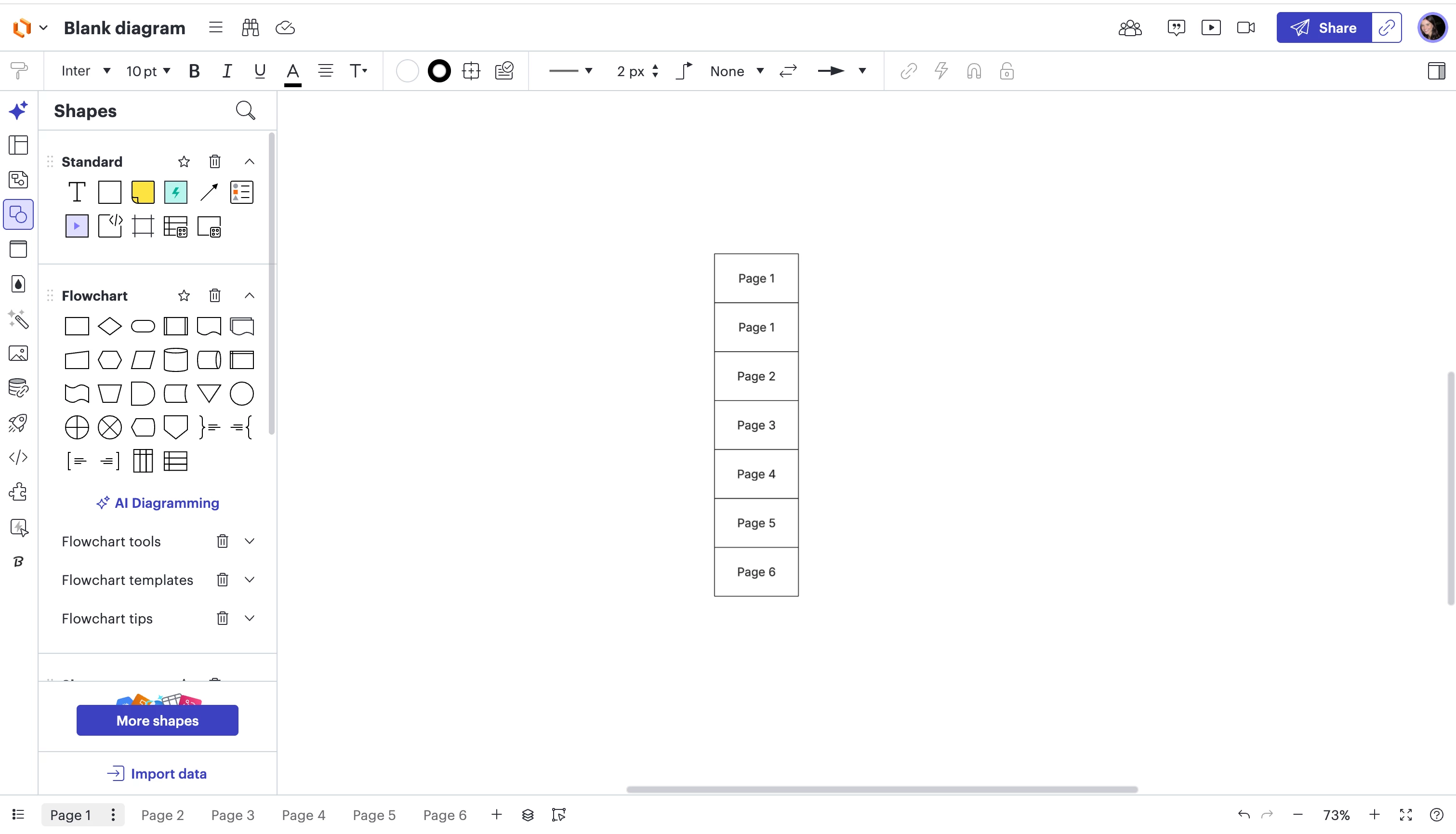
It will look something like this (see image below).
Please let me know if you have any additional questions and I’m happy to help!
There isn’t a direct way to export a list of the names of your Pages in Lucidchart. However, there is a great workaround which involves using the CSV of Shape Data method to extract all of your page names in your document and display them in a clean table. Please follow these steps below:
Step 1: Export the document data
Open your Lucidchart document.
Click the Menu icon (three horizontal lines) in the top-left corner of your screen.
Hover over Export and select CSV of Shape Data.
A CSV file will download to your computer. This files contains metadata for every object, including the names of your pages.
Step 2: Link the data to your document
In your Lucidchart document, click the Data Linking icon on the left hand toolbar. (see image below)
Click the purple “Import Data” button.
Upload the CSV you just downloaded, and follow the prompts to finish. *Note: In this case you can select “My dataset doesn’t contain a header row” and “My dataset doesn’t contain reference keys”.
Step 3: Create and Refine your Table
Click “Manage Data” > “Create Smart Table” (see image below)
Click on the Smart Table you just created. A Contextual Panel will appear on the right-hand side of your screen.
In the contextual panel, scroll down to the “Manage Fields” section.
Deselect any unnecessary columns.
Ensure the field containing your Page Names is selected.
If the table looks a bit “messy”, use the Filter option in the Contextual Panel to clean it up.
It will look something like this (see image below).
Please let me know if you have any additional questions and I’m happy to help!
A Lucid or airfocus account is required to interact with the Community, and your participation is subject to the
Supplemental Lucid Community Terms.
You may not participate in the Community if you are under 18. You will be redirected to the Lucid or airfocus app to log in.
A Lucid or airfocus account is required to interact with the Community, and your participation is subject to the
Supplemental Lucid Community Terms.
You may not participate in the Community if you are under 18. You will be redirected to the Lucid or airfocus app to log in.



 Your privacy choices


