Solved

Issue aligning text in shapes

  • October 9, 2019
  • 10 replies
  • 549 views

Marshall L101

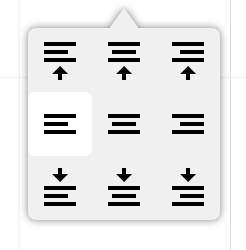
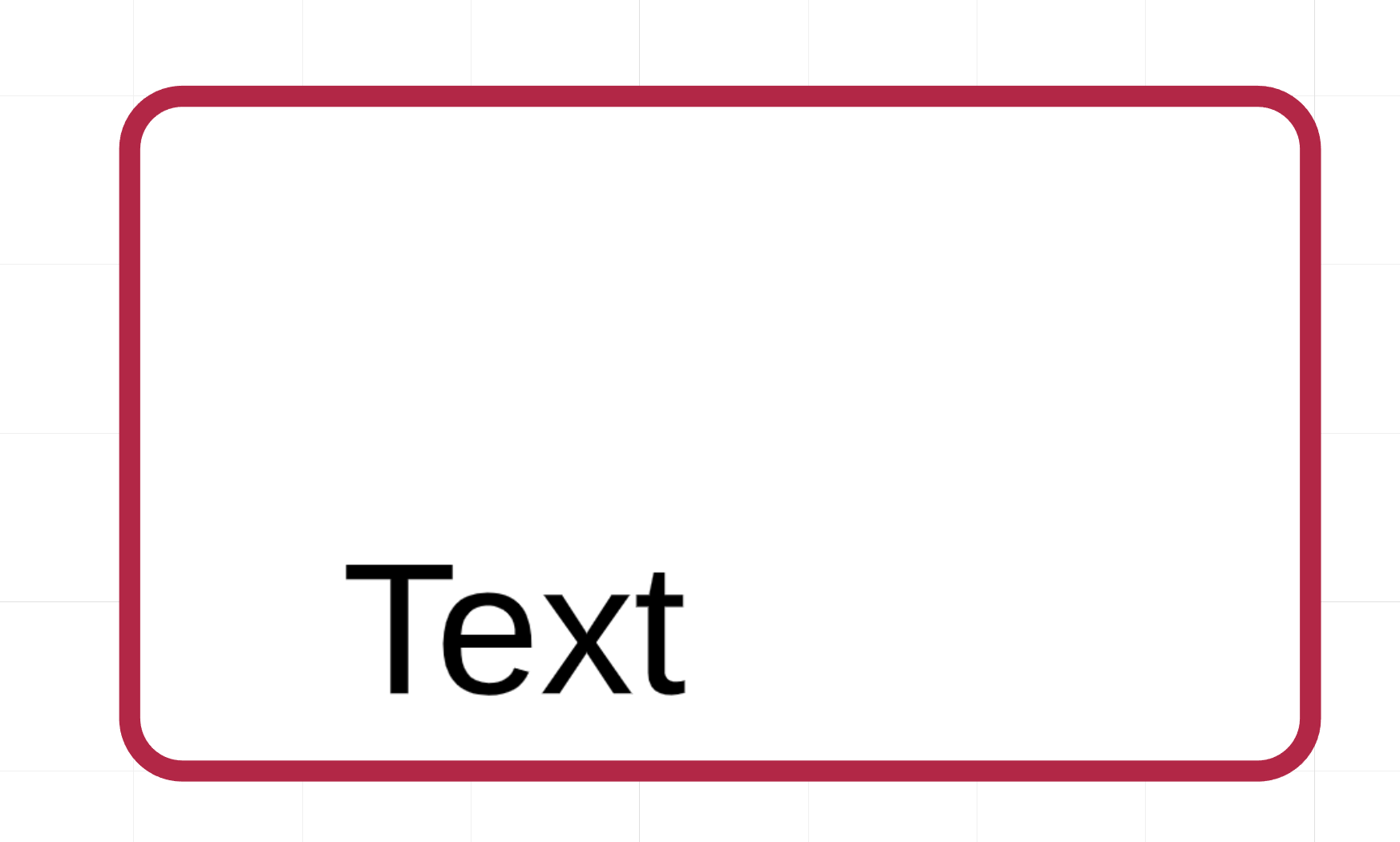
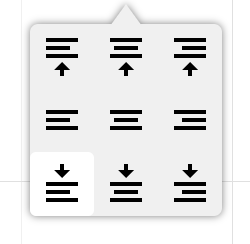
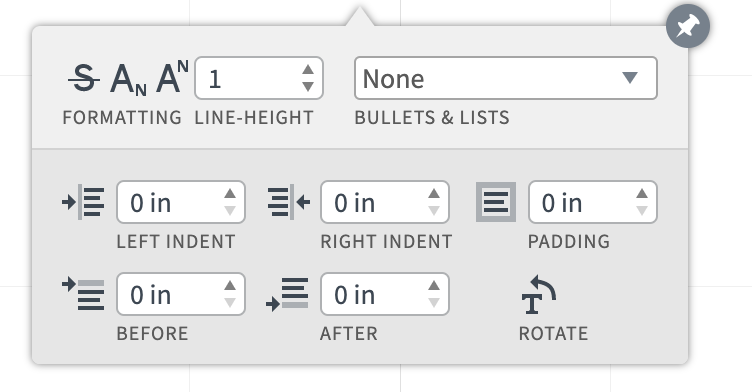
Previously I was able to align text to the lower left corner of its container with no problems. Recently I noticed that no matter what I do (native text object or another shape that can contain text) there's always a margin on the left side. I can't get it to be flush with the bottom corner. I double checked the alignment and padding options.
Best answer by Eric Z

I can tell you that my own documented issues with this was "fixed" by starting from a new blank document and copying things over. Basically the issue happened when I copied templates that had some kind of old behavior integrated into it. Copying those templates didn't resolve the issue but recreating the document fresh and copying everything (and potentially recreating a few text boxes) is what I went with.

Comments

Annika W101
Forum|alt.badge.img+3
  • Lucid support team
  • October 10, 2019

Hi Marshall 

Thanks for reaching out and I am sorry for the trouble you are having with text in Lucidchart! Can you please check the padding feature? If you click on the T "text" icon you should be able to access padding an indent settings. I recommend adjusting these. If this does not help please post a screenshot of your text options so I can take a closer look. 


Eric Z
  • March 25, 2021

I have the exact same issue but it doesn't happen on all documents. Just like Marshall I've checked my settings as requested. Copying between documents where it works and where it doesn't has the behavior follow back and forth. Create something in a good document and copy paste it to a non-working document. Then copy and paste it back. The behavior stays specific to the document but I've made sure all my Page Settings are identical.

Example of it working properly in one document. This tests a box with text and no padding set.

Example of it working properly in the same document. This tests a text object and no padding set.

--switching to non-working document--

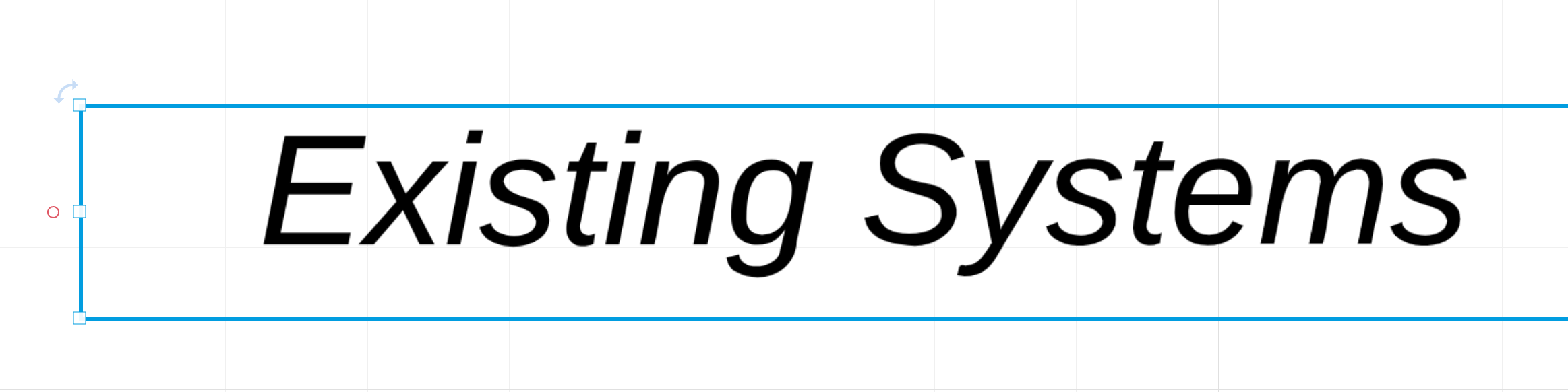
Example of it NOT working properly in a different document. This tests a box with text and no padding set.


Example of it NOT working properly in the same non-working document. This tests a text object and no padding set.


Ashley C
Forum|alt.badge.img+11
  • Lucid support team
  • March 26, 2021

Hi Eric

Thanks for your post. I've created a support ticket so we can take a closer look at what might be going on. Keep an eye out for a response soon.


Charles M
  • June 8, 2022

Is there a fix for this issue.  i have the same issue.


Zoe H102
Forum|alt.badge.img+4
  • June 8, 2022

My suggestion as somebody who has experienced a variety of such problems with a variety of settings box issues (lines colors text etc): if you click on an item and it is highlighted and then you bring up the settings box – those settings shown are NOT always the actual settings at play. So even though the settings box SAYS "0" for padding/etc. – RETYPE all entries (ie: typing "0" over the existing "0"). It's a bug I come across regularly and which often fixes whatever inexplicable issue I'm dealing with. :)


Micah
Forum|alt.badge.img+20
  • Lucid community team
  • June 8, 2022

Hi @charles m thanks for continuing this thread - apologies that you're experiencing this issue too! Can you please let me know the following information?

1. In the document in which you are experiencing issues have you (at any point) copied the style from a shape which contained text with bullets and then pasted that style to a shape which has text without bullets
2. Is the document you are working in created from a template?
3. Is the document in which you are experiencing the issues imported from Visio? 


@zoe h102 Thank you so much for sharing this tip! A "reapplication" of settings like this can resolve unusual behavior. Charles let us know if this helps!


Eric Z
  • Answer
  • June 9, 2022

I can tell you that my own documented issues with this was "fixed" by starting from a new blank document and copying things over. Basically the issue happened when I copied templates that had some kind of old behavior integrated into it. Copying those templates didn't resolve the issue but recreating the document fresh and copying everything (and potentially recreating a few text boxes) is what I went with.


Micah
Forum|alt.badge.img+20
  • Lucid community team
  • June 21, 2022

@eric z Thank you so much for your thorough testing and sharing your solution with us!


Forum|alt.badge.img+1

Hi Marshall 

Thanks for reaching out and I am sorry for the trouble you are having with text in Lucidchart! Can you please check the padding feature? If you click on the T "text" icon you should be able to access padding an indent settings. I recommend adjusting these. If this does not help please post a screenshot of your text options so I can take a closer look. 

Please look into the issue with Mermaid Mind Map code which doesn’t align the text for root inside the circle centrally. Here is code I am using:

mindmap
  root((ServerBased))
    ZeroClient
      AllLogicOnServer
      TerminalClient
    Advantages
      CentralControl
      HighSecurity
      EasyUpdates
      LowCostClients
    Disadvantages
      HeavyServerLoad
      StrongNetworkNeeded
      SinglePointFailure


alison cheney
Forum|alt.badge.img+8
  • Lucid community team
  • April 7, 2026

Hi ​@elijah.elias,

Thank you for your response in this thread! Will you please answer the following questions and attempt the steps below to align the text in your Mermaid Mind Map?

  • What version of Mermaid are you using? Lucidchart is optimized to support version 11.4.1 of Mermaid
  • Unfortunately, mind maps are not one of the current diagram types that are supported using mermaid code in Lucid. 
    • The following diagram types are supported using Mermaid code:

      • Flowchart: Build easy-to-follow flowcharts that cover complex systems and processes.
      • Sequence: Represent the processes and objects that live simultaneously, and the messages exchanged between them to perform a function, before the lifeline ends.
      • Class: Map out the structure of a particular system by modeling its classes, attributes, operations, and relationships between objects.
      • State: Build a behavioral diagram to show transitions between various objects.
      • C4: Leverage the four levels of models (context, containers, components, and code) depending on your audience.
      • Gantt: Visually represent the schedule and progress when managing a project.
      • Entity Relationship: Visually represent a database to show relationships between fields.
  • Could you try converting your mind map to a flowchart, and removing “mindmap” from your code? Since flowcharts are officially supported with mermaid code in Lucid, this should fix the issues with your alignment and rendering of text.
  • Have you tried replacing your root line with: root(( "ServerBased" )) or root(("`ServerBased`"))

If the issue persists, could you please share the following:

  • A screenshot of the issue
  • A screenshot of the associated Javascript Console output after reproducing the issue. You can open your Javascript Console by pressing Ctrl+Shift+J (if your computer is a Windows/Linux) OR Cmd+Opt+J (if your computer is a Mac).

Thanks in advance for your help and patience!