

Introducing Plan Mode: Think Before You Create with Lucid AI
Save time by working with Lucid AI's planning mode to clarify your requests and produce high-quality output. We are thrilled to introduce plan mode, a think-before-acting experience now available for Lucid AI.
Instead of rushing to generate your request, Lucid AI now pauses to ensure it truly understands your vision before a single shape is placed.
What is plan mode?
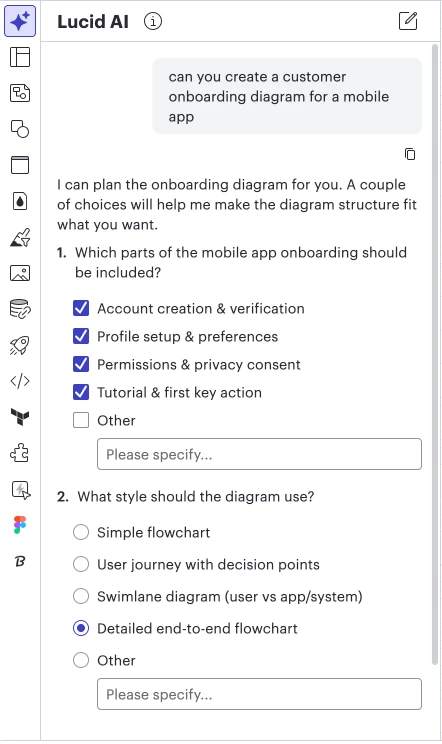
Plan mode turns Lucid AI into a collaborative partner. When you submit a request that is open-ended or involves large-scale changes, plan mode is available to help clarify your intent and confirm a strategic action plan before making changes to your document.
How it works:
- Confirms the path: It presents a clear action plan for you to review and refine.
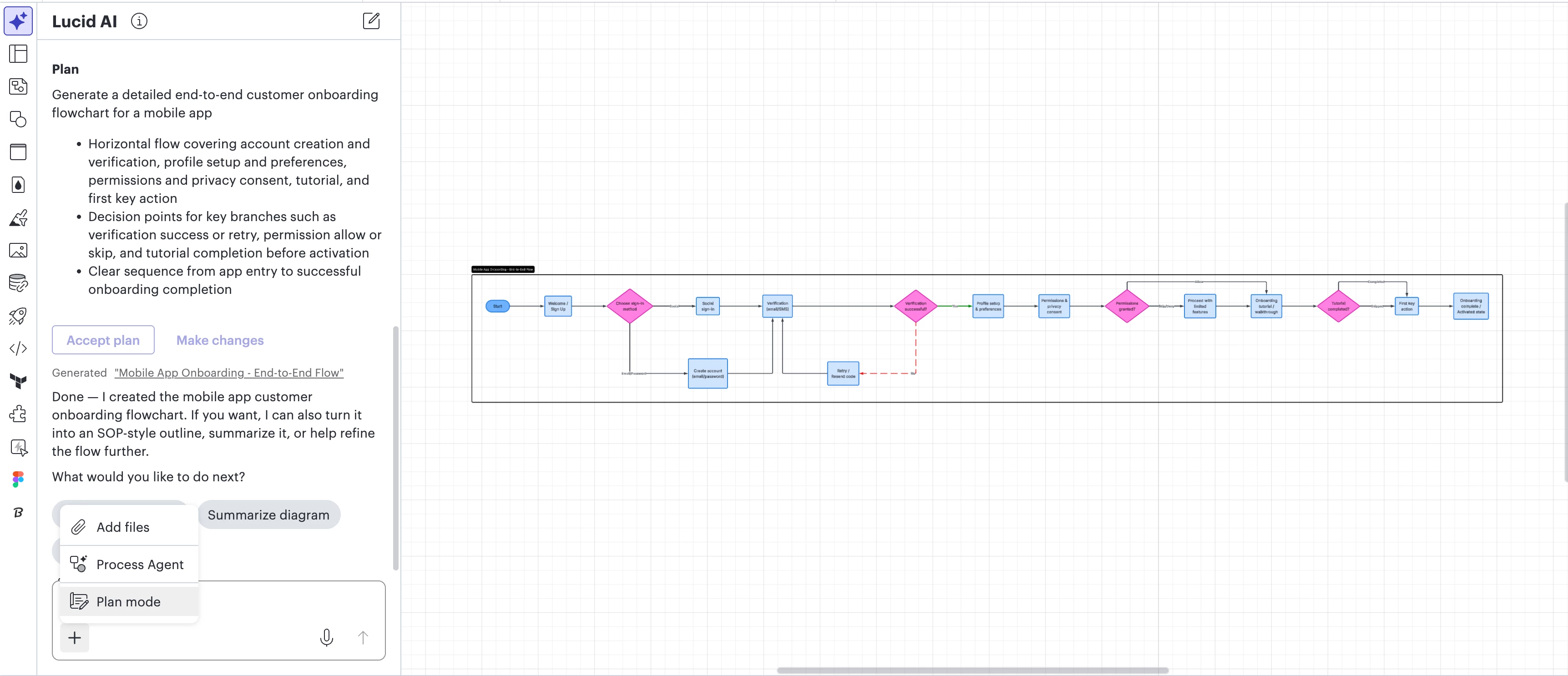
- Executes with precision: Once you’re aligned, the AI generates high-quality output for any Lucid AI request, including generating diagrams and boards.
Built for Complexity
While other visual tools offer thinking AI modes for text, Lucid offers a dedicated planning phase specifically for visualizations. This makes it a powerhouse tool for solution architects and business analysts who need to produce high-level deliverables that require architectural precision, not just generic drafts.
Why You’ll Love It
- Higher quality on the first try: Collaborative refinement means the output better meets your specific needs, drastically reducing the time spent on manual edits.
- Smarter collaboration: Work with the AI to brainstorm and generate a plan before committing to an output.
- Efficiency at scale: Reduce the failure rate of complex prompts by providing the AI with the guidelines it needs to succeed.
How to Use It
- To activate plan mode, click the + icon to open the Lucid AI menu in the chat interface and select ‘plan mode.’
- To turn off Plan mode, select the "x" on the plan mode icon, or deselect plan mode within the Lucid AI menu.
Ready to build smarter? Next time you have a big idea or a complex architectural change, let plan mode for Lucid AI help you plan it out first. For more information check out this help center article.
 Your privacy choices


