Solved

How to show data on shapes with Data Linking

  • January 19, 2022
  • 4 replies
  • 298 views

Micah
Forum|alt.badge.img+20
  • Lucid community team

How do I display my data on my shapes? I have project details including stakeholders frequency of communication deliverables for the project etc. in a Google Sheet. I’ve imported it and want to use it in conjunction with the Communication Plan template but I don’t know how to get my own data on the shapes!

Best answer by Sami H

Hi there thanks for posting in the community! Once you’ve imported your data into Lucidchart using the Data Linking tool you can view and manage it in the Data Linking panel on the left of your editor. 

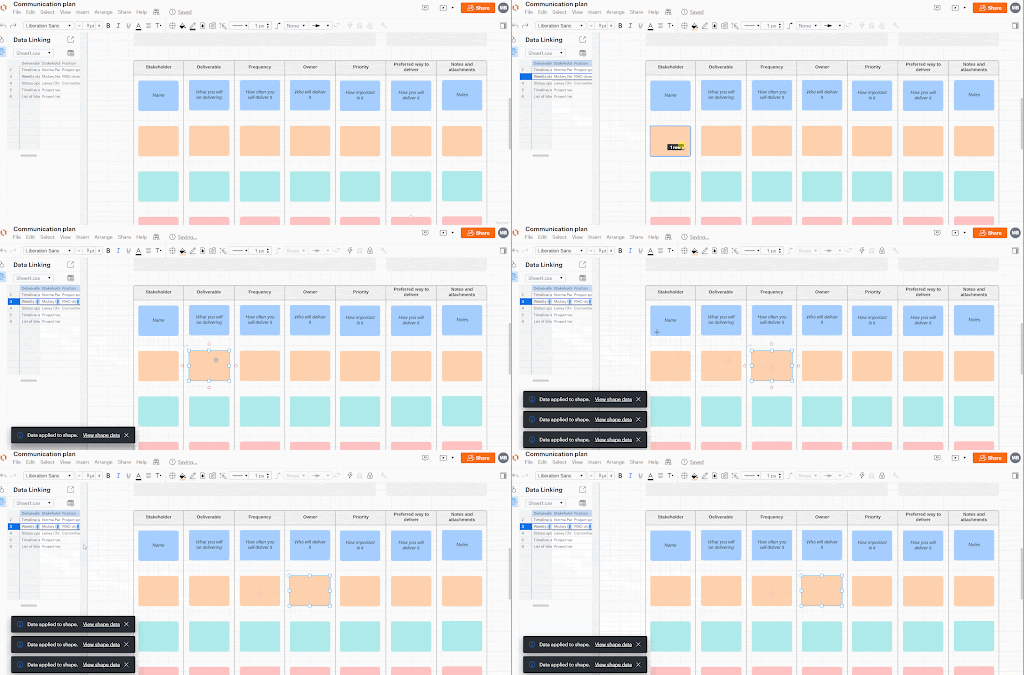
In order to display this data on your shapes in the template you’ll first need to attach the data to these shapes. You can do this by clicking and dragging the row of data to the shape with which you want to associate it. Once data is associated with a shape a small link icon will appear next to the data in the data panel.
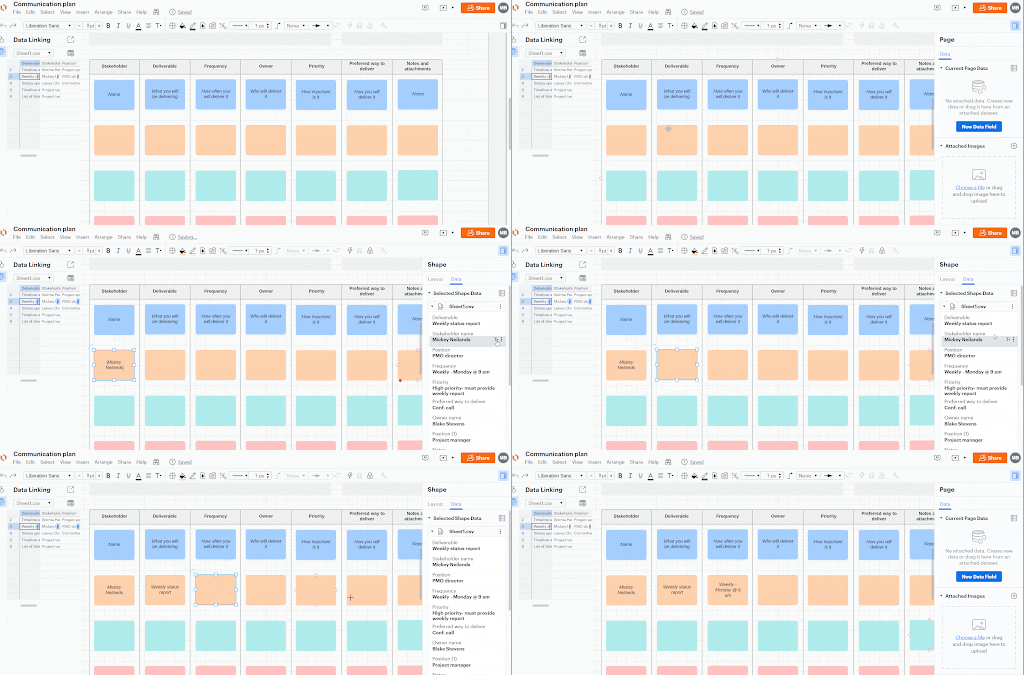
Finally to display the data on your shapes open the Shape Data panel on the right side of the editor then select the shape you want to work with. When you hover over the different data elements in the panel a +T icon will appear to the right. Simply click this icon to add the data to your shape! Note that you can do this for both a particular field (e.g. “Stakeholder”) as well as the value of that field (e.g. “Mickey Neilands.”)
I hope this helps! For more information please take a look at our Link Google Sheet Excel or CSV Data To Lucidchart Diagrams from the Lucidchart Help Center and post any additional questions below!

____________________________________________________________________________

¿Habla español? ¡Haga una pregunta aquí!

Fala português? Faça uma pergunta aqui!

Comments

Sami H
  • Lucid support team
  • Answer
  • January 19, 2022

Hi there thanks for posting in the community! Once you’ve imported your data into Lucidchart using the Data Linking tool you can view and manage it in the Data Linking panel on the left of your editor. 

In order to display this data on your shapes in the template you’ll first need to attach the data to these shapes. You can do this by clicking and dragging the row of data to the shape with which you want to associate it. Once data is associated with a shape a small link icon will appear next to the data in the data panel.

Finally to display the data on your shapes open the Shape Data panel on the right side of the editor then select the shape you want to work with. When you hover over the different data elements in the panel a +T icon will appear to the right. Simply click this icon to add the data to your shape! Note that you can do this for both a particular field (e.g. “Stakeholder”) as well as the value of that field (e.g. “Mickey Neilands.”)

I hope this helps! For more information please take a look at our Link Google Sheet Excel or CSV Data To Lucidchart Diagrams from the Lucidchart Help Center and post any additional questions below!

____________________________________________________________________________

¿Habla español? ¡Haga una pregunta aquí!

Fala português? Faça uma pergunta aqui!


Micah
Forum|alt.badge.img+20
  • Author
  • Lucid community team
  • May 3, 2024

Hi! 👋 Jumping in here because I think others who might come across this post may be interested in Lucid’s Data Trusted User Group. This group is made up of knowledgeable users who regularly analyze and visualize data in their work. As part of this group, you’ll have the opportunity to connect directly with Lucid’s product team, gain early access to beta features, and share insights about your needs, shaping the future of Lucid’s data solutions 🎉 You can learn more and request to join here. Thanks!


Forum|alt.badge.img

It was suggested to me that you could create a shape group, and link a row of data to a group, enabling individual shapes within that group to show the linked data, thus allowing for custom formatting of the individual shapes that make up the group. 

I have tried everything I can image but can’t seem to link data beyond all columns being part of a single object (which severely limits formatting capabilities). Is this possible, and if so, is there some detailed instructions on how to make it work?


alison cheney
Forum|alt.badge.img+4
  • Lucid community team
  • February 26, 2026

Hi ​@Allen Stoker,

Thank you for responding in this thread, and I’m happy to help here!

First, I wanted to clarify and see if you have already tried the following steps below. If you haven’t tried them yet, would you mind attempting these steps on your end so we can narrow down the cause of the issue you’re experiencing?

Step 1: Move an entire row of your data into a shape (see gif below)

  1. Upload your data
  2. Select the entire row
  3. Drag the entire row into your container
  4. Select the shape you want that row to link to


Linking the rows in your data to shapes in your container

Step 2: Move a column of your data into a shape (see gif below)

  1. Select one cell of your data
  2. Drag the cell to your shape
  3. A pop-up will appear saying “Keep or Replace Fields”. When it says “Do you want to replace them with the ones you’re dragging?” Click “Keep Both” so that you can add multiple cells in the same column to your shape. 


Linking the columns in your data, one-by-one, to shapes in your container

If you have tried the following steps above and the issue persists, can you send me the following:

  • A description of the steps you took to attempt to link your data.
  • A screenshot of the specific issue you are experiencing.

Thanks in advance for your help and patience!