Solved

How can I delete comments?

  • June 2, 2017
  • 6 replies
  • 378 views

Hi how can you remove comments? We have diagrams that we have got comments on from internally. Now it is time for the customer to review and add comments. However they can see all our comments as well. Is there a way to hide or delete the comments our internal team have done so our client cannot see them? We have marked them resolved but the client can change Active to resolved and see the comments.

Thanks
Best answer by Ambar D

June 25, 2026 update:

Since this original post, there have been several updates to Lucid’s UI and to comments! Here’s the latest:

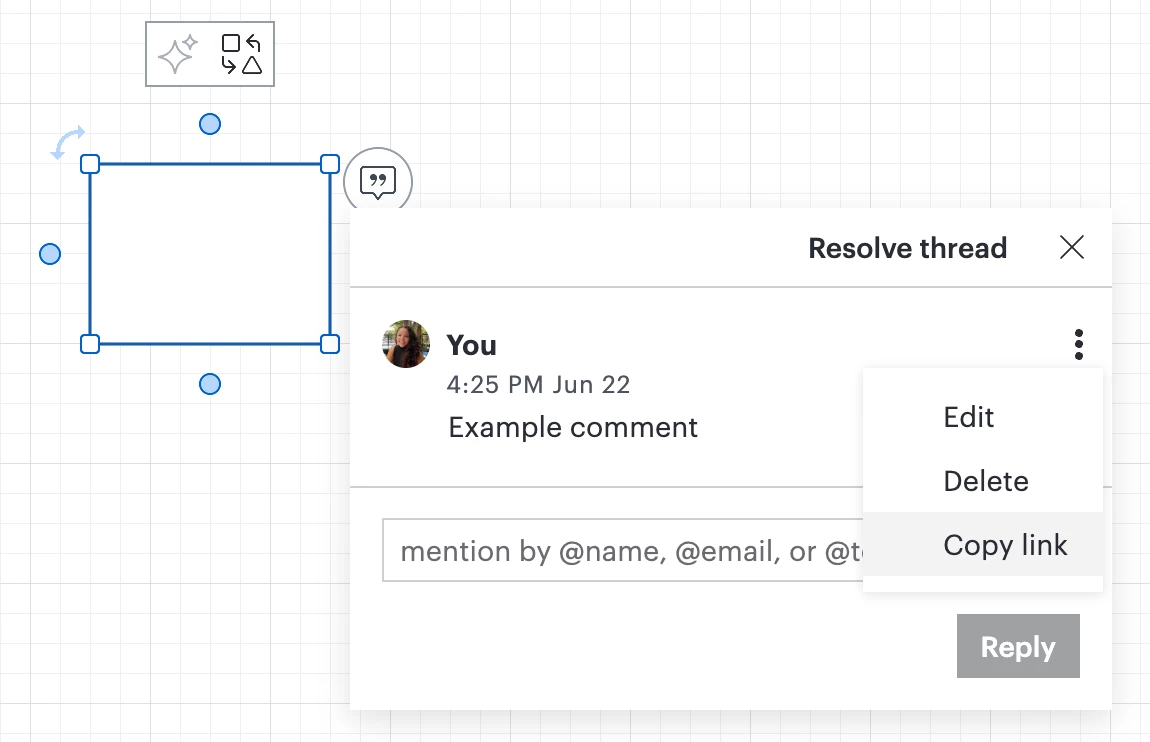
Now you can select the tri-dot menu next to a comment to edit the comment, delete it, or copy a link to the comment, as shown below! To learn more, check out the Add comments and assign tasks to collaborators article from the Lucid Help Center.


Comments

Megan W101
  • Lucid support team
  • June 2, 2017

Hi Chris! To delete one of your own comments select or hover over the comment in the right context panel. Then hover over the initials on the comment and you'll see them turn into a trash icon. Click and the comment will be deleted. Please note that you cannot delete others' comments so each user will have to delete their own comment. I hope this helps!


Shelley D101

There are no initials so how do I delete this?


  • September 12, 2019

Hi Shelley

Thanks for your post. There do not appear to be any comments in the "Resolved" section of the screenshot you've attached. You'll need to delete comments while they're in the "Active" section. Megan's instructions above still accurately describe the flow of this action although some of the UI has been changed slightly. 


Tim D102
  • May 28, 2021

I guess the UI has changed because I can't find the context panel to  be able to delete a comment. Can you give an example with the current (May 29 2021) UI? 


Leianne C
Forum|alt.badge.img+15
  • Lucid support team
  • May 28, 2021

Hi Tim

Thanks for continuing this thread! The context panel can be found by clicking the 'Comments' icon next to 'Present' on the top right corner. 

You could also delete comments associated with objects by clicking on the comment icon next to the shape. Select the comment and click the three dots next to it to see the options to edit or delete. Please note that you can only delete comments made by you.


You can find more information about commenting in this this section of the Collaborate and Share article in our Help Center. Hope this helps!


Ambar D
Forum|alt.badge.img+12
  • Lucid community team
  • Answer
  • June 25, 2026

June 25, 2026 update:

Since this original post, there have been several updates to Lucid’s UI and to comments! Here’s the latest:

Now you can select the tri-dot menu next to a comment to edit the comment, delete it, or copy a link to the comment, as shown below! To learn more, check out the Add comments and assign tasks to collaborators article from the Lucid Help Center.