Solved

Help Center opacity controls are incorrect

  • July 2, 2026
  • 2 replies
  • 175 views

Forum|alt.badge.img

Here is the Lucid documentation I’m seeing: 
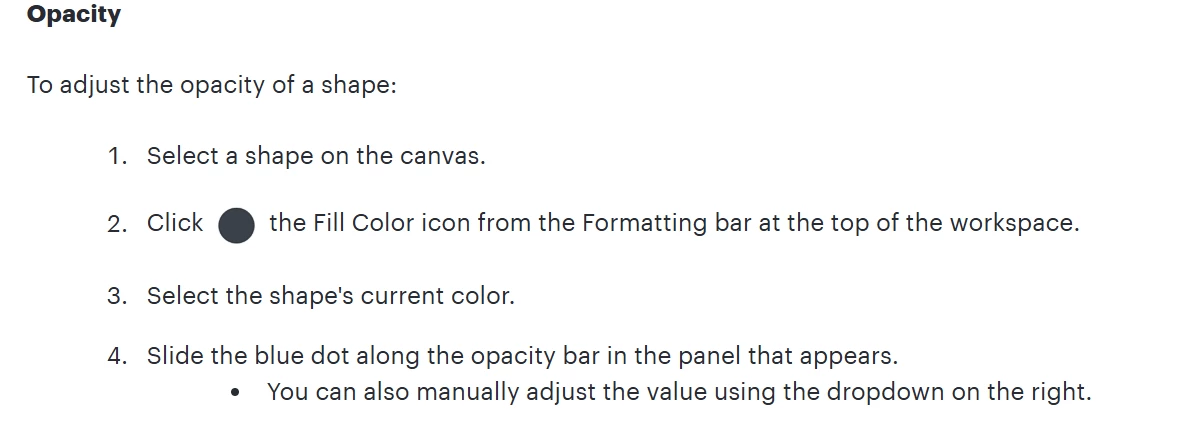
 

Yet I am NOT seeing an Opacity bar, a blue dot, a panel, or a dropdown on the right that would allow me to control this. Is it gone and the Help documentation is misleading? 

Best answer by aparrish

@ClaireQ2 Try it again by replacing #3 and #4 with the following: 

  • Click the current fill color to open the color picker.
  • Use the Opacity slider (or enter a percentage in the box on the right) to make the shape more transparent or more opaque.

Let us know if you're trying to adjust the opacity of something other than a shape (such as an image, line, or text), as the steps are a little different.

Comments

aparrish
Lucid Legend Level 7
Forum|alt.badge.img+18
  • Lucid Legend Level 7
  • Answer
  • July 5, 2026

@ClaireQ2 Try it again by replacing #3 and #4 with the following: 

  • Click the current fill color to open the color picker.
  • Use the Opacity slider (or enter a percentage in the box on the right) to make the shape more transparent or more opaque.

Let us know if you're trying to adjust the opacity of something other than a shape (such as an image, line, or text), as the steps are a little different.


Leianne C
Forum|alt.badge.img+15
  • Lucid support team
  • July 8, 2026

Hi ​@ClaireQ2, thank you for posting in the Community.  If the steps that ​@aparrish shared didn’t help, would you mind sharing a screenshot of what you sare seeing? This will help me take a closer look on my end. 

Hope this helps. Please feel free to let me know if you have any questions!