Question

Grouped Objects no longer allow order setting

  • February 10, 2026
  • 5 replies
  • 16 views

Forum|alt.badge.img+1

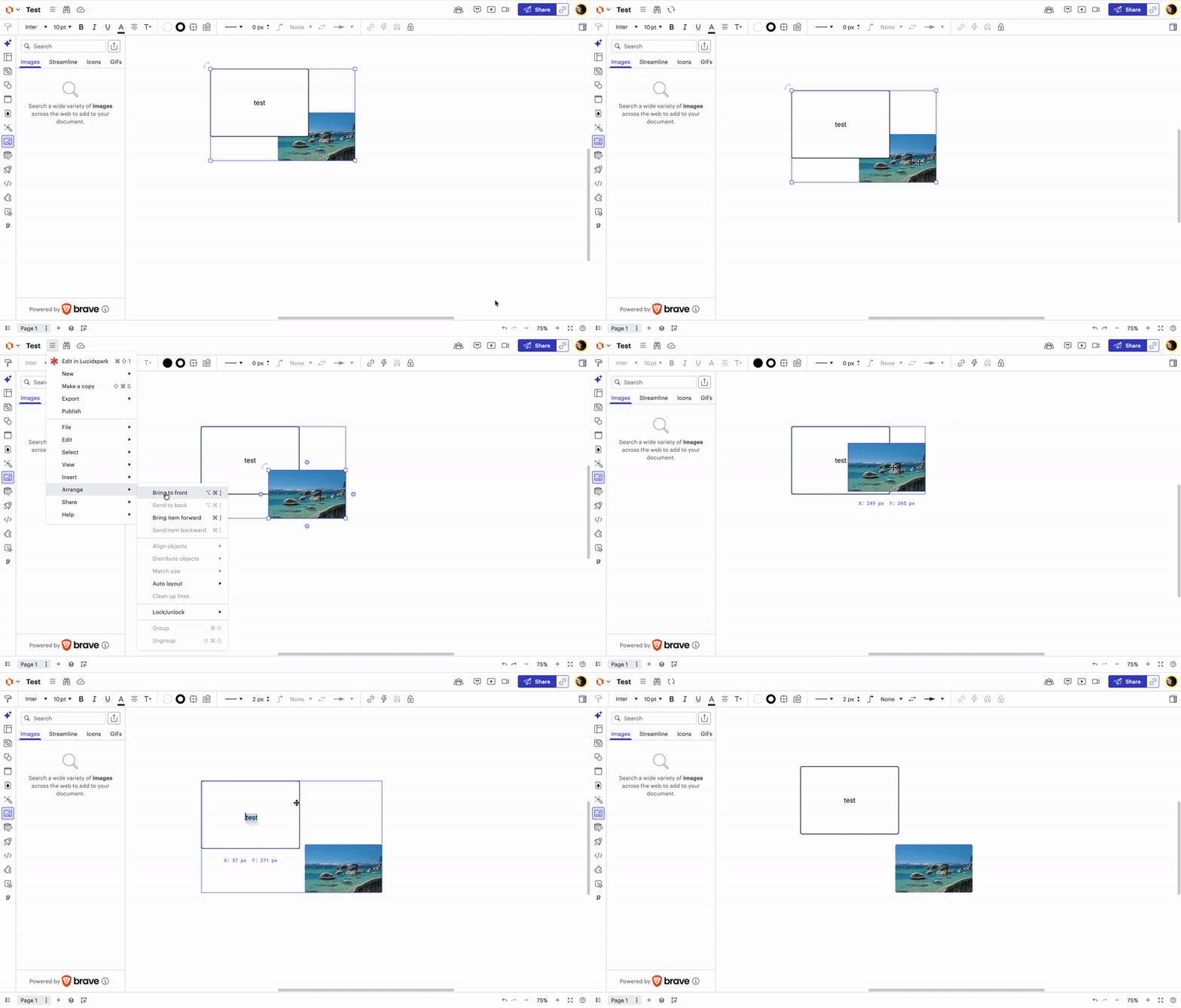
If you create a shape and then add an image which are then grouped together. This looks fine until you move the group and the Z-order is broken and the image is incorrectly moved behind the shape. If you edit the group then you are no longer able to access the arrange-order functions as you can not order shapes within a group only the whole group.

The only work around is to ungroup, fix the order, then group again AND NEVER MOVE THE GROUP otherwise the order gets broken again.

Would be great to be able to order objects within a group please.

Comments

alison cheney
Forum|alt.badge.img+4
  • Lucid community team
  • February 11, 2026

Hi ​@egonkuster,

Thank you for posting in the Lucid Community!

I certainly understand how this behavior impacts your workflow efficiency. Fortunately, there is a way to manage this without the constant ungrouping! 

After grouping your objects, follow these steps to make adjustments: (see Gif below for demonstration)

  • Select: Double-click the specific shape or image within the group.

  • Edit: Make any necessary changes to the individual shape/image.

  • Reorder: To move an element to the top, navigate to the hamburger menu and select Arrange > Bring to Front. Alternatively, for a faster workflow, double-click the item and right-click to find the same Arrange options instantly.


Please let me know if you have any additional questions! 


Forum|alt.badge.img+1
  • Author
  • February 11, 2026

That would be great but the arrange options are not available as per this screenshot:


This is just a shape and pasted image into a standard document. I am not using any templates or smart objects.


alison cheney
Forum|alt.badge.img+4
  • Lucid community team
  • February 11, 2026

Hi ​@egonkuster,

Thank you for your response and screenshot showing the specific issue. 

I wanted to clarify if you’ve noticed the arrange options are not showing only for the images you have copy/pasted, or is it for any image that was uploaded on to your Lucidchart document?

Could you share a temporary Document Support PIN for this document? This will help me take a closer look at what’s going on. This PIN is safe to post in this thread because it is only accessible by members of the Lucid support staff. You can find steps for generating a Support PIN in this Lucid Help Center article: Generate a Lucid Support PIN. Thanks for your patience!


Forum|alt.badge.img+1
  • Author
  • February 11, 2026

Did some further testing and it seems to only occur on images that are PNG with transparency.

Imported JPG or other images seems to work fine….. just not on PNG with transparency.


alison cheney
Forum|alt.badge.img+4
  • Lucid community team
  • February 11, 2026

Hi ​@egonkuster,

Thanks for your update and for doing that extra testing!

It sounds like there may be a specialized rendering conflict when transparent layers are nested within a group. I will confirm with our development team. I’m glad to hear that it is working fine with other images. Please don't hesitate to let me know if you have any additional questions. Have a great rest of your day.