Question

Grid lines appearing inconsistently

  • April 24, 2026
  • 11 replies
  • 63 views

Forum|alt.badge.img+4

In one workflow process diagram, grid lines are appearing both in the embedded version and in the Lucid web app for a coworker. When I access the diagram, I see grid lines in the embedded version but not in the Lucid web app. My expectation is that grid lines should not appear for any users in either view.

Other diagrams behave as expected, with no grid lines showing in either the embedded view or the web app. Why is this particular diagram behaving differently?


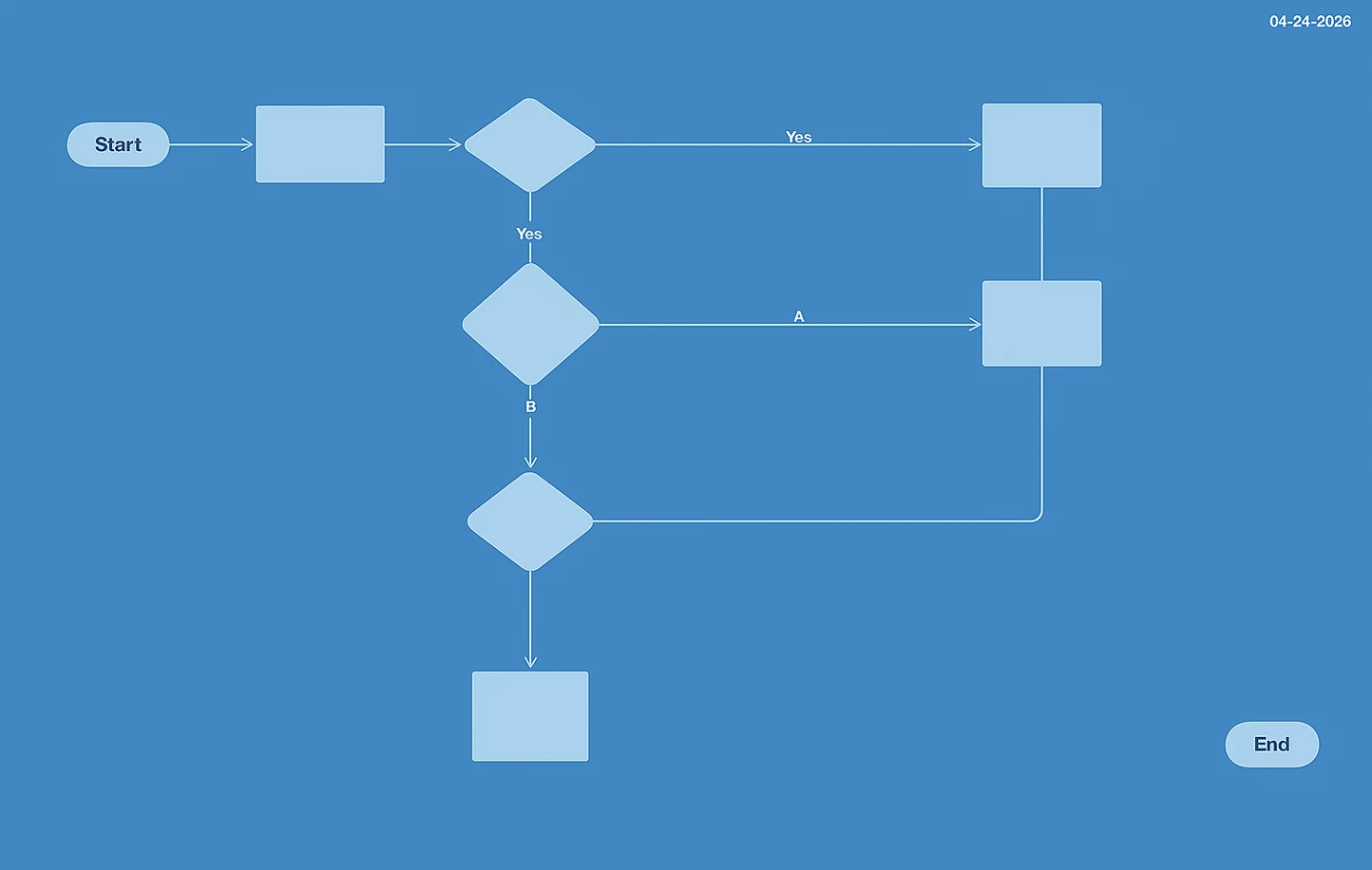
Grid Lines appear in embedded version for both myself and co-worker
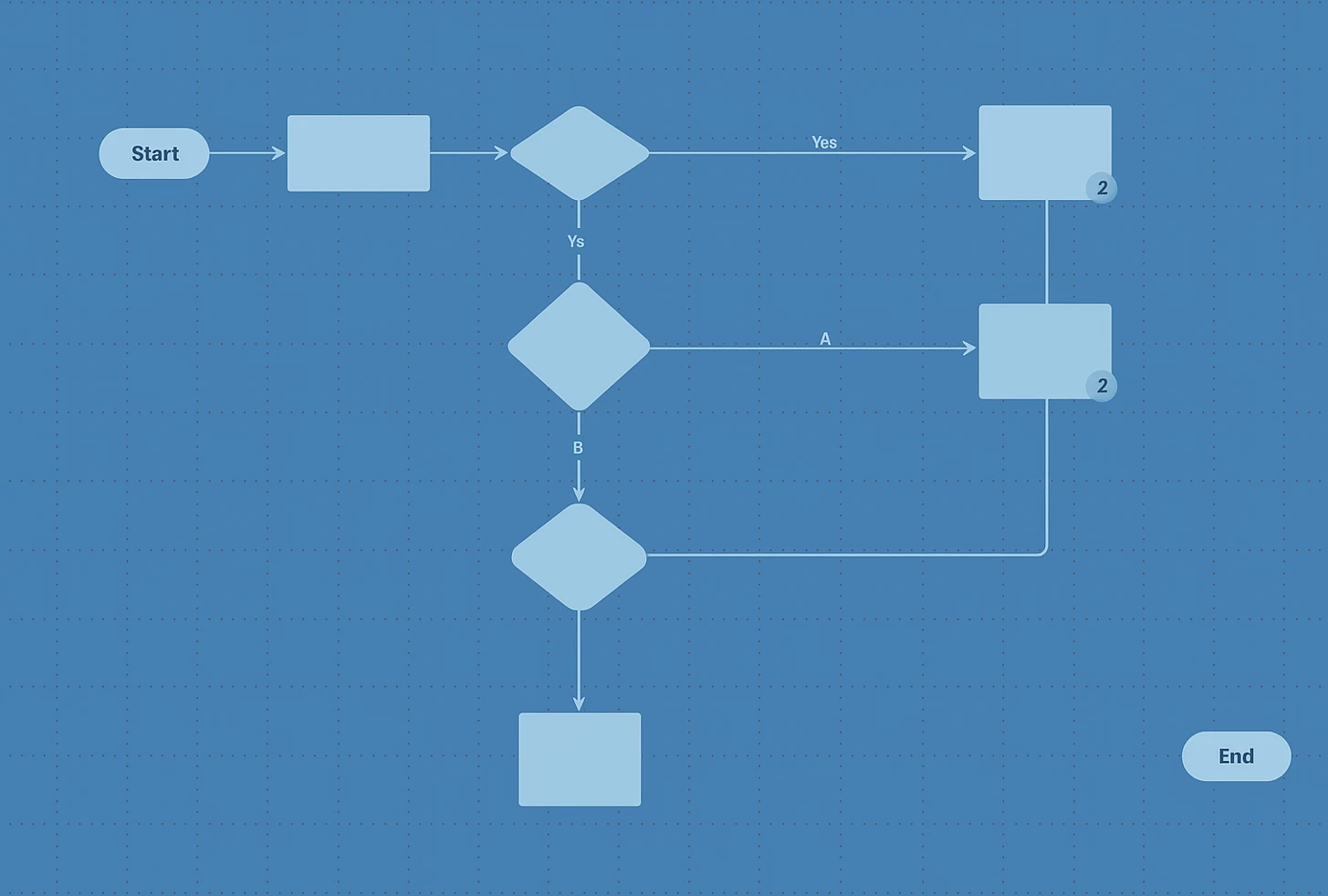

Grid lines DO NOT appear for me in lucid web app but appear for co-worker
 

Comments

aparrish
Lucid Legend Level 7
Forum|alt.badge.img+15
  • Lucid Legend Level 7
  • April 25, 2026

@Bert try using a Chrome Incognito window to resolve the issue. Clearing your cache and/or cookies in your regular browser could also help. 


Forum|alt.badge.img+4
  • Author
  • April 27, 2026

@aparrish thank you for the suggestion but unfortunately the behavior is the same using Chrome Icognito browser.   The company-wide site is expected to be browser‑agnostic and fully supported in standard enterprise browsers, including Microsoft Edge and Google Chrome.


Forum|alt.badge.img+2
  • Lucid support team
  • April 27, 2026

Hi ​@Bert thank you for posting in the Lucid community!

Additionally, appreciate the input as well ​@aparrish.

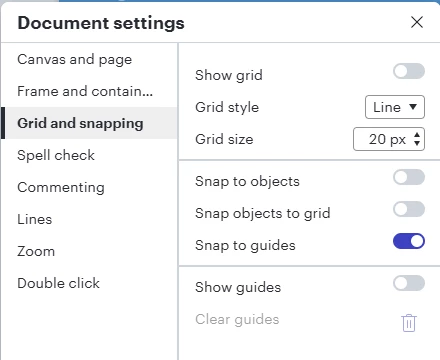
@Bert, I just wanted to jump in to say that as a first step you can check the grid lines setting in your document by opening the hamburger menu in the upper left corner > Hover your cursor over “File” > Settings > Click Document settings. You can check out this help center article for reference. From there, I would recommend posting a screenshot comparing the settings are identical in the working document vs the document not working to narrow down the cause of the issue. Let me know if you have further questions regarding this process.


Forum|alt.badge.img+4
  • Author
  • April 28, 2026

@Catalina Y the document settings are the same for both documents.


Forum|alt.badge.img+2
  • Lucid support team
  • April 28, 2026

I understand and thank you for following up ​@Bert 

Could you share a temporary Document Support PIN for this document? This will help me take a closer look at what’s going on. This PIN is safe to post in this thread because it is only accessible by members of the Lucid support staff. You can find steps for generating a Support PIN in this Lucid Help Center article: Generate a Lucid Support PIN.


Forum|alt.badge.img+4
  • Author
  • April 29, 2026

Document Support PIN:

du0w0wbKRsvp4FJYMdO982dNzpHfVC5w9V215556100


Forum|alt.badge.img+2
  • Lucid support team
  • April 29, 2026

Hi ​@Bert 

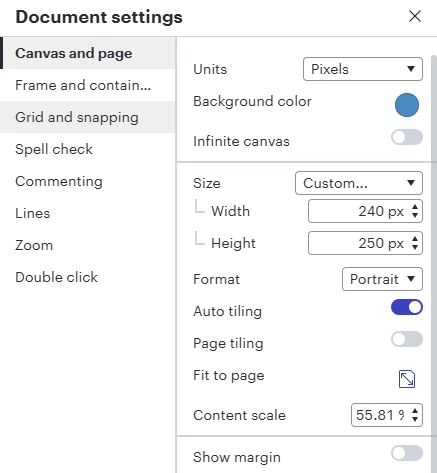
Thanks for the follow-up. You can turn off the grids by again, opening the hamburger menu in the upper left corner > Hover your cursor over “File” > Settings > Click Document settings. On Canvas and Page, you can toggle off Page Tiling, and the grids will disappear. I’ve attached a screenshot below for reference.


Forum|alt.badge.img+4
  • Author
  • April 30, 2026

Hi ​@Catalina Y , Page tiling is/was not enabled on the document.  Regardless I turned it on then off again but unfortunately the grid lines still appear in the embedded version.


Forum|alt.badge.img+2
  • Lucid support team
  • May 1, 2026

Hi ​@Bert 

I understand and thank you for the information. To follow-up, can you clarify to me where the document is embedded? Additionally, just to make sure: did you use the embed process or did you publish the document instead? You can read the specific difference between the two processes in this help center article here.

Finally, can you please send a Technical Support PIN for your account? This will allow me to take a much closer look at the issue you’re experiencing instead of the previous Document Support PIN I requested before. Please navigate to your Account Settings to generate this PIN. For more information on generating a Support PIN, check out this Help Center article.


Forum|alt.badge.img+4
  • Author
  • May 4, 2026

The document is embedded on a SharePoint page. The HTML embed code is retrieved from the menu option Share, Embed.


Document Support PIN - valid until 5/11/2026:

du0q40dE1qkL6UfdqCgdJpNBlDWgv2Y8JG215556100


Technical Support PIN - valid until 5/11/2026

iucQVsgaFHhLHYcDxnj5PMgE1DlRWfu4gQ215556100


Forum|alt.badge.img+2
  • Lucid support team
  • May 6, 2026

Hi ​@Bert 

Thank you for your patience. Can you try removing the embed link and re-embedding the document? Please let me know the result of that. Thank you!