If I select a shape in a Lucid document, right click it, and select “Save link to selection”. Then I go to a different place in the document and type control-V, it inserts a Goto Shape link. Then when I click on it the Lucid document instantly jumps to the target shape. I really need this functionality to be preserved when I export the document to PDF because I most save design documents in a FDA mandated QMS system. I can’t wave a web-resident document there, so I have to archive a PDF version.
But when I export my Lucid documents to PDF, the Goto Shape link do not do anything at all when clicked.
Thank you for your detailed response and for providing the link to your document! I was able to open it, export it to PDF, and test the "GoTo: Shape" links on my end.
When I exported the document, all of the links worked properly and navigated directly to the target shapes. The good news is that your links are completely intact, so you shouldn't need to manually convert them or re-architect your document!
Since the export is working on my end, this is most likely a browser, network, or performance-related rendering issue during the export process (especially given the size of this multi-page document).
To ensure your exported PDF includes all structural link data, please follow these exact export steps:
Click the Menu icon > Export > PDF.
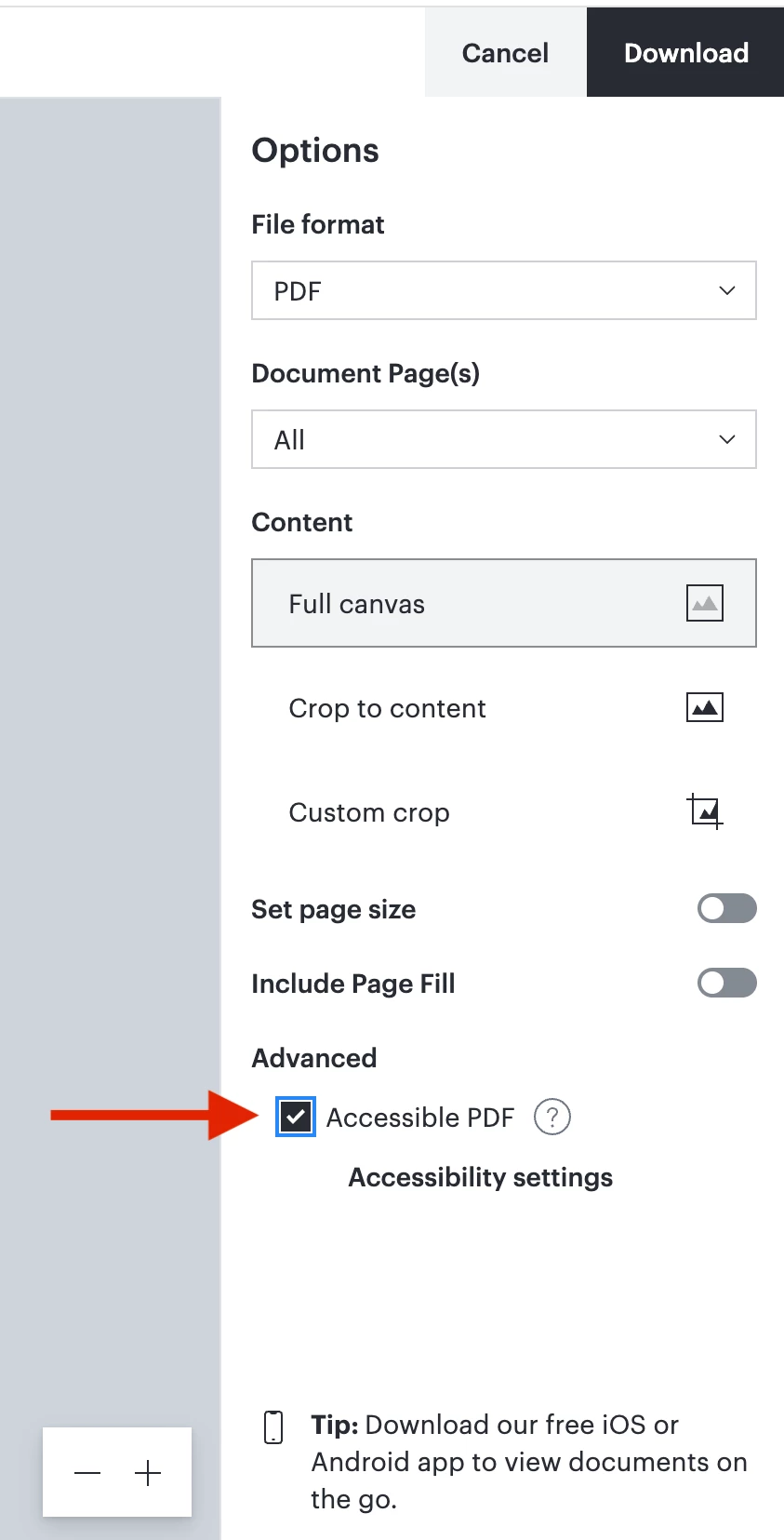
Under the export options, make sure to check/enable Accessible PDF. (Selecting "Accessible PDF" includes searchable text and structural elements like tags. When you click on the “Accessibility settings”, it will display all of your shapes and GoTo links, explicitly preserving and showing them in digital documents.)
Since browser extensions, cache, or network security proxies can interrupt or modify PDF downloads, please also try the following:
Export in Chrome Incognito: Open your document in an Incognito window with extensions disabled, then export. This eliminates cache or extension interference.
Switch Networks: Try exporting while connected to a different network (or off a corporate VPN/proxy if you are on one). High latency or security filters can cause export scripts to time out or strip internal links.
Test opening the exported PDF differently: Try opening the downloaded file through a different PDF viewer app, a dedicated desktop PDF viewer, or a different browser. Some internal web previewers or document management viewers flatten or strip navigation links when opening files.
Note: Since your post included a direct link to your document, I edited your comment to remove it and keep your document private and secure. Thanks for understanding!
A quick note on Support PINs: A Support PIN acts as a temporary, secure key tied to your account and document. It allows the Lucid technical support team to securely access and inspect your file backend without requiring public link sharing.
Please give the Accessible PDF export a try in an Incognito window and let me know how it goes! I'm happy to keep helping you troubleshoot.
Thanks for posting in the Lucid Community, and I sincerely apologize for the delay!
Just to make sure that we are on the same page, please review our Export Your Lucidchart Documents article from the Lucidchart Help Center. Let me know if you have any questions about how downloading/exporting your document should work.
Once you have reviewed this article, here are some specific things to check when exporting your document:
Try the export in a Chrome Incognito browsing session. This often improves performance by clearing your cache and cookies and disabling your extensions.
Sometimes issues like this can be related to internet connection speed or network security. Please try the export again on another network, ensuring that you are on a strong, stable connection.
Is the page that you are trying to export a Master Page? If so, it will be omitted from the downloaded version of your document and you will need to convert it into a page before exporting. To do this, left-click on your Master Page tab and select "Convert to Page".
If none of these tips help, would you mind sending me the following details so I can take a closer look at the issue?
A description of the download settings (file type, document pages, cropping, quality, etc.) that you selected for the download.
A screenshot of any error messages or pop-ups that appear when you attempt to export.
If the document will export but does not look as you expected, please send me the downloaded file and a description of what about it is incorrect, or a screenshot of the issue in the exported document.
A screenshot of the associated Javascript Console output. You can open your Javascript Console by pressing Ctrl + Shift + J (if your computer is a Windows / Linux) OR Cmd + Opt + J (if your computer is a Mac).
Feel free to let me know if you have any further questions. Thanks for your help and patience!
The problem I am having is one that is too pervasive to list. I have a 35 page LucidChart document I have worked on for over 2 years. I didn’t like the way “Goto: Shape” links worked in the past. But now they don’t work at all. The links in question are the result of selecting an object, right clicking, and selecting “copy link to selection”. Then I go to the place where I want to paste a link that will show where the referenced object in implemented. In the Lucid document, it just jumped to the target object. Last year, I tried a PDF export of my document and noted that when I would click on one of those “Goto: Chape” links, instead of jumping to the right place in the PDF file, it opened a browser and showed me a grainy image of the destination object. This was awkward to use, but it at least did SOMETHING. Now when I do this, the link in the PDF file does noting at all.
I am going to try that again, because the last time I sent you a lengthy reply I encountered “Something went wrong” and my post was lost. This is most annoying. I generated a support pin for a drawing in which I have demonstrated the problem, but my reply was lost. I don’t understand how the support PIN is associated with the file that I want you to see. Could you explain??
Here is what I posted before: The problem I am having is one that is too pervasive to list. I have a 35 page LucidChart document I have worked on for over 2 years. I didn’t like the way “Goto: Shape” links worked in the past. But now they don’t work at all. The links in question are the result of selecting an object, right clicking, and selecting “copy link to selection”. Then I go to the place where I want to paste a link that will show where the referenced object in implemented. In the Lucid document, it just jumped to the target object. Last year, I tried a PDF export of my document and noted that when I would click on one of those “Goto: Chape” links, instead of jumping to the right place in the PDF file, it opened a browser and showed me a grainy image of the destination object. This was awkward to use, but it at least did SOMETHING. Now when I do this, the link in the PDF file does nothing at all.
At one point I believe that you told me that I needed to convert the “Goto: Shape” links into embedded links. That seems really arbitrary and I have several problem with that. First off there are almost 300 of those links in this document and they all work perfectly in the LucidChart document. Embedded links are too large, make the drawing insufferably cluttered, and will take me more time than I have available to myself in order to change them all.
I would like to upload the PDF file I generated from this, but I can’t figure out how to do that. I suppose you can export it yourself. I basically turned every possible feature on when I exported it after trying this a few dozen times just to see if something would shake loose and start working. Nothing helped.
I am willing to consider an embedded link, but ONLY if the link can be made small enough to not clutter the page up to the point of unreadability. I am also most frustrated and annoyed by you even suggesting that I have to use a different type of link. That deficiency of the Goto: Shape link should have been spelled out explicitly. There should have been some sort of warning. To go down that path, I will have to hire an intern to go through the whole document and make the changes, even if a suitable type of alternative link change can be suggested. I just don’t have the bandwidth to add that to my already overloaded to-do list.
I have also used the Claude AI not for several full workdays to try an craft a workaround for this. I thought our workaround would be relatively easy: Find all the links in the PDF file, byt serchign for “Goto: Shape” and search upstream for recognizable text ending in “()” that is the name of a subroutine to search for in the PDF document and just edit a PDF goto in the file to get to that subroutine. That worked for a small example exported document, but when I tried it with the full 35 page state diagram, the method failed miserably.
This is an urgent matter that I have no choice but to solve, so your assistance and cooperation would be greatly appreciated. Here is the support PIN: iu72yLiczcn3i9ypaI9p146z8UIITgEu4v1097805
Thank you for your detailed response and for providing the link to your document! I was able to open it, export it to PDF, and test the "GoTo: Shape" links on my end.
When I exported the document, all of the links worked properly and navigated directly to the target shapes. The good news is that your links are completely intact, so you shouldn't need to manually convert them or re-architect your document!
Since the export is working on my end, this is most likely a browser, network, or performance-related rendering issue during the export process (especially given the size of this multi-page document).
To ensure your exported PDF includes all structural link data, please follow these exact export steps:
Click the Menu icon > Export > PDF.
Under the export options, make sure to check/enable Accessible PDF. (Selecting "Accessible PDF" includes searchable text and structural elements like tags. When you click on the “Accessibility settings”, it will display all of your shapes and GoTo links, explicitly preserving and showing them in digital documents.)
Since browser extensions, cache, or network security proxies can interrupt or modify PDF downloads, please also try the following:
Export in Chrome Incognito: Open your document in an Incognito window with extensions disabled, then export. This eliminates cache or extension interference.
Switch Networks: Try exporting while connected to a different network (or off a corporate VPN/proxy if you are on one). High latency or security filters can cause export scripts to time out or strip internal links.
Test opening the exported PDF differently: Try opening the downloaded file through a different PDF viewer app, a dedicated desktop PDF viewer, or a different browser. Some internal web previewers or document management viewers flatten or strip navigation links when opening files.
Note: Since your post included a direct link to your document, I edited your comment to remove it and keep your document private and secure. Thanks for understanding!
A quick note on Support PINs: A Support PIN acts as a temporary, secure key tied to your account and document. It allows the Lucid technical support team to securely access and inspect your file backend without requiring public link sharing.
Please give the Accessible PDF export a try in an Incognito window and let me know how it goes! I'm happy to keep helping you troubleshoot.
Thank you, Alison. I appreciate your thoughtful response. I will try your Chrome/incognito method, but I am very interested in a different approach. My late response to you is due to time spent trying to implement the workaround I will describe below:
There are actually two problems with the link methods used in your PDF export that I would like to eliminate. These problems do not go away if your suggestion about incognito Chrome windows, etc. actually works.
OneDrive access for every link traversal is required. This is a potential licensing issue, and the speed of access for each link traversal is painfully slow.
Maintaining version consistency between LucidChart’s external links and the data to which they point is problematic.
Our problem is related to both external and internal links. Your version of external links works from the git-go with PDF exports, but it is still slow and has license issues. I will explain all this from the vantage of both shape links and external links.
Our Python script was a smashing success for external links. My document has hundreds of external links to PowerPoint slides. In order to use these links directly, the reader will need to have access to our OneDrive domain (because that is the connection used natively in the LucidChart doc).
These external links require that the PPTx slides cannot be copied to a new file without breaking the link, so every time the slide deck is changed, it breaks the connection between older versions of the design and the way that slide deck looked at the time that version was frozen.
Since these slides may have been moved, deleted, replaced, etc., when going from one version to the next, many links will break going from one revision of the design to the next.
Our external link method completely solves this problem, because every time a slide is referenced, it is appended to the end of the PDF file, with a got aimed at the appended slide. The result is that the travel time along that link is virtually instantaneous; (Sharepoint links are sluggish). Additionally, each new version has an unchangeable copy of the slides as they existed at the time of export IN THE PDF FILE. This is an enormous advantage.
OK, so external links are fixed!
Now, let’s talk about internal GoTo: Shape links -- referred to as “shape links” hereafter. Even if I can get the default shape links to work, we would still require that readers of the pdf file to have access to our OneDrive domain in order to traverse the links, which is not a given. These links are also slow to resolve. We want a method that converts the shape links into simple goto commands inside the PDF file. This also provides an alt-leftarrow return function, which is sadly missing from LucidChart.
So when we continued with the fix, we thought traversing shape links would be simple. But the problem is that we CAN find the shape links, but we cannot figure how to reliably find the leader line that is attached to the shape link. If we could solve that one issue, we would have a complete solution and a MUCH better PDF export that does not rely on access to OneDrive.
We have solved most of the link references by using a VERY clumsy method that only works maybe 75% of the time:
Since we cannot figure out how to identify the unique leader line that leads to a given shape link, here is what we tried to do:
By doing a depth first search (in terms of pixel-distance) for a function name (which ends in “()”) from the bounding rectangle of the shape link, we could find the reference string associated with that link and use it to search for the target location. PDF has a jump feature native to its file format we then use. This strategy got us a significant success rate. It dropped our error count from 273 errors to about 80. By doing some hand grooming afterward I can get this down to about 28. It’s an improvement, but it is not good enough.
If anyone knows how to find (in the PDF file’s xml encoding) the dotted, straight line that is attached to a given GoTo: Shape link, PLEASE explain so we can finish this effort. It will make our PDF files extremely powerful high-level design documentation, easily navigable through long, complex calling sequences.
Alternatively, if there is some OTHER linkage mechanism, discoverable in the PDF code, that would facilitate this level of navigation, learning about that would also be very interesting.
Incidentally, if I can get this key to the final solution, I will be happy to share this Python script and the sequence of steps required to post-process the PDF file to achieve a Sharepoint-free PDF export method with the community and as a tool for LucidChart to offer.
I tried your suggestion. Used a Chrome incognito window and exported a relatively small file with lots of external links and GoTo: Shape links. I did select accesible PDF.
The result was that all the external links worked, but the GoTo: Shape links do nothing at all when touched.
Active links turn my mouse cursor into a pointing finger. The shape links do not do that. Are you certain you got the GoTo: Shape links to work? This makes no sense to me.
Good news: even though I could not get the shape links to work by using the “accessible PDF” option you suggested, we took a look at the internal structure of the PDF file and it looks like it has all the correct information embedded in it for us to “connect the dots” in finding shape links and what the links connect.
We may be out of the woods with that modification of our export protocol.
A Lucid or airfocus account is required to interact with the Community, and your participation is subject to the
Supplemental Lucid Community Terms.
You may not participate in the Community if you are under 18. You will be redirected to the Lucid or airfocus app to log in.
A Lucid or airfocus account is required to interact with the Community, and your participation is subject to the
Supplemental Lucid Community Terms.
You may not participate in the Community if you are under 18. You will be redirected to the Lucid or airfocus app to log in.



 Your privacy choices


