Question

Export Lucidspark frame without empty space

  • June 18, 2026
  • 1 reply
  • 27 views

Forum|alt.badge.img

Hey,

I created Lucidspark Board with different frames. 
I would like to export one frame to print this frame.
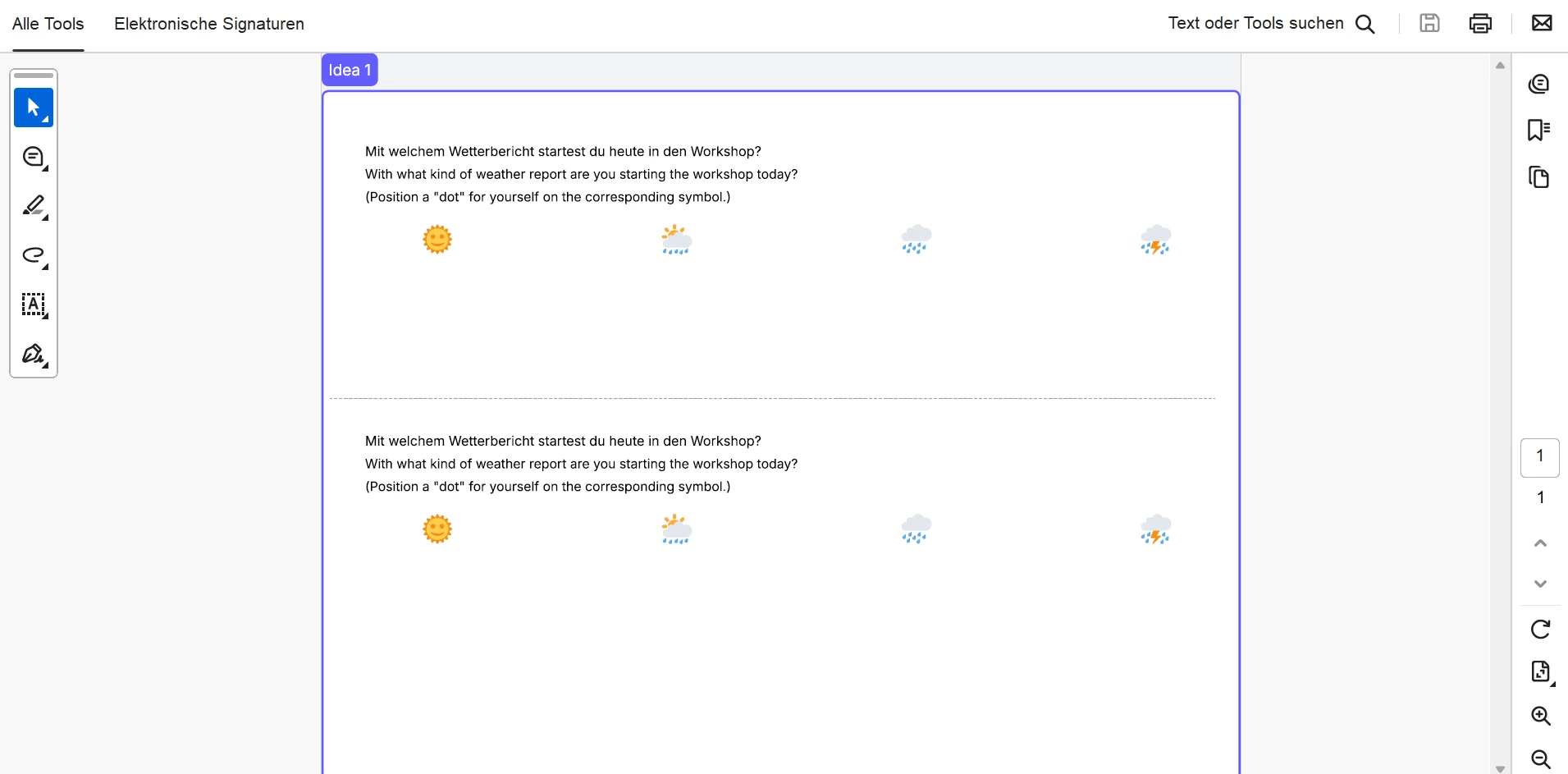
But no matter which method I use, I either end up with the frame in the export, or I get a colored background (which doesn't exist on my frame and which I don't want).

Here is my frame
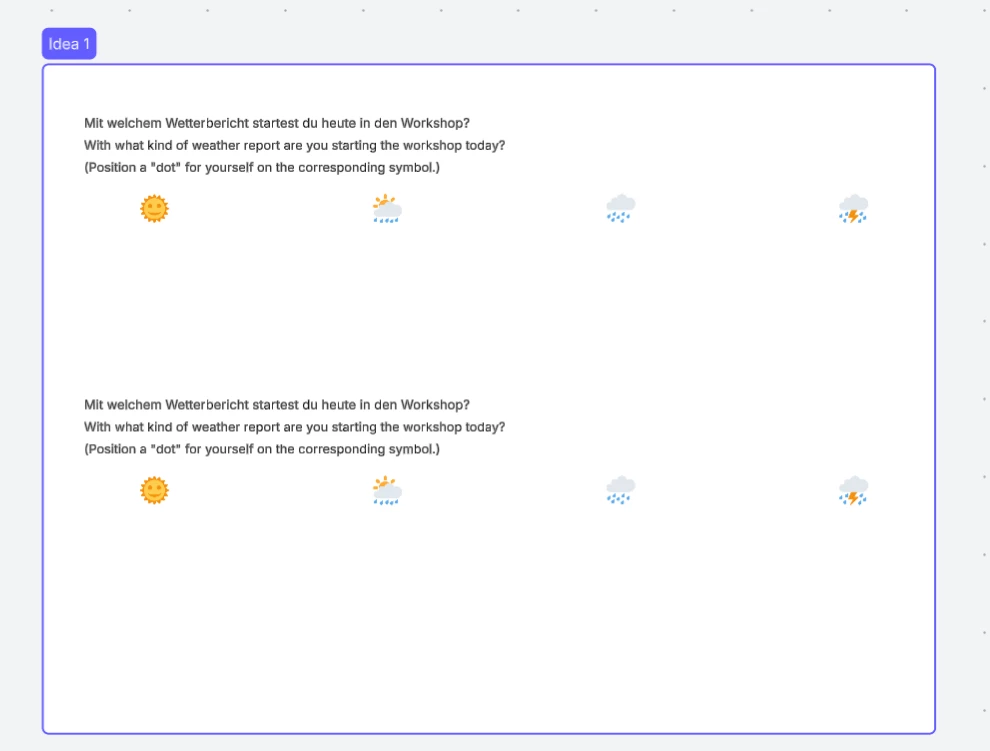

I tested Export Frame → PDF
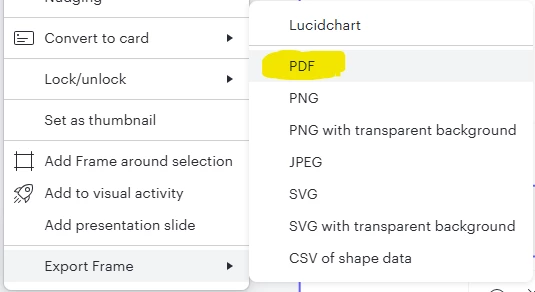


This ist the Result:


I tried to just mark specific elements
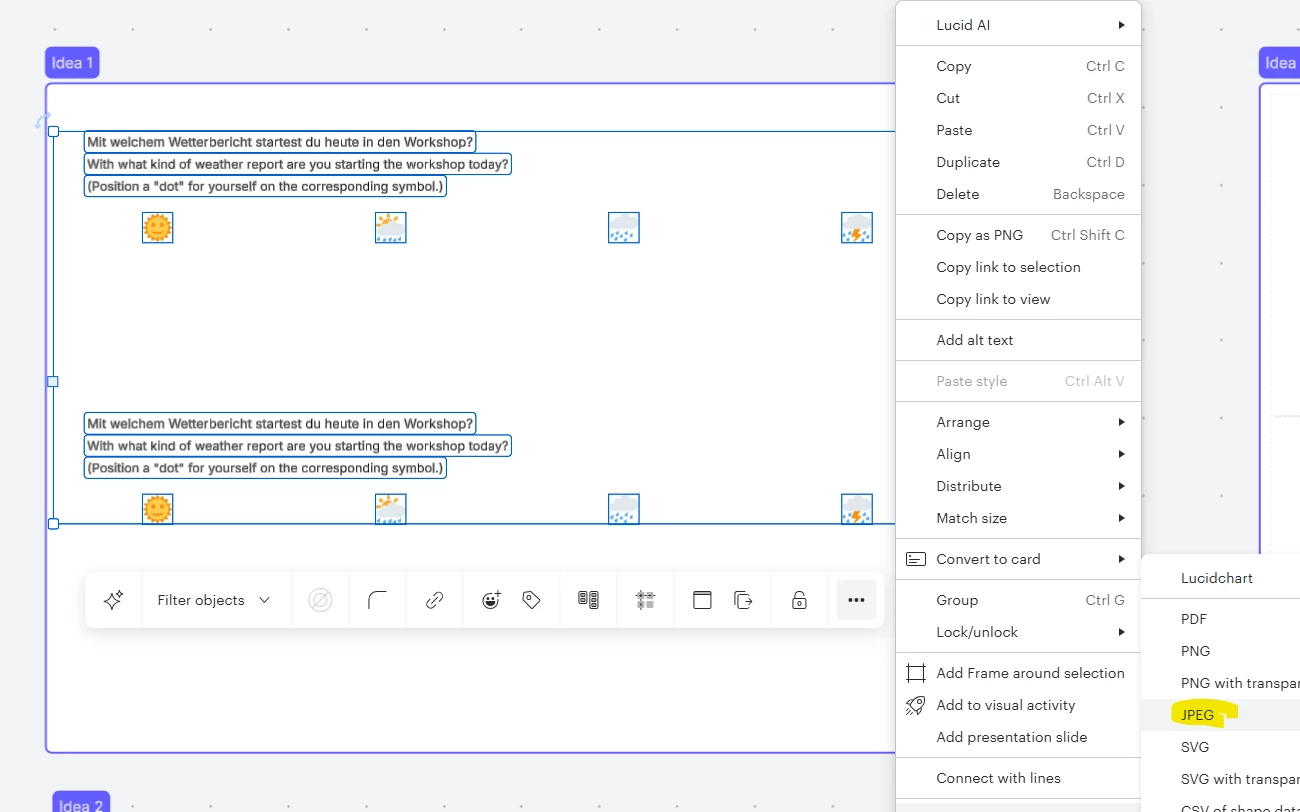


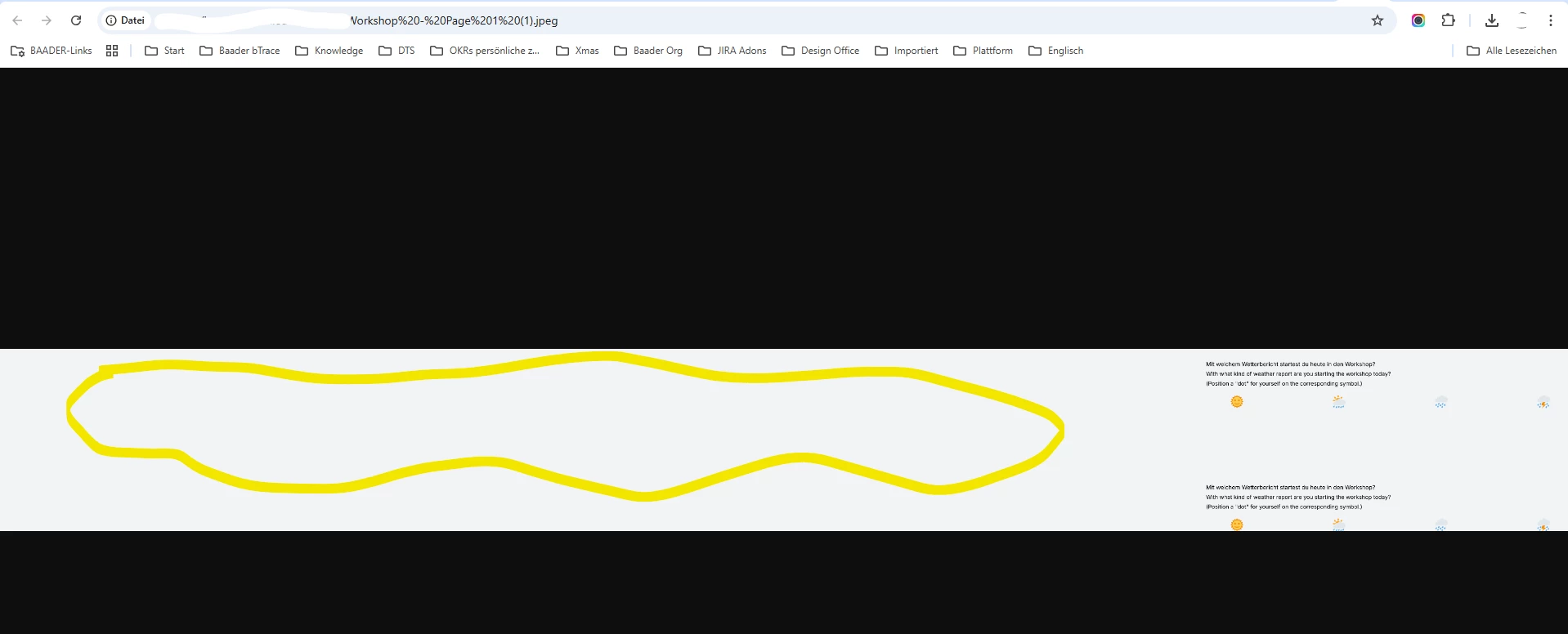
But this was the result:
​​​​​​​

A lot of empty space on the left side


Or I tried to export the selected elements to a PDF and this happened → grey background
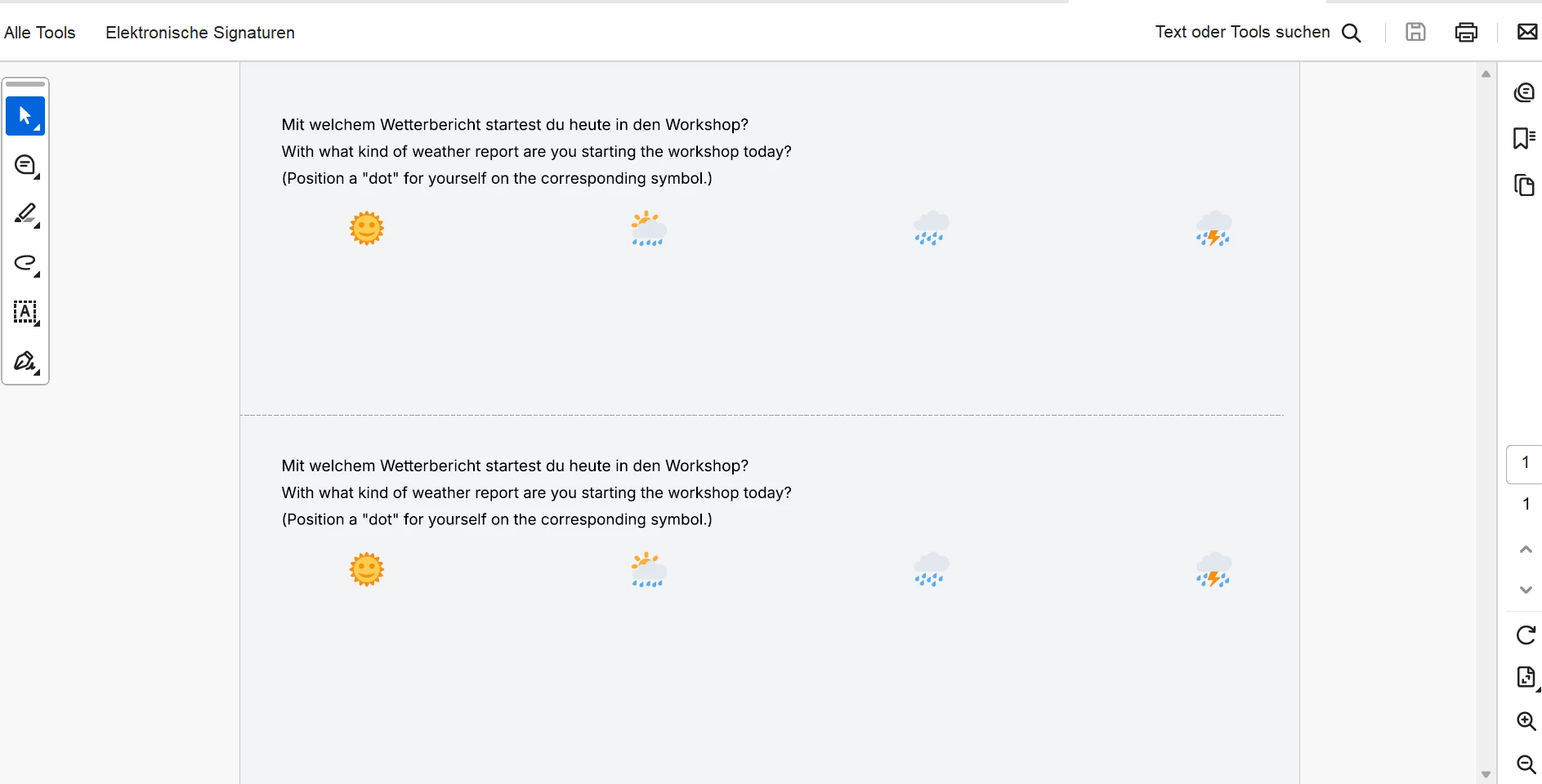


I want to have an easy possibility to print my frames without a frame box or with a colored backround, which is not existing.

​​​​​​​What do I have to do?

Comments

Ambar D
Forum|alt.badge.img+12
  • Lucid community team
  • June 23, 2026

Hi ​@katrin.lange, thank you for posting in the Lucid Community! My apologies for the delay here.

I suggest going through the normal flow of export instead of selecting export frame specifically. From the export menu, I suggest customizing your download settings and selecting the Custom Crop option.

You can follow these steps:

  1. Navigate to the hamburger menu icon
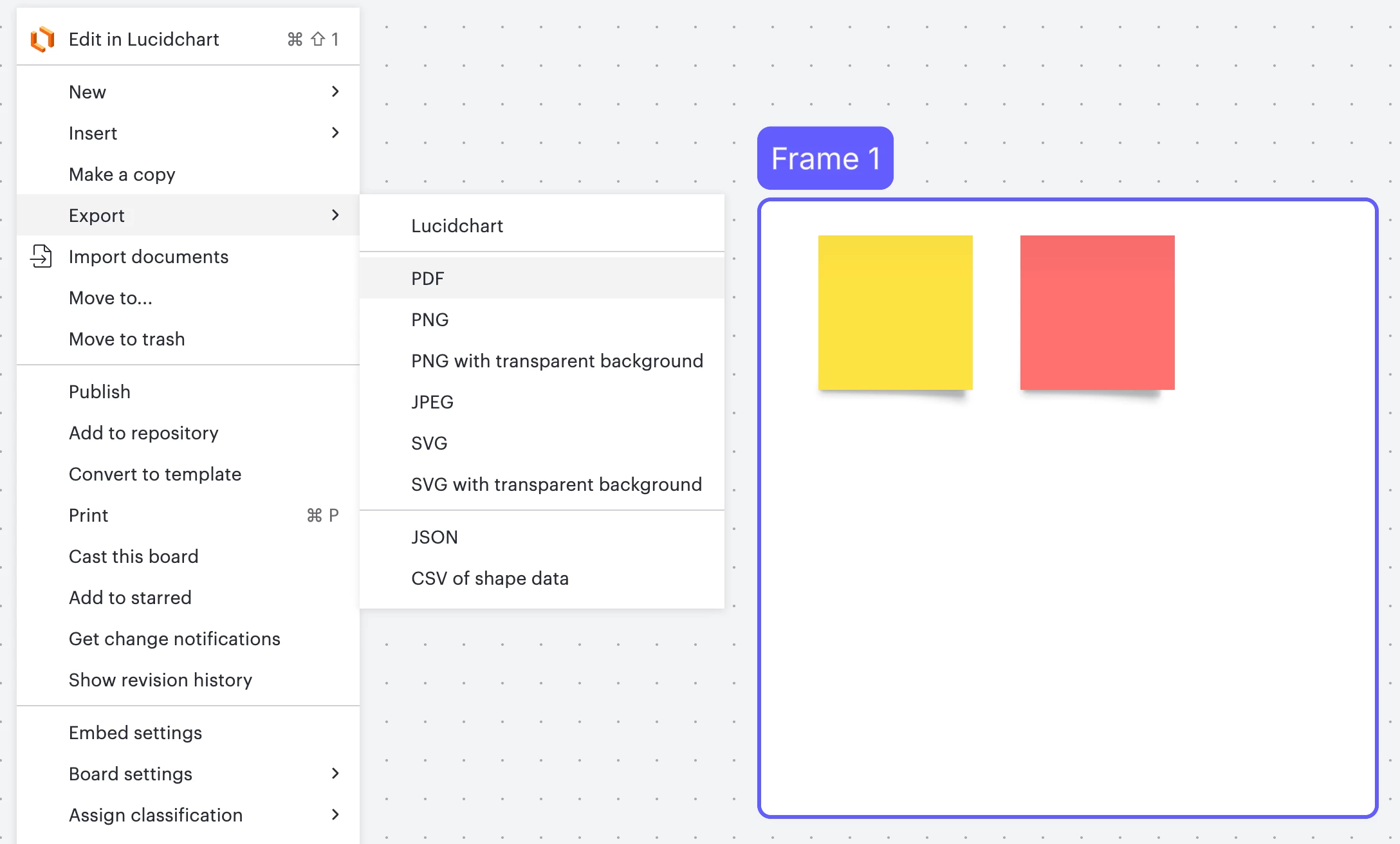
  2. Select Export
  3. Select your preferred file type (PDF or PNG, for example)
  4. The download/export menu will appear
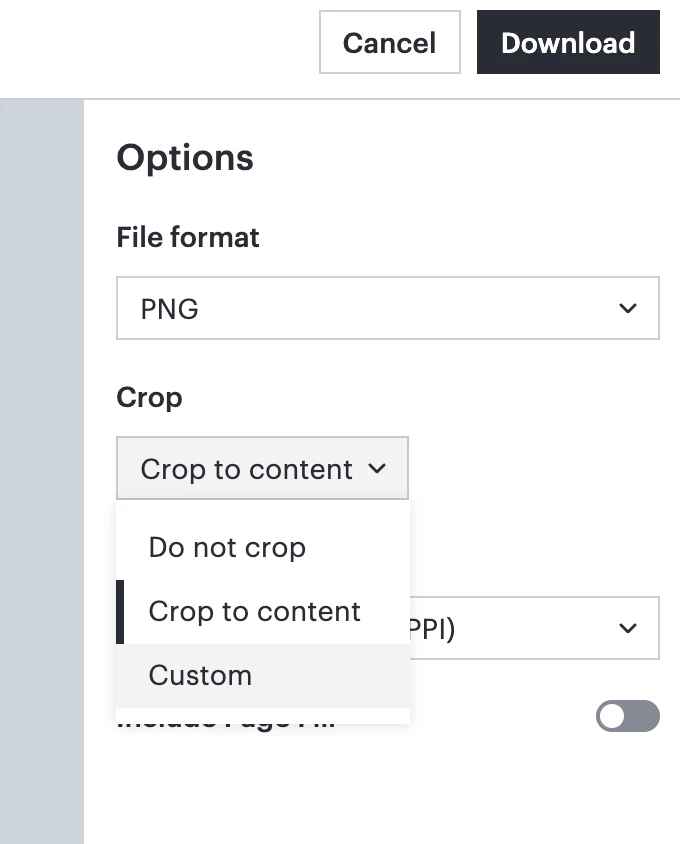
  5. Select Custom Crop or Custom, whichever option is displayed for your file type.
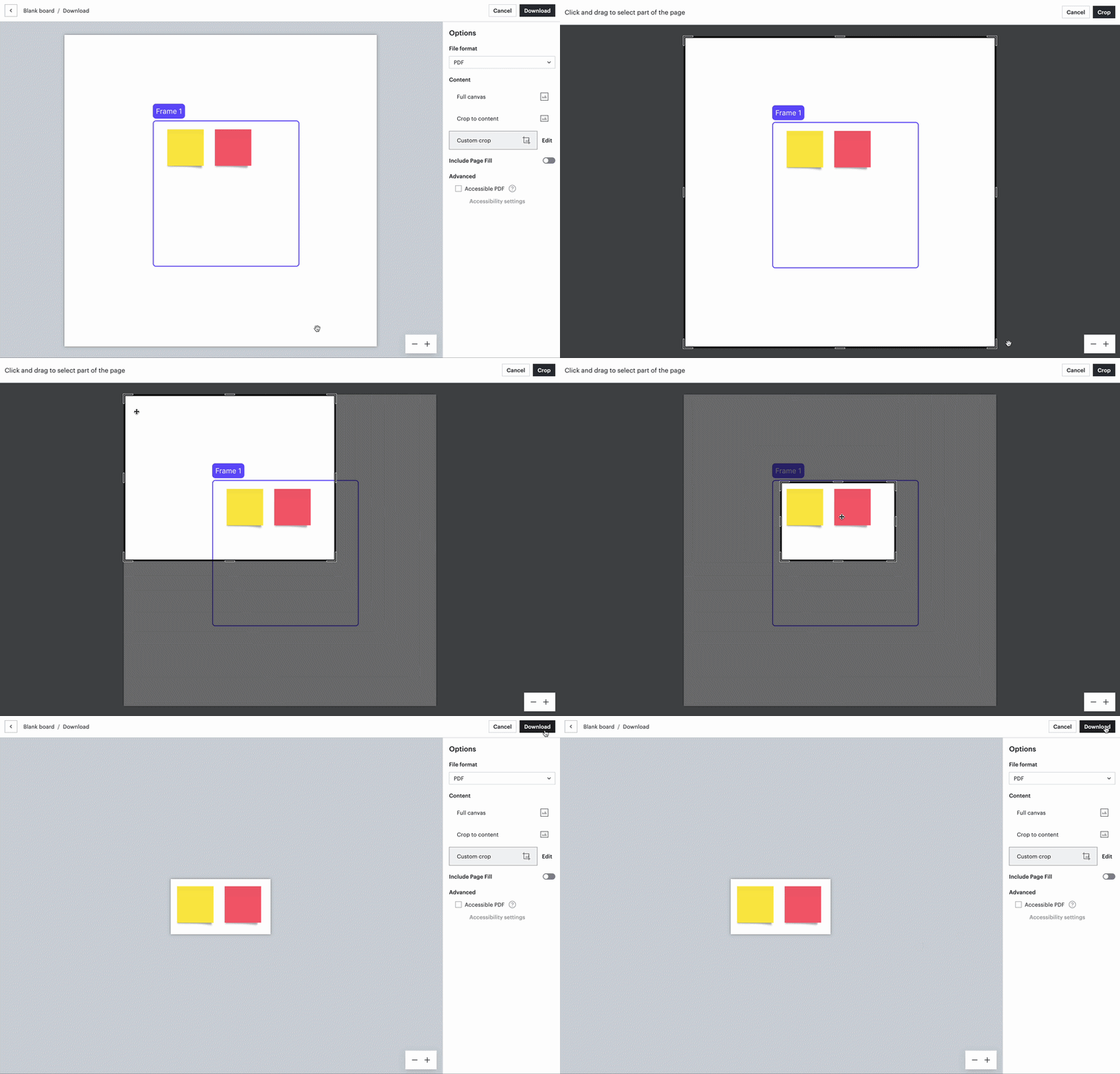
  6. Crop down to include the portion of your document that you’d like to export. Select Crop.
  7. Select Download.
Navigate to export from within Lucidspark


Custom cropping a PDF in the export/download menu
Custom cropping setting for PNG file format


From the steps shown above in my example, here is my exported file as a PNG- 

I hope this helps! Please let me know if you have any additional questions.