I was hoping to get some support on setting up and excel/ lucid integration.
Basically I would like to update one file, that will have multiple months of historic reporting structure. I have “Data Month” date column i would like to use to filter between different months with the hope to refresh the names and connections within the org structure and not force a complete reset of the diagram structure (conditional formatting or features currently in place).
Thank you for posting in the Lucid Community! There are a few things to keep in mind about how Lucidchart handles data refreshes with multi-month data in one sheet. Since Lucidchart's org chart tool relies on unique IDs (like Employee ID and Supervisor ID) to build reporting lines, a running log of historical data can sometimes confuse the auto-build. Here's how to work around it while keeping your formatting intact:
1. Set up your Excel file so filtering is easy
The key is giving Lucidchart a clean, single-month view to pull from — two ways to do that:
Option A (Separate tabs — simplest approach): Give each month its own tab (e.g., "Jan 2026", "Feb 2026") so it's always clear which data is which
Option B (Dynamic filter table): Keep a master table with a "Data Month" column, then add an "Active Report" sheet using Excel's FILTER formula or a Pivot Table to pull just the month you need
Once your file is set up, use Lucid's Data Linking feature to connect it to your org chart.
2. Link your data to Lucidchart
Save your workbook to OneDrive or SharePoint. If you upload a static local file, you will have to replace it every time instead of just refreshing. Point your org chart to the active tab or filtered sheet.
3. Switch months without losing your formatting
Update your Excel file so the active tab/filter reflects the new month
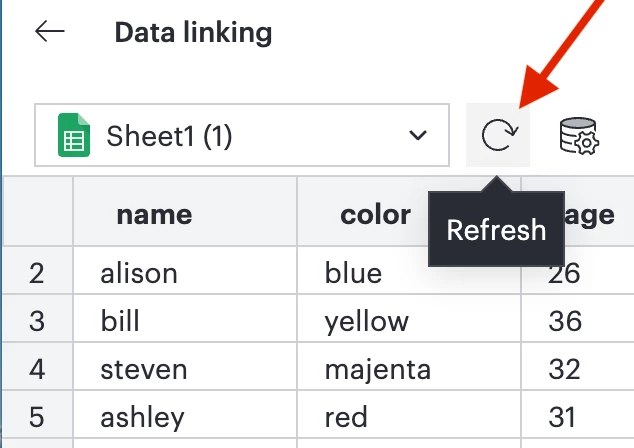
In Lucidchart, click your org chart and hit Refresh Dataset. Please see screenshot below andmore details can be found here.
If you set one page up perfectly, duplicate it, then swap the data source on the copy — Lucidchart doesn't bulk-copy conditional formatting across pages, so this is the cleanest workaround!
Let me know if you run into any snags — happy to help further!
Thank you for posting in the Lucid Community! There are a few things to keep in mind about how Lucidchart handles data refreshes with multi-month data in one sheet. Since Lucidchart's org chart tool relies on unique IDs (like Employee ID and Supervisor ID) to build reporting lines, a running log of historical data can sometimes confuse the auto-build. Here's how to work around it while keeping your formatting intact:
1. Set up your Excel file so filtering is easy
The key is giving Lucidchart a clean, single-month view to pull from — two ways to do that:
Option A (Separate tabs — simplest approach): Give each month its own tab (e.g., "Jan 2026", "Feb 2026") so it's always clear which data is which
Option B (Dynamic filter table): Keep a master table with a "Data Month" column, then add an "Active Report" sheet using Excel's FILTER formula or a Pivot Table to pull just the month you need
Once your file is set up, use Lucid's Data Linking feature to connect it to your org chart.
2. Link your data to Lucidchart
Save your workbook to OneDrive or SharePoint. If you upload a static local file, you will have to replace it every time instead of just refreshing. Point your org chart to the active tab or filtered sheet.
3. Switch months without losing your formatting
Update your Excel file so the active tab/filter reflects the new month
In Lucidchart, click your org chart and hit Refresh Dataset. Please see screenshot below andmore details can be found here.
If you set one page up perfectly, duplicate it, then swap the data source on the copy — Lucidchart doesn't bulk-copy conditional formatting across pages, so this is the cleanest workaround!
Let me know if you run into any snags — happy to help further!
A Lucid or airfocus account is required to interact with the Community, and your participation is subject to the
Supplemental Lucid Community Terms.
You may not participate in the Community if you are under 18. You will be redirected to the Lucid or airfocus app to log in.
A Lucid or airfocus account is required to interact with the Community, and your participation is subject to the
Supplemental Lucid Community Terms.
You may not participate in the Community if you are under 18. You will be redirected to the Lucid or airfocus app to log in.


 Your privacy choices


