Answer

Change row background color

  • February 25, 2025
  • 10 replies
  • 106 views

Forum|alt.badge.img+1

I’m using Implementation Plan template, and would like to change the background of each row. How can I do that?

Best answer by Kelsey Gaag

Hi ​@ftanu

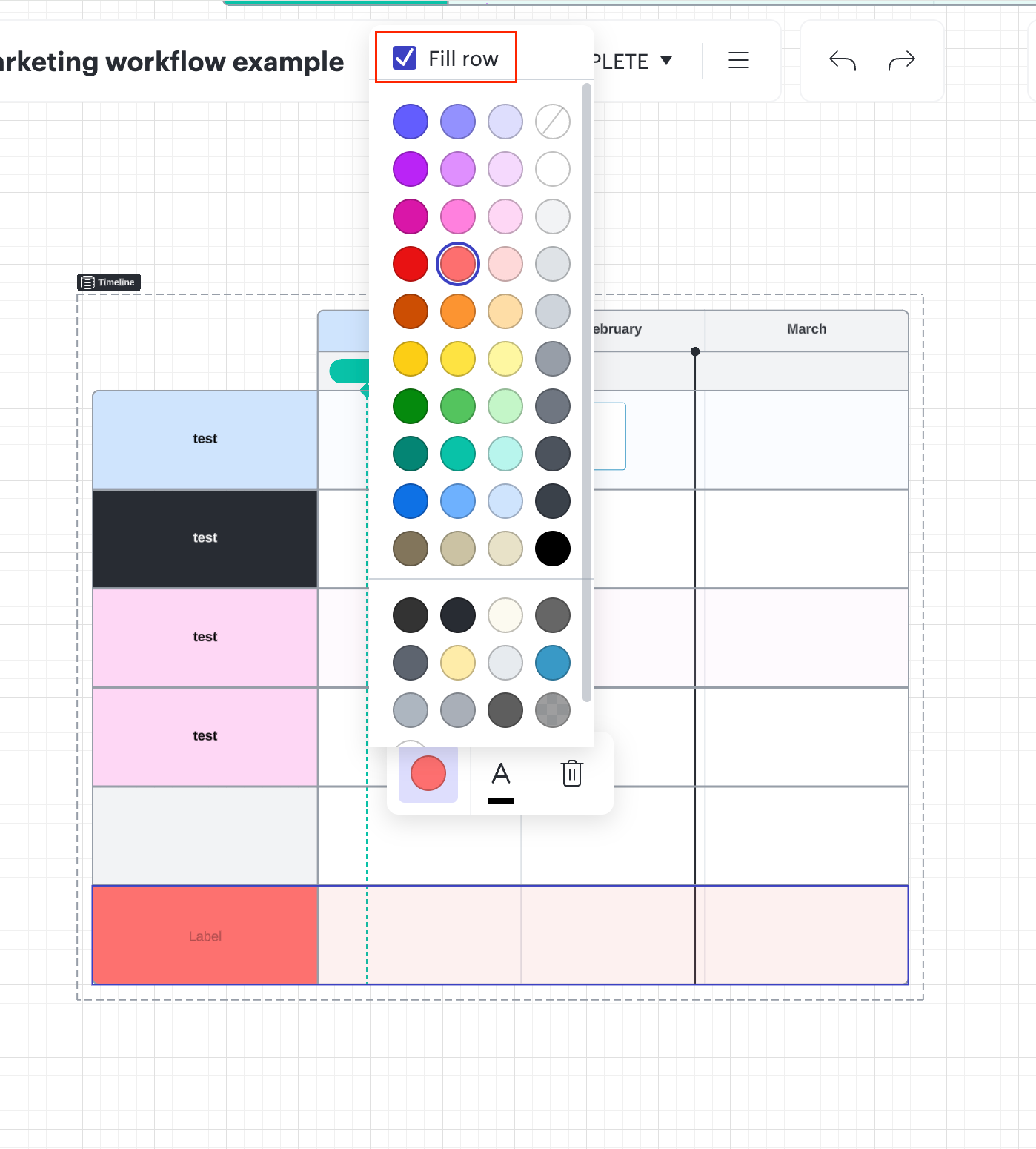
You can accomplish this by clicking on the row, and when the color menu is open, select fill row!


Comments

Humas1985
Lucid Legend Level 10
Forum|alt.badge.img+24
  • Lucid Legend Level 10
  • February 25, 2025

Hi ​@ftanu 

In the Lucidspark, as shown below:


In the Lucidchart with the below shown option from the tool bar:


Hope this helps - Happy to help further!!
Thank you very much and have a great one!
Warm regards


Forum|alt.badge.img+1
  • Author
  • February 25, 2025

Hi ​@Humas1985 

Please see the screenshot below, the Tester row has white background and I don’t find option to change the color of the row background. Double tap on the row header show the option, as shown in the screenshot. Double tap on the row body, will add the Lucid Card.

The default row “Planning”, “Designing”, “Developing”, which comes from the template suggest that changing background color row is possible.


Humas1985
Lucid Legend Level 10
Forum|alt.badge.img+24
  • Lucid Legend Level 10
  • February 25, 2025

Hi ​@ftanu 

Thank you for sharing your observation. To clarify, for this specific template:

Double-tapping on the row body allows you to add cards.
The background color can only be changed within those added cards, not for the template's predefined rows themselves, as they are designed to be fixed and non-editable.

Hope this helps !!


Forum|alt.badge.img+1
  • Author
  • February 25, 2025

Hi ​@Humas1985 

How to change the background color for the new added row? which currently defaulted to white.


Humas1985
Lucid Legend Level 10
Forum|alt.badge.img+24
  • Lucid Legend Level 10
  • February 26, 2025

Hi ​@ftanu 

Can you try adding 2-3 rows and confirm the background color for the new added rows and if possible, a screen shot for reference, as the template is operating on a Banded Rows format by default.

Best Regards


Forum|alt.badge.img+1
  • Author
  • February 26, 2025

Hi ​@Humas1985 

here you go


Humas1985
Lucid Legend Level 10
Forum|alt.badge.img+24
  • Lucid Legend Level 10
  • February 26, 2025

Thanks ​@ftanu for the update - this helps, will get back to you on this, shortly.


Kelsey Gaag
Forum|alt.badge.img+16
  • Lucidite
  • Answer
  • February 27, 2025

Hi ​@ftanu

You can accomplish this by clicking on the row, and when the color menu is open, select fill row!


Forum|alt.badge.img+1
  • Author
  • March 3, 2025

@Kelsey Gaag that works perfectly! thanks so much!

@Humas1985 thank you for looking into this! 


Kelsey Gaag
Forum|alt.badge.img+16
  • Lucidite
  • March 4, 2025

Of course ​@ftanu! Please let us know if you have any other questions!