Solved

Cannot change Lucidspark card fill color

  • July 8, 2026
  • 7 replies
  • 160 views

Forum|alt.badge.img+2
Right behaviour - I can change background colour :)


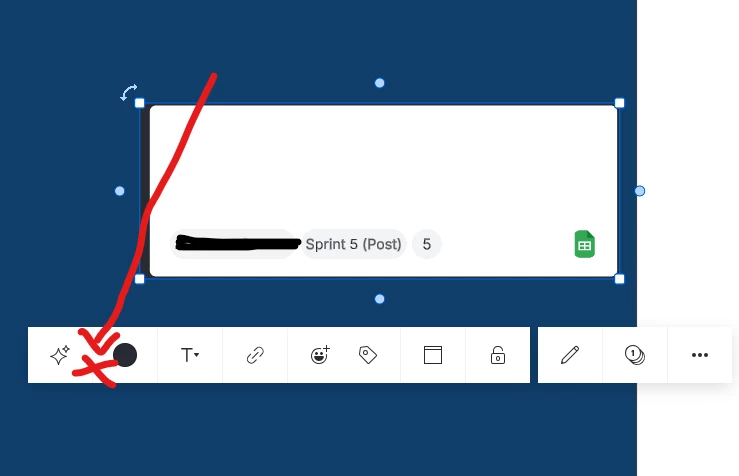
What I usually get - no way! :(

Hi All, this on really drives my crazy. I create a card but cannot change it’s background colour, only the border. For some time I thought it depends on how the card is selected. When I select it just by a mouseclick I can’t change background, when I do Ctrl-LM - I can. But it’s not like this. The button to choose background color is just not available for some cards. In desperation I even burned some AI tokens to on prompts like “change the background color of selected cards”. Can you please recommed a simpler solution? 

Best answer by Leszek Olszanski

Hi Humas it is difficult for me to say now the origins of all the lucid cards on my board. Majority of them was either imported from the spreadsheet or created by the “Add row” button to be synced with the spreadsheet. 

But wait it seems I figuret it out. To be able to change the card’s background color I need to perform such a sequence. 1. Click the dark blue shape behind the card. 2. Press Ctrl. 3. Click the card whils holding down Ctrl. 


When I miss step 1 or 2, i.e. my last click before holding Ctrl is on somethin else, e.g. the white area to the right, then the background color option is not available - see below. Actually it seems it is a whole different menu bar that opens in both cases. I have no idea why it works, but  it works. Thanks!


Comments

Humas1985
Lucid Legend Level 10
Forum|alt.badge.img+24
  • Lucid Legend Level 10
  • July 8, 2026

Hi ​@Leszek Olszanski 

If the object is a text box, it is expected that you cannot change its background/fill color—only certain formatting options are available.

  • Instead, Lucid recommends using a Block shape, which supports both fill (background) color and border formatting while still allowing you to type text directly inside it/

The cards that don't work are another object type that doesn't expose the Fill Color option

To learn more Change fill color of a shape in Lucid | Community

Hope this helps !!


Forum|alt.badge.img+2

OK, cool, thanks.


But let me clarify. I need to have my cards synced with GSheet (you see the spreadsheet icon?) and have these many fancy fields for title, description, estimate, etc.. So how can I create a new card that is synced with a spreadsheet and allows me to change color? When I use the “add row” function which creates a card synced with a spreadsheet, I have no influence on whether it is going to be a block or text box.


Romaric BONNY
Lucid Legend Level 1
Forum|alt.badge.img+1
  • Lucid Legend Level 1
  • July 8, 2026

Hello,

Did you see the “Fill color” tick box ? 

When it was selected, you change the background of the card, when it’s not selected, it’s the outline.

I think it’s an update on the new version.


Humas1985
Lucid Legend Level 10
Forum|alt.badge.img+24
  • Lucid Legend Level 10
  • July 8, 2026

Hi ​@Leszek Olszanski 

Just to confirm, are both of the cards in your screenshots created via the same Google Sheets "Add row" workflow, or was the orange card created differently (for example, by duplicating an existing card or inserting it from a shape library)? That would help determine whether this is expected behavior.

Thanks


Forum|alt.badge.img+2

Hi Humas it is difficult for me to say now the origins of all the lucid cards on my board. Majority of them was either imported from the spreadsheet or created by the “Add row” button to be synced with the spreadsheet. 

But wait it seems I figuret it out. To be able to change the card’s background color I need to perform such a sequence. 1. Click the dark blue shape behind the card. 2. Press Ctrl. 3. Click the card whils holding down Ctrl. 


When I miss step 1 or 2, i.e. my last click before holding Ctrl is on somethin else, e.g. the white area to the right, then the background color option is not available - see below. Actually it seems it is a whole different menu bar that opens in both cases. I have no idea why it works, but  it works. Thanks!


Humas1985
Lucid Legend Level 10
Forum|alt.badge.img+24
  • Lucid Legend Level 10
  • July 9, 2026

Hi ​@Leszek Olszanski 

Good to know it is working and mostly the steps you list are valid to get them going 

Thanks for sharing and it is going to holp for others.


alison cheney
Forum|alt.badge.img+4
  • Lucid community team
  • July 10, 2026

Hi ​@Leszek Olszanski,

Thank you for sharing in the Lucid Community and it looks like you found a workaround and are able to change the fill color of your Lucid cards. Please let us know if you have any additional questions and thank you ​@Humas1985 and ​@Romaric BONNY for your amazing support here!

From your screenshots, it looks like you’re using the shortcut/quick tools bar that comes up when you click on your Lucid card. I’m curious if you are able to change the fill color of your Lucid card from the formatting bar at the top of your Lucid document? (see screenshot below) 


For anyone who has questions about Lucid Cards or changing the fill color on shapes, check out the Lucid Help Center articles below!