Question

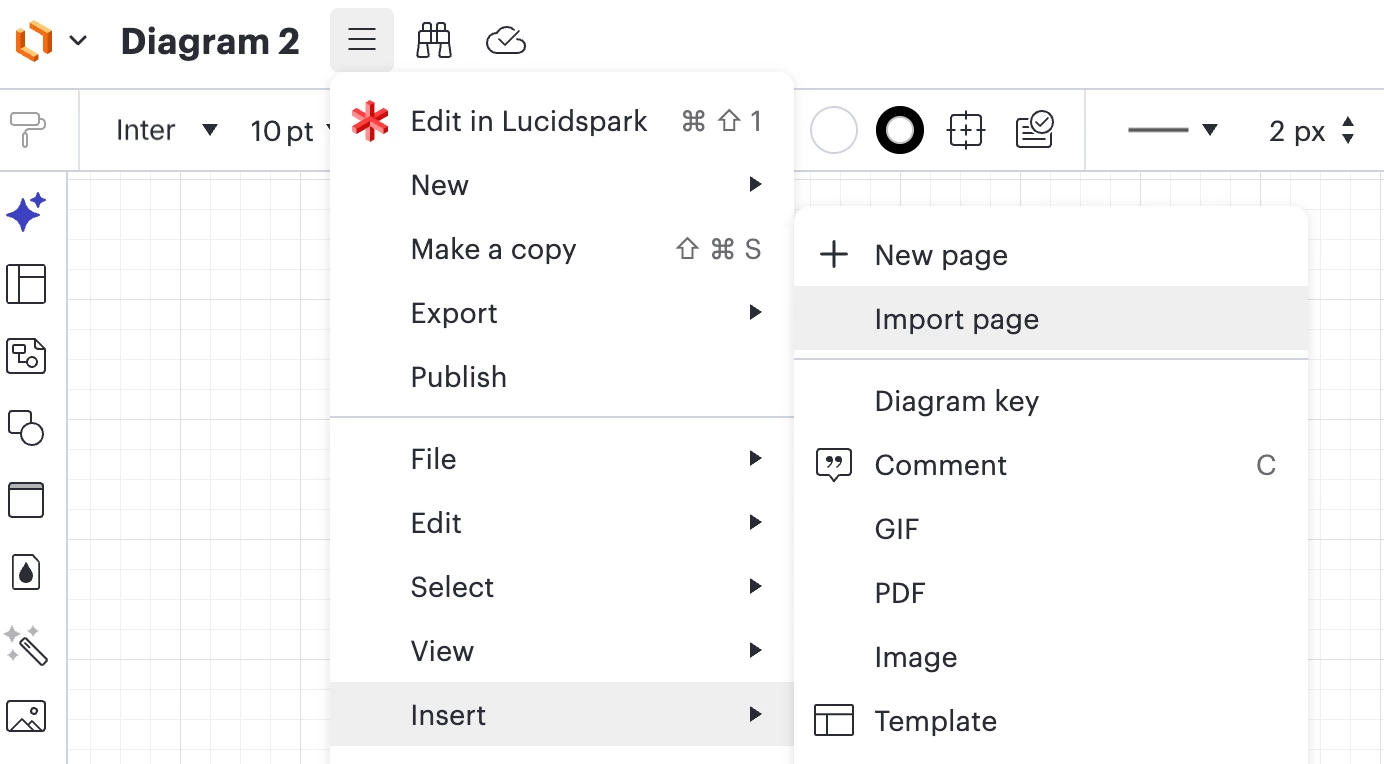
Bug in Insert-> Import page menu

  • May 5, 2026
  • 1 reply
  • 6 views

Forum|alt.badge.img

I wish to transfer a lucidchart document i worked on to another project, so that instead of being independant, it becomes just another page of the newer bigger project.\

I naively tried coppying it after selecting all the element in the open canvas, and noticed that there was a problem of missing connectors on the pasted canvas.

After some digging i discovered the correct way to do it was to use the menu with  Insert-> Import page and select my original document. However the end result is still missing some connections (certain tables get totally disconnected)

Comments

Ambar D
Forum|alt.badge.img+12
  • Lucid community team
  • May 6, 2026

Hi ​@Candid-user, thank you for posting in the Lucid Community!

Great find, you’re right that you can import a page from one Lucidchart document to another. 

In your case, if you have your work saved in both spots still, I recommend navigating to your newer bigger project Lucid board (if that’s where you’d like to house the work). From there, follow the instructions below to import your work from the other independent Lucid board. This should allow you to import your work from the independent board >>> to the larger project board.


You can follow these below to do so. Would you mind trying this and letting me know if this is what you’re hoping for? 

  1. Open to the Lucidchart document that you’d like to import into. 
  2. In the Lucidchart document, open more-menu-icon the menu from the top-left of the canvas.
  3. Hover your cursor over “Insert”.
  4. Click Import Page.
  5. Choose the document you want to import. If the document contains multiple pages, use the arrows in the preview window to navigate to the page you want to import.
  6. Click Select.
  7. Your work will be imported into a new tab.  
Menu > Insert > Import page